

Nvidia Shield Running Slow? Here's How To Speed It Up
We may receive a commission on purchases made from links.
It's not unreasonable to feel that your Nvidia Shield may be running slow at times. It's an Android device that can run thousands of different apps, and not all those apps run perfectly. Some may experience memory leaks, and the more apps you use, the more of the Shield's memory is used, to the point that you can run low, making things feel sluggish. While these aren't the only culprits for a laggy UI, issues like thermal throttling, low storage, too many background processes, and animations can really drag down the experience despite the fact that the hardware itself is capable, just in case you were wondering whether the Nvidia Shield TV Pro is still worth buying in 2026.
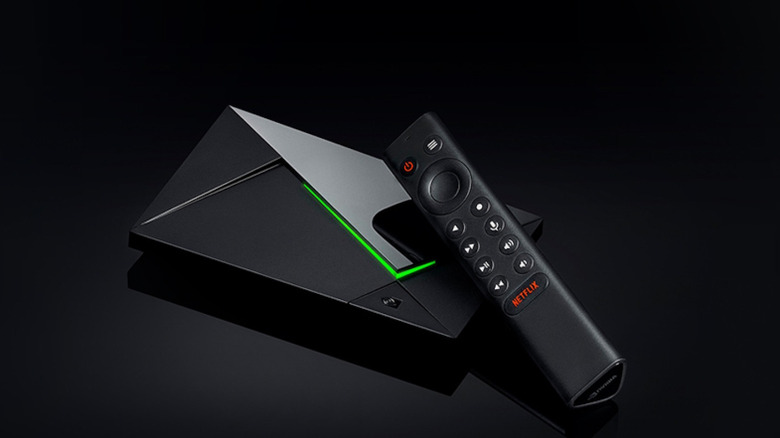
Yes, the Shield TV Pro is now seven years old and the only device in its lineup still on the market, but its Nvidia Tegra X1+ and 3GB of RAM can still play the vast majority of media you throw at it, be it streaming or local content. But alas, this is still older hardware, and it can feel less snappy the more you use it. The good news is that there are a handful of simple tricks you can employ to help speed things up, including turning off Android's animations, ensuring the processor is set at its peak performance setting, keeping your storage from filling up, and the classic fix: turning the device off and on again.
While there's nothing you can do to reverse the hardware's age, and there's no way to easily fix a failing drive , the goal with these four fixes is to help users quickly and easily address the Shield's more annoying shortcomings, allowing them to get even more life out of their Shield TV.
Turn off or limit animations
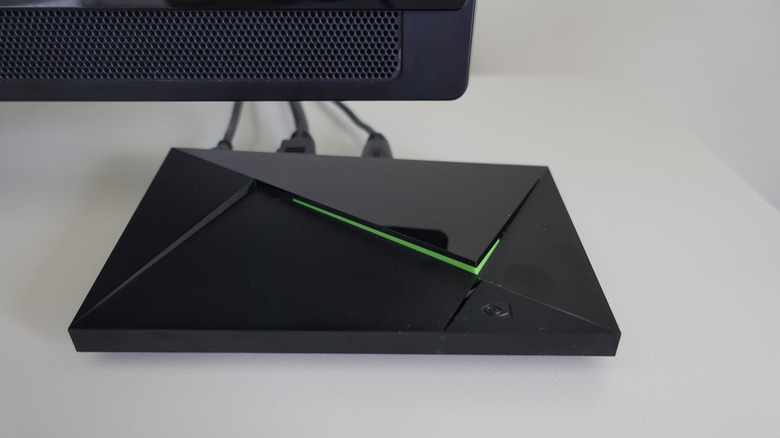
A tried-and-true method to make any Android device feel snappier is to turn off the OS's animations, or at the very least set them to half. In either case, this change either halves or eliminates the animation time, which plays every time the user opens an app, returns home, or backs out, thus literally making interaction with the UI faster.
Thankfully, this is a simple fix, though you'll first have to activate the Shield's Developer options. Navigate to Settings > Device Preferences > About, and select the Build listing by clicking the remote seven times, which enables Developer options. Once the new menu is available, navigate to Settings > Device Preferences > Developer options, and then look for these three settings: Window animation scale, Transition animation scale, and Animator duration scale. Set each to either 0.5x for half the animation, or turn them off completely.
A word of warning: turning off animations can make navigation feel more abrupt, so flip each of the three settings to 0.5x if you find that's the case for you or your family. You can also revert back to 1x speed at any time, should you find you miss the slower animations. Once the change is made, you'll notice that animations either take less time or none, allowing the UI to feel snappier as you jump from app to app, which will now open faster, all so you can get on with consuming your favorite media without any noticeable slowness.
Place the processor on Max Performance
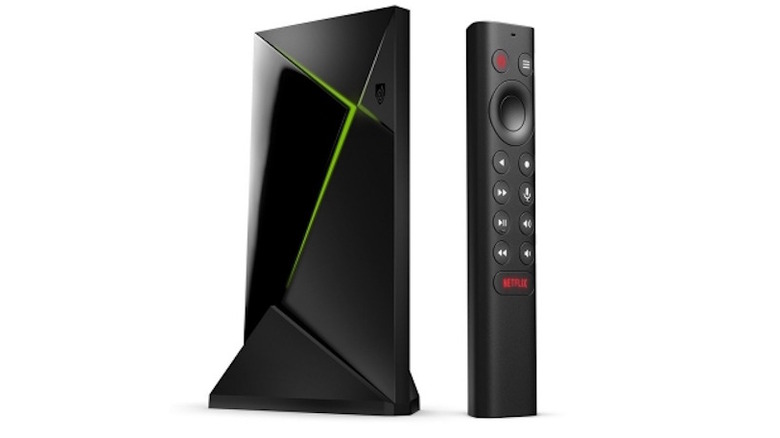
No matter if your Shield TV or TV Pro runs a Tegra X1 or X1+, there's an option in the device's settings that lets you choose your processor performance. If you find your Shield feels slow, you may have your setting on Optimized rather than Max Performance. Max Performance allows the Shield TV to run the chip at its top speeds. This means the internal fan will have to spin more to keep things cool, which also means the fan will be louder. So there's a caveat to changing the setting, but as long as you sit far enough away from your TV, it's likely you won't notice the extra bit of noise from the fan.
To turn on Max Performance, navigate to Settings > Device Preferences > System > Processor mode, and select it. There are two options here, with the other Optimized setting toning down the fan noise, coming at the cost of performance. The good news is that this setting is easy to change, so you're free to test which works best for you. Just don't put the box in a small space to avoid overheating issues, a common problem owners have with the Nvidia Shield. Ultimately, if you want to reduce potential slowdowns and lag when navigating your Shield, Max Performance is the way to go.
Max Performance matters most for anyone pushing their Shield hard, for things like game streaming or local gaming, after all, your Nvidia Shield can be a retro gaming enthusiast's dream, or perhaps you wish to run a Plex server or build a giant Kodi library. While someone who opens Netflix and stays there may not notice much difference, power users can benefit from Max Performance to keep everything snappy.
Clean your storage and cache
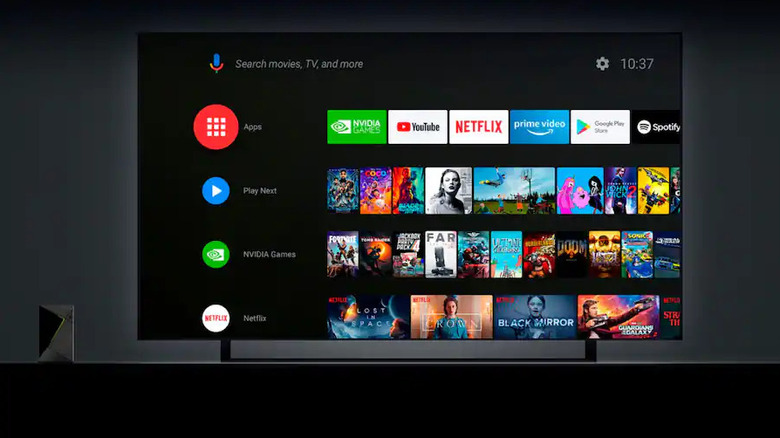
With only a paltry 8GB or 16GB of storage (the original model did offer a 500GB platter drive, but it's been off the market for years), it's easy to run out of room on an Nvidia Shield TV by installing a handful of apps. Toss something like Kodi in the mix with its storage requirements for metadata and images, and you'll soon run out of room without adding an external drive. Should you fly too close to the sun with packed internal storage, performance will take a hit, which means it's in your best interest to keep some extra room so the device remains speedy.
By navigating to Settings > Device Preferences > Storage & reset, you can easily see how much of your storage is used and what's using it. If there are any apps or games in the list you no longer use, or files like images and videos you don't need, go ahead and remove them, clearing some space.
You can even take this further by deleting app cache on a per-app basis, since the Shield doesn't offer a one-tap option to clear every app's cache at once. Head to Settings > Apps > See all apps, select an app — Netflix, YouTube, Plex, and Kodi are all common culprits — and choose the Clear cache option. This removes an app's temporary files without signing you out, unlike Clear data, which wipes your logins and preferences. And if you still find yourself running out of room, it's a signal you'll want to add external storage, whether that's a USB drive for the Shield TV Pro or a microSD card for the 2019 Shield TV.
When all else fails, reboot
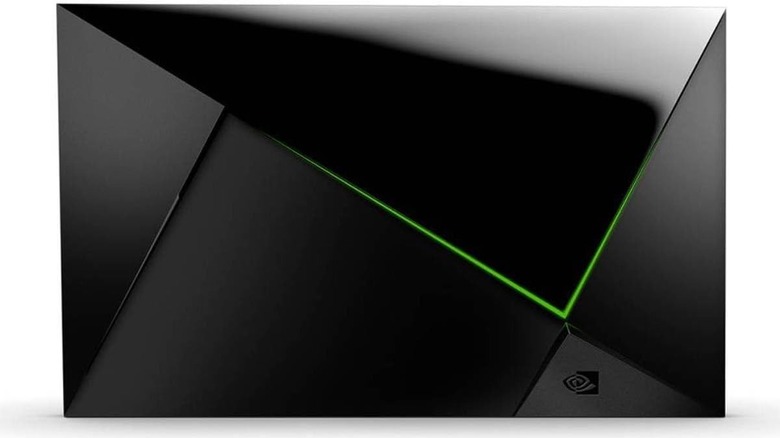
Turning a computer off and on again is a meme for a reason; it often solves issues like slowdowns and can clear annoying glitches. Basically, you're resetting your system's cache and starting with a clean slate just by rebooting. No matter if you're experiencing an app freezing, audio/video sync issues, or are dealing with a dreaded Wi-Fi dropout, rebooting can often help clear up these issues — a simple solution anyone can employ with a few button presses.
You have a couple options at your disposal to ensure the Shield reboots. The first is through settings. Navigate to Settings > Device Preferences > Restart, and click to restart. If you'd rather try a hardware solution, you can long-press the touch-sensitive power button area for ten seconds on the Shield itself, enabling a reboot. In both cases, once the system has rebooted, whatever issue you were running into may be resolved.
If all else fails, perhaps your system is fully frozen, ignoring all power-off options; you can simply pull out the USB power cord and then plug it back in after ten seconds, which will result in a full power-cycle reboot. Just keep in mind that a reboot is not the same as a factory reset. Rebooting simply restarts the system and leaves all your apps, settings, and files untouched, while a factory reset wipes the Shield back to its out-of-the-box state, deleting everything in the process. Save that nuclear option for when a reboot genuinely doesn't fix your issues. If you notice slowdowns creeping back after a few days of heavy use, a quick reboot is the easiest place to start.