

Your Nvidia Shield Can Be A Retro Gaming Enthusiast's Dream - Here's How
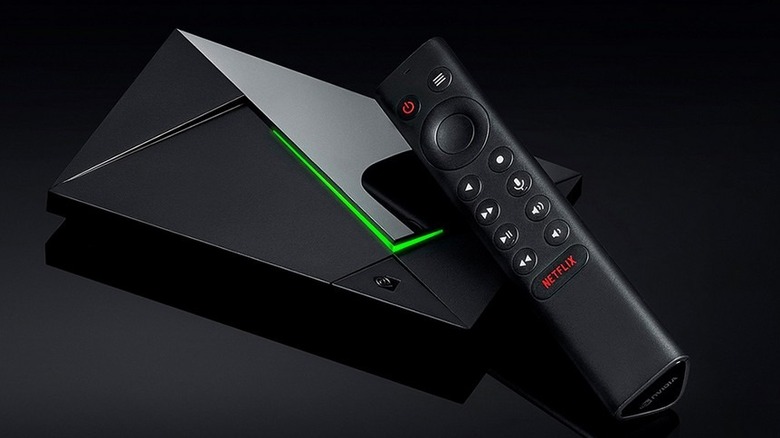
The Nvidia Shield TV is still a fairly capable little box, especially when it comes to focusing on media playback. Lauded for its wide breadth of options for higher-fidelity experiences, it also packs a punch under the hood, making it an excellent device for playing retro games on. Inside the Nvidia Shield is the Tegra X1 or X1+ if you own the 2019 version, with the X1 being the same as what Nintendo used in 2017 for the original Switch.
Most emulators up until the sixth generation should work fine, so unfortunately that culls more demanding PlayStation 2, Xbox, and GameCube games. Alongside that, exploring the Wii's shovelware library would also need a more powerful system. Newer systems like the PSP or DS will also work fine, as they have a lower overhead. It's also relatively easy to set up, thanks to the Shield running Android.
The not-the-best, but easiest option is to opt for installing RetroArch. This is a platform that incorporates a massive slew of emulators, split into "cores." RetroArch cores can have performance issues compared to the separate app, but most older systems from the 8-bit to 32-bit era should work just fine out of the box. One area where you might want to consider a separate app is for arcade games, like FinalBurn Neo (also available as a core) or MAME4droid.
RetroArch is fiddly, but not difficult
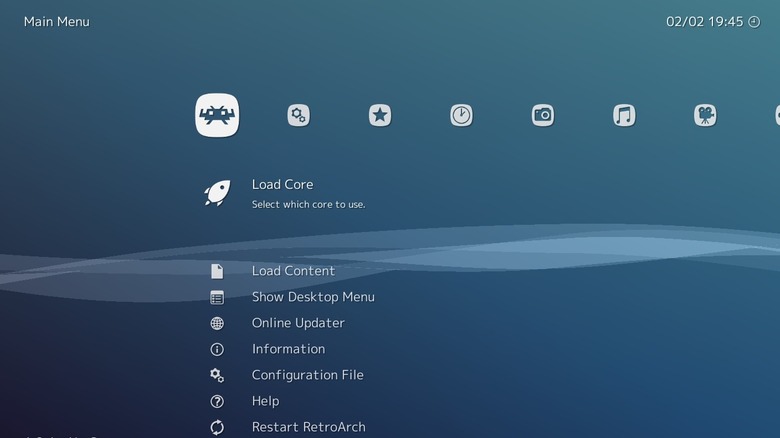
RetroArch can be acquired from the built-in app store — along with any individual emulator — and is free. Once it's installed, you're going to be met with a fairly cumbersome setup process. RetroArch doesn't come with games, obviously, as that'd be legally dubious, so you'll need to acquire those yourself somehow.
Before anything, ensure that RetroArch is updated. In the far-left menu, choose "Online Updater" and choose "Core Updater," which will open a massive list of every core supported. Choose the consoles you intend to play, download them, and then we can move on to moving your games over. On the USB, ensure you split your games up by directories per console, just to keep them tidy. Most older console cores, like Nintendo's first home console, the NES, Game Boy, or Atari 2600, can read .zip files that games can often be found packed inside, rather than having to be extracted one-by-one.
Nvidia Shields before the refreshes came with an SD card slot; however, the 2015 and 2019 versions dropped this. You'll need to bring your games over via File Transfer Protocol (FTP), or physically via a USB drive. In the far-right menu, choose "Scan Directory," then go to "/storage," and the USB device should be listed as a string of numbers. Once you've located the directories with games inside, you can scan them so that RetroArch picks them up.
The last bits
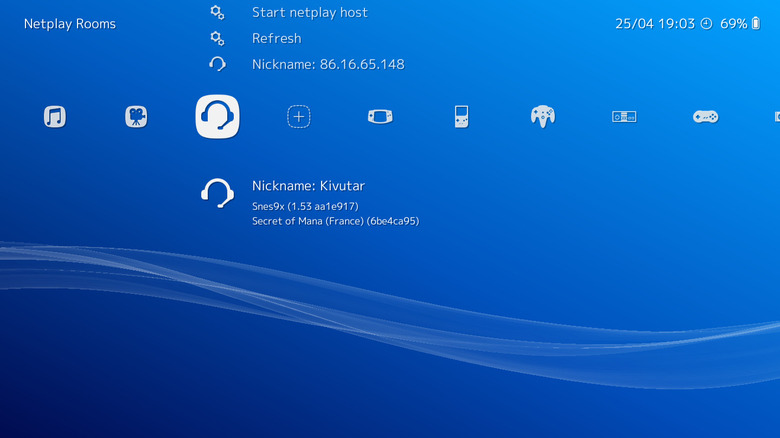
Once the scanning is done, you should see the menu expand outwards to include your newly added games. Each system will be separated and indicated with its own icon. Also, be sure to take note of which core you're using, for troubleshooting purposes.
Alternatively, each console will have its own emulator available on the Google Play Store. If performance in RetroArch isn't up to snuff, it might be best to swap over. As we mentioned above, sometimes MAME or Arcade cores can lag behind other projects, as the core requires separate updates. Some of these emulators will have a "pro" version, ushering you to pay, so stick with RetroArch if you're keeping things on the cheap.
As for controllers, as long as it supports Bluetooth, it should work fine. In fact, we have a ton of recommendations, including alternatives to the Switch 2's Joy-Cons that will play great on the Shield, as well as your Nintendo hardware.