

Switching From Samsung To Pixel 11? Check For These Features First
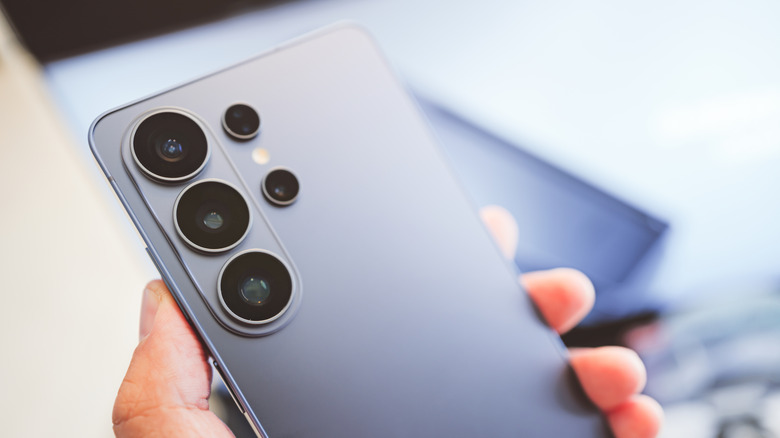
Google and Samsung make capable phones that are among the best in the industry. Part of Samsung's charm is giving users more choice. Samsung phones offer both Google and Samsung apps, alongside exclusive One UI tools, including some unique features only Samsung Galaxy devices have. For anyone weighing the disadvantages of switching from Samsung to a Google Pixel phone, leaving those features behind can be jarring. You'll inevitably have to say goodbye to Good Lock customization, Samsung DeX, Edge Panels, and more. These features are part of what makes Samsung special, so be aware that finding one-to-one replacements might not be straightforward. For instance, One UI's Modes and Routines are Samsung's built-in automation that let you create conditions and actions for sleeping, driving, exercising, and similar activities. You can even use it to dim your screen, lock or open certain apps, and mute notifications when an activity is triggered. On the Google Pixel 11, Pixel Rules use similar if/then logic but are fairly limited — they mostly control your notifications and ringer settings based on current location and network.
So before you grab a Pixel 11, you might want to triple-check what you'll miss and find suitable replacements. While Pixel 11's built-in Pixel Rules is bare-bones, you can bridge that gap with a strong third-party alternative, like Tasker. For Samsung DeX specifically, you will have to settle for compromise with Android Desktop Mode to simulate a similar experience for your Pixel. Emulating other One UI and Galaxy features is trickier, but not entirely impossible.
Most native Samsung apps are replaceable by Google
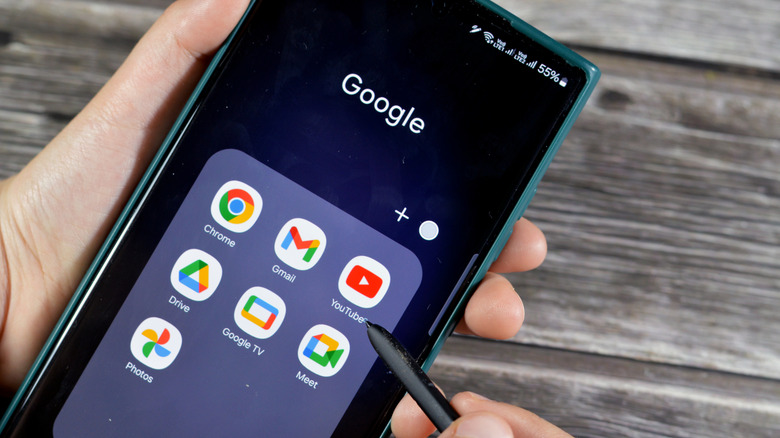
Google offers a variety of apps that can replace your core Samsung apps. For example, you can swap Samsung Keyboard for Gboard without feeling like you are missing core features. Similarly, Samsung Calendar can be replaced with Google Calendar, which syncs events through your Google account. For messaging, you likely won't have to change anything. Google Messages is the default on Pixel phones, and Samsung discontinued Samsung Messages in the U.S. in July 2026, pushing Galaxy users to Google Messages anyway. You can also replace Samsung Internet with Google Chrome, though moving your bookmarks takes a workaround. You'll need to install the Samsung Internet extension in Chrome on your computer and sign in with your Samsung account to access them. And in place of Galaxy AI, you'll get Google's Gemini Intelligence.
Other apps, like Samsung Notes and Samsung Gallery, don't have perfect replacements on the Pixel 11, but there are still solid alternatives. If you want powerful editing tools built into a photo manager, Google Photos is a great starting point. For a more simplified and offline gallery, Google has the Gallery app, which can be downloaded from the Play Store. As for Samsung Notes, Google Keep is a simple alternative, while Microsoft OneNote is another solid option , since Samsung Notes can sync with it through your Microsoft account. Ultimately, the best replacement for Samsung Notes comes down to personal preference.
Migrate your Samsung phone data over to your Google Pixel 11
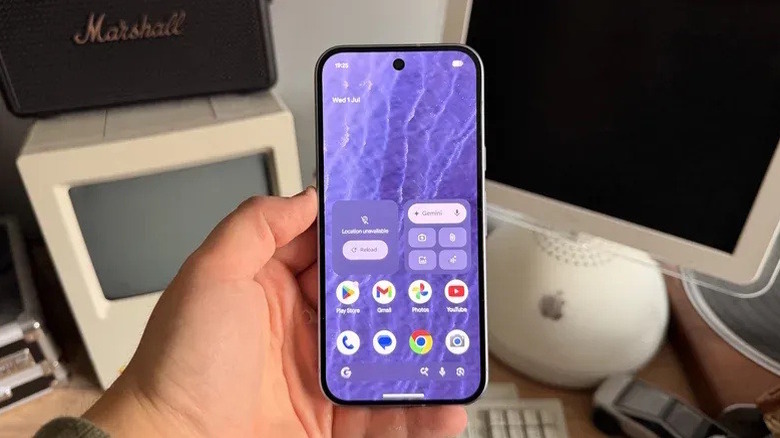
More importantly, you will want to handle transferring your data with care. Fortunately, one big perk of switching from a Samsung phone to a Pixel is how easy it is to keep your data. The most important thing is to make sure you are signed in with the same Google account and have a stable connection, either with Wi-Fi or with a USB-C cable. Most Samsung users already have a Google account for downloading apps and using Google apps and cloud services. Once both devices are powered on, keep them nearby and follow the setup instructions on your Pixel 11, which should prompt you to transfer your data. If you skipped this step during setup or something didn't copy over, you don't need to start over. On the Pixel 11, open Settings, go to "Back up or copy data" (or "Accounts & backup," depending on your software version), and tap "Android Switch" to copy data from your old phone. You can also back up your Samsung phone to your Google account and restore that backup on your Pixel.