

How To Tell If A USB Port Supports 140W Charging
We may receive a commission on purchases made from links.
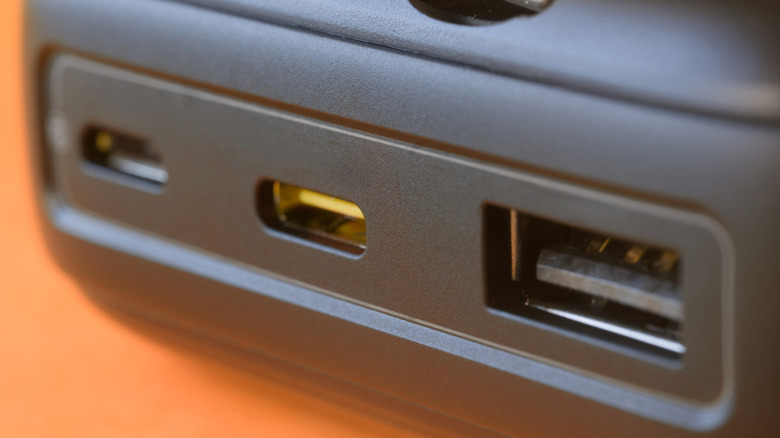
When you need a fast charge for your smartphone, tablet, or laptop, it makes sense to confirm the wattage output of the USB port you're connecting to, with 140W being one of the highest ratings you can get right now. To find out how many watts a USB port can handle, the simplest method is just to inspect its exterior. Any number followed by a "W" is going to tell you the wattage output it supports. For example, the Anker B2697 Charger shows 140W on its first two USB-C ports, 40W on the third, and 33W on the USB-A port.
Sometimes, especially on cheap white label chargers, you get port markings that are more cryptic and less helpful. For example, the Fostbeen 10-Port USB Charger Station has two USB-A ports labeled 5V/2.4A, two more labeled 5V/2.1A, and six USB-C ports with unhelpful "USB-C" labels. The good news is you can actually calculate the wattage of the USB-A ports with the printed information. Just multiply the voltage (V) by the amperage (A). So by multiplying 5 by 2.4, you can arrive at the first two ports' wattage rating: 12W.
Of course, not all manufacturers label the port, and even when they do, the labels can end up rubbing off. If you can find any labeling that lists the Power Delivery (PD) version, though, you have a small clue. PD 3.0 and lower can't go beyond 100W, so if it isn't at least PD 3.1, there's no chance the USB port can deliver 140W.
To be certain, find the user manual

The most reliable way to find out what wattage your USB port supports is to look at either the packaging or the user manual. Manufacturers usually print the output of each port somewhere, and if it's not on the exterior packaging, then it's almost certain to show up in the manual. Sometimes you get helpful diagrams matching the specs to the physical port. There, you should get confirmation on whether or not your port can give you 140W of juice.
If you don't have the packaging or user manual anymore, then you can probably find the user manual online. Just do a regular web search for the manufacturer and model number with "user manual", and the manufacturer website should have it available for download. Keep in mind, though, that you should be careful when getting specifications from retail product pages. Sometimes a model will get updated with different specs, yet the retailer won't clarify it's now technically a different product. In that case, use UPC or serial numbers to confirm a device match.
Total wattage is not port wattage
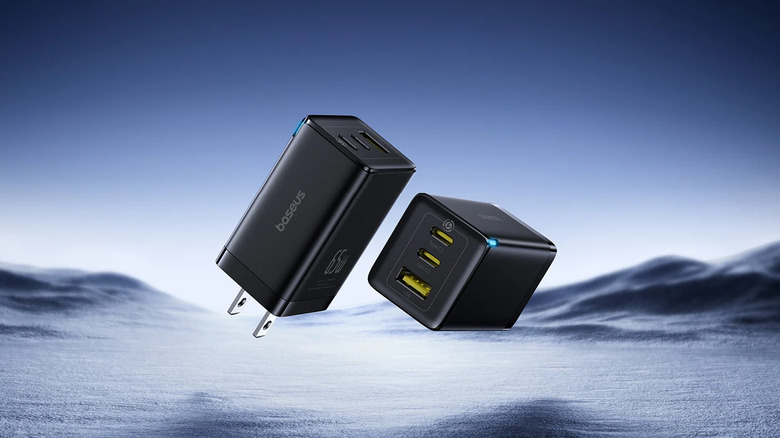
There's something important to note in the case of multi-port charging bricks and power stations. Sometimes, instead of labeling wattage for each port, manufacturers have one large wattage number on the side of the device. Keep in mind that this is the maximum wattage of the charger itself, not necessarily of any individual port. For example, the Vszerda 8-Port 300W USB-C Charger looks promising with its "300W GaN" labeling. Checking the technical specs on the product page, though, you learn that its best USB port maxes out at 100W, and the others have even lower caps, all falling short of a 140W target.
You also need to remember that a port's maximum is only that: a maximum. If multiple ports are in use, or if the charger's power source is limited for some reason, then your charging speeds can end up being throttled. That's why it's important to read the specs on multi-port chargers to find out the "in use" wattage level of each port. The output of of the 140W USB-C port on the Anker B2697, for example, can be reduced to 65W if two other ports are in use.