

This Tiny Pocket Gadget Can Help Diagnose Problems With Your Wi-Fi
We may receive a commission on purchases made from links.
When it comes to diagnosing problems on a local Wi-Fi network, the troubleshooting process can be extremely tedious and frustrating simply because of the sheer number of factors that could be influencing the connection. In addition to all of the external devices and appliances that may be interfering, there are any number of additional considerations that could be ruining performance. Many actually stem from silly mistakes, like placing the router in the wrong spot, using the wrong broadcast channel, or forgetting to update firmware. But a new pocket-sized device from Ookla, the internet speed test company, may turn all of this on its head. Called the Speedtest Pulse, it can quickly help you analyze a network, pinpoint what's wrong, and fix the issue. The device is primarily designed for internet service provider (ISP) technicians and commercial use and isn't currently available to consumers. It's simple enough that just about anyone could use it, though, and Ookla hasn't ruled out consumer-facing sales in the future.
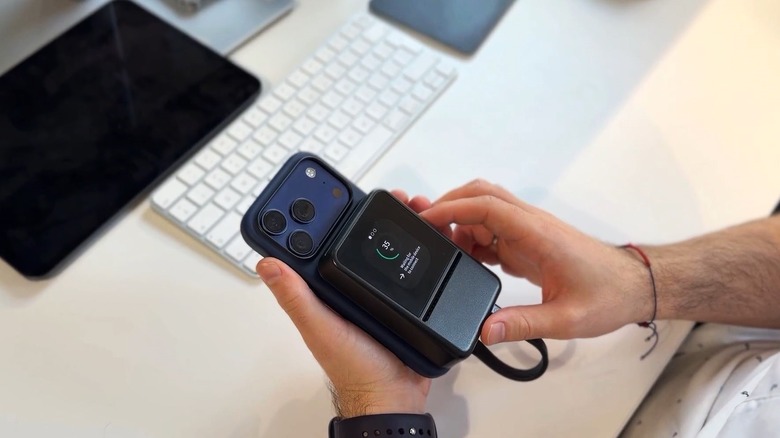
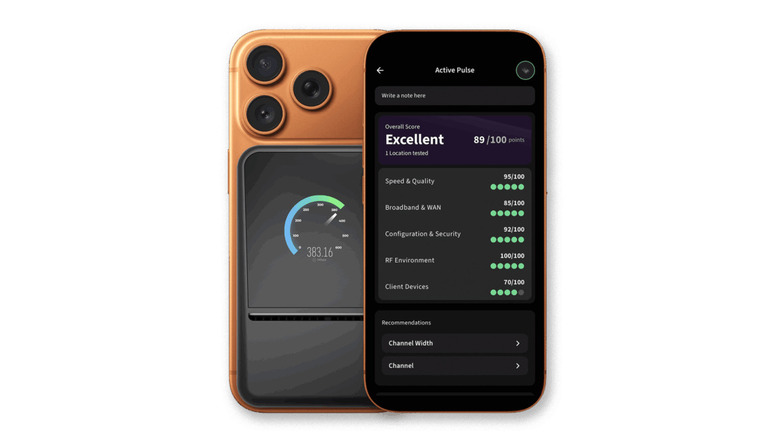
Speedtest Pulse is about the size of a candybar-style phone, and it's equipped with a 2.1-inch touchscreen AMOLED display, a USB-C port, and a Wi-Fi 7 triband radio. It connects to a Wi-Fi network, analyzes core performance and critical settings, and reveals its findings through a connected mobile app. There's also an Ethernet port for connecting to and diagnosing wired networks. After a scan, or pulse, the device returns information like signal strength, channel interference, maximum data rates, network utilization, and gives scores for major categories like speed and quality or the radio frequency (RF) environment. Collectively, this information will allow you, or a technician, to determine a quick fix or highlight some potential sources of the problem.
Pocket-sized but professionally-oriented
While pricing isn't officially listed on the Speedtest Pulse product page, some retailers do have the costs visible. SHI Capital has it listed for $709, with the MSRP noted as $629.99. CDW, on the other hand, has it listed for $666.99. That definitely puts it in line with other professional tools aimed at technicians and commercial use. That's certainly reinforced by Ookla's marketing language on site, which describes it as a "smarter solution" for some of the more difficult troubleshooting tickets that an IT and service help desk might have to deal with.
Even so, the Pulse is more affordable than some comparable equipment — NetAlly's wireless testers cost thousands of dollars, for instance. The Pulse is also easy to use and provides comprehensive reporting, yet, despite all of that, it's not meant for the average enthusiast. You won't be able to go out and find this thing at Best Buy.
What's also interesting is that the Speedtest Pulse is said to have two scan modes. The first is an active mode that scans once and analyzes the important network information, as described. The second mode, which developers are working on, activates a continuous scan that diagnoses problems over an extended period of time. The idea for the second mode would be to leave the device connected to a local network, like a customer's network, to then better analyze what's going on over time. That would be a big help if the problem doesn't exhibit when the technician makes a service call.
Are there alternatives for home and personal use?

There are some options if you want something like the Pulse for your home or personal networks, especially if you don't want to spend around $700. A good budget choice is the Ubiquiti WiFiMan Wizard for $99, which is a portable spectrum analyzer that syncs with an iOS or Android app. It reveals wireless speeds, performance, and other critical insights, not unlike the Speedtest Pulse.
Fing, a standalone mobile app, does something similar, first by scanning nearby networks and then allowing you to diagnose and better understand their configurations. You can use it for other activities, too, like finding hidden cameras on a network, discovering vulnerabilities and more. There are other similar tools available on app stores, at GitHub, or in other venues if you want to search around a bit.
If you're looking to find out what's blocking your home Wi-Fi signal or otherwise troubleshoot your network, you'll want to take inventory of everything in your home that could be causing issues. Consider the location and thickness of your walls, the layout of your furniture, the size of the Wi-Fi coverage area, and any electronics or appliances between the router and your devices, then try to clear that path as much as possible. You can also sometimes improve Wi-Fi coverage and performance by installing or upgrading to a mesh router system.