

This $10 Keychain USB Gadget Could Help You Rescue Your PC

We may receive a commission on purchases made from links.
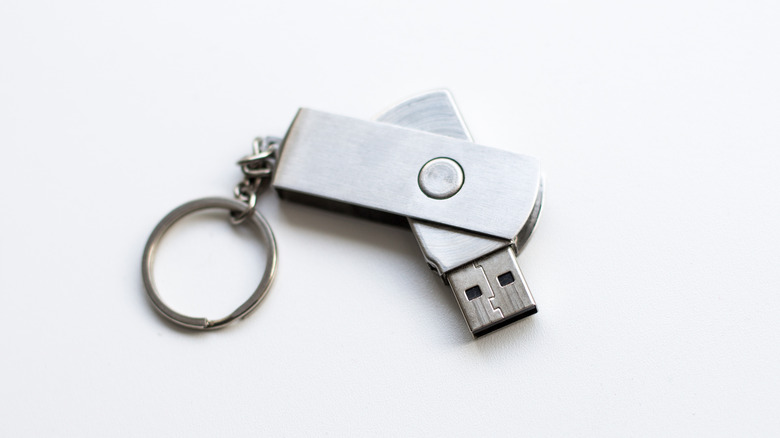
There's nothing more critical to an operating system like Windows than the boot device. Typically, that's the hard drive where the core system is installed. But during boot, you can also take advantage of a temporary boot device, like a flash drive. This option is particularly useful during emergencies when the computer won't boot, or there's some kind of corruption going on with the system files. You can essentially keep a bootable media format handy to bypass internal storage and get things working again. That brings us to the $10 USB gadget that can help you rescue your PC — as you might have guessed, that gadget is a keychain-friendly USB drive.
To be clear, USB drives, including versions that fit on or serve as a keychain, vary in price from around $10 to much, much higher, depending on the capacity and speed of the drive. But if you're talking about keeping an always-ready USB drive around as a bootable option, you can certainly get by with some of the cheaper variants. You could also use a portable or external drive, but thumb drives tend to be smaller and easier to stow in a pocket or carry on your person. You'll want a drive with at least eight gigabytes (GB) of space, the sweet spot falling between16 GB and 32 GB — we'll cover why the extra is good later.
You can take any USB drive and make it a bootable backup yourself, but if you don't want to do that work — it's really not difficult — you can buy a pre-made bootable drive for $21 on Amazon. If you want to get everything set up on a drive of your choosing, step one is to acquire your drive, or format one you already have.
How to create a bootable backup drive: A quick cheat sheet
There are several ways to build a backup drive for emergencies, so it's worth noting that you may find other methods that suit you better. You can use something like Rufus to create a bootable backup and installation drive, for example, but you'll also need a clean Windows image (ISO) for the OS version you want to back up. Windows 11 also has its own media creation tool. But by far, one of the easiest ways to handle it all is to use an open-source app called Ventoy.
Download Ventoy from the official site, make sure your USB drive is plugged into the computer where you're doing the install, open Ventoy, select that USB drive, and click Install. The USB drive will likely be renamed to Ventoy to indicate the app is loaded on it. Then use the file explorer to copy the ISO for the system you want to be bootable onto the USB drive. You can do this with a Windows 10 or 11 ISO, and Linux distros like Zorin OS or Bazzite. Usually, you can find a clean ISO on the official developer's site. Microsoft has the Windows 11 disk image available for licensed users, for example.
Once the USB drive has Vinoy installed and you've moved over your desired ISO, you can simply plug the drive into a machine you want to use, and when you power it on (from the boot menu), you'll have the option to select your backup USB. If done right, a text menu will allow you to select from the ISOs you have stored on the drive. That's it. But that's not all you'll want to keep on your backup drive, so you're not finished quite yet.
What else goes on a true backup or emergency drive?

The reason you'll want a 16 GB or higher drive, which generally has much more space than you'll need to store an ISO, is that you can also put portable apps and emergency tools on the drive so you always have them available. With most clean OS installs, you'd have to reinstall or download all your necessary apps before you can use them, especially if there's an emergency and you lose all the original installation data. But by storing them all on your drive, you always have them available right there with your OS backup. They go where you go.
This type of portable version of an app allows you to open it right from its core directory and has everything it needs to work, which means you can run it from a USB or external drive without installing anything extra. It's the perfect setup for an emergency backup suite. Some good examples of apps to put on the drive include security tools, an up-to-date browser like Chrome, an archive utility like 7-Zip, a data recovery tool like Recuva, and anything else you might need, including download managers, open-source media players, among others.