

You Can Turn Your Old Router Into A Powerful Wi-Fi Extender — Here's How
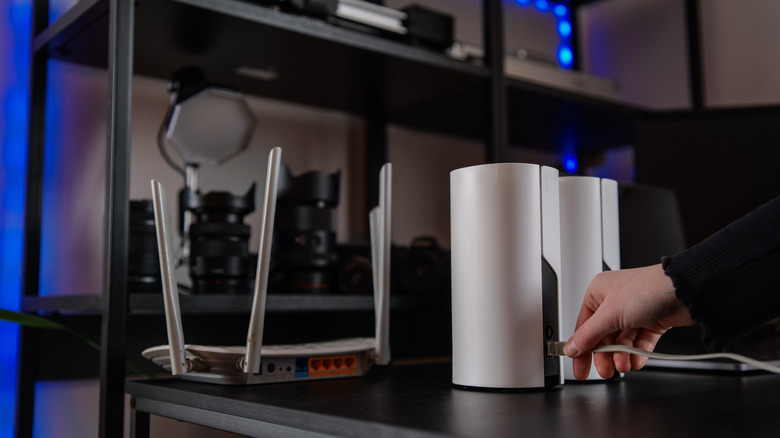
If you recently upgraded to a mesh router system with multiple nodes or simply upgraded to a newer, faster router, you no longer technically need the old one. Usually, that leads to folks packing them away in a closet or drawer only to collect dust. But you can actually make use of that old router in several interesting ways. The most notable option is to turn it into a sort-of node of its own — or rather, a Wi-Fi extender — to help increase signal strength in certain areas of your home. It's pretty easy to do, too.
You should know going in that you have a couple of options for how to set this up. Most routers, like older models from Linksys, Netgear, and TP-Link, have stock settings to turn the device into an extender. If that's available, it's the ideal way to go. Sometimes, that's not possible, in which case you'll have to install custom firmware like OpenWrt or DD-WRT, which introduce some powerful new options, including a repeater or Wi-Fi extender mode.
There are some limitations to be aware of. For this to work best, you want a router that supports at least Wi-Fi 5 or above. You can use routers much older than that, but they will likely slow down your network's performance, especially in the old router's localized area of coverage. Moreover, if the router is no longer supported and gets no security updates, there are serious risks and vulnerabilities to consider — though these may be addressed with custom firmware depending on the model in question. If you already have an actual separate Wi-Fi extender, you should probably avoid this, as having multiple extenders connected can slow down your network big time.
Setting up a Wi-Fi extender with stock firmware
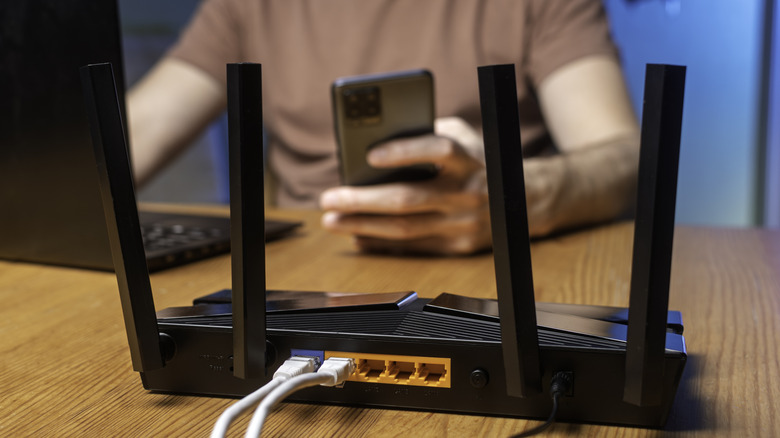
The menu options are different between router brands, so you may need a bit of ingenuity to find the related settings for your individual model. The first thing you'll want to do is factory reset your router, if you haven't already, to reset the entire configuration. This will wipe all user settings, but that's okay — that's what we want. Once that's done, use the router's administrative dashboard to update the system and make sure it's running the latest official firmware with all updates applied. You shouldn't be skipping router updates, after all.
In the administrative dashboard, go to either Settings or Advanced and look for an Operating Mode option or similar. On some TP-Link routers, it's under Advanced > System > Operation Mode. You should find multiple choices, including Wireless Router Mode (or Default), Access Point, and Range Extender. Range Extender (or Wireless Range Extender) is what you want to enable. Access point mode works similarly, but requires you to connect the router to an Ethernet cable. In extender mode, the router picks up the local wireless signal and "repeats" it, broadcasting it locally. Describing the difference in simple terms: A repeater or extender does it all wirelessly, while an access point needs to be wired to your main network, particularly via an Ethernet cable going from your active router to the old one.
If you don't see an extender or repeater mode option and you've updated your router firmware to the latest release, you may not be able to set this up with stock software. If custom firmware is off the table for you, fret not, you can still repurpose that old router in some other ways.
Setting up a Wi-Fi extender with custom firmware
The next option is to install custom firmware and take advantage of new features. Granted, some preparations are needed. Before anything else, double check that your router is supported by the custom firmware you want to install. DD-WRT maintains a lookup tool you can use to check your model — you just need to input the router brand, name, and model number — and OpenWrt has a similar database. Read the documentation extensively before attempting to flash the firmware. DD-WRT has an excellent and very thorough Peacock Thread that explains what you need to know going in. It tells you how to select the right firmware package and presents other unique considerations. For instance, with certain models, you need to use a "kill" firmware program first to flush the stock firmware. Not following instructions can brick your router.
When you're ready, download the appropriate custom firmware package and use your preferred method to flash and install: web GUI or a direct wired connection with a PC. Once it's installed and you've made sure to update everything, go into the administrative dashboard, find the wireless settings, and change the mode to repeater. It's likely nestled under "Wireless Mode" or a similar option. It's a good idea to use a different SSID for your repeater so you can differentiate between its connection and that of your main router. You may need to adjust additional settings such as DHCP or set up a static IP.