

Here's How To Maximize Your Samsung Galaxy S26's Battery Life
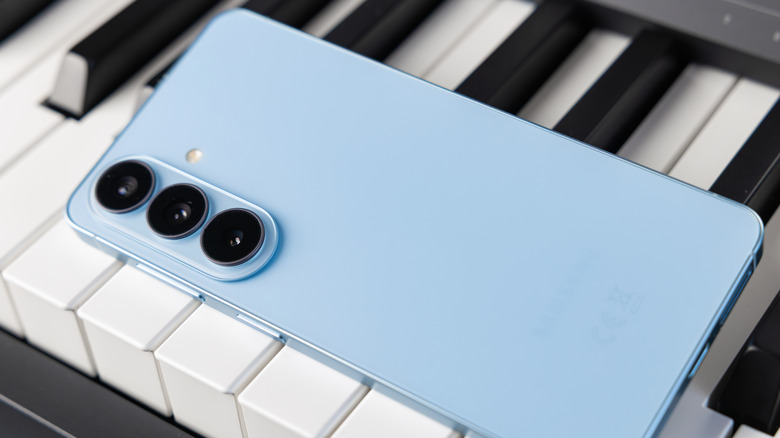
The Samsung Galaxy S26 can handle everything from hours of video gaming to navigation, photography, and everyday messaging, but all that activity can drain its battery. Even with a brand-new phone, getting through the whole day without charging the phone again can be quite difficult, especially when the display stays bright, apps continue to run in the background, you regularly play games, and you use cellular data actively. How long the battery lasts ultimately depends on how you use the device, the settings it runs, and the conditions it operates in.
Fortunately, you don't have to sacrifice your Galaxy S26's most useful features to preserve battery life. A few tweaks can cut unnecessary power use while keeping the phone practical for everyday use, whether you're heading out for a long day, traveling, or just want the battery to last longer on a single charge. As a Samsung Galaxy S24 Ultra user myself, I use these settings and habits to get more out of my phone's battery on a single charge. While results vary with usage, I generally get around 7-10 hours of screen-on time with these small changes.
Ways to make your Samsung Galaxy S26 battery last longer
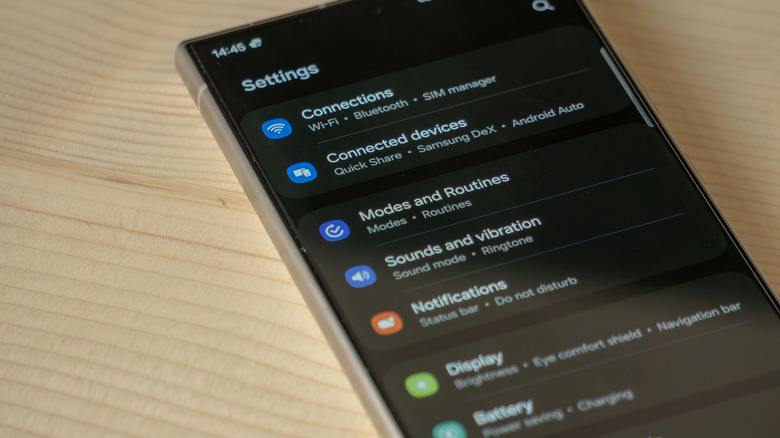
The display can be a major source of power consumption, so lower the brightness and keep it at max only during the day when you are out. You can also enable adaptive brightness if you don't want to adjust it manually. Then shorten the screen timeout: go to Settings > Display > Screen timeout and select 15 or 30 seconds. Next, enable Dark Mode. The Galaxy S26 uses an AMOLED display, which uses less power when showing dark content. To enable it, go to Settings > Display > Dark. Most social media apps also support dark mode, so enable it where possible.
Switching to a standard refresh rate will also make a difference, but I don't recommend it. Using the Samsung S26 at 120 Hz feels crisp and smooth, and you can't replicate that on 60 Hz. However, if you want to maximize battery life and don't care about refresh rate, then open Settings > Display > Motion smoothness > Standard. After that, turn off Always on Display when you don't need it. Or simply enable the tab to show settings. To do that, go to Settings > Lock screen and AOD > Always On Display > When to show > Tap to show (or choose any option you prefer).
Also, enabling Power saving mode can give you a few extra hours. It reduces background activity, limits performance, and restricts certain features. It also limits the phone to 60Hz, and while using Low Power Mode more often is perfectly fine, keep in mind that the scrolling won't feel as smooth as it does at higher refresh rates. To enable it, go to Settings > Battery > Power saving. If you notice battery drainage, open Settings > Battery and review the usage details. Restrict any unnecessary background activity, put apps to deep sleep, or uninstall the apps you don't need.
Change these habits to make your battery last longer
Weak cellular reception can increase battery consumption because the phone has to work harder to maintain the network connection. When a reliable network connection (preferably Wi-Fi) is available, use it for browsing, streaming, downloads, or any other tasks. Also, when the battery is low, you should limit demanding activities. For example, playing graphic-intensive games can drain the battery much faster. Consider lowering graphics settings or choosing a less demanding game mode. Also, avoid turning on the hotspot when your battery is low.
During everyday use, high temperatures and demanding workloads can affect battery performance. Gaming, navigation, or long camera sessions in direct sunlight can generate considerable heat. Avoid leaving your Galaxy S26 in hot environments, especially when using demanding applications. Lastly, keep your software and apps up to date. System and app updates can fix bugs that cause excessive power consumption. This is pretty rare, but it can happen. Check Settings > Software update to see if a system update is pending. For apps, update them using the Google Play Store. Open Google Play Store > tap your profile icon in the top right corner > Manage apps & device > Updates available > Update all.