

Starlink Has A Clever Solution For Harsh Winters That More ISPs Should Use
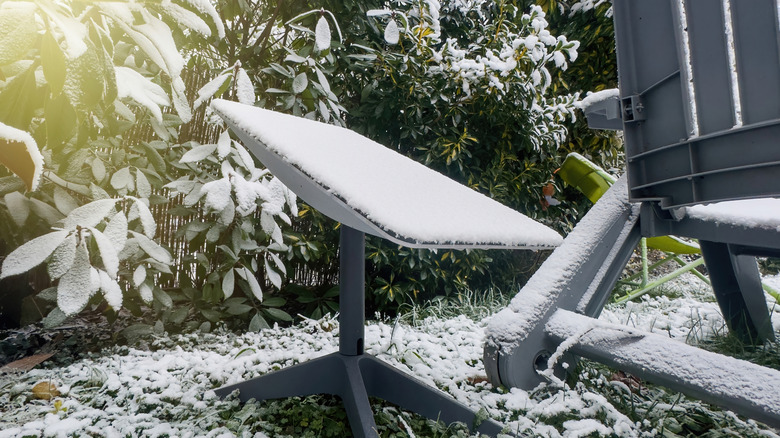
One of the most common issues users have with Starlink is the weather. Since the dish is installed outdoors, it's subject to the elements 24/7. Snow, in particular, is especially concerning. When your Starlink dish gets covered in snow, you can run into different connectivity issues, from minor intermittent internet disconnections to complete outages lasting a few minutes to several hours.
Thankfully, Starlink thinks ahead. The dishes are actually shipped with a nifty feature that helps you get rid of snow buildup without much effort on your end. It's called Snow Melt, and you can readily turn it on and off right from the Starlink app. With Snow Melt enabled, the dish gets warmed up just enough to melt snow that falls on top of it. That results in less snow buildup and less service interruption.
Compared to satellite dish covers that just let snow slide off the dish, the Snow Melt functionality actively works to melt away snow. This does mean the Starlink dish uses more power than normal, though. But still, it's much more convenient as you won't have to buy and install an extra accessory just to keep the dish snow-free. Let's take a closer look at how Snow Melt on Starlink works and what users say about it.
Starlink's Snow Melt feature explained
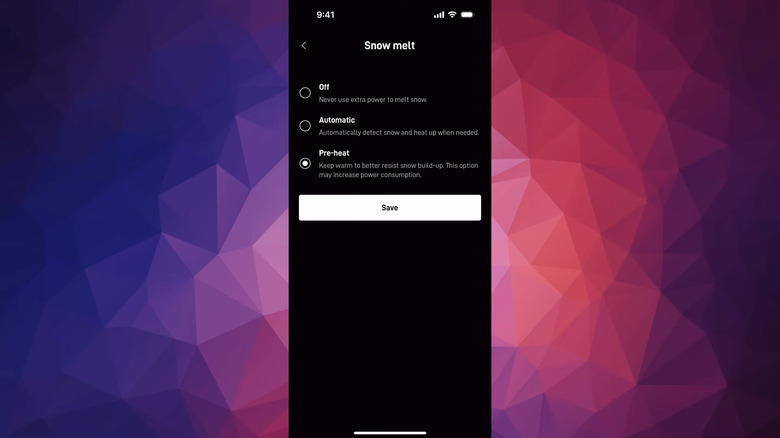
The Snow Melt feature available on all Starlink dishes isn't a simple on-and-off functionality. It actually comes in three modes: Off, Automatic, and Pre-heat. Off means the dish won't melt any snow, so it will just accumulate on the dish. Automatic means the snow-melting functionality will only run once the dish detects the presence of snow. And finally, Pre-heat means the dish draws continuous power to maintain a warm temperature, which, in turn, translates to lesser snow buildup. Automatic is the recommended mode, but if your area encounters particularly heavy snow, you can go with Pre-heat. This could potentially lead to higher electricity costs, though.
To switch Snow Melt modes, here's what you need to do:
- Launch the Starlink app.
- Select Settings.
- Go to the Starlink tab at the top.
- Tap on Snow Melt.
- Choose Automatic or Pre-heat, depending on your preference.
How fast the snow actually melts largely depends on what Starlink dish you have. You get the best melting rate with the Performance models. The Performance (Gen 3) works through 3.5 inches of snow an hour, while the Performance (Gen 2) can do 3 inches instead. The Starlink V5 comes next, melting as much as 1.6 inches per hour. Meanwhile, the Starlink V4 and Enterprise are rated at 1.5 inches an hour. The Mini, on the other hand, has the slowest performance, at only an inch of snow every hour.
How well does Starlink's Snow Melt perform?
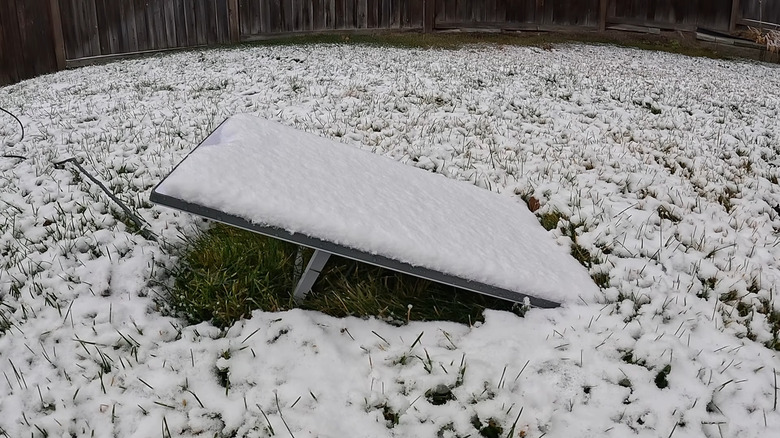
Users in wintry locations have mixed reviews about Starlink's reliability and the Snow Melt functionality. Some users praise the feature and report solid performance on both Automatic and Pre-heat modes. A Reddit user from Maine once woke up to more than a foot of snow, but their Starlink dish was still completely clear with Snow Melt set to Automatic. Another user from Ontario, Canada, shared that Pre-heat mode worked better for them, as they noticed that Automatic mode only kicked in when the signal started to degrade.
So, if your area is particularly snowy and you don't want to experience service interruption or have a layer of snow on the dish, then it's a good idea to switch it to Pre-heat. If you do set it to Pre-heat, just make sure to remind yourself to change it back to Automatic when you can — otherwise, you might see a slight spike in your power bill. One Reddit user accidentally kept their Starlink in Pre-Heat mode for about a year, and during that time, its consumption was around 110 W. As soon as they switched it back to Automatic, the power draw decreased to just 35 W.
On the other hand, some users shared that the Snow Melt feature can't exactly handle very heavy snowfall. Whether it's set to Automatic or Pre-heat, the dish still ends up getting buried in snow and losing signal. In such cases, you'd want to step in and clear the snow yourself to restore the connection.