

You Can Tell The Time On Your Apple Watch Without Looking At The Screen - Here's How
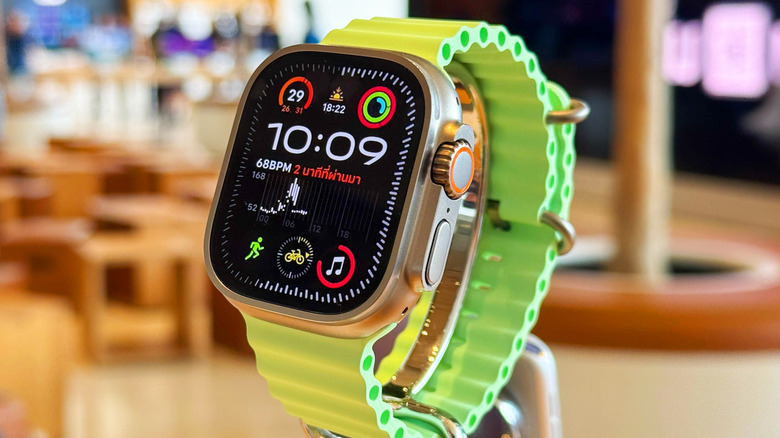
Apple is no stranger to offering unique ways to access some of its core features. On an iPhone, iOS offers Assistive Access, which simplifies the interface for easier access (among other accessibility features users should try). Apple Watch has its fair share of features, including visual enhancements and VoiceOver, but Taptic Time can be easy to overlook. Essentially, Taptic Time tells you the time when you can't look at your watch, and it has more benefits than you might think.
Taptic Time taps your wrist with the current time when you perform a simple gesture. It's been available since watchOS 3, so most devices should support it, and enabling it is relatively straightforward. You can even enable it from your iPhone or Apple Watch Settings. For those who need them, Apple Watch also offers other features that don't require looking at the screen.
Once Taptic Time is enabled, users can choose from three ways for the watch to convey the current time through haptic feedback: Terse, Digits, and Morse Code. Those with vision issues will appreciate this Apple Watch feature, but anyone who can't look directly at their watch will benefit from it, too. Naturally, we know plenty of other Apple Watch tips and tricks everyone should be using, but give Taptic Time a try the next time you're in a meeting and can't look to see when it's over.
How to enable Haptic Time on an Apple Watch
Getting started with Taptic Time is as simple as enabling it in Settings. However, before you start, make sure your Apple Watch isn't set to speak the time. You can quickly check this by going to Settings > Clock on your Apple Watch and ensuring Control With Silent Mode is enabled under Speak Time. You can then enable Taptic Time.
Here are the steps:
-
From your Apple Watch, navigate to Settings.
-
Select Clock.
-
Scroll down and choose Taptic Time.
-
Enable Taptic Time.
-
You can then choose your pattern: Digits, Terse, or Morse Code.
Once enabled, hold two fingers on your watch face, and your Apple Watch will begin tapping the time against your wrist. If a user has VoiceOver turned on, they can double-tap the watch face while the display is inactive to enable the feature. You can also enable Taptic Time from an iPhone. Open the Apple Watch app, then go to My Watch > Clock > Taptic Time.
Diving further into the different patterns, Morse Code will tap out each digit of the time in the 19th-century communication style of dots and dashes, whereas Digits translates the hours and minutes into long and short taps (Apple provides the example of two long taps and three short taps followed by three long taps and four short taps equating to 11:34 p.m.). Finally, Terse translates the time into 15-minute intervals, counting forward from midnight. Users may also want to know about Apple Watch features that work without an iPhone nearby.
Other features that don't involve looking at the screen
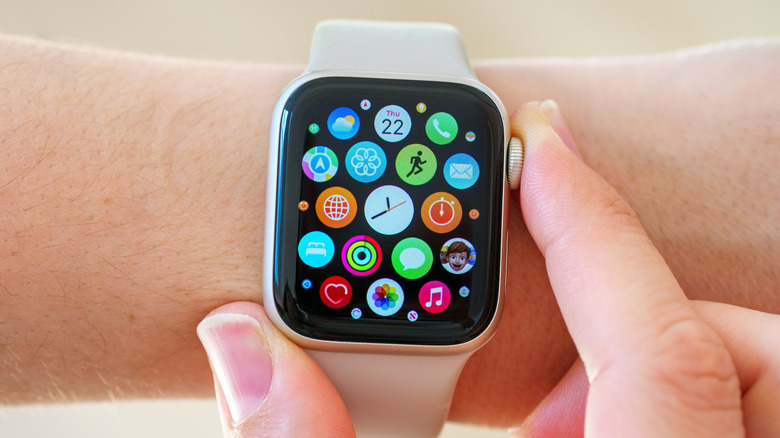
Of course, Taptic Time isn't the only Apple Watch feature that doesn't involve looking at the device. Starting with watchOS 10.1, Apple Watch owners got access to the Double Tap gesture, which lets users perform basic actions like replying to messages or answering calls by tapping their index finger and thumb twice. It's available on the Apple Watch Ultra 2, Series 9, and later models, and users can customize Double Tap media playback options by going to Settings > Tap Gestures on their Apple Watch.
Users should also remember that Siri can perform a variety of tasks without looking directly at the device. Users can ask Siri to do many things with simple requests. For example, you can have Siri make phone calls, send messages, set alarms, add reminders, and more. To activate Siri, say "Siri" or "Hey Siri," or press and hold the Digital Crown. Fortunately, we also know some of the lesser-known Siri commands if you want to get into the nitty-gritty.
Though this list is far from extensive, another useful feature that doesn't involve looking at the screen is the ability to cover the display to mute an alert. Users just need to rest their palm against the display for three seconds to silence any alert. Be sure to give these a try if you need additional assistance with your wearable.