

9 Lesser-Known Siri Commands For Apple Watch Owners

We may receive a commission on purchases made from links.
Those who regularly use their Apple Watch can take advantage of multiple features Apple has included in this device. You can download these features as applications to enhance the device and use them alongside Siri, which can elevate them even further. If you want to add accessories to your device, we've also tracked down some of the most notable ones that other Apple Watch owners swear by.
For those who want to get the most from their Apple Watch and Siri, we've gone through to find some lesser-known phrases and commands you can use to get the most from this device. These commands can help when you're traveling, if you ever find yourself lost, or if you want to make a quick note to remind yourself later, all with the power of your voice. Here are nine of the lesser-known Siri commands you can use with your Apple Watch.
Siri, tell me the distance to drive to [location]
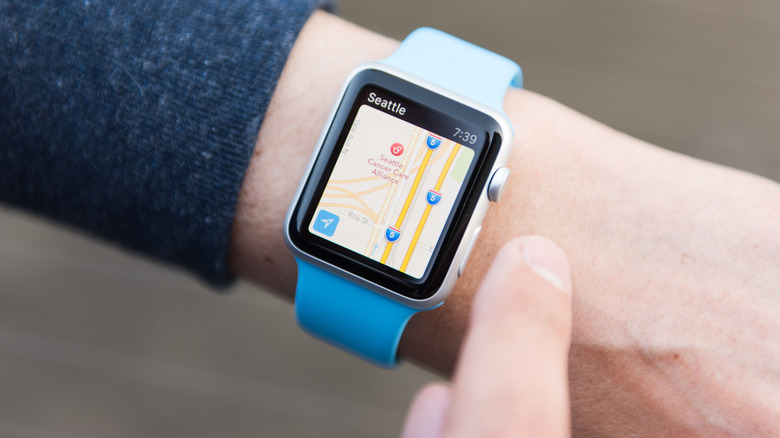
When you want to see how long it will take you to get to a particular location (without looking it up), and you know where you're going or the address, Siri can tell you through your Apple Watch. You do need to have your location enabled on your watch for this to work, as you'll need it for anything location-based. If you do, Siri can tell you (based on your location) how long it will take to reach a certain destination. It's a good way to figure out how much longer you have to drive, walk, or bike to where you're going without taking your eyes off the road to glance at a map or a screen.
Alongside the information that Siri tells you about how long it takes to travel to a location, you'll receive updates about any traffic incidents or problems on the road. These updates can help you plan your route and give you insight into whether you need to adjust where you're going. It might be good to take an alternative route that you normally don't to avoid an upcoming incident, or prepare for an oncoming traffic jam during rush hour.
Siri, take me to the nearest [location] or take me to [address]
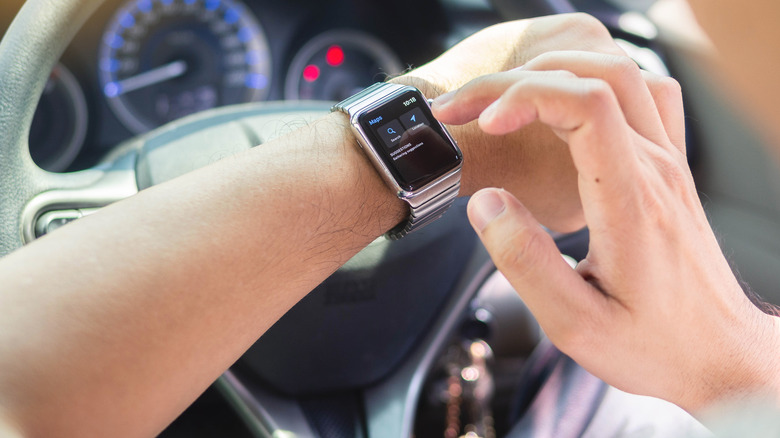
Siri can also help you figure out how to reach a specific location you don't know. You can ask Siri for directions to a nearby location, whether it's a restaurant, gas station, supermarket, or anything you need at the time.
If you also know the exact address of where you need to go, you can tell Siri the address you're going to, and then it will give you the directions you need to take. This allows you to continue focusing on what you're doing, be it driving in hectic traffic or focusing on walking, and not having to spend time looking down at a map or planning out your exact route.
After you ask for the destination or get the address from Siri, the route appears on your Apple Watch under the Maps application. You can use this display to see the overview of your route, while also being able to zoom in and pan around the route you're going to take. If the location is not the one you're looking for, you can always switch it out for another option. You can do this through Apple Maps, which is one of the essential Apple Watch applications.
Siri, check on the [flight name] or [flight number]

You can also use your Apple Watch to keep track of your flights. Whenever you're waiting to learn more about an upcoming flight or want to get updates for someone who is landing soon, you can ask Siri to give you those details. You can use your Apple Watch alongside Siri to check on the flight based on the flight's name or the flight number, although we recommend using the flight number to get the most accurate information. After you share those details, Siri will provide you with further details on that flight, giving you an idea of whether there are any delays or if it's still on time. It's one of our favorite features to use when traveling with an Apple Watch.
You'll be able to do this directly with your flights by using the application App in the Air, or you can use TripIt. Siri pulls these flight details from your connected profile to bring up all of the information you need about a flight. You might use these applications to get more direct information, but if you want pure details surrounding flight path, departure, and arrival times, the flight number is all you need to utilize this tool.
Siri, log [water, caffeine, exercise]

For anyone who wants to keep track of water, caffeine, cardio, or other health updates throughout the day, have Siri assist you with tracking them. You can ask Siri through your Apple Watch to mark any amount of water you've consumed or caffeine you've had during the day, instantly adding it to your log. It's a good way to add to your log without having to do it manually. Given how quick it is, it also encourages you to do it more frequently and not forget.
You'll need to download an application to get some of these features. You can do this with Water Tracker by WaterMinder, and after you have it installed, you can ask Siri to log your water or coffee consumption instantly. For those who regularly partake in specific exercises or cardio, the same goes for working out, but you can also track specific activities, especially if they go above and beyond walking. You can go a step further during a workout and ask Siri to log your current heart rate, your average heart rate, or how long you went for your run. All of these can be added to your health trackers, providing you with additional information you want to note. These added features are only some of the reasons the Apple Watch is one of the best watches for runners.
Siri, find my [keys, luggage]
You can also use your Apple Watch to help you keep track of specific items that frequently get lost in your home. For those who regularly use their AirTag, Siri can help you track them down if you're searching for them. Your AirTag can be attached to your keys, luggage, or even your smartphone. With your Apple Watch, you can quickly ask Siri to tell you where your particular item is, based on where you've put your AirTag and what you've named it. These are among the essential Apple Watch features you need to set up on your Apple Watch.
You'll need to add the item you want to track to your Apple Watch's Control Center settings. After they're added, you'll be able to scroll through the list of every item you have listed. Using your Apple Watch, not only do you receive sound notifications of where it is, but you'll also be able to visually see how far away it is compared to your watch. There are settings in place to remind you if you get too far away from an item that is not in a trusted location, like your house. If your smartphone or luggage gets too far away from your Apple Watch when you're out in public, your watch can send you a notification. These updates were added with the AirTag Gen 2, making it a worthwhile purchase for Apple users.
Siri, turn off the office lights

When you have smart devices or lights in your house, you can have Siri activate them from a distance. You only have to lift up your Apple Watch, ask Siri to turn on the office lights or living room lights, and Siri can connect with them. You do need to have these applications connected on your Apple Watch or iPhone to make them work, but as long as you already have that part installed, Siri can interact with them directly so you can avoid pulling up the application. This also goes for any other Apple-supported smart devices you might have in your home or office.
You'll be able to do this through the Home application on your Apple Watch. Here, you can view any cameras if they have available video, adjust the climate of your house, or adjust the speakers or television. With this installed, you'll be able to ask Siri to "turn on the lights" at any given part of your home, or "Siri, turn on [playlist name] in the kitchen," to hear your favorite songs while you're cooking.
Siri, remind me to call [contact] when I get home
When you're on the road and don't have time to make a call, it's easy to forget that you need to do that when you get home. The same goes for any notes or quick things that you want to do first thing when you walk through the door. To help keep you on track with that, you can ask Siri to give you a reminder when you get to your home destination. You'll need to have your location on with your Apple Watch to make use of this, and if you do, when you arrive at your home, Siri will give you a reminder to make that call or perform a specific task. This can be any type of reminder you want, but the Apple Watch uses your location to know when you need the notification, so you don't forget about it.
You want to be specific with your phrase, too. You need to say, "when you get home," or the name of the location you're heading to that Siri has logged in its location. The name of your home or specific location does vary depending on what you have logged in your settings.
Siri, take a note for me
Notes can be quick reminders to yourself about specific things you want to remember, or even things you can't write down right away. If you want to avoid taking out your iPhone (or your hands are full), you can bring up your Apple Watch and ask Siri to make a note. You'll need to wait for the verbal confirmation from Siri that it's taking a note, but then you can quickly say whatever it is you want written down.
You can start one by telling Siri, "Siri, start a note for Grocery List," and that will be the title for your note. You can then say everything you want to add to that note, and when you're finished, you can say "Done." Everything gets saved to your Apple Watch, which you can then access later on your iCloud, if you have that hooked up for your device. You can view these from your Apple Watch whenever you want to reference them, especially if you're out at the place you wanted to reference. You can ask Siri to give you a reminder of the note you made when you arrive at the location.
Siri, convert the amount of tablespoons into a cup

When you're cooking and need to make some quick measurements, you might not have them all memorized when you're working on a recipe. To help you out, you can quickly ask Siri to make some conversions for you, such as asking how many tablespoons are in a cup. You'll then be able to modify your recipe to use half or a fourth of the recommended amount for a cup, without having to search for it. These conversion rates can vary widely, such as asking how many milliliters are in a cup or how many ounces are in a pound.
You can also do this with the calculator program, asking Siri to add, subtract, divide, or multiply a list of numbers together to get a result. The same goes for mixing and matching them. Ask Siri to take the total of a bill and then get an appropriate tip for the total. The same goes for currency, if you're ever abroad and visiting another country, and want to figure out a quick budget for going out to eat or purchasing a gift.