

10 Essential Apple Watch Features You Have To Enable Yourself
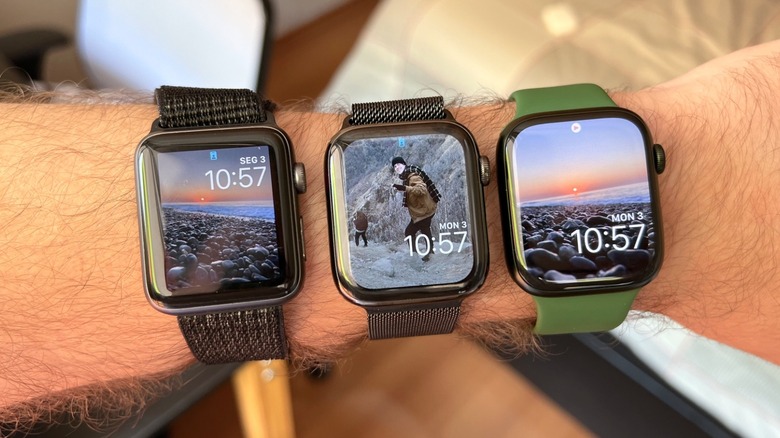
The Apple Watch is full of good features that are available from the moment you sync it with your iPhone. Immediately, it starts getting phone notifications, tracking your workouts, magically pairing your AirPods through your Apple Account, and so on. However, there are other essential features you need to enable yourself, whether because you want to take your wearable to the next level or you want more customization. Some of these essential features can be as important as setting up a Sleep Schedule, quickly finding your AirTag with the Apple Watch, or even enjoying Apple's Walkie-Talkie feature.
While customers love their Apple Watch for its exclusive features, new watchOS updates bring new possibilities for this device, which is a customer favorite for tracking workout metrics, following your health data, and controlling an iPhone.
In addition, most of these essential features are available not only on the latest Apple Watch models but also on older ones, as these smartwatches still offer a lot of value and can be used to improve your work, sleep, or training.
Sleep Schedule and swapping Watch Faces automatically
If you want to know how well your body rests after a night out, a long workout, or a regular day at the office, the best way to do that is to set a Sleep Schedule. This feature has been available for a few years, and basically all you need to do is set a Sleep Focus so the Apple Watch can not only track your sleep zones but also your wrist temperature, blood oxygen, and heartbeat. Using this data, Apple and third-party apps can give you better insights into how well you slept, if you woke up during the night, and whether you've met your sleep goal.
To start using this feature, open the Control Center on the iPhone, tap the Focus button, and select Sleep mode. There, you can set your Sleep Schedule and whether you want to wind down a few minutes before the feature is actually turned on — this will also be available on the Watch.
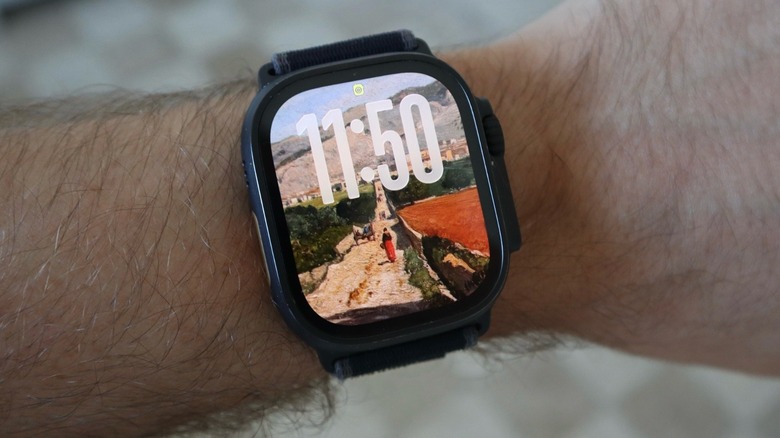
Another important feature that relies on iPhone's Focus Mode is the ability to automatically swap Watch Faces. In the different Focus Modes of the iPhone, users can select custom wallpapers and Watch Faces to better reflect the moment of the day, such as when working out, during a meeting, enjoying the weekend, or even before bedtime. This is an interesting function that helps you explore several Watch Faces.
Pause your Rings and personalized Workouts
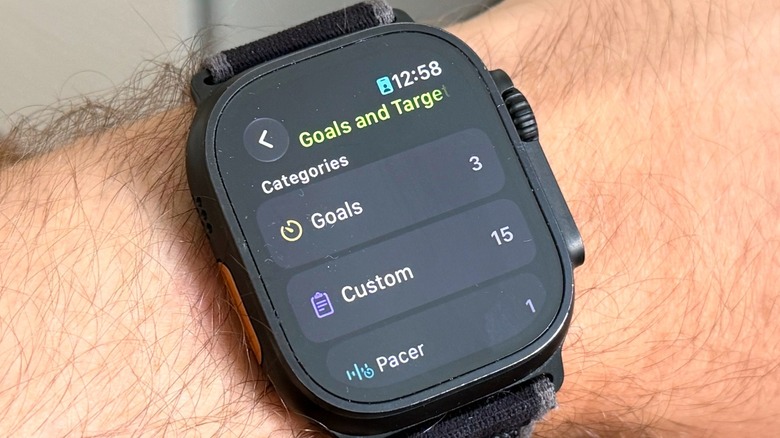
With watchOS 11, Apple let users pause their Activity rings at will, which was one of the most important Apple Watch updates for workouts and activity streaks. By tapping your rings on the Apple Watch, you can Change Goals or Pause Rings by pausing for a day, until the next Monday, the next month, or as long as you want. This way, you don't lose your activity streak and can give yourself some time to rest, recover from an injury, or enjoy your vacation. Third-party apps, like Gentler Streak, offer a better approach to Apple's Activity Rings. Gentler Streak comes with an Activity Path that includes a wider range of your body's capabilities, always reminding you that rest days are as important as practice.
Besides the ability to pause the rings, a fourth feature that is essential for Apple Watch users, but you need to turn it on yourself, is the ability to customize workouts. Once in the Workouts app, users can tap the three dots next to an exercise and create specific rules or metrics for that training. Runners have several features to improve their outdoor runs, for example, while swimmers can set how they're going to swim and the length of the pool they're in. With that, Apple Watch users can go the extra mile when tracking their workouts, all using Apple's solutions.
Type to Siri and change notification permissions
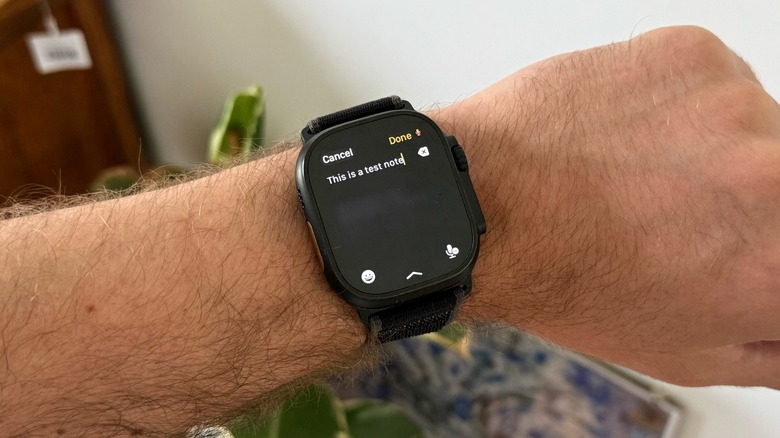
Introduced with the Apple Watch Series 7 and its bigger display, you can use a full on-screen QWERTY keyboard on Apple's wearables. With that, you can type to Siri any query you can't or don't want to say out loud. On the Apple Watch, go to Settings, select Accessibility, tap Siri, and toggle on Type to Siri. To trigger the experience, just press and hold the Digital Crown to pop up the keyboard. With a new Siri experience coming with watchOS 27, this could be a lot more useful, as the personal assistant will be able to use personal data and access more complex information by searching the internet.
The sixth essential feature Apple Watch users need to turn on by themselves is changing notification permissions. Yes, it's great to get every notification on your wrist at first, as you don't need to pick up your phone and you can always stay on top of what's going on. However, if you start to get bombarded by several group chats or keep getting annoying notifications from apps that aren't actually important, then you know how annoying it can be to get your wrist buzzed every five seconds.
Fortunately, you can swipe left on a notification in the Control Center, tap the three dots, and choose to turn off notifications, deliver quietly, or adjust app-specific permissions. Still, I'd recommend you do that in iPhone Settings just because it's faster.
Find AirTag, new Control Center commands
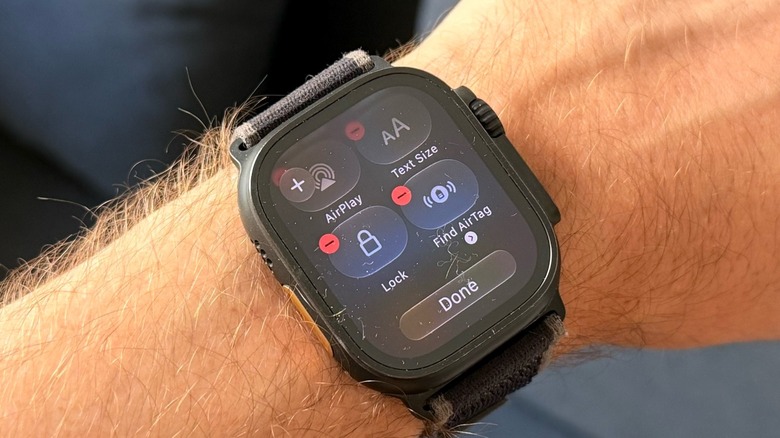
The seventh essential feature for Apple Watches might be tricky, as the proper experience requires a new Apple Watch model and the AirTag 2. However, if you have an Apple Watch Series 9, Ultra 2, or newer model, you can use Precision Finding with the smartwatch to locate the AirTag. And if you have an Apple Watch Series 11 or Ultra 3, this technology will work from further away, as both devices have the U2 chip. To take advantage of this feature, users need to go to the Control Center and add the Find AirTag widget. Then, select one of the AirTags to make this quick connection, such as the ones kept in the keychain.
The eighth essential feature is also related to the Apple Watch Control Center — and I already gave it away — which is the ability to customize it. Just like the iPhone's Control Center, the Apple Watch one is highly customizable, but many people don't do anything with it. Since watchOS 11, users can open the Control Center, scroll to the bottom, and tap Edit. From there, they can delete tools they don't use very often and even browse new ones. Apple offers several suggestions, widgets, and third-party apps that might have a Control Center integration that makes them significantly faster to use.
Walkie-Talkie and pay with Apple Pay
The ninth feature most users forget has been available since watchOS 5: the Walkie-Talkie app. This push-to-talk voice tool didn't get much love from Apple in the past couple of years, but it was the primary way I communicated with my friends for a while. It's fast and easy to connect, but you need to set it up yourself. When you open the Walkie-Talkie app, tap the Add icon to invite a contact. Once they accept it, you can toggle your availability to on. Touch and hold the talk button on this contact to speak, and then release it. Once you get a reply, you'll get a buzz. After raising your wrist, the audio message will be played.
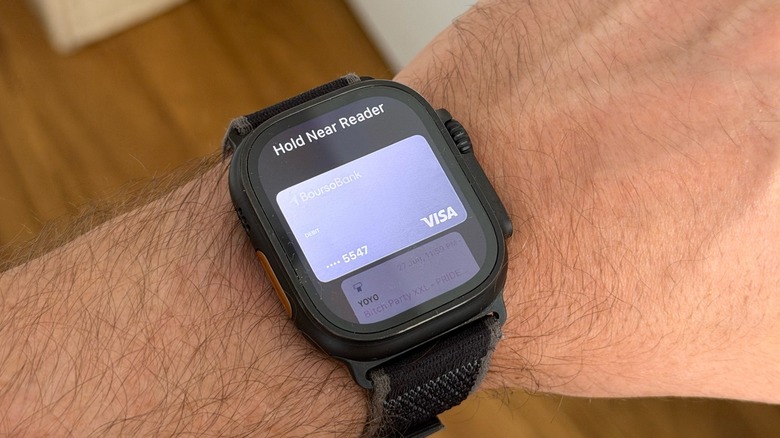
Last but not least, a very handy feature you need to set up is Apple Pay. This has been available since the original Apple Watch and, as you know, is a secure way to make contactless purchases using credit or debit cards linked to your Apple Wallet. While the initial setup of the Apple Watch already offers you the option to connect with the cards you use most, you can also do it later in the Watch app on iPhone by selecting Wallet & Apple Pay, then Add Card. After it's registered, you can double-click the Side Button to pay for things or use Express Transit in cities like Paris, London, and New York to authenticate your transport card on the terminal without double-clicking the Side Button.