

10 Things You Didn't Know Apple Watch Could Do
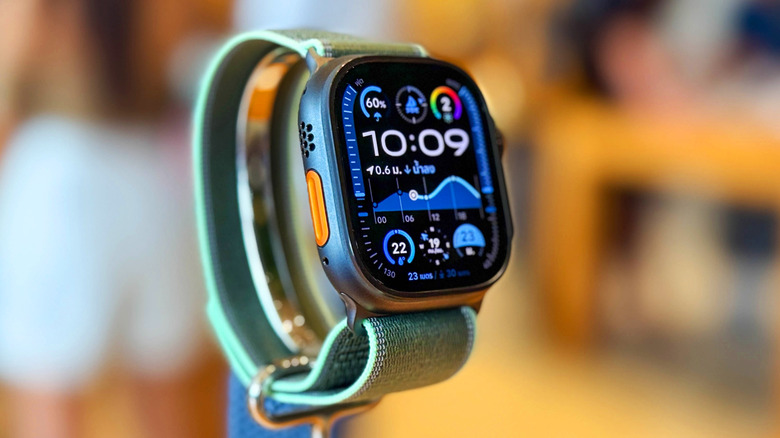
The Apple Watch is an impressive piece of hardware. It has a great screen, a fast processor, and Apple's custom software that is breezy to use. And yet, most people end up using the Apple Watch as a way to manage notifications, look at the time, and guilt themselves about not closing their Activity Rings.
But it doesn't have to be that way. This little computer on your wrist can transform into a helpful sidekick for your iPhone. Once you've turned off annoying notifications and downloaded the essential apps, it's time to get to work. Remove that Activity Rings guilt, use the Apple Watch as a remote for your iPhone camera (and even your Apple TV 4K), automate your watch faces based on your Focus modes, switch to a soothing red flashlight at night, and more.
Spend some time poking around Apple's built-in apps and settings, and you'll realize there's so much to the Apple Watch that you just didn't know about. Wouldn't it be lovely to unlock your Mac by simply walking up to it? The Apple Watch can do that, and a lot more. We've rounded up some of the most overlooked Apple Watch features below. And don't worry, they're all quite easy to set up.
1. Find your iPhone in the dark
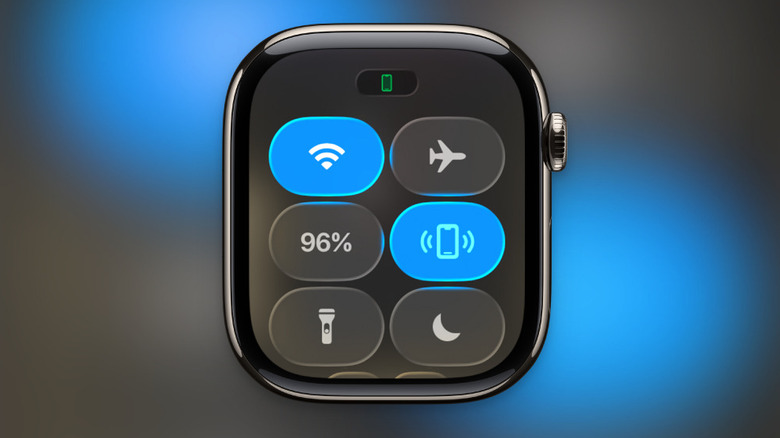
The joy of using an Apple Watch is that you can easily reduce your iPhone screen time, away from the pull of doomscrolling and the looming work emails. But when you get used to spending so much time away from the iPhone, you start to forget where it was. Especially in the evenings and at night. Apple Watch's built-in iPhone tracker can help, though.
As long as your iPhone is in range, you can use your Apple Watch to ping and locate the iPhone, even in the dark. With the latest models, you can even use Precision Finding to track your iPhone, meter by meter. Press the Side button on your Apple Watch to open the Control Center. Here, tap the iPhone icon. As long as your iPhone is within Bluetooth range, it will start pinging loudly.
If you're using a recent Apple Watch (Apple Watch Series 9, Ultra 2, or higher) and an iPhone (iPhone 15 or higher), you will also get directional suggestions to find the iPhone nearby, and you can see whether you're heading farther from it or towards it. And there's a hidden trick to make your iPhone easier to spot in dark rooms. Instead of tapping the iPhone button in Control Center, press and hold it for a couple of seconds. Now, as your iPhone pings, it will also light up the LED button rhythmically. If you couldn't find it in those couple of seconds, tap the iPhone icon from the bottom-right corner of the tracking screen. If you're out of Bluetooth range, use the Find My service to locate your iPhone.
2. Control your Apple TV from the wrist
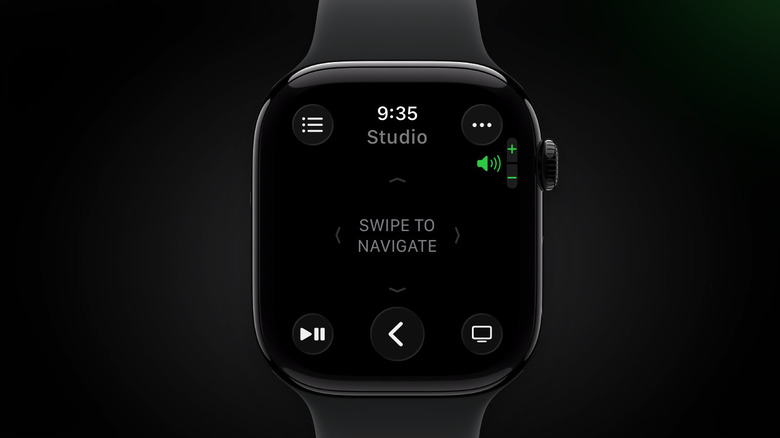
Keep losing the Apple TV 4K remote? Don't blame yourself. The tiny remote is easy to misplace. Thanks to Apple's ecosystem magic, you can use your iPhone or your Apple Watch to completely control your Apple TV. Make sure your Apple Watch is connected to the same Wi-Fi network as the Apple TV and that you're in Bluetooth range.
On your Apple Watch, open the Remote app and choose your Apple TV 4K model. If you don't see it, you'll have to pair your device first. Tap the Plus button, choose your Apple TV 4K, and enter the passcode from the Apple Watch. Now that it's paired, choose the Apple TV 4K from the list.
You will now see a small remote interface for your Apple TV. You can swipe on the main area to go up, down, left, or right. Tapping the screen will select the highlighted option. Tap the Back button to go back, and use the TV button to go to the main menu. There's also a dedicated Play/Pause button to quickly control media playback. If you tap the three-dotted menu button, you can access more features like Mute & Unmute, Captions, and Power. To turn off the Apple TV 4K from your Apple Watch, use the Power feature.
3. Use Apple Watch as a remote iPhone viewfinder
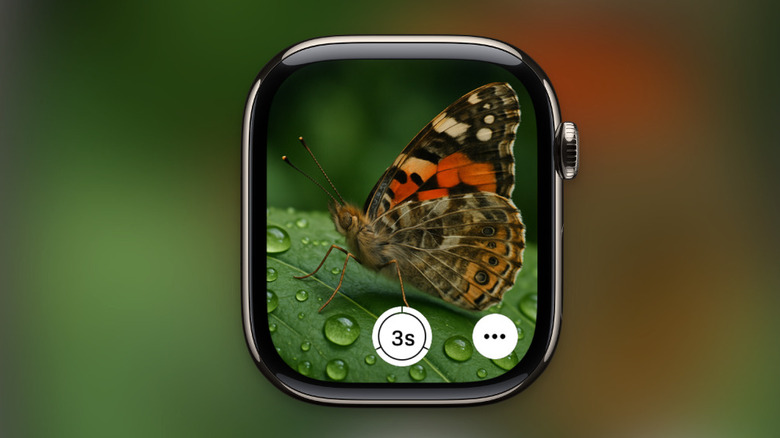
If you use your iPhone to record content, or if you just need to capture yourself from afar using the iPhone, the Apple Watch can actually help quite a bit. There's a built-in app called Camera Remote that shows you the live view from the iPhone's camera. If you are filming yourself or setting up a shot on the iPhone, you can use the Camera Remote app to preview the shot without moving up to the iPhone again and again.
Once the shot is set, you can use the Apple Watch to take photos and to record video. Moving the Digital Crown will let you zoom into the shot, and you can tap on an area to adjust the exposure. Then, tap the Shutter button to take the photo (by default, there's a three-second timer, but you can edit that by going into Settings from the three-dotted Menu button). To start a video recording, tap and hold the Shutter button instead. Once the video is recorded, you'll be able to preview it on the Apple Watch itself (and it will be saved to the Photos app on the iPhone).
The Camera Remote app works best when your iPhone is stable and propped up on a tripod, and it will only work if you're in Bluetooth range (33 feet). Tap the Menu button to switch between the front and rear cameras, and to disable the flash and Live Photo mode.
4. Automatically unlock your Mac
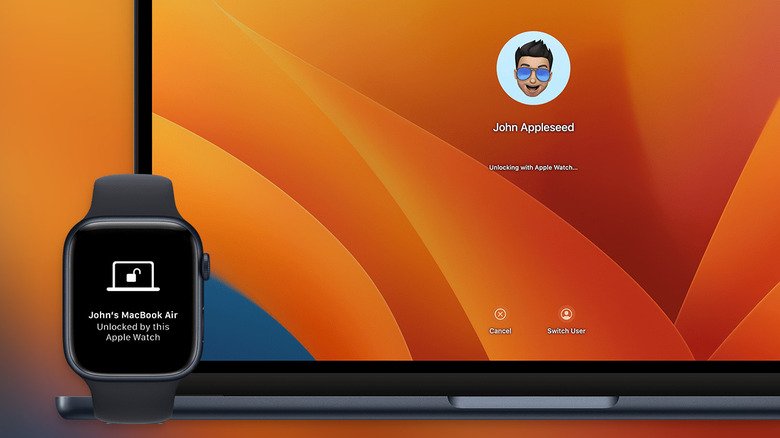
One of the best advantages of using Apple products is how well they integrate with one another. You can AirDrop photos from iPhone to the Mac, copy and paste the clipboard between the iPad and the iPhone, and you can also use your Apple Watch to automatically unlock your Mac, and as a replacement for the Touch ID button. If you use your Mac with a monitor and you don't have a keyboard with Touch ID, this feature will be very useful.
First, make sure that both devices are on the same network and using the same Apple account. You will need to enable Two-Factor Authentication for your Apple account for this to work. On your Mac, go to System Settings > Touch ID & Password and find the Apple Watch section. Here, enable the Apple Watch feature. The first time you restart your Mac after enabling this feature, you'll have to log in with your password. After that, your Mac will automatically unlock itself when you're wearing your Apple Watch.
Once this feature is enabled, you can also use your Apple Watch to approve any system requests. Whenever your Mac prompts you to enter your password or authenticate with Touch ID, your Apple Watch will buzz as well. Simply press the Side button twice to approve the request or to unlock an app like Apple Passwords.
5. Use red flashlight to see in the dark
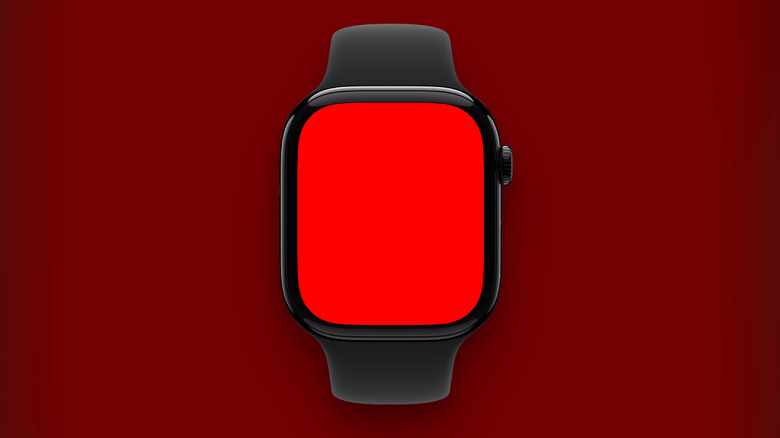
Even though you can now fine-tune the LED flashlight brightness on the iPhone, it can still feel too harsh, especially at night. The Apple Watch has a feature that turns the entire Watch screen into a gentle flashlight. You can use it to find objects at night without disturbing your partner and to alert others of your presence if you're out for a late-night walk. And you can use color filters to make the flashlight even more soothing.
On your Apple Watch, press the Side button to open the Control Center and tap the Flashlight icon. You now have three options (pages) that you can swipe between. The first is just a bright white light. You can swipe to engage a flashing white light mode, or go to the end to see the red flashlight, which is best for nighttime excursions. To adjust the brightness at any time, turn the Digital Crown up or down. To turn off the flashlight and go back, press the Digital Crown or swipe down from the top edge of the Apple Watch's screen.
6. Monitor for loud noises and protect your hearing
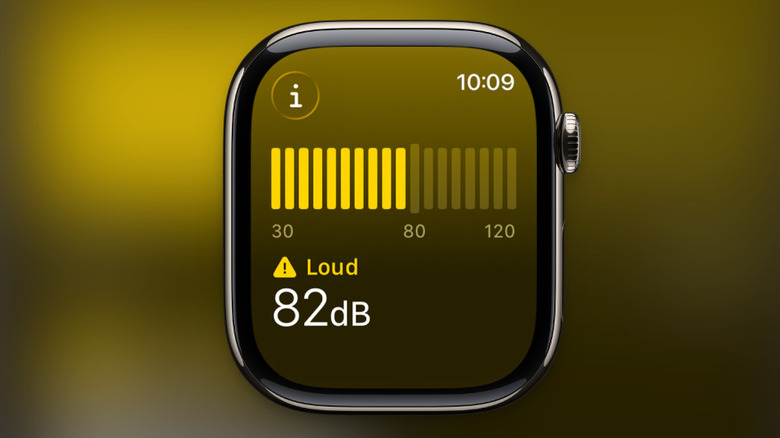
If you have hearing loss or hearing sensitivity, you might want to monitor your environment for loud noises. The Apple Watch has a built-in Noise app that monitors live noise levels in decibels by regularly recording background noise. If it records an above-average sound level for more than 3 minutes (based on your settings), it will immediately notify you.
It's best to monitor the surrounding noise and to set up notifications for loud noises. First, enable the background noise monitoring on the Apple Watch. Open the Noise app, and tap the Enable button. Next, set up the loud noise notifications. On your Apple Watch, open the Settings app and go to the Noise section. Here, tap Noise Notifications and choose the desired threshold (for example, 80 dB). Now, whenever your environmental noise exceeds the threshold for a couple of minutes, you'll get a notification. You can also open the Noise app on your Apple Watch at any time to monitor the noise levels in decibels.
7. Automatically change the watch face based on Focus modes
Focus mode is quite a game-changer on the iPhone. You can customize which app or person can reach you, and choose which apps appear on the home screen. This extends to the Apple Watch as well.
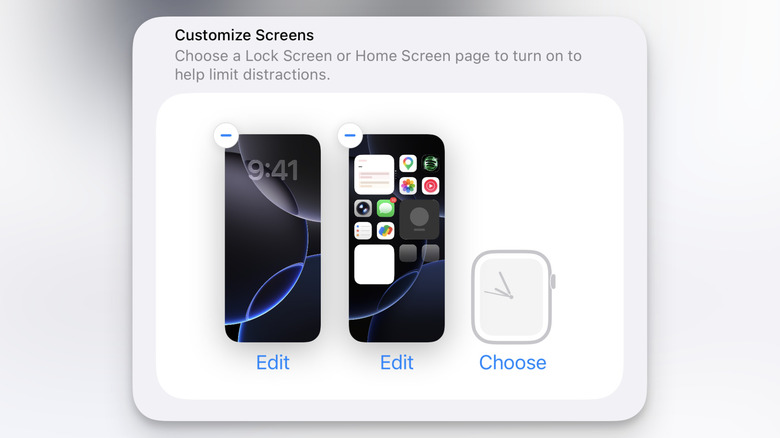
If you have multiple Focus modes for work, personal downtime, sleep, Do Not Disturb, workout, and more, you can associate a unique Apple Watch face with each. So when you switch to another Focus mode (which can be done from the Control Center on the Apple Watch), the watch face changes automatically. This would be useful during work and workouts. You can customize a watch face that shows all your work appointments, and has shortcuts to to-do apps or the Mail app. While the workout watch face can focus solely on workout apps, step counters, and health stats. And when you're home? Switch to the simple Photos watch face.
To set this up, first create the unique watch faces you want to use from either the Watch app on the iPhone or the Apple Watch itself. Then, on your iPhone, go to Settings > Focus and choose a Focus mode to customize. Go to the Customize Screens option, tap the Choose button below the Apple Watch icon, and select one of the available watch faces. Then, tap Done. Now, when you switch to the Focus mode, it will automatically change the watch face as well.
8. Control your Apple Watch with one-handed gestures
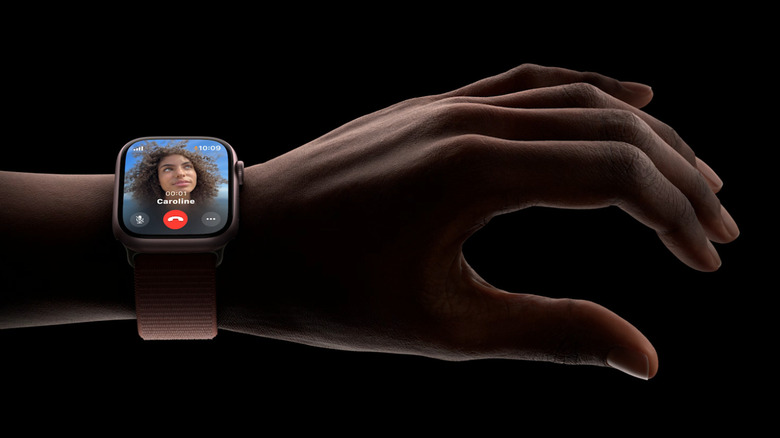
You might not know this, but there's a way to control the Apple Watch without ever touching the screen. When you've got your hands full, it can be tough to press a button to pick up a call or to stop a timer. In these cases, you can use the built-in double-tap gesture. Simply tap your index finger to your thumb twice to select the main action button that's on the screen. If you're on a call, the gesture will end it.
You can customize the Double Tap gesture for playback and widgets by going to Settings > Gestures > Double Tap. For music playback, you can choose between Play/Pause and Skip. For Widget Stack, you can choose to select a widget or switch to the next one on the list.
If you're using watchOS 26 and higher, you also have access to a new Wrist Flick gesture. Just turn the Apple Watch away from you (so that the screen is no longer in view) to dismiss notifications or to go back to the previous screen. You can also use it to stop timers and quickly mute incoming calls without touching the screen. Double Tap and Wrist Flick gestures are supported on Apple Watch Series 9, Ultra 2, SE 3, and higher models. If you find these gestures a bit annoying, you can also turn them off from Settings > Gestures.
9. Change and Pause Activity Rings
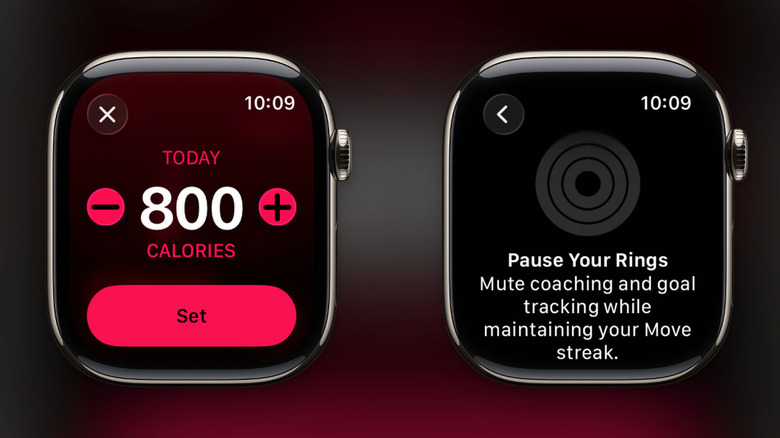
Activity Rings make up a core part of using the Apple Watch. And it's not just about fitness. Every day, Apple Watch will prompt you to close your rings. There are three distinct rings for Activity, Exercise, and Stand goals. This is a useful gamification system that can motivate you to get moving and stay active. But it can also sometimes backfire.
Life isn't perfect; it's inconsistent. There are a few recovery days when you just want to do less. If there's an injury or a prolonged vacation, you might not reach your Activity goals for a long time. Should you lose your streak and targets just for that? Apple Watch now lets you pause activity rings for a while, without affecting your streak. You can also choose to reduce the activity goals for just the day, and you can also edit the schedule to have lower goals during the weekend or rest days.
To change a goal, go to the Activity app on your Apple Watch, swipe up to move to an Activity ring, and tap the small "-/+" icon in the bottom corner. From here, you can choose to change the goal for the day or change the schedule for the week. To pause your rings, tap the Chart icon from the top-left corner of the Activity app, scroll down, and choose the Pause Rings option. You can pause your rings for up to 90 days at a time.
10. Turn your Apple Watch into an iPod
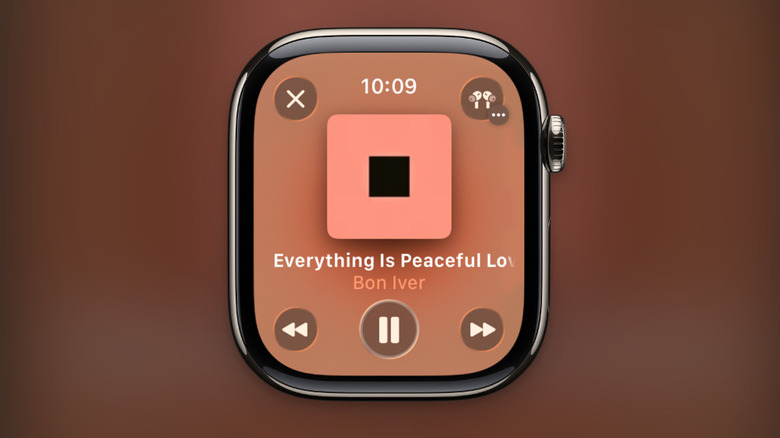
Want to break free? You can turn your Apple Watch into a modern-day iPod effortlessly. You can transfer your own music from the Music app, or download music from Apple Music for offline listening. Because the Apple Watch supports Bluetooth headphones and has native integration with AirPods, you can listen to music without the internet and without your iPhone.
To add your own music to the Apple Watch, open the Watch app on your iPhone, go to My Watch > Music > Playlists & Albums > Add Music. Tap the Plus button next to the playlist or album that you want to sync. When your Apple Watch is near your iPhone, the music will be transferred to the Watch automatically.
If you're an Apple Music subscriber, the process is even simpler. The Music app on the Apple Watch automatically downloads recently played music. To manually download music, open the Music app on your Apple Watch and find the playlist or music you want to download. Tap the three-dotted Menu button and choose the Add to Library option. Next, tap the Menu button again and choose the Download option. The music will be downloaded in the background. To speed up this process and to reduce battery drain, do it when your Apple Watch is charging.