

5 Clever Uses For The Starlink App
The Starlink app has much more practical use than simply setting up your satellite internet connection. It offers several tools for managing, monitoring, and optimizing your satellite internet connection. Some common uses of this app are checking your internet speed, troubleshooting connectivity issues, and contacting support. But beyond that, you can also use it to check for obstructions before installing your dish. The app's main goal is to give the user greater control over their internet setup.
You can even use it to investigate intermittent connection drops, distinguish Wi-Fi problems from satellite-related issues, and keep an eye on the connection when you are away from home. Knowing how to use these features can make managing your Starlink setup easier and help you get more out of your equipment. A closer look at these features reveals just how much you can do with the Starlink app beyond basic network management.
1. Find the best location to install your Starlink dish

The Starlink app has a feature called Check for Obstructions. It helps users determine if any trees, buildings, poles, or other nearby objects could interfere with the dish's connection to passing satellites. The tool uses your smartphone's camera to scan the surrounding sky and look for any potential obstructions in the area. You simply open the Starlink app, select Check for Obstructions, and follow the on-screen instructions to scan the proposed installation area.
You don't have to settle for the first installation spot you find. You can scan several locations around your property, compare the results, and choose the one with the clearest view of the sky. Make sure you hold your phone at approximately the same height and position where you intend to mount the dish. This would give you a more representative assessment. It is important to revisit the obstruction map after a few months, especially if your Starlink connection starts featuring frequent interruptions. That is because tree branches may have grown, new objects may have appeared, or debris may have accumulated on your dish. You can use the findings from the app to decide whether relocating the dish or raising its mount would help.
2. Diagnose slow internet and identify Wi-Fi problems
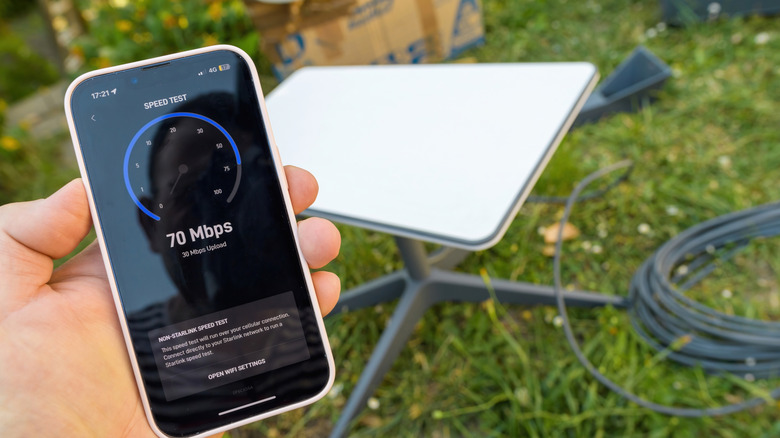
Slow internet doesn't always mean that there is something wrong with your Starlink service. Sometimes, the satellite connection is performing perfectly well, but your router isn't delivering that performance effectively to the connected devices. The Starlink app's Speed Test and Advanced Speed Test help distinguish between these problems. The standard test measures the connection between your Starlink router and the internet. It provides download speed, upload speed, and latency results, giving you an overview of the internet performance.
However, the Advanced Speed Test offers two additional measurements: Device to Internet and Device to Router. The former measures the connection from the smartphone running the Starlink app to the internet. The latter measures the connection between your device and your Starlink router. This feature helps you understand whether the Wi-Fi is the limiting factor. For instance, if the standard speed test shows a download speed of 100 Mbps, but your connected devices are getting considerably less, running the advanced test to investigate might prove helpful.
3. Monitor your Starlink connection remotely
The Starlink app can be very useful for people who don't always stay at the location where the dish is installed. Its statistics section lets users monitor network performance information, even when they aren't directly connected to their Starlink router. You can access useful metrics, including download and upload speed, latency, uptime, outages, and alerts. To understand it better, suppose you have installed Starlink at a vacation home, remote office, or another property. If someone reports that the internet is having issues, you can simply open the app and check the connection statistics before deciding the next step.
You can even switch between dishes if you manage multiple Starlink locations under one account. You should also keep an eye on your connection statistics over several days rather than relying on a single speed test. In that case, if you notice recurring outages or consistently high latency, you can investigate whether there's a consistent performance issue.
4. Identify connected devices to investigate Wi-Fi performance issues
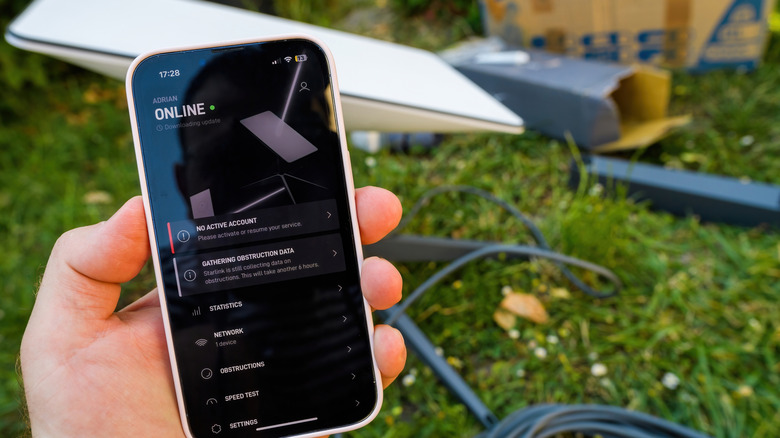
The Starlink app's network section provides information about the devices connected to your network. Instead of wondering what's wrong with your internet connection, you can review the available information and identify connected phones, tablets, laptops, gaming consoles, PCs, smart TVs, and other devices. This may help investigate unexpected slowdowns or manage a busy household network. For instance, if several family members are streaming videos, downloading large files, or playing games simultaneously, your available bandwidth may be shared across those activities. That would generally cause slower internet speeds and reduce Wi-Fi performance. In this case, checking the connected device information can give you a better understanding of what's happening with your network.
The app also provides information about individual clients, including their Wi-Fi signal strength and connection bandwidth. This is important because a device connected to a weak Wi-Fi signal may experience poor performance even when your Starlink internet connection is working fine. For example, if your phone is connected to the 5 GHz band, it will likely provide higher speeds over shorter distances. On the other hand, if it is connected to the 2.4 GHz band, you will get better coverage through certain obstacles but less speed.
5. Troubleshoot connection problems before contacting support
When your Starlink connection suddenly stops working, the Starlink app can be a useful first step in identifying the problem. Its troubleshooting tools and system alerts can help identify possible causes of connectivity problems without immediately requiring assistance from customer support. For example, the app can display alerts related to obstructions, hardware issues, alignment issues, thermal issues, and power interruptions.
Each alert can provide additional information and recommended actions. For instance, if you receive a high-obstruction alert, you can use the obstruction tool to investigate the problem and consider relocating the dish. In case your connection suddenly goes offline, it is recommended to check the app for alerts, inspect power connections, and power-cycle the equipment where appropriate. The app also provides access to the customer support of Starlink. In case the recommended troubleshooting steps don't resolve the issue at hand, you can submit a support request through your account by navigating to Support > Messages > Contact Starlink Support.