

Running Just One RAM Stick Could Secretly Be Ruining Your PC's Performance - Here's Why
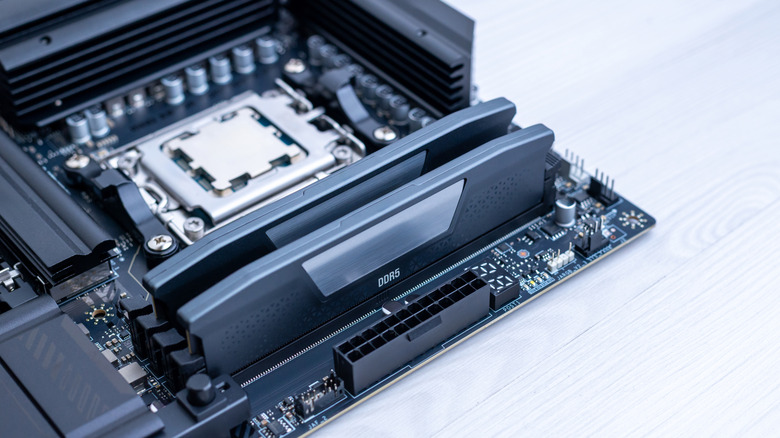
Your PC might have a powerful processor, a capable graphics card, and plenty of RAM, but there's a surprisingly simple hardware configuration that could be holding its performance back: running just one stick of RAM. The problem isn't how much RAM you have, but how quickly your processor can access it. Most mainstream processors support dual-channel memory. But when you install only one RAM stick in a dual-channel desktop system, you're generally using only one of those channels. That means you are leaving a lot of potential memory bandwidth unused.
This matters because the processor constantly moves data between RAM and its internal processing units. When memory bandwidth becomes a bottleneck, the CPU can spend more time waiting for data instead of getting the work done. As a result, you may experience lower gaming performance, inconsistent frame rates, and slower performance in memory-intensive applications. Running just one RAM stick doesn't necessarily ruin your PC, but if your system is bandwidth-limited, you could be sacrificing performance you already paid for. And with RAM prices being extremely high as of November 2026, buying another RAM stick isn't necessarily the obvious solution. So it is important to understand what single-channel memory does, how to identify it, and whether fixing it would substantially improve your PC.
Why dual-channel RAM makes such a difference
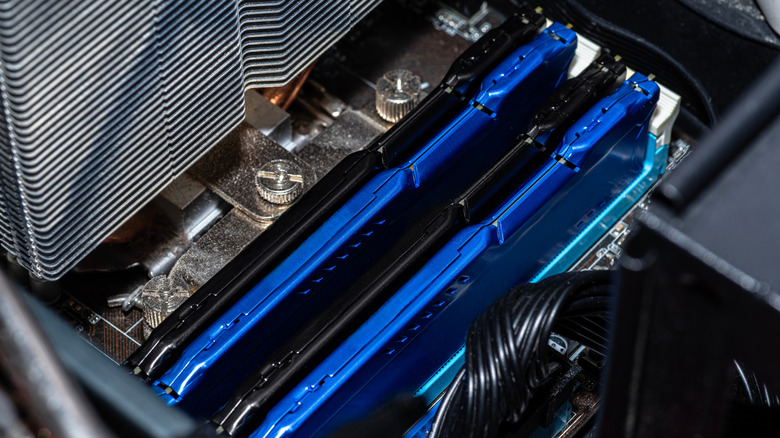
RAM is a highway that connects to the processor and sends the data it needs. In single-channel memory, the processor has only one memory channel, which limits how much data it can transfer at once. On the other hand, dual-channel memory lets the processor use two memory channels, increasing memory bandwidth and, of course, the speed at which data is shared. Memory capacity and memory bandwidth measure two entirely different things. The former determines how much data RAM can store before the system must rely on slower storage or other memory-management techniques. Bandwidth determines how quickly data can be transferred between the memory and processor.
Let's consider a DDR4-3200 configuration. A single 64-bit memory channel has a theoretical memory bandwidth of 25.6 GB/s. With two independent 64-bit memory channels, that theoretical figure doubles to 51.2 GB/s. These are theoretical maximums, not guaranteed real-world application speeds. Actual performance depends on memory timings, the processor's memory controller, and the workloads. The benefits of dual-channel memory are usually visible in gaming, integrated graphics, and content creation and productivity. GamerNexus demonstrated this in its single-channel versus dual-channel testing, which recorded a 21.3% improvement in total memory bandwidth with dual-channel memory.
That said, DDR5 complicates things a little. Each DDR5 DIMM has two independent 32-bit subchannels, unlike the 64-bit channel arrangement inside a conventional DDR4 DIMM. However, that doesn't mean that one DDR5 stick automatically provides the same bandwidth configuration as two sticks across a processor's two memory channels. A single DIMM still generally occupies only one of the CPU's two memory channels on a mainstream dual-channel platform. Hence, DDR5's internal subchannels shouldn't be confused with a motherboard operating in a dual-channel mode.
How to check whether your PC is running single-channel memory
You generally don't have to open your PC to find out how its memory is configured. One of the easiest ways is to download CPU-Z. After you download the application, follow these steps: open CPU-Z and go to the Memory tab > look for the Channel or Channel # field > check whether it reports single-channel or dual-channel operation. You can also check the DRAM frequency and memory timings. For DDR5, channel reporting can vary between software versions because of its subchannel architecture. Don't interpret a label such as 2 x 32-bit as proof that both CPU memory channels are populated. In that case, cross-check with the motherboard's slot configuration and BIOS.
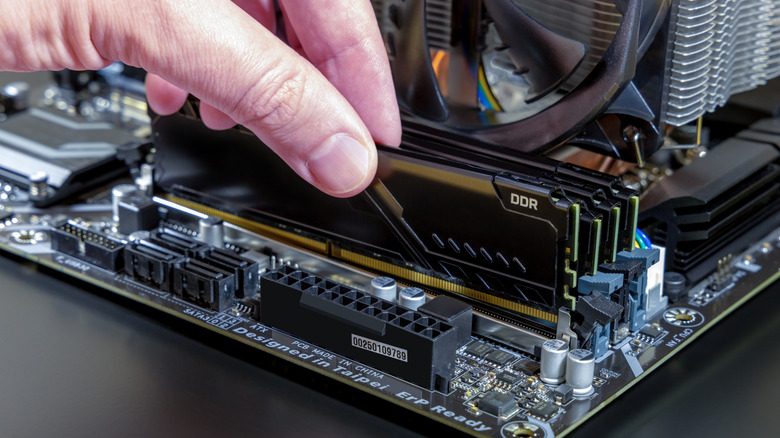
If you are using a desktop PC, physically checking the motherboard can also help. Most mainstream motherboards with four memory slots use two memory channels, with two slots per channel. For a typical four-slot motherboard, the slots are labeled as: A1 and A2 as the first memory channel, and B1 and B2 as the second memory channel. When installing two memory sticks, the recommended configuration is generally A2 and B2, which are usually the second and fourth slots (counting outward from the CPU socket). Installing RAM in the wrong slots is actually one of the most common mistakes people make when setting up a new PC. However, slot arrangements can vary, so consult your motherboard's manual first.
Also, don't assume filling all four slots is better. More populated RAM slots don't automatically mean better performance. And while RAM prices are extremely volatile right now, upgrading to dual-channel memory isn't essential. However, if you're sure the single-channel memory is holding your PC back and you want the extra performance boost, consider selling your RAM stick and putting that money toward a matched dual-stick kit with the same total capacity. For example, if you currently have a 32GB DDR4 stick, you could sell it and purchase a 2 x 16GB DDR4 sticks instead, paying the difference.