

Your Samsung Galaxy Watch 9 Can Do More Than Track Sleep — Here Are 4 Gestures Worth Trying
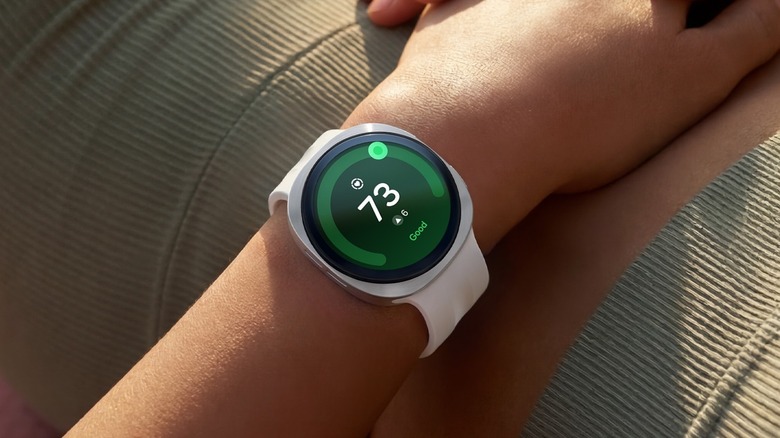
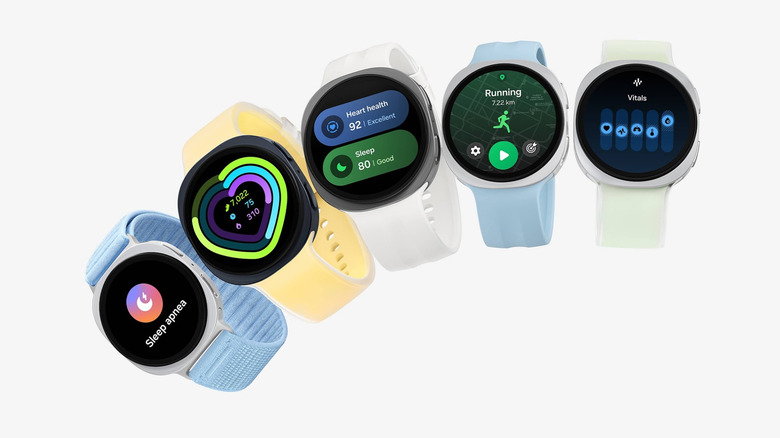
Samsung unveiled the Galaxy Watch 9 in July 2026, with the device starting at $380 and topping out at $460. Packed with a raft of features, some of which only Galaxy Watches have, the latest iteration goes big on health and fitness, with highlights including everything from advanced heart health monitoring and sleep apnea detection to AI health insights and blood pressure monitoring. A larger, more powerful battery, faster processor, and a brighter AMOLED display are also part of the package.
If you've picked one up, there's a chance you might've overlooked some of its most useful features, such as gestures, which can help you interact with the device more efficiently by going hands-free. For example, one of the more interesting additions to the latest iteration of Samsung's smartwatch is Raise to Talk, which makes interacting with your watch feel more natural by letting you bring your wrist toward your mouth to start speaking to Gemini, the watch's default AI assistant. Raise to Talk is one of several gestures worth knowing about, so let's dive in and take a closer look.
Raise to Talk

Up to now, if you wanted to interact with Samsung's smartwatch using your voice, you'd have to begin by pressing a button on the watch or saying a wake phrase. But with the Galaxy Watch 9, a new Raise to Talk feature means you can now set it so that all you have to do is bring the device up to your mouth and start speaking. A sensor inside the watch will detect that you're raising the watch, prompting it to launch Google's Gemini AI assistant so that you can start interacting through voice. It's a useful addition to the device that highlights how Samsung is making its smartwatch experience even more hands-free and convenient.
Once activated, Gemini can do more than simply answer quick questions. You can also do things like ask it to send messages, create reminders, manage calendar events, or grab information from compatible apps. This makes the Raise to Talk gesture particularly useful when your hands are full. It also takes away the inconvenience of having to physically touch the watch to initiate a voice interaction.
You need to enable Raise to Talk before using it. To do so, open Settings on your Galaxy Watch 9, select Buttons and gestures, and then Raise to talk. Finally, toggle the switch to On. You can also set it up via the Galaxy Wearable app on your smartphone.
Double Pinch
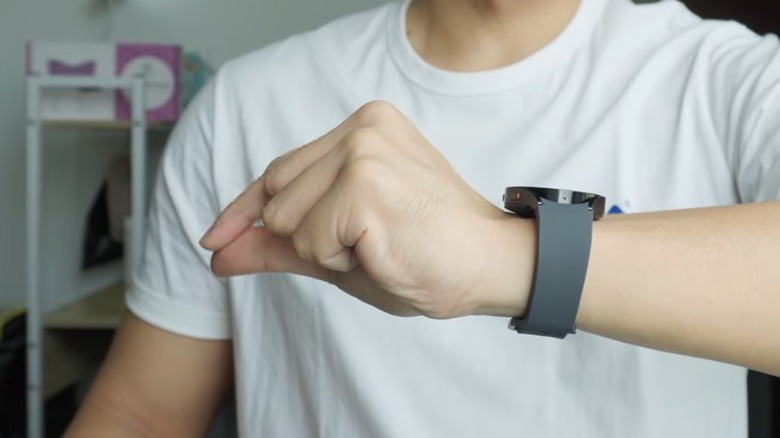
The Double Pinch gesture is a super-useful feature on the Galaxy Watch 9 that makes it easy to perform various actions without having to touch the screen or press any buttons on the device. As the name suggests, the gesture involves bringing together your thumb and index finger twice in a pinching action, using the same hand on which you're wearing the watch.
You can use Double Pinch for tasks like answering calls, dismissing alarms, controlling music playback, and taking photos with a connected Galaxy smartphone. You're likely to find it useful when your hands are full, so you don't have to put anything down or dry your hands (or whatever) to interact with your Samsung smartwatch.
Like Raise to Talk, the gesture doesn't work out of the box, so you need to set it up. Thankfully, it's easy to do. Just go to Settings on your smartwatch, tap Buttons and gestures, then choose Double pinch/shake and toggle the switch to On. Again, you can also enable it using the Galaxy Wearable app on your smartphone.
Shake to Dismiss
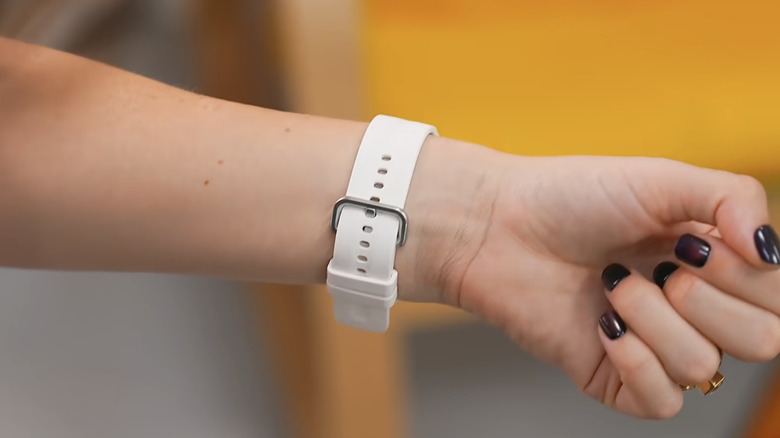
Another useful gesture for your Galaxy Watch 9 is Shake to Dismiss. The movement involves rotating the wrist with your watch twice in quick succession. The gesture lets you effortlessly decline calls and dismiss alerts and alarms, saving you from having to tap anything on the watch display or press any physical buttons. Even better, it means you don't have to dive into a bag or fumble around in a pocket for your smartphone.
Again, Shake to Dismiss could come in handy when you're doing things like carrying shopping bags or exercising and you can't easily use what would usually be your spare hand. You may have noticed that Shake to Dismiss can perform some of the same functions as Double Pinch, like dismiss alarms, so you can select the gesture that's most comfortable, or whichever is easier to perform in any given moment.
As with the other gestures, you can enable Shake to Dismiss through your smartwatch. Simply head to Settings and select Buttons and gestures, then choose Double pinch/shake and toggle the switch to On. You can also set it up via the Galaxy Wearable app on your smartphone.
Knock Knock
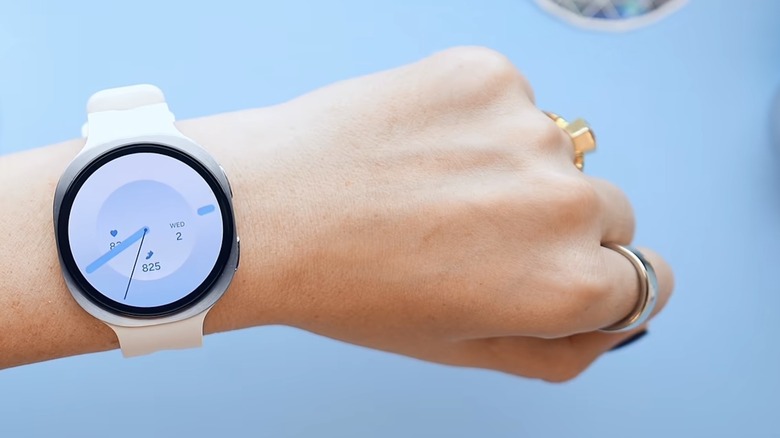
No, the Knock Knock gesture doesn't flash up a joke on your watch face for a quick giggle when you're feeling blue. Instead, it's a shortcut feature that lets you launch an app or feature on your Galaxy Watch 9, eliminating the need to use a finger to navigate through your watch's menus. The gesture involves making a fist with the hand on which you're wearing your smartwatch, and then bending your wrist downward twice in quick succession — as if you're knocking on a door.
The most customizable of the gestures in this list, Knock Knock can be assigned to, for example, the watch's flashlight, which turns the display a bright white, or to quickly launch an exercise or workout feature. Alternatively, link the gesture to an app that you use regularly, like perhaps Google Maps or Spotify, so that you can open it quickly. Take note, however, that you need to perform the gesture within five seconds of waking the watch's display, or, if you're using the always-on display, within five seconds of waking it from its dimmed state. To enable the Knock Knock gesture, open Settings on your watch and select Buttons and gestures, then choose Knock knock and toggle the switch to On. As with the other gestures, you can also enable it using the Galaxy Wearable app on your smartphone.
Methodology
In this list, we've focused on four of the Galaxy Watch 9's main gesture controls. Raise to Talk, Double Pinch, Shake to Dismiss, and Knock Knock each offer a useful shortcut for interacting with your smartwatch, whether you want to activate its AI assistant, answer a call, dismiss an alarm, or quickly launch a favorite app.
We've deliberately left out Samsung's Universal Gestures, as these serve a slightly different purpose. Rather than offering shortcuts for specific actions, Universal Gestures provide an alternative way to navigate the watch without touching the display, making them particularly useful as an accessibility feature. For example, Double Pinch works differently in this mode in that instead of answering calls or controlling music, it's used to move backward through selectable items on the screen, while a single pinch takes you forward. You can enable this alternative functionality by going to Settings > Accessibility > Interaction and dexterity > Universal Gestures, and then enabling the toggle switch.