

How To Take Back Control Of Your YouTube Algorithm
YouTube serves all kinds of audiences today, whether they're interested in gaming, vlogs, the latest technology, or everything in between. The platform also recommends content for its viewers, and these recommendations are dictated by an advanced Google algorithm. However, this algorithm can sometimes become detrimental to the overall experience since it can fixate on a specific type of content or recommend content related to recently watched videos too often.
Fortunately, this problem can be fixed through a series of simple steps that retrain the YouTube algorithm, and doing so should help the platform better understand your interests and likes or dislikes, particularly when it comes to recommended content for the future. Tuning the YouTube algorithm according to your preferences involves deleting your watch history, using likes and the "Not interested" option, and browsing in incognito mode when viewing spontaneous content. Keep in mind that it may take a while for the YouTube algorithm to adjust even after all these changes, since there's no fixed timeline for how the algorithm adapts to new activity.
Step 1: Delete your YouTube watch history
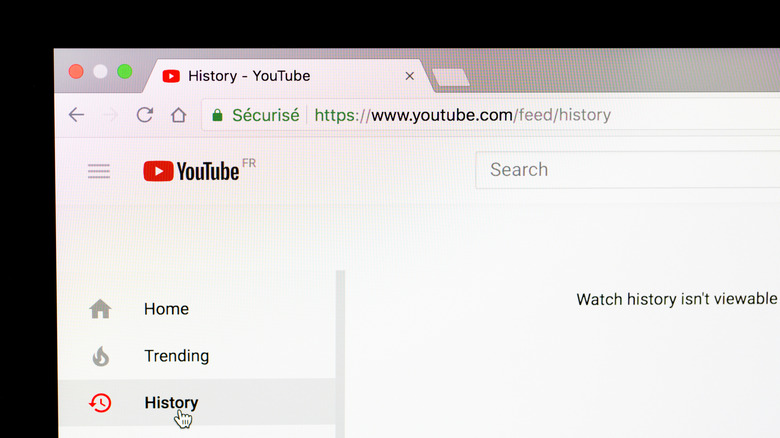
The easiest way to get a fresh start on YouTube is to clear your watch history and focus on content you really want to see on your home page. After you delete your watch history, the YouTube home page will become completely empty like a blank slate. Because the YouTube algorithm is so receptive to recently watched videos and suggests content related to them, the home page will then be based primarily on videos watched after clearing the history, which can be hand-picked to help train the algorithm.
To delete your watch history:
- Open YouTube in a browser.
- If the side navigation menu isn't visible, click the three lines in the top-left corner to expand it.
- Select History from the menu on the left.
- Click on Clear all watch history.
- Confirm your choice by clicking Clear watch history on the prompt.
Alternatively, when using the YouTube app on mobile:
- Tap your profile icon toward the bottom-right corner.
- Tap the History header near the top of the page.
- Tap on the three dots in the top-right corner.
- Select Clear all watch history.
- Confirm your choice by tapping Clear watch history on the prompt.
You can even choose to keep your watch history disabled, though this will lead to a permanently empty home page. Note that Google can still use activity on other websites to tune your YouTube home page after clearing watch history. More detail on this activity can be found on Google's My Activity page.
Step 2: Adjust your YouTube likes and recommendations and use incognito mode
Liking videos is the easiest way to tell YouTube that you want to see more of a specific type of content or videos from a specific creator. This is why liking videos that align with your interests more often and revisiting your liked videos playlist to remove unwanted content can help retrain the algorithm.
Dislikes exist as the opposite of likes, but YouTube has an even more effective way of learning when certain recommendations are unsuitable. Each video on the YouTube home page can be dismissed through the "Not interested" prompt. Similarly, users can tell YouTube to refrain from recommending a certain channel. To do so, select the three dots near the bottom right of a recommended video, then choose Not interested or Don't recommend channel. The same prompt can also be found on videos that show up as recommendations when viewing a video.
With that said, not every video you watch on YouTube has to be in line with your usual interests. Sometimes you might want to branch out or watch something totally different, so making use of incognito mode can come in handy in such situations. Switching to incognito mode means that YouTube won't add videos seen in this mode to your watch history.
Therefore, any content you watch here will not influence your algorithm. To activate incognito mode in the YouTube app, tap your profile icon in the bottom right, select Accounts from the top left, then choose Turn on Incognito. When viewing on a PC browser, simply enter incognito mode via Google Chrome or any other browser before visiting the YouTube website.