

Stop Using Google Calendar Like A Fridge Magnet And Try These 4 Features
Far too many people treat their digital calendar like an analog display. But it's time to stop using Google Calendar the same way you would a paper calendar on a fridge, and start using it to its full potential. Though the app may seem boring and simple in theory, Google Calendar is actually packed with some great tools; it's an incredible free productivity app that can make you more organized than you ever thought possible.
Scheduling with a digital calendar can (and should) go much further than just using basic times and dates. Fortunately, Google Calendar is actually flush with features that can help you manage your time better, and it can integrate with other productivity apps from Google. Overall, the app makes it easy to streamline all of your calendar events, so you know exactly what's happening when. That, in turn, can lighten your mental load, and who doesn't want that?
Setting some (or all) of these features up for yourself on Google Calendar is super easy and only takes a few minutes in total. Plus, you'll keep reaping the payoff for years to come. There's nothing to not like about that, so let's dive in and take a look at these four handy features.
Protect your schedule with Focus Time

Focus Time is one of the best calendar features for enterprise and school users (sorry personal Gmail account owners). It's a supremely effective way to protect your precious time, which is great if you need some time where you can really buckle down and get some work done. Focus Time can automatically reject meeting invites for you during any Focus blocks you set up, if you'd like, so you don't have to waste time doing it yourself. And, setting up these blocks means your coworkers can't book meeting time with you over any of them. It's like having noise cancelling headphones for your work schedule.
Setting this up is a cinch. Click anywhere on your work calendar grid to create a new event, and just choose the "Focus time" label from the options at the top of the pop-up. From there, check the box labeled "Automatically decline meetings." Save your Focus time event, then you should see the block in your calendar where you want it, along with a cute little headphone icon.
Making use of this clever feature can give you a much-needed leg up when things get busy. Instead of spending an hour negotiating time slots through seemingly-eternal email chains, Google Calendar keeps your boundaries firm for you. Now you can stay focused on, you know, actually getting some work done.
Master keyboard shortcuts for faster navigation

Using your mouse (or even your trackpad) to navigate your schedule is straight-up inefficient. Keyboard shortcuts are way faster for jumping between different dates or views, and even generating a new event. By learning just a handful of shortcuts, you can drastically reduce how much time you're spending scooting around Google Calendar. They let you navigate your calendar faster by a long shot, making hunting for buttons and drop-down menus a thing of the past; that's why Google also has shortcuts in its Sheets app.
While using the shortcuts is super easy, you'll need to head over to the Google Calendar settings panel to set up the feature. Click the gear icon located in the upper right to open the settings menu, go to the "Keyboard shortcuts" section, and toggle it on. There are a few important shortcuts to memorize right off the bat so you can instantly move around the app more easily and change between different view options; likewise, there are shortcuts for creating and editing events. You'll find some more useful than others, and you can use them on the daily.
Pressing the "c" key instantly opens a new event creation window, while "r" refreshes your calendar. Tapping "t" moves you to the current day. Hitting "d" shifts you to a daily view, "w" switches you to the weekly layout, and "m" brings up the full month. Pressing the forward slash key activates the search bar for searching for events. Though keyboard shortcuts seem like an easy trick, you'll be surprised how many minutes you save yourself each day.
Integrate Google Tasks to build an actionable day

Separating a to-do list from your daily schedule isn't always the best idea. It can make it tougher to know what all of your tasks are and get them completed on time. Thankfully, Google Calendar automatically merges your calendar and tasks together, showing you everything that needs to get done and the due dates. By having all your events and to-dos in one app, nothing can throw a wrench in your day.
If you're keeping your to-do list in an app besides Google Tasks, or don't use one at all, it's worth setting up. The app is great for making checklists and even setting up task sub-lists so you can easily visualize the full scope of a project. To start using Tasks, go to the panel on the right side of Google Calendar and click the checkmark icon to open your Tasks menu. From there, you can type out new assignments and even add info like deadlines and project details. Likewise, you can click a time and the event creation window will pop up; click on Task at the top and fill out your details the same way. And of course, once you finish a task, click on it, then tick off the "Mark completed" bubble to get your dopamine. You'll see the text strike through, then you can move on to whatever's next.
Find events instantly with keyword-rich titles
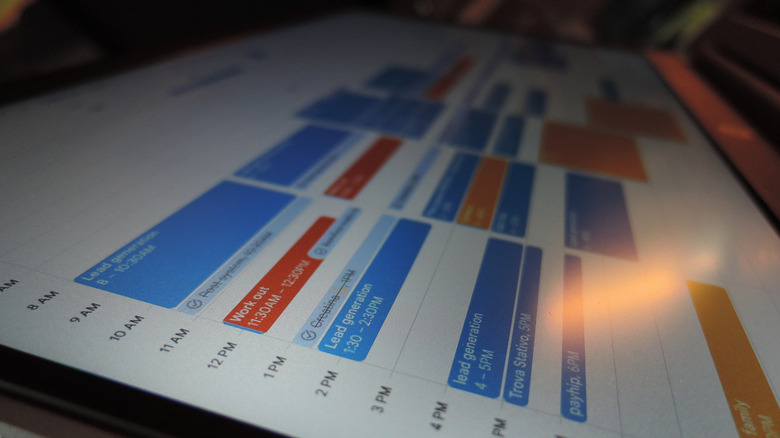
Relying on random, vague event names like "sync" or "catch up" kind of turns your calendar into an unsearchable useless mess. But you don't have to live like that, and there's an easy way to make Google Calendar far more useful to you. All you need to do is start using more descriptive calendar event names! By using good keywords and naming events what they actually are, you instantly become more organized. So instead of just saying "client meeting," make it more specific with something like "Q2 Marketing Pitch with Acme Corp." When you see it, you'll have a better idea of what the meeting is about (and even how to prepare for it).
There's another perk to using more descriptive event names, too. See that search bar at the top of Google Calendar? It's your new best friend. Typing in a project name in the search bar can pull up that exact event on your calendar in case you were wondering when it was. And if you stay thorough with event details, the app also has an advanced search menu that lets you search for events with a particular location, meeting participants, or specific words used in the event title.
So sure, you can just call an upcoming event "work meeting," but it doesn't take much extra time to give the event a more specific name or throw in some helpful details. Plus, Google Calendar saves past events like a historical archive, so you can even search for past events if needed. You're only doing yourself a favor with this one, and it can save you a ton of time and stress.
How did we choose these features

For this list, we wanted to include features that make Google Calendar a more useful and well-rounded app for you for the least amount of effort on your part. We also made sure to include features that are free (barring the Focus Time feature, which is exclusive to school and enterprise accounts), native to the app (not requiring any third-party downloads), and offer immediate benefits to your workflow, so you can get them set up and working for you in under a minute. Despite Google Calendar's simple and straightforward vibe, this helpful bunch of features makes more actively using it a worthwhile use of your time.