

30 Google Sheets Shortcuts That Can Have A Huge Effect On Your Workflow

If you use Google Sheets often, you'll know how frustrating it can be hunting for specific tools or settings. Aside from being annoying, constantly having to search through toolbars and context menus slows progress and wastes your precious time. Google Sheets actually has dozens of built-in shortcuts, from the well-known to the obscure. Master these, and your hands will rarely ever have to leave the keyboard, making you faster, more efficient, and cooler than everyone else in the office.
Naturally, some shortcuts are more useful than others. For instance, shortcuts requiring multiple sequential keypresses were intentionally left out, as they're harder to remember and mostly used for navigating menus anyway. You'll notice that copy, paste, and undo aren't mentioned either: The list below was carefully curated, with shortcuts only included if they're likely to save you time, or make a noticeable difference to your workflow and they aren't already widely-known.
Shortcuts to help you navigate spreadsheets like a pro
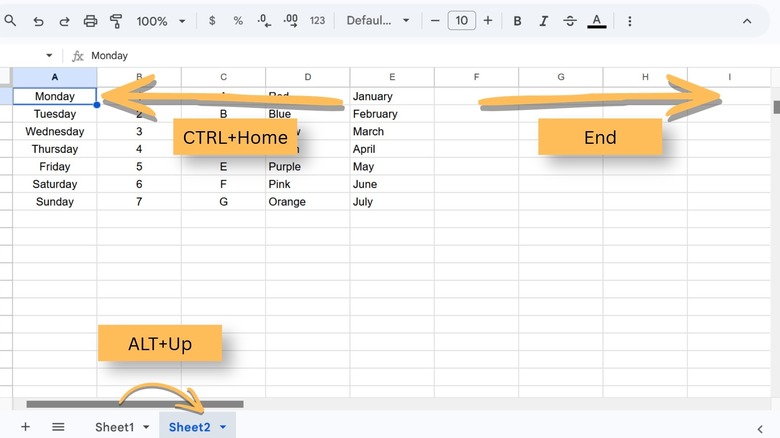
Did you know that you lose an estimated 0.4 seconds each time you switch between mouse and keyboard? While it's not exactly a massive time loss, using five shortcuts per shift will save you roughly eight minutes per year. To be fair, it's still faster to use the mouse in certain circumstances.
Clicking an individual cell is always going to be quicker than selecting it with the keyboard unless it's immediately adjacent to whichever cell is already selected, or your desired cell is on the spreadsheet's edge. That said, the following shortcuts should help reduce mouse usage over time:
|
Description |
Shortcut (Windows) |
Shortcut (macOS) |
|
Move to next sheet |
Alt + Up arrow |
Option + Up arrow |
|
Move to previous sheet |
Alt + Down arrow |
Option + Down arrow |
|
Jump to beginning of sheet |
CTRL + Home |
Command + Fn + Left arrow |
|
Move to beginning of row |
Home |
Fn + Left arrow |
|
Move to end of row |
End |
Fn + Right arrow |
|
Jump to selected cell |
CTRL + Backspace |
Command + Backspace |
|
Move to next cell (e.g. A1 to B1) |
Tab |
Tab |
|
Move to previous cell (e.g. B1 to A1) |
Shift + Tab |
Shift + Tab |
Shortcuts for formatting and tidying everything up
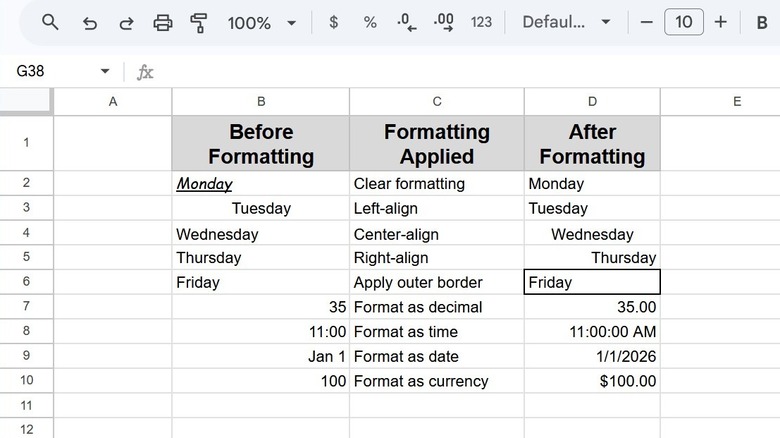
Unlike Microsoft Excel, Google Sheets only offers a few tools for cleaning your data automatically. It does, however, come with a variety of shortcuts designed to help get your data into a usable format as quickly as possible. Better still, accessing some of these options normally requires you to navigate multiple menus. In other words, these are some of the most-efficient shortcuts to learn if your goal is to save time.
More importantly, these shortcuts address problems everyone has likely encountered at least once. Is there anything worse than pasting something into Google Sheets and having it appear in a different font to everything else? The spreadsheet deciding something is a date when it clearly is not might be a close runner-up. In any case, the shortcuts below can resolve both of these issues in just two or three keystrokes.
|
Description |
Shortcut (Windows) |
Shortcut (macOS) |
|
Clear formatting |
CTRL + |
Command + |
|
Left-align |
CTRL + Shift + L |
Command + Shift + L |
|
Center align |
CTRL + Shift + E |
Command + Shift + E |
|
Right-align |
CTRL + Shift + R |
Command + Shift + R |
|
Apply outer border |
CTRL + Shift + 7 |
Command + Shift + 7 |
|
Format as decimal |
CTRL + Shift + 1 |
CTRL + Shift + 1 |
|
Format as time |
CTRL + Shift + 2 |
CTRL + Shift + 2 |
|
Format as date |
CTRL + Shift + 3 |
CTRL + Shift + 3 |
|
Format as currency |
CTRL + Shift + 4 |
CTRL + Shift + 4 |
Helpful Google Sheets shortcuts for editing and collaboration
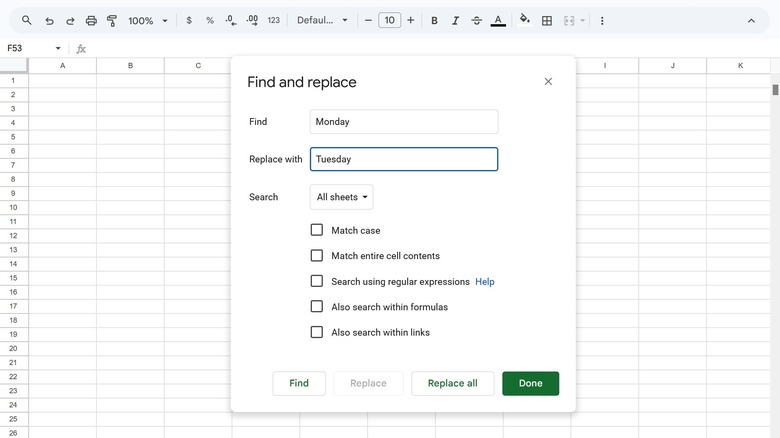
Two of the best things about Google Sheets are its version control and capacity for real-time collaboration. If your job requires you to use a shared spreadsheet, you probably already know that viewing recent changes and leaving comments typically require you to use the mouse. There is an easier way, and you can use the same shortcuts in Google Docs, too.
Do you find yourself having to enter the current time or date often? Even without considering how long it takes to check the current time/date, these tasks take between five and 10 keypresses. There's also a way to view the formulas governing the values of each cell, rather than the resulting calculations. It may not be the most exciting set of shortcuts but their value outweighs the cost of the time spent memorizing them, especially for power users.
|
Description |
Shortcut (Windows) |
Shortcut (macOS) |
|
Find and replace |
CTRL + H |
Command + Shift + H |
|
Insert comment |
CTL + Alt + M |
Command + Option + M |
|
Insert note |
Shift + F2 |
Shift + F2 |
|
Insert time |
CTRL + Shift + ; |
Command + Shift + ; |
|
Insert date |
CTRL + ; |
Command + ; |
|
Open revision history |
CTRL + Alt + Shift + H |
Command + Option + Shift + H |
|
Toggle between showing formulas/calculations |
CTRL + ` |
CTRL + ` |
Miscellaneous useful shortcuts for Google Sheets
The shortcuts below might not be as consistently-helpful as some covered above but they're still worth remembering. There are plenty of situations where you might need to quickly highlight an entire row or column, for example.
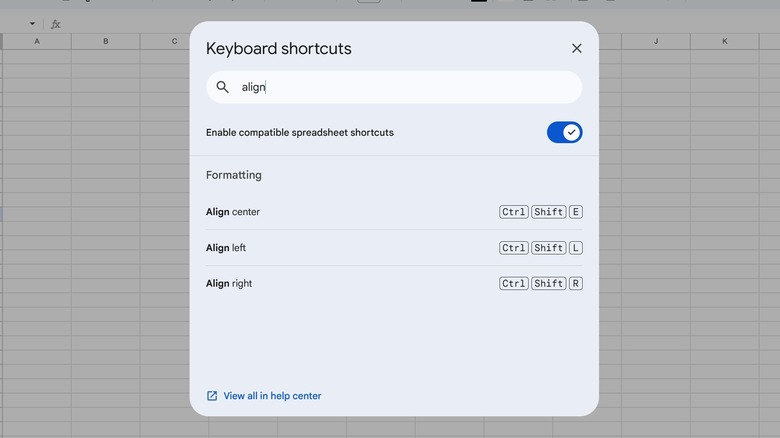
Without getting too meta, CTRL + / is extremely useful because it brings up a searchable list of every supported shortcut. The Tool finder is also fantastic since it gives users a way to search for toolbar options without needing the mouse at all. The only exception is inserting an image — this option isn't available via the tool finder, and still has to be done the old-fashioned way.
|
Description |
Shortcut (Windows) |
Shortcut (macOS) |
|
Show commonly-used shortcuts |
CTRL + / |
Command + / |
|
Tool finder |
Alt + / |
Option + / |
|
Select row |
Shift + Space |
Shift + Space |
|
Select column |
CTRL + Space |
CTRL + Space |
|
Select cells in this direction |
Shift + any arrow key |
Shift + any arrow key |
|
Paste values only |
CTRL + Shift + V |
Command + Shift + V |
Regrettably, some of Google Workspace's most-useful features (such as directly-comparing files) are exclusive to Google Docs. If that's a dealbreaker or you don't want to be locked into Google's ecosystem, you might be interested in checking out five free alternatives that aren't Microsoft 365.