

This Apple Photos Feature Can Help You Find Duplicate Pictures
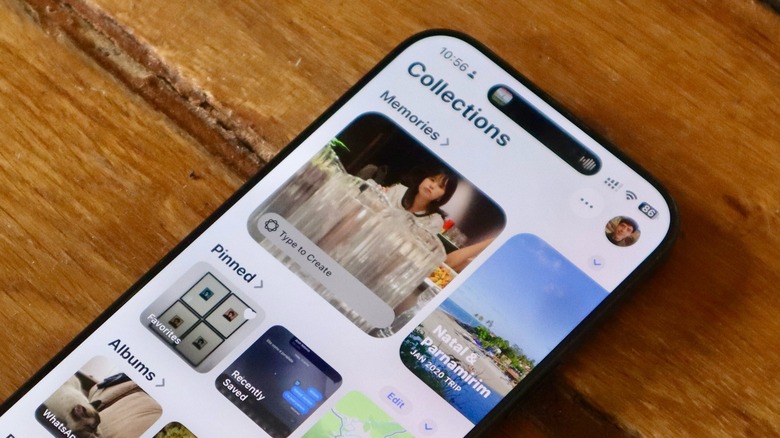
If you're low on iPhone storage, or you just want to make sure you're keeping a clean and organized library, iOS has a built-in feature that can help you find duplicate pictures and merge them into a single file. With that, you're not required to download third-party apps, send your photos to a server, or anything like that. Within just a few taps, you can combine hundreds of photos and videos. To do that, open the Photos app > Collections > Scroll down to Utilities > Duplicates > Select All > Merge. Then, you can choose between "Merge Exact Copies Only" or "Merge (All) Items."
The difference between these two options is that you might have a slightly different photo or video, and Apple gives you the choice of whether to combine those very similar images. For the "Merge Exact Copies Only," this can be helpful if you have that social media app toggle on that pretty much downloads every photo or video someone sends you on WhatsApp, iMessage, Telegram, and more. According to Apple, "duplicates include both exact copies that may have different metadata, as well as photos that appear to be the same, but may have unique resolutions, file formats, or other slight differences."
If you've worked through that process recently, there's a possibility that the option won't be available under the Photos app, but if you have never tried this feature, it's possible that you could be surprised with the amount of images you can merge and save storage. Besides that, you can have more granular control and only select the specific images you want to merge.
How to keep an organized Photos app
There are several built-in tools that can help you make the Photos app more organized and clean, whether that's to free some storage or just make sense of your ever-growing library. If space is what's been bothering you, BGR has a few tips on how to clean up space on your iPhone more broadly. In the photos app specifically, you have options beyond clearing out duplicates. If you use iCloud photo storage, go to Settings > Photos > iPhone Storage > Optimize Storage and Apple will offload most of your photos in the cloud, leaving tiny copies for you to scroll through and pick for full-size downloads anytime. Just don't make the mistake of thinking cloud storage is a backup, because it's not.
Paying for iCloud storage has other space-saving benefits too. In your iPhone, there's a setting called optimization that can help clear even more storage. Go to Settings > Your Face (at the top) > iCloud > Photos > Manage Storage > Review Photos and Videos. From there, the device will give you insights about your apps and files, including your screenshots and videos.
While touching "Screenshots" gets you easier access to everything you screenshot with your iPhone throughout the years, the "Videos" tab is a handy way to find the heaviest files, allowing you to choose whether to send them to a different backup archive, leave them in place, or press delete. Recently, I reviewed some of my storage, and I was able to free over 100GB of unnecessary content that I was keeping on my iCloud. Just don't forget, again, that iCloud storage is not backup.
Then, if you go back to your Photos app, there are a few tools to make your library work for you. For example, under Library > Menu > View Options > Screenshots Hidden help make your library more organized. You can also add other filters to make sense in your photos. Under Collections, you can rearrange and collapse categories, add people and pets for personalized memories, and even lock Hidden and Recently Deleted images. With those tips, you can more easily make sense of your photos.