

I Had Forgotten About These 5 Useful iOS 27 Features
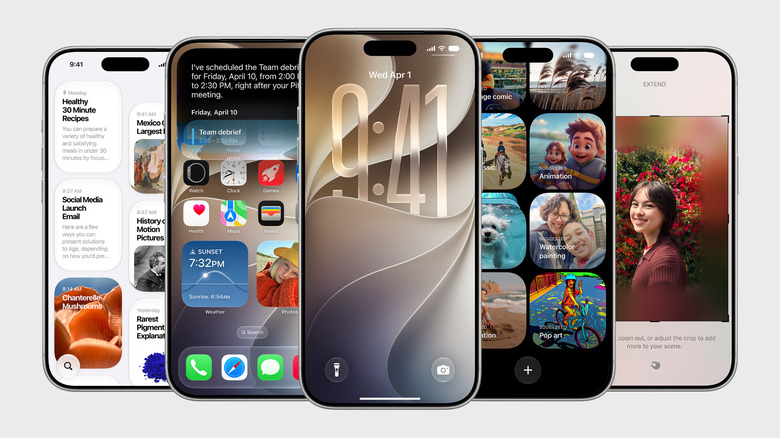
Apple rolled out iOS 27 on September 14, having announced it in June. After years of promises, Siri AI finally arrived and was the biggest new feature in the software update. It gives the smart voice assistant access to your personal context, making it a more helpful tool. But that's not the only new functionality included in iOS 27. There were more than 200 new features and improvements across the latest iPhone update, including some smaller additions that I'd forgotten about. So I've found five useful — but lesser-known features — in iOS 27 that I can't stop using.
Every feature we cover below requires your iPhone to be running iOS 27 or later before you try switching them on. If you need to update your device, you can do so by heading to Settings, then selecting General, then Software Update. Before you upgrade, though, take a look at our checklist worth running through before you install iOS 27 to save you any possible headaches. And if you're still deciding whether to update, our iOS 27 review covers how much Siri AI can change day-to-day life.
1. Siri can turn a flyer into a calendar event
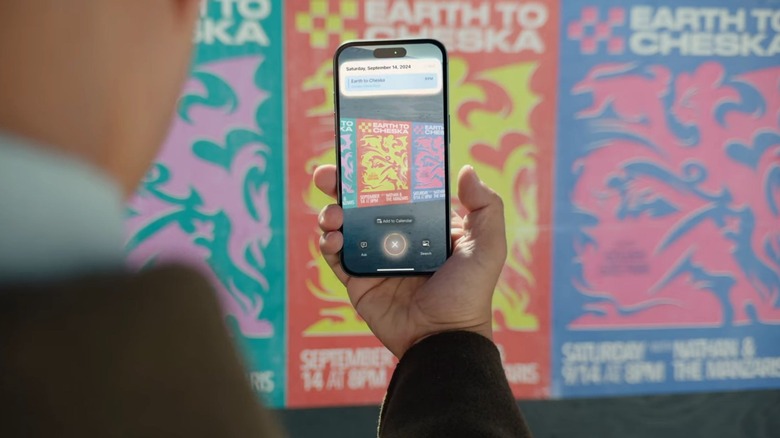
iOS 27 builds on Visual Intelligence with a new Siri mode in the Camera app, which sits in the camera mode carousel alongside Photo and Video. Siri mode expands on the capability to identify plants or other objects, first rolled out with Apple Intelligence in 2024. Specifically, you can point your camera at an event flyer, a concert poster, or a party invite, and your iPhone can detect the date, time, and location and then offer to add the event straight to your calendar.
I use this feature often for movie posters or event invites I've received, and it works flawlessly each time. It means I'm no longer taking photos of posters, telling myself I'll add it to my calendar later, only to find the photo months later when it's too late. And according to Apple, Siri mode can be an even more capable scheduler. For example, you could use it on a music festival poster, ask about set times for your favorite artists, and have Siri create several calendar events across the weekend.
To use Siri mode, you have two options. First, you can open the Camera, swipe the mode carousel across to Siri, and point the lens at the flyer. Alternatively, you can press and hold the Camera Control button on the side of your iPhone. If Siri detects an action it can take — such as adding an event to your calendar — it will show an on-screen action for you to tap. It's worth double-checking the event details before saving it, because a poster with two dates could confuse the AI. Note that Siri mode needs an Apple Intelligence-capable iPhone, which is an iPhone 15 Pro or later.
2. You can finally save Video Frames as Photos
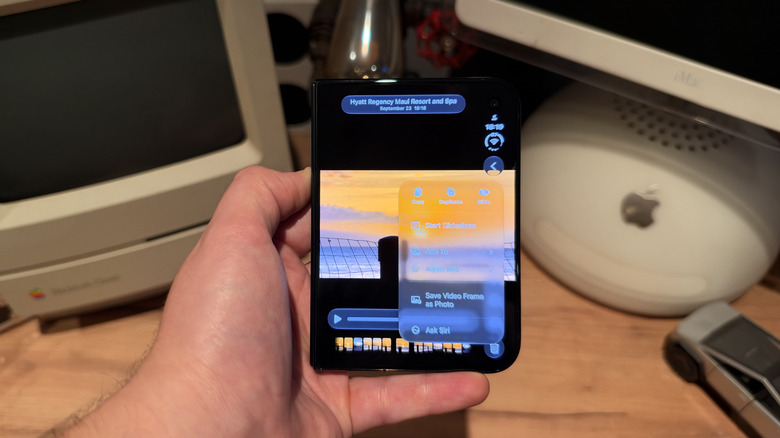
There have been countless times when I've paused a video I've just recorded on my iPhone, waited for the playback controls to fade away, and then taken a screenshot of the video and cropped it down to use as a still photo. If you've filmed concerts or fireworks, you've probably done the same thing. But the screenshots are always lower resolution than the original video and get marked in your photo library as a screenshot with a different date than the original video rather than as a normal photo. Thankfully, Apple has built a proper tool for this in iOS 27. It's particularly useful because if the thing you wanted to photograph happened while you were recording, the frame is already there.
To access this feature, open a video in the Photos app, play it, pause it on the frame you want, then tap the More button in the top-right corner and tap Save Video Frame as Photo. The photo gets saved at full resolution and includes the original date, time, and location from the video. The new photo will appear at the bottom of your photo library if you sort by Added, or directly next to the original video if you sort by Captured. The latter is the default for most, and it makes sense in many cases, because photos and videos will appear in chronological order.
3. Star ratings can help you filter a messy photo library
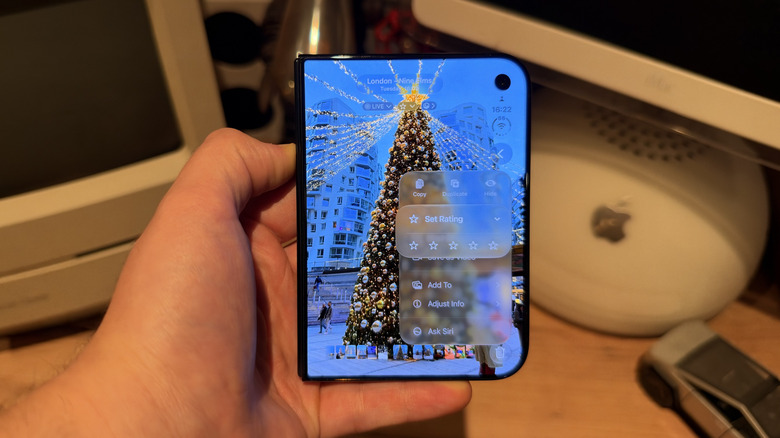
The Photos app has allowed you to star your favorite photos for years using the Favorite button, but for many users, it's a very restrictive workflow, especially for those who post a lot of content. If you mark multiple images as Favorites, there's no way to distinguish between them, for example. To address these limitations, Apple has included a one-to-five star system in iOS 27, which changes how fast you can cut 400 vacation photos down to the ones that are most important to you.
The new feature is switched off by default, even after you update your iPhone to iOS 27. To switch it on, head to Photos, tap into your Collections, select your Apple Account profile, then View Options, and finally Ratings Control. After that's switched on, you can open any photo or video, tap the Unrated button, and pick a rating from one to five stars. You can also touch and hold on any photo in your library to quickly change the rating afterwards.
This becomes particularly useful if you want to filter your images. For instance, you can tap the Sort and Filter button, then Rating, and choose a star level to see only the photos that have the rating you chose. This means you can sort between your best holiday photos, the ones you only sort of like, and the worst ones. There are also five more new iOS 27 Photos app features worth trying, particularly if you take a lot of photos.
4. You can finally save slideshows as videos
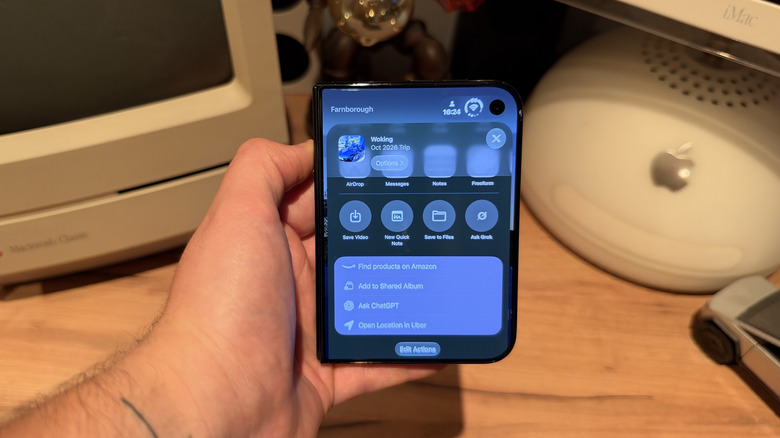
You've been able to make slideshows in the Photos app for years. Sort of. The feature was rather limited, as the app would simply play your pictures in order and pick the music itself. You didn't have much control. Also annoyingly, you couldn't save these slideshows as videos to export or share with others, which is something I have tried to do many times before. Fortunately, Apple has given users more control over slideshows in iOS 27 and finally lets you save them as videos.
To create a slideshow in iOS 27, the process is very much the same as before. You open an album or collection, tap the More button, then tap Start Slideshow. If you tap the screen while the slideshow is playing, you can open the Customize menu, where you can adjust Transition & Duration for the pacing, set Music for the soundtrack, and toggle on Loop play. When you're happy with the slideshow, you can tap the More button, then Share, and choose Save Video to save the finished product to your photo library for you to share, post, or AirDrop like any other video.
If you pick a song from Apple Music for your slideshow, it won't be included in the exported video. Apple confirmed to me that this is because the tracks are copyrighted. If you want the music to survive the export, you'll need to choose something from your own library. This is more of a copyright issue than an Apple quirk, so while annoying, it is unavoidable. Apple previewed the slideshow tools back at the Worldwide Developers Conference (WWDC) in June, and, for me, it definitely belongs among the 15 best iOS 27 features available on your iPhone.
5. Turn any card into an Apple Wallet pass
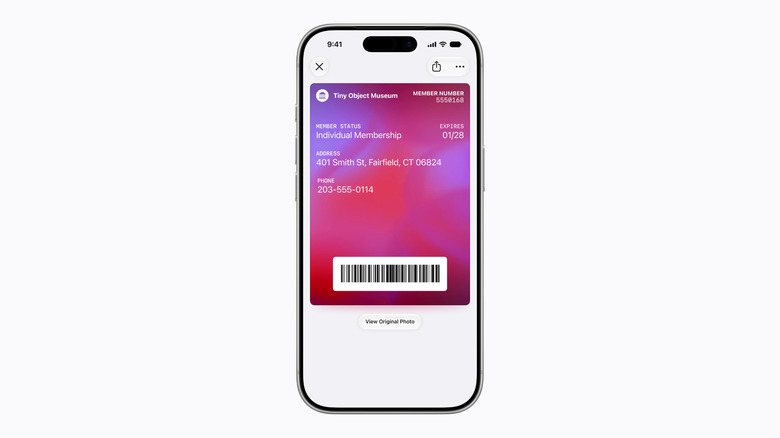
I've never been able to use Apple Wallet as much as I'd like to, largely because, in order to add a card, the business behind the card had to support the Wallet app. But many gym memberships, library cards, and other store loyalty programs still don't have that support. To get around this, Apple has added a new Create a Pass feature in iOS 27, which lets you add any card to Apple Wallet.
Creating your own Apple Wallet pass for a card is easy. Open the Wallet app, tap Add Card, and then tap Create a Pass. Point your iPhone camera at the barcode or QR code on the card, and the Wallet app will recreate a digital version. You can then set a color and texture for the pass, which will let you easily spot specific passes among all the others you have. Screenshotting a digital pass works just as well as scanning a physical card in most cases, which I have done for my gym membership and some airline loyalty cards. You can even create a custom Wallet pass using Siri mode in the Camera app.
To automatically create your own Wallet pass, you need an Apple Intelligence-capable iPhone — which is an iPhone 15 Pro or later — with Visual Intelligence switched on. If you're using an older iPhone, though, you can still create a pass manually. There's an option in the Wallet app to Create Pass Manually, where you can choose from three templates. Make sure to test yours before you leave the physical card at home, though, as some scanners may not accept them.