

5 Cool New Features To Try In The iOS 27 Photos App
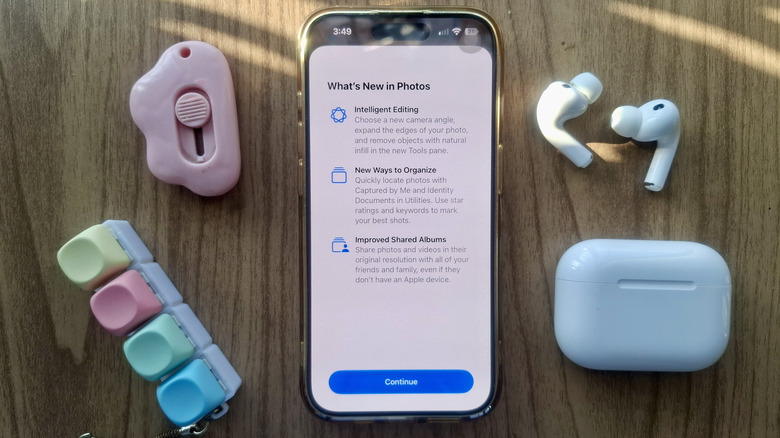
This year's major mobile OS upgrade has finally arrived on compatible iPhones. For the past few months, iOS 27 has been the talk of the town, primarily because of its dramatic overhaul of Siri, rebranded as Siri AI. It's now a lot more intelligent and capable of assisting you with everyday tasks — from simply copying any text on the screen to scouring your emails and messages for party details sent to you months ago.
But while Siri AI is undeniably exciting, iOS 27 brings more to the table, especially in the Photos app. It also got a glow-up, with new features to organize and edit your favorite media. Keep in mind, though, that some Photos tools, such as those powered by Apple Intelligence, aren't available for all the devices that support iOS 27. You'll need an iPhone 15 Pro, iPhone 15 Pro Max, or later to access them. That said, here are five new Photos features you should try after upgrading to iOS 27.
Rate your photos and videos with stars
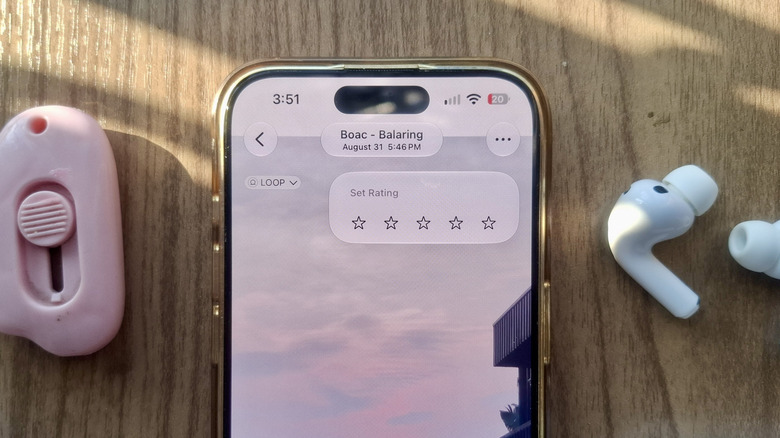
Adding photos and videos to your favorites is one of the fastest ways to find the moments you want to revisit in the Photos app. But in iOS 27, Apple introduced a new way to track your favorite media: star ratings. You can now mark pictures and videos with a star rating from one to five. This can come in handy when you're comparing images to decide which ones to keep or delete, or when you need to shortlist videos for a montage.
The Photos app doesn't enable the star rating feature by default. You need to turn it on in the in-app settings. Here's how:
- In the Photos app, go to Collections.
- Press your profile icon in the upper right corner.
- Scroll down to Show Ratings Controls.
- Toggle on Show Ratings Controls.
From here, you can start rating the pictures and videos saved in your library. Simply open one and tap the little star icon in the top-right. Then rate it from one to five stars. You should see your star rating in the upper right of the screen afterward. To find all the media you rated, tap the filter icon at the top, choose Rating, and go to the star rating you're interested in.
To clear the star rating from any photo or video, open it again and tap the star rating shown in the top-right. Then, select Remove Rating.
Change the camera angle of your photo
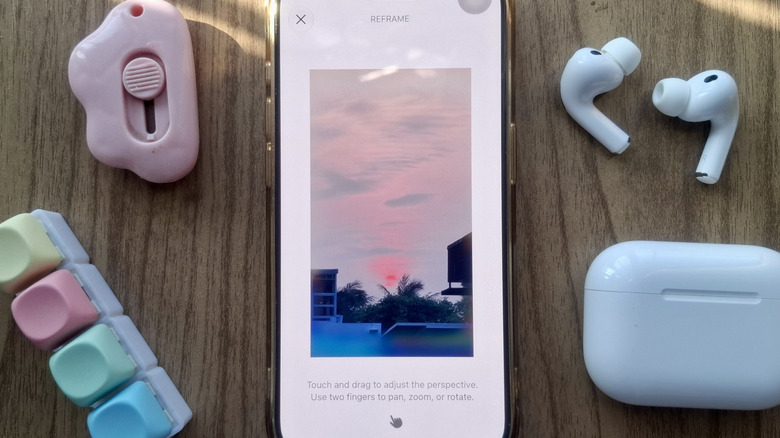
You won't always get the perfect camera angle every single shot. If you're still in the moment, you can simply adjust your camera accordingly. But if not, you can try a new Photos tool introduced in iOS 27. Called Reframe, this feature uses Apple Intelligence to change the camera angle of the images you've already taken. In the process, it generates new content to fill in the areas that weren't originally in the frame — yes, AI is everywhere on the iPhone with the iOS 27 update. Here's a quick guide on getting started with Reframe:
- Launch Photos.
- Find the picture you want to edit.
- Select the edit icon at the top.
- Tap on Tools.
- Go to Reframe.
- Wait for Photos to prepare the image.
- Touch and drag the picture until you get the perspective you like.
- Press Reframe.
- Tap the photo to see the difference between the reframed version and the original image.
- If you're happy with the result, hit the checkmark to save the image and replace the original.
If you ever changed your mind later, you can still bring back the original picture. Open the edited photo, tap the three dots, and go to Edits. Then, choose Revert to Original to undo all the edits you did to the image.
Expand your photos
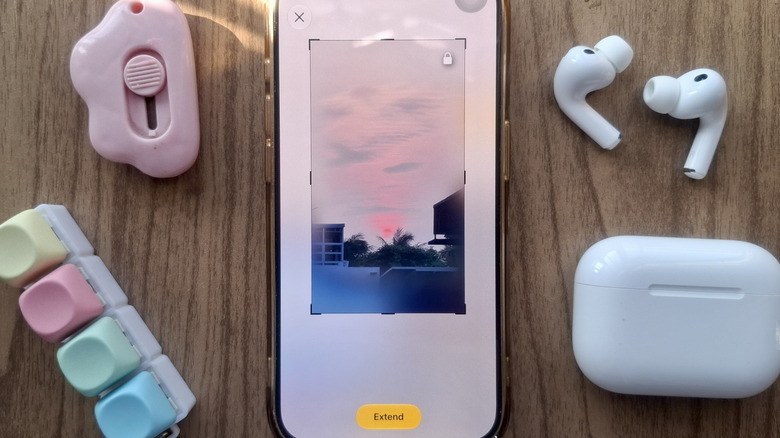
You can always crop a photo in the iPhone Photos app to zoom in on a specific subject or remove unwanted objects from the background. But what if you want to do the opposite and zoom out? Maybe you want the subject to look a little farther from the camera. Or maybe you need more space around the image to add important text. In this case, the new Photos feature in iOS 27, called Extend, can help. Here's how to use it:
- Choose the picture you want to extend in the Photos app.
- Tap the edit icon, next to the info icon at the top, to open the editor.
- Go to Tools.
- Select Extend.
- Pinch the photo in or out to adjust where the blurred area appears and how big it is. This blurred area is what AI will fill in.
- Hit Extend.
The process isn't instantaneous and will take a couple of seconds to complete. Once it's finished, you can tap the picture to view the original without the AI extension. To save the edited photo, press the yellow checkmark in the upper right. Take note that saving the edit will automatically replace the original image. To restore the original later, go back to the editor and navigate to Tools > Extend. A Reset button will appear at the top of the image, which will undo the Extend edit.
If you still want to extend the image but keep the original, duplicate it before editing. You can do so by long-pressing the photo in the Library grid and choosing Duplicate. You can extend the duplicate and leave the original untouched.
Add keywords to individual photos
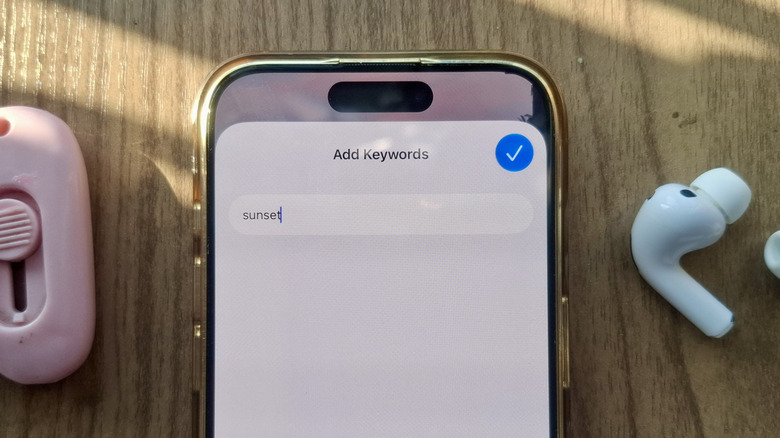
Among the fancy new Apple Intelligence features in iOS 27 is the Photos app's ability to search for photos and videos using natural language. Just describe what's in the picture or footage, and Photos will pull up any relevant media. The thing is, sometimes you need to find a group of images and recordings that don't necessarily have the same content. That means doing multiple searches.
Fortunately, iOS 27 solves that problem with keywords. Now you can add tags to your media in the Photos app. Follow these steps to use keywords in iOS 27 Photos:
- In the Photos app, open the picture or video.
- Go to the info icon.
- Tap on Add Keywords.
- Type your keyword. It can be a single word, phrase, string of numbers, or combination of letters and numbers, such as Baby Smith 2026, nature hike, or 1234.
- Hit the blue checkmark to add the keyword.
- To add more keywords to the same photo/video, enter a new keyword in the Add Keywords field.
- To use the same keyword in a new photo/video, repeat Steps 1 to 4, then select the saved keyword that pops up.
Once done, you can pull up all the media you tagged with the same keyword by simply heading over to the search icon and inputting the keyword. Then, choose the result marked with Aa. You can also add keywords as a filter. To do so, you need to go to the in-app settings (Collections > profile icon), select Manage Keywords, and add your preferred keywords to Favorites with a long press. A Keywords option should then appear when you tap on the filter icon. If you want to rename or delete a keyword later, just go back to the Manage Keywords page.
Save a frame from a video
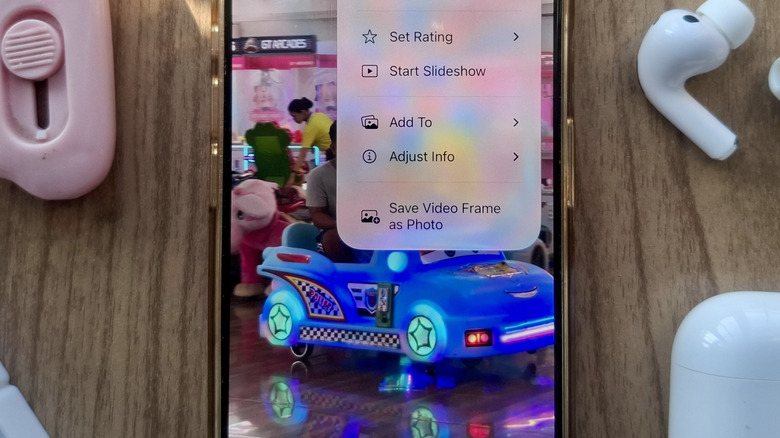
If you want to grab a still image from a video in your Photos library, you normally need to watch it in full-screen mode and take a screenshot of the frame you like. It sounds simple enough, but unfortunately, this method adds black bars at the top and bottom of the image, which you then have to crop later. Google Photos users can skip this multi-step process because the app includes an Export Frame feature. With iOS 27, though, Apple Photos finally gets the same option. Now, the updated Photos app lets you directly save a frame from a video using the Save Video Frame as Photo tool.
This new iOS 27 Photos app feature is quick and easy to use. All you have to do is watch the video in the app and pause it right on the frame you want to save. Then, tap the three dots in the top-right corner and choose Save Video Frame as Photo. The image is automatically added to your Library grid as an HEIC file with the same resolution as the original video. You can now treat it like any other photo — share it, edit it, or delete it from your library.