

5 Essential Google Chrome Extensions You Need To Install Today

If you spend most of your waking hours glued to your computer, you're probably always on the hunt for better ways to work. That can mean using tools to capture and save information quickly, setting up your workspace to minimize distractions and interruptions, or finding convenient systems to protect your online privacy and security.
To give your computer these functionalities, your first instinct might be to install new apps. After all, there are many free apps on Windows and macOS that can readily boost your productivity. But if you're on Google Chrome all the time, constantly switching to separate apps would just disrupt your workflow and become counterproductive.
Luckily, there's a better way to go about this: with Chrome extensions. Chrome extensions are developed for all sorts of needs and purposes, and you're sure to find some to integrate into your workflow. To start you off, here are five essential Chrome extensions to consider.
DocsAfterDark gives Google Docs a darker look
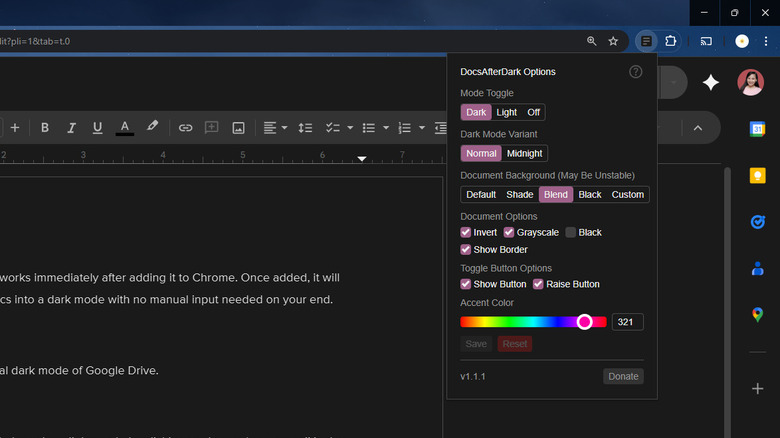
Google Docs is a great online alternative to Microsoft Word, but it does come with one downside: It only works in light mode, which may be too bright for some users who prefer a darker UI. Until Google finally implements dark mode for Google Docs, you can use the open-source Chrome extension DocsAfterDark as a workaround.
DocsAfterDark adds a dark mode option for Google Docs. But unlike most other dark mode extensions that give the web app a harsh or mismatched look, DocsAfterDark's design is similar in style to the official dark mode used in Google Drive — leading to a more premium or polished feel. After installing DocsAfterDark, Google Docs immediately swaps into dark mode. If you want to switch back to light mode, though, you can conveniently do so right on the web app, without digging through the extension settings. Just click on the sun/moon emoji on the bottom left of the screen.
Another thing you might love about DocsAfterDark is that it's customizable. It comes with options to make Google Docs even darker, to change the background of the document, and to hide the document border. You can also choose an accent color for Docs, and remove the sun/moon toggle from the web app. If you no longer want to use DocsAfterDark, you can completely turn the extension off from its settings page, without having to uninstall it from Chrome.
GoFullPage takes screenshots of webpages with ease
Taking a screenshot on Windows or macOS is easy enough, but capturing the bulk of an entire webpage can prove more problematic. With the default tools on your computer, you capture everything on the screen — even browser window, tabs, and menus you may not want. You're then forced to crop the image manually, which can be time consuming when working with multiple screenshots. Thankfully, GoFullPage can solve this dilemma.
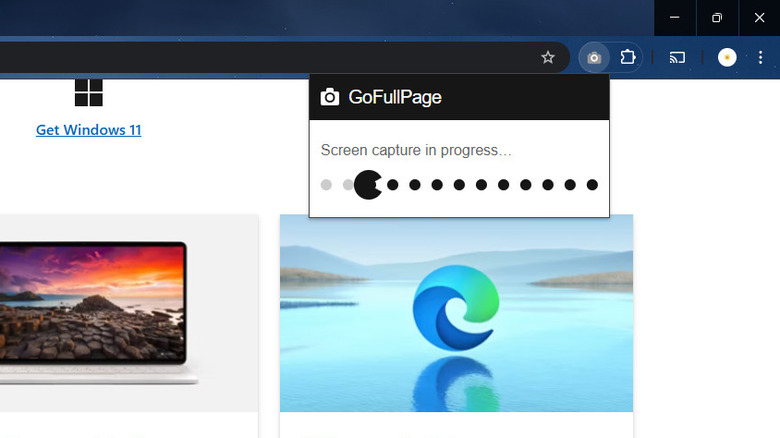
GoFullPage is a one-click tool integrated right into Chrome. You simply pin it to the menu bar, click it to take a screenshot, and it will start capturing the webpage right away. When taking the screenshot, the tool scrolls automatically from top to bottom. That means you get everything on the webpage, not just the section visible on the screen. For instance, if you're browsing a listicle of the 10 best laptops to buy, GoFullPage will grab the intro all the way down to the last laptop recommendation, eventually generating a long and seamless screenshot.
Once the screenshot is complete, GoFullPage's download screen will open in a new tab. Here, you can save the image in either PNG or PDF file formats, as well as view previous screenshots you've taken with GoFullPage. You can also access the editor from the download screen. The editor allows you to crop the image, annotate it with stickers, shapes, and text, and paste the webpage URL for reference. The editor is a premium feature, though, and requires subscription.
To make GoFullPage work better for you, you can interact with its settings. The tool offers options to switch out the PDF paper size to your preferred size, change the image format from PNG to JPG, or automatically download the screenshot instead of opening the download page.
Imageye lets you quickly download images from webpages
So, you found an interesting image online and want to download it for personal use. Normally, you just need to right-click on it to save it, but what if that option doesn't work? In that case, you can use Imageye Image Downloader instead.
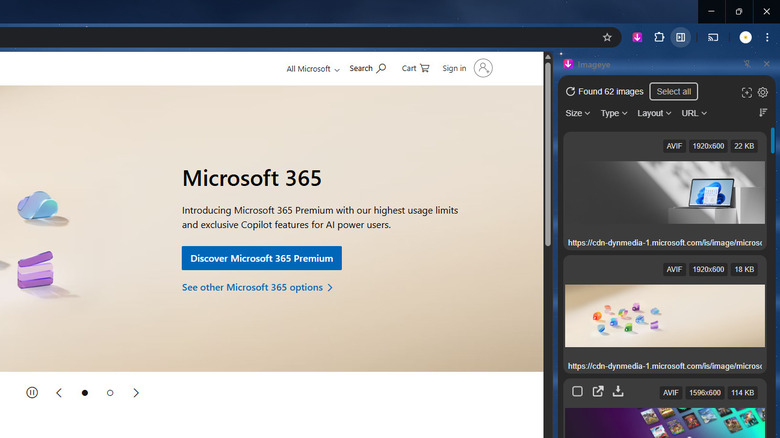
This Chrome extension scrapes all available images on a webpage and arranges them in a convenient list for you to browse. You can then sort the list by either pixel size or position on the target page. To make it even easier to find exactly what you're looking for, try the filters at the top. Imageye lets you filter the images by name, size (small, medium, large, or custom size), type (e.g. JPG, SVG, GIF), and layout (square, wide, or tall).
Once you see the photo you want, you can download it in its original format — or save it as JPEG, PNG, or WEBP. You can also select multiple images and save them all at once with just one click. If you don't want to choose the image format every time you use Imageye, though, there's an option to automatically convert all downloaded images to just one of the three aforementioned formats.
Beside the ability to scrape the images on a webpage, Imageye comes with a screenshot tool as well. You might use this function when you can't find an image on the list, or want to save a part of the webpage that isn't an image (such as a text paragraph). The screenshot you take will be added to the list for you to download.
SponsorBlock for YouTube skips sponsorship segments in videos
Skipping the sponsorship segments nested within YouTube videos isn't as easy as skipping ads. If you want to skip the ads on YouTube, all you have to do is subscribe to YouTube Premium (side note: Google is cracking down on YouTube ad blockers, so it may be a waste of time to pursue this route). Since sponsorship segments are part of the video itself, it takes manual scrubbing to bypass them. That's where SponsorBlock for YouTube comes in.
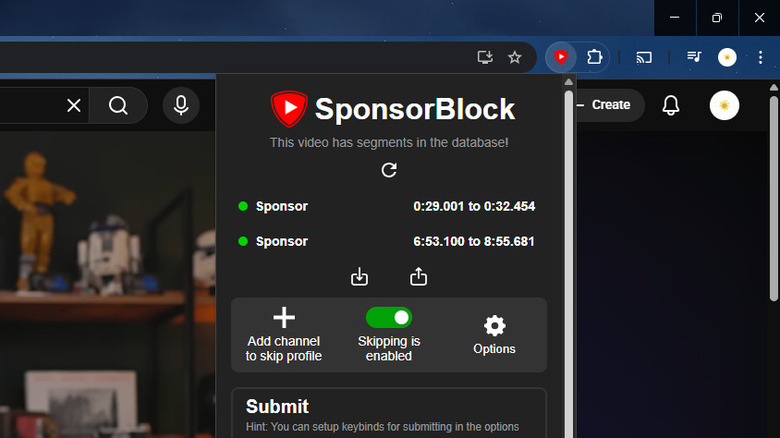
What this open-source Chrome extension does is jump past the sponsorship segment of YouTube videos. Whenever you play a video, SponsorBlock checks its database — which is publicly available — for any sponsored segments within that particular video. It also looks for other interruptions, like subscription begging, intro animation, end credits, and non-musical parts of music videos. If those segments are in the database, the video will automatically skip them. These segments will appear in the seek bar as a green line, too.
To achieve this functionality, SponsorBlock relies on crowdsourcing. Users manually mark the annoying segments and submit them. Moving forward, anyone watching the same video — provided they have SponsorBlock installed — will pass over the submitted segments. Users can even upvote or downvote specific segments within the video. However, if there are no submitted segments for the video you're watching, nothing will be skipped. You can still flag annoying segments and send them in yourself, for the benefit of others, later. By default, SponsorBlock only automatically skips sponsorships, but you can configure it to skip other segments as well.
Windscribe protects your privacy while online
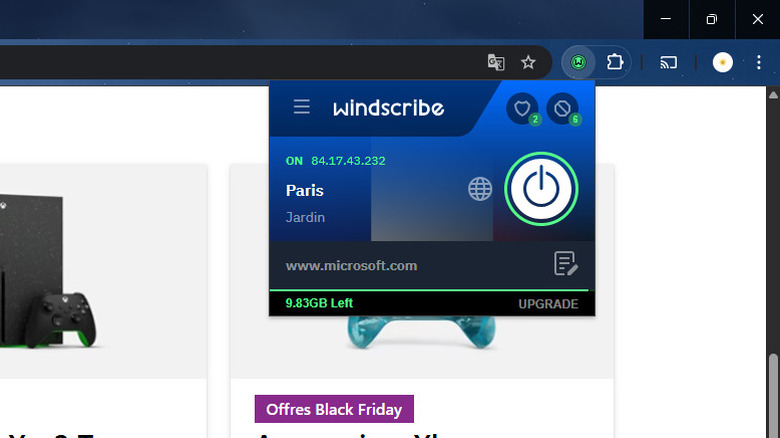
For anyone concerned about their privacy while browsing online, a virtual private network (VPN) is a must-have tool. But even if you're not overly concerned about your privacy, you might still need one — perhaps to access region-restricted websites. If you want a free VPN that actually works, check out the popular Windscribe.
Windscribe is unlike most other VPN options. For one, it's pretty generous to free users. It offers multiple free locations to choose from, with the U.S. alone featuring eight. There are also free servers in France, Germany, Hong Kong, and the United Kingdom, among others. Windscribe does have a data limit of 2GB per month, though, but if you add your email address to your free account, you get 10GB instead. You can always upgrade to the Pro plan for unlimited data and use of all 100-plus cities on offer.
On top of switching to a different location, you can turn on Windscribe's privacy features for extra security. Location Warp fakes your GPS location, Do Not Disturb prevents sites from sending you notifications, and Anti Fingerprinting protects you against browser fingerprinting techniques. Beyond privacy, Windscribe has a built-in range of blockers as well. It can block ads, stop social network widgets and buttons from tracking you, and hides the annoying "We use cookies" banner common to many websites.
For your convenience, you can set Windscribe to automatically connect upon browser startup. This way, if you're already using it all the time, you won't have to manually enable the extension.