

Tired Of Siri Suggestions In Apple CarPlay? Here's How To Turn Them Off
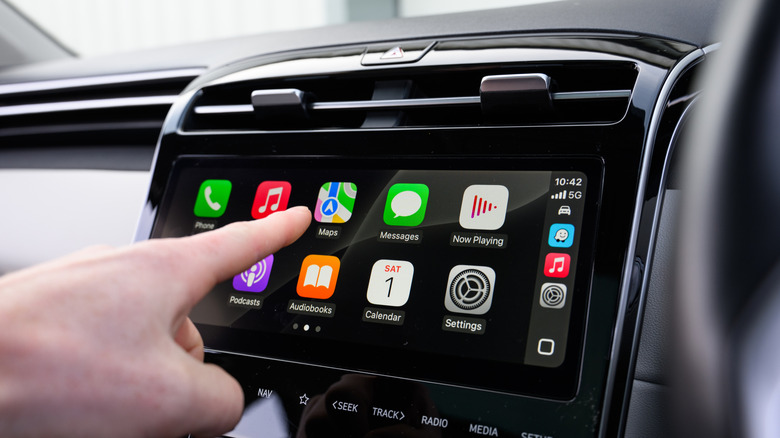
Apple's Siri voice assistant can be quite the polarizing tool. On the one hand, the digital companion is convenient for making calls, texts, and opening apps with just your voice. But some consider it one of the worst iOS features — especially since Apple Intelligence was introduced. As an extension of iOS, Siri is also baked into the Apple CarPlay experience. You can use it to get directions, look up reminders, play a similar song to the one you're listening to, and more.
The Apple assistant also offers up Siri Suggestions, a feature that studies your iPhone habits to recommend things you may want to do. For CarPlay users, Siri might suggest you close the garage door when you get home or tell you to drive to a meeting. If you'd rather do without Siri Suggestions while driving, disabling the feature in CarPlay is as simple as opening the Settings menu and then turning Suggestions in CarPlay on or off.
But what if you want some of the ideas Siri comes up with, just not all? In that case, leave Suggestions turned on, and try this instead. When you receive a Siri Suggestion on your CarPlay dashboard you don't want to follow, just long-press it. A pop-up should appear that asks if you'd like to Clear for This Drive or Cancel. Choose the first option, and Siri won't bug you with that suggested action for the rest of your drive.
How to disable Siri Suggestions with an iPhone
While there are plenty of hidden Apple CarPlay features — like removing Siri Suggestions — worth taking advantage of, you can also enable or disable Siri Suggestions right from your iPhone just as easily. All you have to do is open Settings, tap Siri, and then toggle on or off any of the following: Show in App, Show on Home Screen, Suggest App, or Suggest Notifications. To completely remove Siri Suggestions in iOS, set everything to off.
Alternatively, you can adjust Suggestions settings on an app-by-app basis via Settings > Siri and then selecting the app you want to modify. From here, you can turn it on or off. One great iOS trick for retooling Siri Suggestions is to long-press on a shortcut when it appears, then tap Suggest Shortcut Less. This prevents you from having to turn Suggestions completely off while training the assistant on what actions you prefer.