

4 Things You Can Actually Store In Apple Wallet
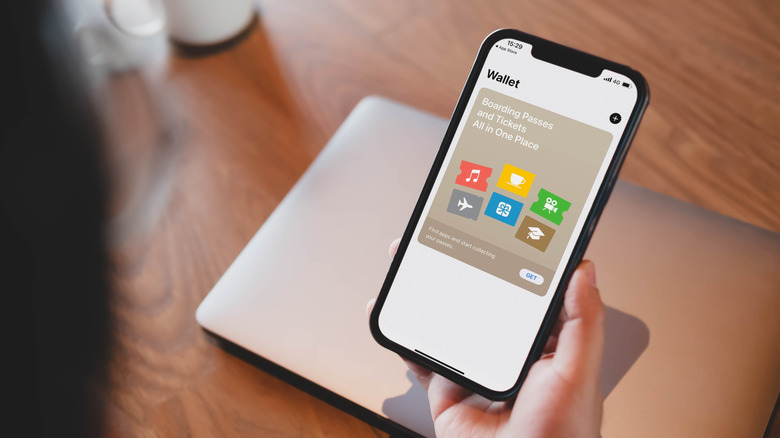
Apple Wallet is a convenient little corner of your iPhone that strives to replace your actual physical wallet. It allows you to securely store all sorts of things from your bank cards to boarding passes in one place, letting you easily access them when you need to. It's also constantly adding support for new items and can come in very handy when travelling. Moreover, it works seamlessly with your Apple Watch, so you don't even need to take out your iPhone to access an ID or a pass in your Apple Wallet.
However, despite its versatility, Apple Wallet usage is often limited to storing credit cards, debit cards, loyalty passes, and coupons, and most users often don't use it to its full potential. This is because we often forget about its capabilities or are not even aware of many new features added to it. So, here are four things you may not know you can store in your Apple Wallet.
U.S. passport as a Digital ID

Apple's Digital ID feature is one of the biggest new additions to Apple Wallet. Thanks to this, you can store your U.S. passport inside your Apple Wallet and use it to go through TSA checkpoints while travelling domestically. Digital ID can be shown on both your iPhone and Apple Watch. However, you may still need a physical ID even if you have a Digital ID, so carry it with you when travelling internationally. At launch, Digital ID is being accepted at more than 250 airports in the U.S., and Apple says it's working to make it more useful by adding support for businesses and organizations for age and identity verification.
It's pretty simple to add a Digital ID to Apple Wallet. All you have to do is tap on the add button in the app, select the Digital ID option, and follow the on-screen instructions. You'll need to scan the photo page of your passport and the NFC chip. You'll be asked to verify that it's indeed you who's adding your passport. All your Digital ID data is encrypted, and only you and the organization to which you're presenting the ID can see its data. Apple Wallet will need your biometric authentication before presenting the ID, and it'll also show exactly what information is being shared.
Driver's licenses and state IDs
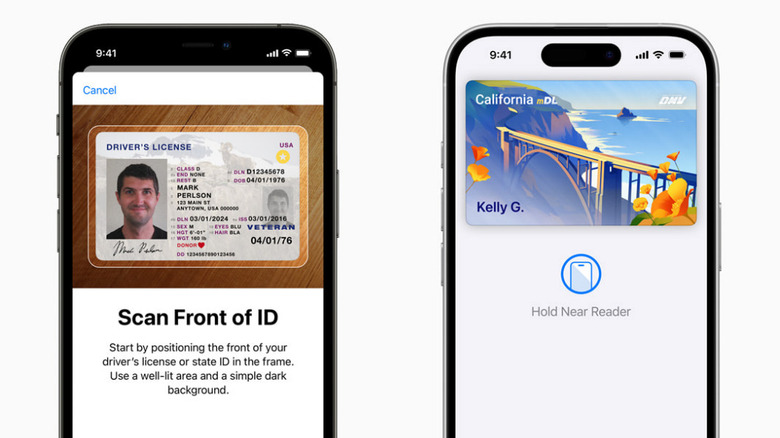
Besides your U.S. passport, you can add your driver's license or state ID to Apple Wallet and use it to prove your age or identity at Apple stores, select businesses, venues, and TSA checkpoints at select airports. As of November 2025, you can add IDs from 14 U.S. states, and with support for seven more states said to be coming soon. It's effortless to add your driver's license or state ID to Apple Wallet. Open the app, tap on the add button in the top-right corner, and select the driver's license and state ID option.
You'll be asked to scan the front and the back of your ID and confirm your identity. The added ID card will then be sent to your state for approval to ensure that it's authentic, and once it's approved, you can start using it. Remember, like Digital ID, the Apple Wallet version of your driver's license or state ID is not a replacement for the actual thing. If you're asked by law enforcement, you'll have to present your physical ID.
Your digital keys

Another helpful little feature of the Apple Wallet is its ability to become your house, hotel room, car, or scooter key. You can store your compatible digital keys in Apple Wallet, and your iPhone or Apple Watch will bring them up when you are near the lock. You can then use NFC to unlock them. This feature only works with supported locks, though. So, before you can start using it, you'll have to confirm if your car or home's smart lock supports it. For example, Hilton and Hyatt hotels support Apple Wallet, and you can store your room keys and use them to enter your room, fitness areas, and other common spaces that require your keycard.
Similarly, Audi, BMW, BYD, Genesis, Hyundai, Kia, and several other car manufacturers have added support for adding car keys to Apple Wallet for some of their models. Gogoro is the only manufacturer to add support for adding your scooter keys to Apple Wallet. The process of adding your digital keys typically includes installing the app of your car, hotel, property company, or scooter manufacturer, and using the Add to Wallet button in the app. For house keys, you'll only need to add the lock to Apple Home.
Transit cards
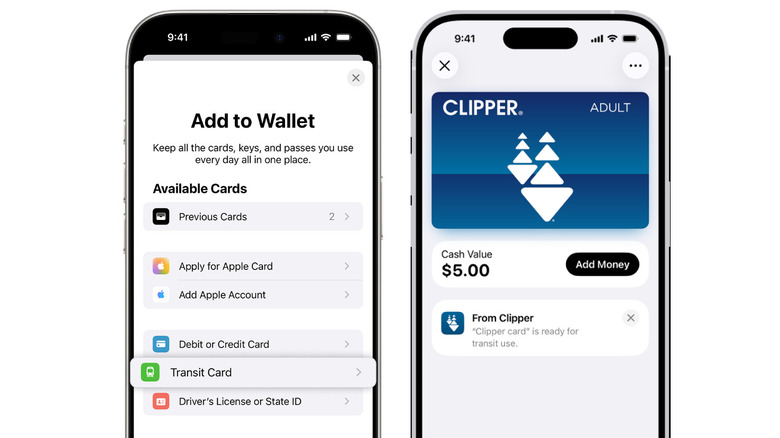
If you use public transportation and have a transit card that you use to pay for your rides, you may be able to store it in Apple Wallet for easy access and payment. You'll have to confirm with your transit service whether they support the feature, but if it's available, it can come in pretty handy for you. For example, BART or Bay Area Rapid Transit supports storing its Clipper card on Apple Wallet and then using it to pay for rides. There are a couple of ways to add a transit card to Apple Wallet.
First, you can try using the Add option in the Wallet app and then select Transit Card. If it doesn't have your card listed, you can also try using the transit provider's app and look for the Add to Apple Wallet option. Depending on your transit service, you may also be able to use Apple Pay to pay for your rides and use the stored bank cards in your Wallet. According to Apple, transit services in nine American cities currently support either adding their transit cards or paying with Apple Pay for rides.