

Is iOS 26 Slow On Your Older iPhone? Here's How To Fix It
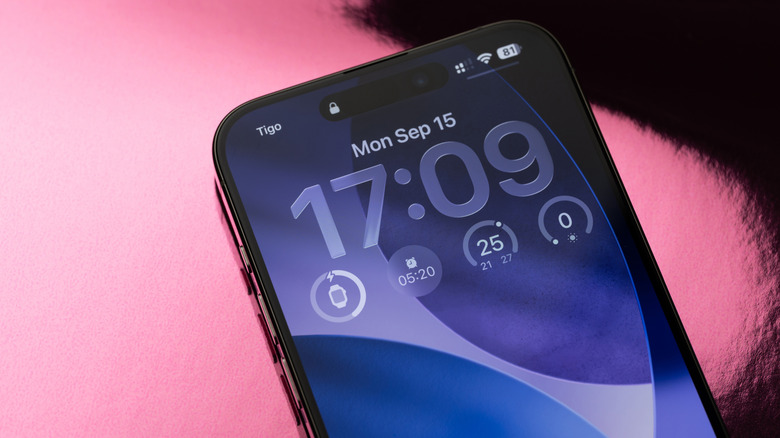
Apple gave iOS a massive redesign this year, unveiling the new Liquid Glass experience at WWDC 2025 in June. Liquid Glass brings translucency and light effects to various menus, toggles, buttons, and other user interface elements on the iPhone as soon as you update to iOS 26. The effect is amazing in theory. In practice, Liquid Glass has drawn criticism since June, when Apple unveiled the first iOS 26 beta release. Initially, users had problems with the Liquid Glass transparency that made notifications and menu items harder to read. Apple has tweaked the Liquid Glass experience over the summer, and continued to improve Liquid Glass customizations since iOS 26's official launch in mid-September. While legibility issues have been largely fixed, some iPhone users still complained online about iOS 26. It wasn't just the unusual Liquid Glass look. Owners of older iPhones who upgraded to iOS 26 soon discovered that the new operating system was slowing their handsets down.
As a reminder, Apple usually makes its latest iOS version available to several iPhone generations, including older handsets, as soon as the software is ready to roll out. For iOS 26, that makes the iPhone 11 series, released in 2019, the oldest iPhone models that can experience the Liquid Glass UI — including any associated performance issues. The good news is that there are ways to improve the performance of old iPhones that run iOS 26. The bad news is that there's currently no way to permanently remove the Liquid Glass design or downgrade to iOS 18, the previous operating system version.
How to speed up an old iPhone running iOS 26
The Liquid Glass experience offers rich visual effects. The fluid surfaces and the light bouncing off of buttons in real time require graphics processing. The newer iPhones, like the iPhone 17 series and last year's iPhone 16 models, should have no problem displaying these Liquid Glass effects. Older iPhones featuring older A-series chip generations may slow down while simultaneously processing Liquid Glass animations and effects in addition to running apps and other tasks. Users have complained of jittery visuals, scrolling issues, and overall slow performance on older iPhones. iPhone battery tests further showed how resource-intensive Liquid Glass is, as iOS 26 consumes more energy for regular tasks than iOS 18.
Therefore, to improve your old iPhone's performance, you need to dial down the Liquid Glass experience, starting with a new toggle that Apple introduced in iOS 26.1. Go to Settings, then Display & Brightness, then Liquid Glass, and switch from "Clear" to "Tinted." If you have not updated to iOS 26.1, or want an alternative, you can reduce the Liquid Glass transparency by going to Settings, then Accessibility, followed by Display & Text Size, and finally Reduce Transparency. An "Increase Contrast" menu is available on the same page, and can help improve legibility. After installing iOS 26.2, you'll also be able to reduce the transparency of the clock on the Lock Screen by customizing your wallpaper.
Once you've reduced the Liquid Glass transparency, you should consider reducing motion effects in iOS 26, which can further reduce the workload on the processor. Go to Settings, then Accessibility, followed by Motion, and enable the Reduce Motion toggle. You'll lose the animations you're used to, like opening and closing apps, but performance can improve.
Other key fixes that can improve iPhone performance
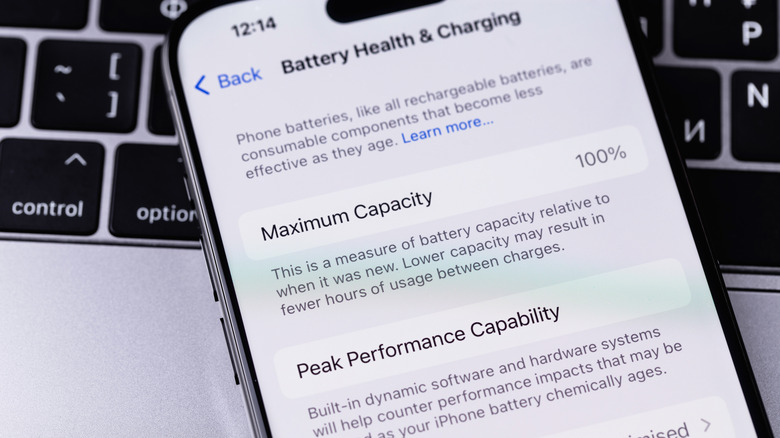
The fixes above can improve the performance of old iPhones. However, you should not be surprised to experience continued performance issues on older devices, like the iPhone 11, iPhone 12, and iPhone 13 models. It's not just the Liquid Glass effects that can slow down these iPhones. Other issues can impact performance, and they have nothing to do with the iOS version you're running. First, if your iPhone's battery health is under 80%, your iPhone will throttle performance faster than before. You might be enabling Low Power Mode more frequently, which can further degrade performance. The fix here is replacing the battery with a brand-new one through Apple, or via other authorized repair shops. An iPhone that has been in use for 5-7 years probably needs a battery replacement.
Also, if you own an iPhone 11 or iPhone 12, you might be dealing with as little as 64GB of storage, which tends to fill up after so many years. Running low on storage will also impact your iPhone's performance. Head to Settings, then General, then Device Storage, and ensure you have at least 1GB of free space. You'll want to delete photos and videos you have already backed up — and apps that you're not using — to free up storage. Once iOS has enough storage to run, performance might improve.
If you've just upgraded to iOS 26, you should refrain from judging your iPhone's performance for a couple of days. The new operating system will index the handset, a process that can slow performance and impact battery life until it's finished. If the phone is still slow after a few days, you can start applying the fixes above, including the Liquid Glass customizations in iOS 26.