

The Best Way To Keep Your Laptop's Trackpad Clean
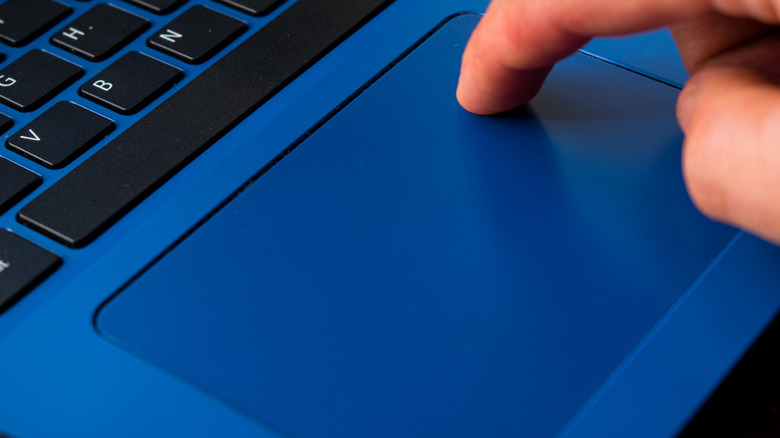
Keeping your laptop clean isn't the most challenging task. It doesn't take much more than a microfiber cloth to safely clean your MacBook's screen and surfaces, but there's one area that tends to prove a bit more troublesome when it comes time to remove dirt and muck: The trackpad.
If you're not pairing your machine with an external mouse, that tiny little square is putting in overtime. It collects fingerprints, absorbs every trace of skin oil your hands can muster, and eventually turns into a grimy hotspot you'd rather pretend isn't there. In extreme cases, all that buildup may even confuse your laptop's haptics or gesture controls, tricking it into thinking you're swiping or clicking when you're not.
The good news? Cleaning your trackpad doesn't require a specialty kit or a trip to the Apple Store. All you really need is a microfiber cloth and a small bottle of 70% isopropyl alcohol. You can also use 70% isopropyl alcohol wipes, 75% ethyl alcohol wipes, or Clorox Disinfecting Wipes. Just make sure you never use bleach, aerosol spray, or abrasives.
Cleaning your trackpad isn't difficult
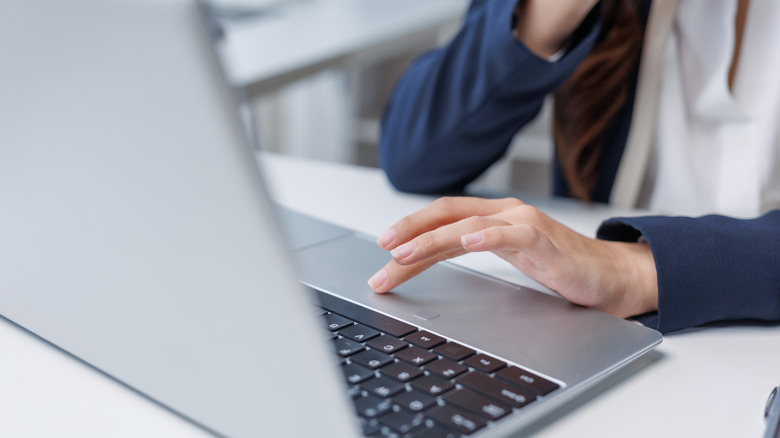
Before you start cleaning your trackpad, unplug your laptop. If you're using a hard-shell case, now's the perfect time to pop it off. You want full access to as much trackpad real estate as possible. If you're using a bottle of isopropyl alcohol or ethyl alcohol instead of wipes, never apply these liquids directly to the trackpad surface. You always want to apply to a soft, microfiber cloth first, and avoid getting moisture into any laptop openings.
Use gentle motions and pressure, and avoid excessive wiping when possible. Most pads also have a tiny seam around the edge where grime loves to hide. You can gently run something thin — a business card, an index card, even a folded piece of printer paper — along the trackpad's border to lift out whatever grit is wedged in there. If you're dealing with serious, stubborn debris that won't budge no matter what you try, don't force it. At that point, it's worth reaching out to the manufacturer or a repair shop.
A professional cleaning is far cheaper than damaging the trackpad or other parts of the laptop by digging too aggressively. One quick reality check: If your laptop's trackpad has been through years of scrolling, tapping, and palm-dragging, some of the original finish may have worn down. That's totally normal. Even after a proper cleaning, it might not look factory-fresh — but you are getting rid of the new junk that's built up on top.
Even the best laptops need spa days
Cleaning your trackpad isn't rocket science — it's just a simple bit of laptop TLC that deserves a spot in your regular routine. We've talked before about how often you should clean your computer, and our "every six months" rule holds up nicely for your trackpad, too. If you want to clean it more frequently — every couple of months, or whenever it starts looking a little too glossy for comfort, that's totally fine. Your trackpad will thank you, and your gestures will feel sharper for it.
It also pays to clean your computer's USB ports every so often — a process that doesn't require much more than a toothpick and some patience. And seriously, don't beat yourself up if your machine doesn't look like a showroom model. Laptops get hauled around, stuffed into bags, used at coffee shops, airplanes, couches, and countertops. What matters is the upkeep. As long as you're staying on top of intermittent cleaning and dealing with bigger spills and crumb explosions the moment they occur, you're doing everything you can to keep that trackpad looking sharp and performing nicely.