

4 Surefire Ways You Can Make Your Android Phone Run Like It's Brand New
Nothing is more frustrating than trying to browse the web on a sluggish, unresponsive phone. You're trying to read the morning news, and you can't do that without running into issues like sudden battery drain, crashes, lag, or simply having to wait years to open a web page. It's tempting to just upgrade your daily driver or turn off major features to squeeze out performance, but you really don't have to. Some easy fixes can lighten the load on your Android phone, making it feel responsive again, just like it was when it came out of the box. Since none of us enjoy giving up our favorite apps or drastically changing the way we operate our phones, none of the suggestions will require you to change your usage pattern. Instead, you can follow these suggestions like clearing your cache and checking on background apps every once in a while for a faster Android experience.
Restart your Android phone
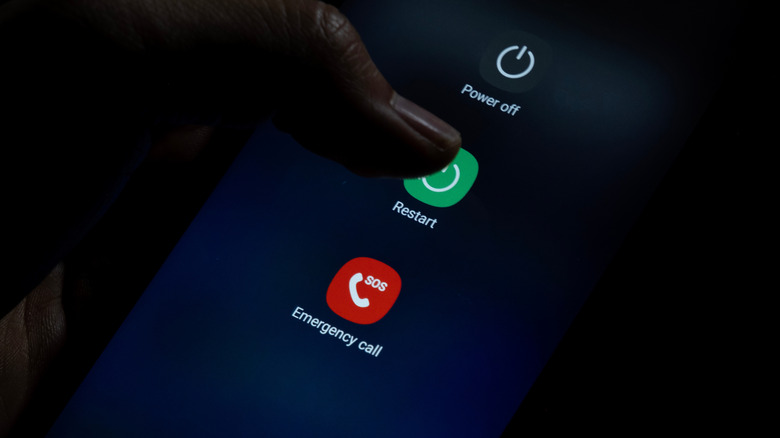
Restarting your Android device might seem like the simplest fix on paper, but it's one of the most effective ways to ensure your phone doesn't slow down. When you restart your Android phone, you clear processes that might be slowing down your device, such as background apps that haven't closed properly and might be consuming your system memory. Restarting your Android phone also helps your device check for updates and routinely apply them. Sometimes your device is out of whack because it needs to install updates that address bug fixes or software glitches.
That said, you don't need to restart your Android phone every day, but you should do it once a week or whenever your phone feels abnormally slow. If you're forgetful about doing this, you can always set up a power button accessibility menu shortcut on your home screen to remind you to restart your device periodically.
Clearing your cache

Similar to restarting your Android phone, clearing your cache is another easy way to regain performance. Though doing it too frequently can introduce drawbacks. The cache is designed to help reduce app and web page loading times, by storing frequently used data into accessible memory. So when you delete the cache, you can actually make loading times worse on your apps and web pages. But when corrupted temporary files accumulate, they can be a significant contributing factor, causing your apps to behave abnormally on your phone.
On the flip side, clearing the cache can also resolve bad loading times. Basically, if you never clear the app cache, you might end up with outdated cache files that don't match the app's or system's version, leading to compatibility issues with the app or the system. You can usually clear the app cache in your Android app settings, under the storage option — plus, it is also an easy way to regain some storage space when you're really desperate.
Reduce background app processes

Most devices will have a way to suspend apps when they aren't in use. But if you are worried, you can manually close apps in the background when you are done with them. Otherwise, check what's running in the background that might be causing your device to slow down. Sometimes, it could be location services running constantly, or your cellular service abruptly searching for a signal in an area with weak coverage. This is all hard on performance, and it could be the primary cause of unwanted battery drain.
Most Android devices have battery optimization settings that manage background usage when apps aren't in use. You can set it to restrict certain apps so they don't remain active all the time. Though if you are not strictly worried about applications running in the background, you can also choose to disable permissions, such as location services or Bluetooth, for apps you don't use often. If your phone still lags, you can also just delete the apps that you don't use at all.
Changing the animation speed using Developer Options
Sometimes the constant lagging is because anything you touch on the screen simply isn't loading fast enough, and the response time is far too slow. Reducing the animation speed in your settings can be what you're looking for. Android phones split animations into three subcategories: Window, Animator, and Transition. The scale is set to 1x by default, but lowering it to 0.5x makes your device's animations appear faster, such as when opening and closing windows, switching apps, navigating your home screen, and other UI interactions.
Although lowering the scale should give your phone a snappier feel, it might also seem a bit more jarring and less natural at first (this is all based on perceived speed). Moreover, it slightly boosts battery life, as it lessens the load on your device's processor and GPU to produce smoother animations. To apply these changes to your device's animation speed, you need to enable Developer Options in your Android settings by tapping the build number seven times.