

Can You Use An Amazon Fire TV Stick Without Internet?
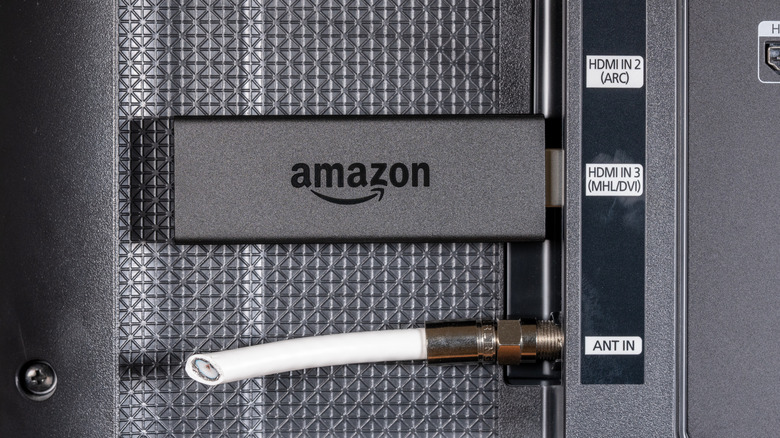
Amazon Fire TV Sticks are meant to deliver a plug-and-play experience that'll have you online in just a few minutes. But how about skipping a network connection altogether?
Considering Wi-Fi is fundamental to a Fire TV Stick's regular operation — a topic we explored when discussing if you can use a Roku device without internet — the traditional Fire TV streaming experience quickly hits a ceiling without the internet backing it up. Apps like Prime Video, Netflix, HBO Max, and other entertainment platforms won't work. You also won't be able to control smart home devices or search for device updates, since doing so requires an internet connection.
That said, there is one way you can use a Fire TV Stick without the internet — installing a custom launcher on your device to access offline media. Once up and running, you'll be able to use apps like Plex and Kodi to play content stored locally, including movies, TV shows, photos, and music. One of the most popular alternative launchers on the market is called Wolf Launcher. Praised for its user-friendly, ad-free interface, WL allows your Amazon Fire TV Stick to boot into an offline-friendly environment to run movies and shows without an internet connection.
How to install Wolf Launcher on a Fire TV Stick
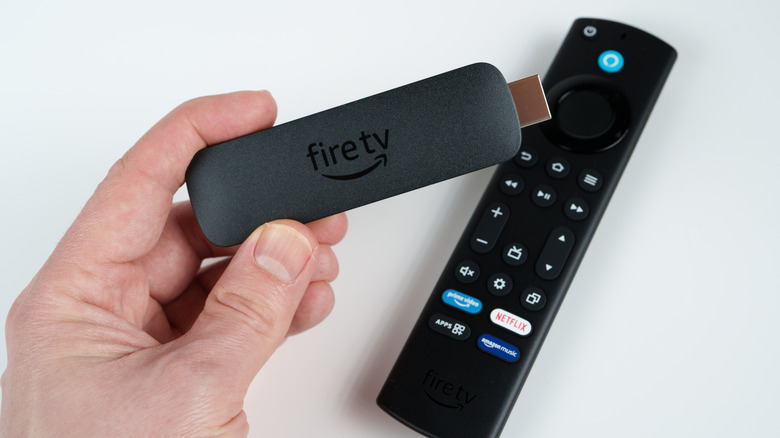
Bypassing Fire TV OS isn't a surface-level setting you can turn on or off, especially since an alternative launcher will let you access apps Amazon is actively trying to block. To boot your device with software like Wolf Launcher, you'll first need to sideload the app, which requires an internet connection for the initial setup. You'll also need a web connection to download any client streaming apps you plan on using to access media stored locally.
Once you've got all those ducks in a row, grab your Fire TV Stick remote and select Find from the home dashboard, then select Search and type in "Downloader." Choose it from the list of results and select Download. Now it's time to make your Fire TV Stick sideload-ready:
- In Fire TV OS, go to Settings.
- Select My Fire TV.
- Choose About.
- Click your device name seven times to enable Developer Options.
- Go back to My Fire TV.
- Enter Developer options.
- Select Install unknown apps.
- Choose Downloader.
To download the Wolf Launcher APK, open Downloader, select the search field at the top of the screen, and type in firesticktricks.com/wolf, then select Go. A pop-up message should inform you that the software is downloading. When it's finished, choose Install, followed by Done when the process is complete. You should see another pop-up with an option to delete the WL APK. Select Delete twice to remove the file. Wolf Launcher should now be on your Fire TV Stick under Your Apps & Games. If you want to use it as your default launcher from now on, simply open the WL app and select Settings, then Launcher Options, and choose Disable Stock Launcher.
Breaking free from Fire TV OS
Now, when you use client apps like Plex or Kodi to access offline content, your media should play without a hassle. You'll just need to make sure that whatever device you're using to store and share these files — be it a PC, a network-attached storage device, or a repurposed game console — is powered on, and all its proper permissions are enabled.
If you plan on primarily using Wolf Launcher to access offline media on your Fire TV Stick, avoid updating your device. The company has cracked down on custom launchers in the past and disabled them through updates, so you could have all your hard work completely wiped if you install Fire TV Stick updates.
Amazon hardware isn't your only choice for sideloading apps. Our list of Amazon Fire TV Stick alternatives highlights Roku and Onn streaming devices, both of which can be configured to allow for sideloaded software.