

Your Roku Might Be Using The Wrong TV Display Resolution - Here's Why
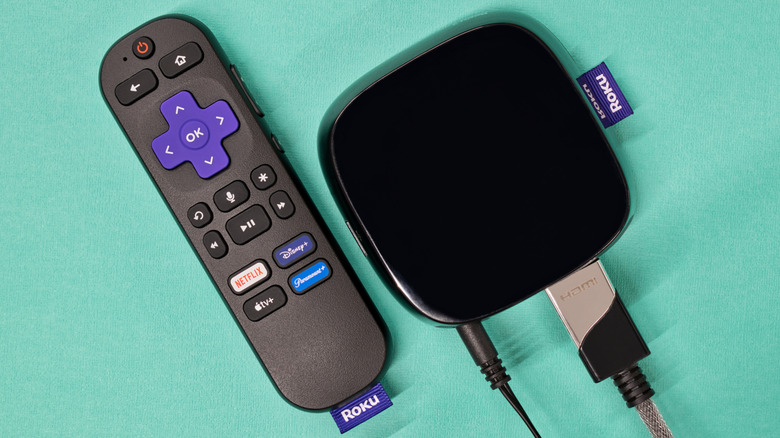
Roku streaming devices have a lot going for them. They are relatively affordable, have a simple and easy-to-use interface, and provide access to every major streaming service, making them a good choice to add smart TV capabilities to your older non-smart TV or to replace your TV's existing operating system. However, Roku devices aren't perfect. Like other smart TV platforms, Roku streamers can suffer from problems, many of which are easy to spot and fix. One such problem is the use of the wrong TV display resolution by your Roku streaming device. This can result in you not being able to get the best possible content resolution and an overall subpar visual performance.
If your Roku is using the wrong resolution, you may also spot pixelated content or, in rare cases, weirdly cropped content. This typically happens when your Roku is unable to correctly detect the display capabilities of your smart TV, which can cause it to offer content in lower than your TV's supported resolution. Another reason for this is the use of the wrong HDMI port or an incompatible HDMI cable to connect your Roku streamer. Not all HDMI ports on TVs are made equal, and if your Roku is plugged into an older-generation HDMI port, it may not recognize your TV's true display capabilities. Similarly, an older-generation HDMI cable can cause display issues. Fortunately, there are relatively straightforward fixes for these problems.
How to select the correct display type in Roku settings
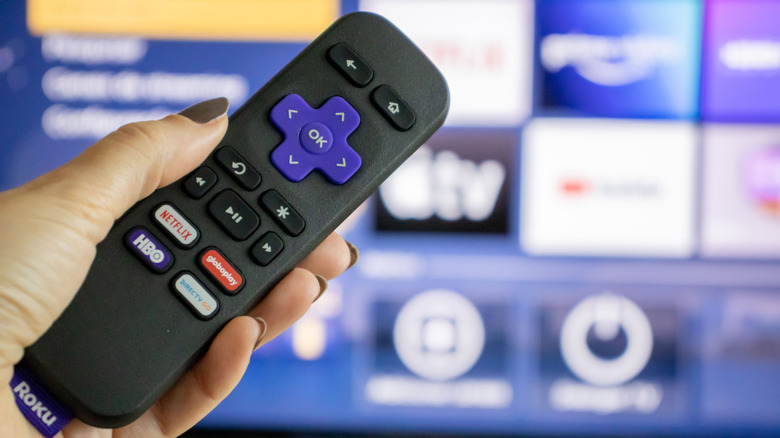
Roku streamers allow you to manually change the display resolution and HDR settings. To do so, navigate to the Roku home screen by pressing the Home button on the Roku remote. Then, go to Settings > Display type, and Roku will display all available display options, including the one that has been automatically selected. This will confirm whether Roku has indeed made a mistake in determining your TV's display capabilities. You can now select the correct resolution and HDR option, depending on your TV's specifications. So, if you have a 4K TV that supports Dolby Vision, you can select the option named 4K Dolby Vision HDR TV.
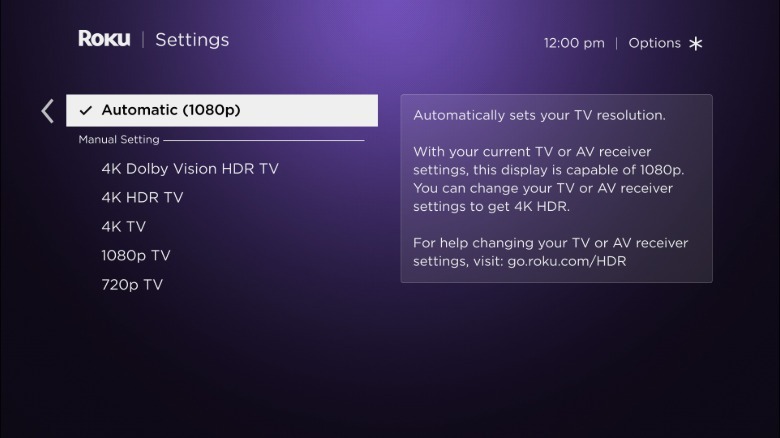
In case you see a warning that your TV doesn't support the option you have selected, but you are sure about your TV's capabilities, you can go ahead with the manually selected option and press OK on your remote. As the Roku streamer changes the display setting, your screen may go black for a few moments. If everything goes well, it will display a picture on the screen and ask whether you can see it or not. Select the suitable option, and you are all set. However, if your manual display type settings don't work, the streaming device will return to the Display type setting page, notify you that the settings didn't work, and give you the option to try again. But if the error persists, you may have to look beyond the Roku settings.
Confirm you're using a compatible HDMI cable and the right HDMI port
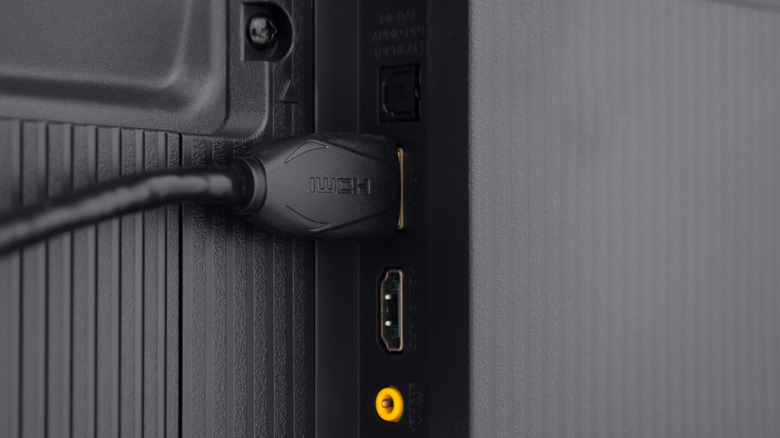
While Roku devices with a stick-style form factor plug right into your TV's HDMI port, others, such as Roku Ultra and Roku Streambar SE, connect via an HDMI cable to your TV. Using a compatible HDMI cable and the right HDMI port is important to ensure you don't face issues related to display resolution. Roku recommends using the supplied HDMI cable or buying a Premium High Speed or Ultra High Speed HDMI cable to get the best experience. Both these HDMI cable types have enough bandwidth to carry 4K 60Hz signals with HDR metadata, including Dolby Vision HDR. You can identify whether an HDMI cable is Ultra High Speed, Premium High Speed, or an older cable by looking at its jacket or the cable packaging.
Similarly, when connecting your Roku streaming device to your TV, stick to HDMI 2.0 and HDMI 2.1 ports with HDCP 2.2 support if you want to get both 4K resolution and HDR support. Look for labels next to the HDMI ports or in the TV manual to identify which HDMI port on your TV has which capabilities. Once you have plugged your Roku streaming device into your TV using the right HDMI port and cable, you can repeat the steps mentioned earlier for changing the display type if the correct display type isn't automatically detected by the Roku device.