

4 Situations Where You Should Avoid Using HDMI Ports
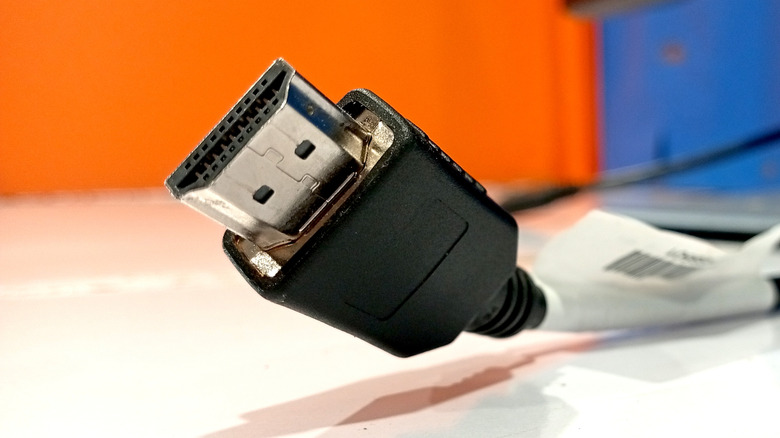
Tech enthusiasts love to nerd out over every part of their system. Whether it's something integral to performance, like the GPU, or something relatively unimportant, such as the brand of monitor, many spend a significant amount of time sitting through tons of online forums to ensure they get the best setup. An often overlooked part of this procedure are the ports, as they're not something you usually think of as important in determining how your PC or TV performs.
This is true for most casual users, as the difference between choosing an HDMI, DP (DisplayPort), or USB-C port isn't always visible to the untrained eye. Still, there are cases where HDMI ports simply cannot give you the best performance, especially if you're using an older version of HDMI. The reason HDMI ports are most people's choice is not because of any edge they have over others. Instead, it's simply because of how widespread they are, as most TVs, consoles, and even older monitors don't have any alternatives.
Due to this, it's fine to use HDMI if you're watching TV or using a PC casually. In certain cases, such as in home theater setups using sound bars, HDMI ports' ARC and eARC capabilities even make them the optimal choice over other types. If, however, you're a competitive gamer who wants the fastest refresh rates, a finance analyst who needs multiple monitors for research, or even a casual user who wants the best video quality, there are better options available.
Using multiple monitors and daisy-chaining

If you want to watch a video game guide while playing the game, or want to look at rapidly changing stock prices, a side monitor is one of the best purchases you can make for your desk. Managing multiple monitors can get messy, though, with tangled-up wires that are a chore to deal with. To avoid this, most people with multi-monitor setups use daisy chaining. This is a process that connects monitors to each other directly instead of connecting each one to the source. This helps you avoid clutter and increases performance, and is integral to maintaining a clean multi-monitor setup.
Unfortunately, daisy chaining isn't possible with HDMI cables alone, as they don't have the same MST (Multi-Stream Transport) capabilities as alternatives. To daisy chain, you have to use DisplayPort or Thunderbolt cables instead. You can even use a normal USB-C port for this through the use of DisplayPort alt-mode. HDMI is the only commonly-used cable that this isn't possible with, which is one of the main reasons PC users swear by DisplayPort input instead.
NVIDIA G-SYNC doesn't always work over HDMI
For hardcore gamers wanting to make the most of their PC, Adaptive Sync (also called VRR or Variable Refresh Rate) has been one of the biggest improvements in gaming tech in a long while. This lets those using this technology — usually either NVIDIA's G-SYNC or AMD's FreeSync — synchronize the refresh rate of their displays with their GPU's refresh rate, resulting in smoother gameplay without any tearing, blur, or other visual artifacts. This lets you view a game's graphics at a higher framerate than a non-adaptive-sync monitor, so it might be disappointing to hear that NVIDIA's G-SYNC doesn't work with many HDMI connections.
For a long time, DisplayPort was the only option for those wanting to make use of adaptive sync, but HDMI 2.1 fixed this issue, providing G-SYNC support. Unfortunately, this is only for monitors that have ports supporting HDMI 2.1 or higher, which isn't universal for all displays on the market. Monitors like the LG 27GR95QE-B OLED monitor and the Dell Alienware AW3225QF QD-OLED have HDMI 2.1 and can use G-SYNC even without relying on DisplayPort. However, even for monitors that are tagged as NVIDIA G-SYNC certified, such as the LG 27GP850-B/27GP83B-B, you can only make use of G-SYNC if you use a DisplayPort connection.
Linux and AMD GPUs
Linux isn't as widely used as many other operating systems like Windows and iOS, mostly only being used by tech enthusiasts. As more people learn of its advantages over a more popular OS and want to move away from how bloated newer Windows updates can be, the number of people switching to Linux distros is rapidly increasing. If you're someone who wants to make this shift but is using HDMI cables for your PC, it's important to note that AMD GPUs will likely not work properly.
Linux-based programs are open-source, something that the HDMI standard is heavily against. With AMD drivers on Linux following this as well, there's no legal way to incorporate an HDMI 2.1 or higher slot into any AMD GPU, despite AMD sending a formal proposal that should've fixed the issue without HDMI having to compromise on its technology's proprietary nature. As such, you'll have to switch to DisplayPort or use a workaround such as using a third-party dongle to convert HDMI signals into DP for your HDMI ports to work to their full capacity.
What about HDMI 2.2?
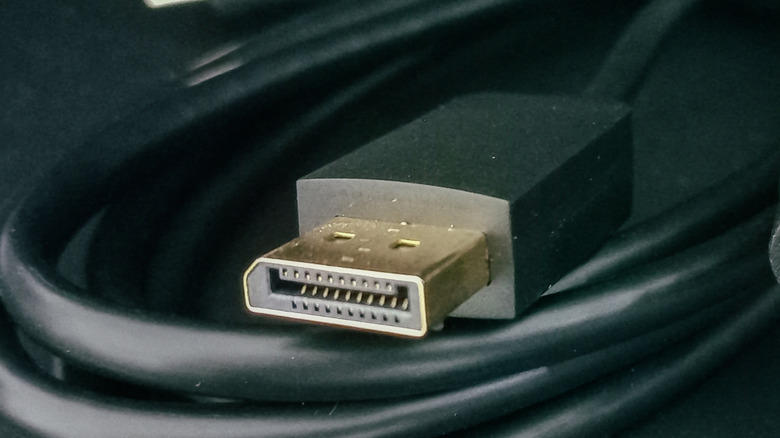
When comparing HDMI and other alternatives, you need to be mindful of the versions being compared. For example, DisplayPort 1.2 offers 21.6Gbps in bandwidth, whereas HDMI 2.0 only offers 18Gbps. Generally, each version of DP has offered more bandwidth than its associated HDMI alternative, but with HDMI 2.2 offering 96Gbps over DP 2.1's 80Gbps, this version of HDMI is the objectively better option for pretty much anything, making HDMI ports much more useful.
This technology only came out in mid-2025, though, which means it's not as widespread. Following previous trends, it'll take at least until late 2026 before manufacturers start implementing it into their products, and even more for HDMI 2.2 to become common. However, when HDMI 2.2 becomes fully accessible, should you prioritize it over DisplayPort? Based purely on numbers, yes, but you don't necessarily need to.
The 80Gbps, which offers 267-324Hz on 4K, that DisplayPort 2.1 offers is already more than what is needed for consumer use; the difference at higher qualities only becomes apparent in industry or commercial use. Overall, it's safe to assume that HDMI 2.2 will bridge the already small gap between HDMI and DisplayPort, but you don't need to go out of your way to get it if you're already making use of a DisplayPort connection instead.