

3 Ways To Make Your Mouse Feel Quicker

Ask any gamer who plays FPS (first-person shooter) titles, and they will likely tell you all about the virtues of dialing in your mouse for accuracy, especially if they're into Twitch shooters where perfect reaction times are pretty mandatory. The thing is, perfecting your mouse input to make it feel quicker offers plenty of benefits beyond gaming, such as increased accuracy when navigating the user interface of your OS and apps. Taking advantage of features like raw input lets the mouse pointer move across the screen 1:1 with your physical mouse, making it much easier to predict how your mouse will behave as you build muscle memory.
There's no real downside to making a mouse more precise beyond a slight change in "feel," making it feel more responsive and ultimately quicker. That's also why many high-end gaming mice offer specialized optical sensors that reach incredibly high DPI levels for increased accuracy. But you don't have to splash out on an expensive gaming mouse just to gain the benefits of increased accuracy. So, if you'd like to make your mouse feel quicker by making it more accurate, here's how you can do it with only a few setting changes in Windows.
Turn off acceleration
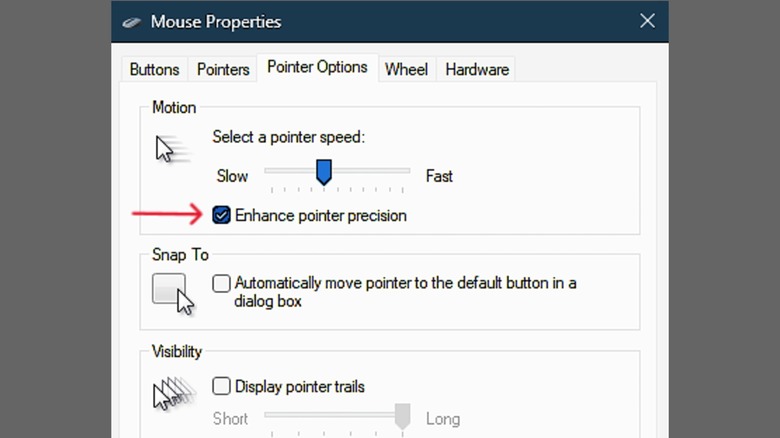
Mouse acceleration can be helpful when using a touchpad, as some touchpads offer small areas to control the mouse pointer, and since space is limited, moving the pointer across the screen can be cumbersome. This is where acceleration comes in: the faster or slower you move your finger on the touchpad, the faster or slower the pointer moves, alleviating issues with navigating the screen with a limited input area. Physical mice, on the other hand, generally don't have a limit on how far they can move (beyond the much larger limits of desk space), and with the popularity of high DPI sensors inside many mice these days, you don't need software acceleration to easily move a pointer across your screen with a mouse.
As a matter of fact, mouse acceleration when using a physical mouse will likely make you less accurate in games, as acceleration works against muscle memory, since your pointer speed changes with mouse movement. If you can't rely on predicting where your pointer will end up when moving your mouse, thanks to having to account for speed and distance at the same time; it can make it harder to accurately click on things.
To turn off mouse acceleration in Windows 10/11, open the Control Panel. From here, click on Hardware and Sound, then click on Mouse under Devices and Printers. This will bring up a separate Mouse Properties window, and you want to click on the Pointer Options tab. On this screen, simply uncheck Enhance pointer precision, click OK, and now your mouse acceleration is off. It's that easy, and now your pointer on the screen will move 1:1 with your mouse, ensuring predictable, reliable movement.
Increase your mouse speed
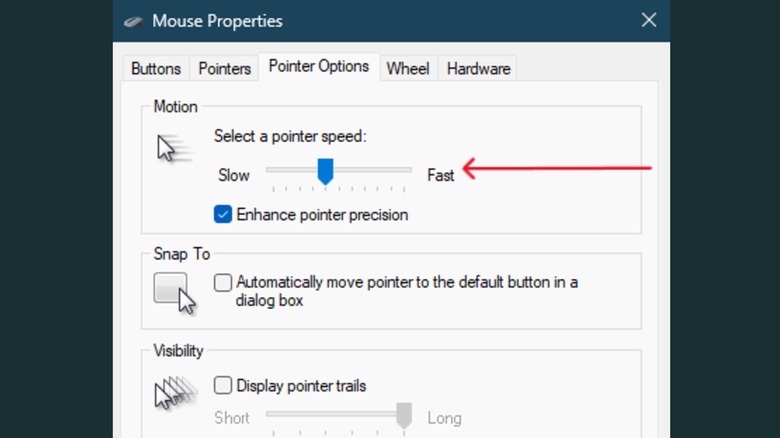
Now that you know how to turn mouse acceleration on and off, you may also be interested in bumping up the speed of your mouse pointer. Increasing the speed reduces the amount of mouse movement required to move the pointer on the screen. Say, if you work on a small desk with very little space for your mouse, there won't be a lot of room for movement, which could limit your cursor movement when mouse acceleration is off. Rather than continually jockeying your mouse position on the desk, simply bump up the mouse speed in Windows, and your pointer will move faster, resulting in less mouse movement.
Hands down, increasing your mouse speed is the easiest way to make your mouse feel quicker. Just be mindful that if you bump up the speed too far, you'll have a hard time controlling the mouse without acceleration. This is likely why both settings are right next to each other; they work hand in hand.
To increase your mouse speed, once again, you'll want to open the Control Panel and follow the same steps as before to open the Mouse Properties window. Click on the Pointer Options tab, and right above the Enhance pointer precision checkbox, you'll see the option for Select a pointer speed. Bump that up a notch or two, and click OK. Your pointer speed will be much quicker.
Stop your mouse from sleeping with USB power management
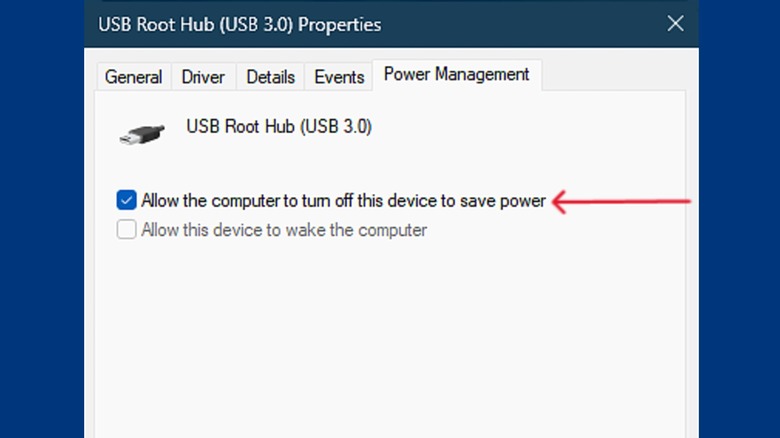
The last option you should tweak to get the best accuracy and reliability from your mouse for quicker movement is to disable the sleep function for your mouse's USB port (whether wired or wireless). The reason you want to turn this off is to keep the mouse powered at all times, ready in an instant for any task you throw at it.
Generally, if you allow your USB port to sleep, gadgets connected to the USB port will conserve power when not in use, which is good from a power-saving perspective, but it can cause a slow wake-up for connected devices like a mouse. If you want an immediate response every time you touch your mouse, ensuring full reliability, it's a good idea to turn off sleep.
Whether you are using Windows 10 or 11, you can easily open the Device Manager by right-clicking the Start Menu icon and selecting Device Manager. Once you are in the Device Manager window, scroll down to Universal Serial Bus Controllers and expand the drop-down. From here, you want to right-click on USB Root Hub and select Properties. In the Properties window, click the Power Management tab and deselect the checkbox labeled Allow the computer to turn off this device to save power, then click OK. From this point forward, your mouse will always be powered and fully available for use with no slowdown after periods of inactivity.