

What Happens To Your Amazon Fire TV Stick If You Leave It Plugged In All The Time?
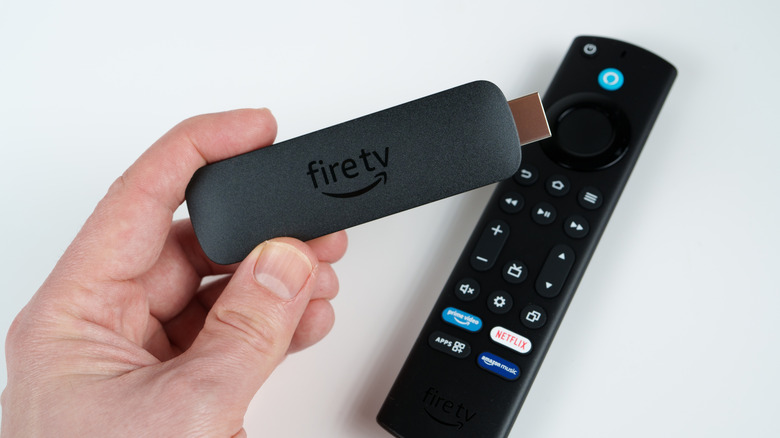
Consumer tech continues to evolve at a rapid pace, but sometimes the troubles of yesteryear stick around longer than we'd like to see. A great example would be the Amazon Fire TV Stick: This popular, budget-friendly streaming device has made it easy to enjoy apps like Netflix, Prime Video, and Disney+ without breaking the bank, but one thing you should know before buying a Fire TV Stick is that it's not designed to turn off. After several minutes of inactivity, a Fire TV Stick will enter Low Power Mode, a reduced energy state that puts a pause on some of the device's CPU activity.
Even though all Fire TV Sticks utilize Low Power Mode to conserve energy, as long as the hardware is plugged into a power adapter (or one of your TV's USB ports), it's never truly off. But what actually happens to a Fire TV Stick that stays plugged in all the time? The short answer is that the device's internal temperature stays warm to hot, and heat is no friend to electronics.
Fortunately, the Fire TV Stick has a built-in heat sensor that issues an onscreen warning when your streamer gets too toasty, which should protect it from a catastrophic failure. However, it's still a good idea to unplug your Amazon device now and then, especially if you'll be away from home for a day or two. This allows your Fire TV Stick to completely cool down, giving you the extra peace of mind that a $30 streaming device isn't going to start a fire while you're on a Disney vacation.
A few settings changes can help cool your Fire TV Stick down
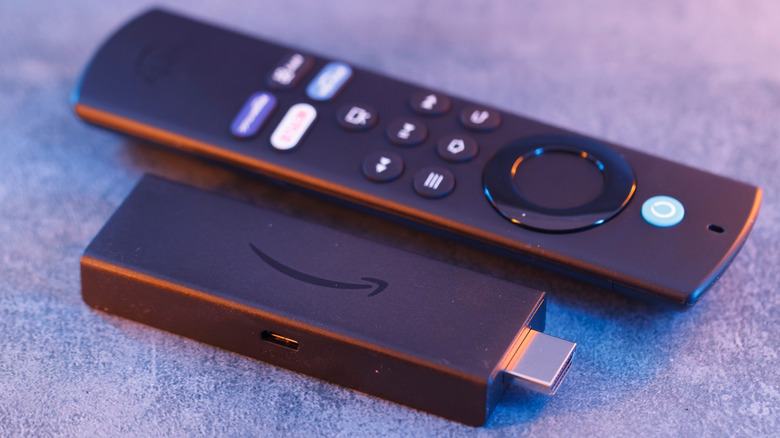
Leaving your TV turned on all the time is arguably a bigger deal than leaving a Fire TV Stick plugged in for days and weeks on end. Still, there's no denying the heat these streamers can produce. That's why it's a good idea to lighten the system load if possible. Deleting unused apps and ensuring your Fire TV software is up to date can help to optimize device performance. You may also want to try clearing the cache for any frequently-used apps on your Fire TV Stick.
You can do so by heading to Settings > Applications > Manage Installed Applications. Choose an app, then select Clear Cache. You could also try disabling the streamer's data tracking to improve performance (Settings > Preferences > Privacy Settings, then disable Device Usage Data, Collect App Usage Data, and Interest-Based Ads). This may not result in night and day changes, but preventing your streamer from tracking and personalizing your Fire TV experience is a decent load off the processor, which might result in a cooler-running Fire TV Stick.
Of course, no streaming device or smart TV will last forever. Check out our feature on when an old Roku Stick should be replaced if you're worried yours might. A few of those telltale signs — which includes overheating and laggy performance — are relevant to just about any streaming tech, including the Fire TV Stick.