

4 Free And Easy Ways You Can Upgrade Your Smart TV
Your TV might prove more resilient than pieces of smaller tech like your phone, often lasting years before ultimately giving away. While the newest features that the latest models come with are enticing — especially if your old TV is starting to lag and face issues — you don't always need an upgrade, especially if only recently purchased the set. Still, no one likes a slow TV: Are there ways of improving your smart TV without spending a fortune on upgrading it? Plenty, fortunately.
For most people, the issue of how long your TV lasts isn't about how long it takes until it completely stops functioning, as many modern TVs don't start breaking down until around the decade mark. The issues that people more regularly face regarding smart TVs pertain to the picture quality and the TV's speed. While there's nothing you can do to fix the burn-in on an OLED screen, the speed at which the TV performs — and picture quality it offers — can often be tweaked or otherwise improved. Here's how.
Switching to wired internet with an Ethernet cable
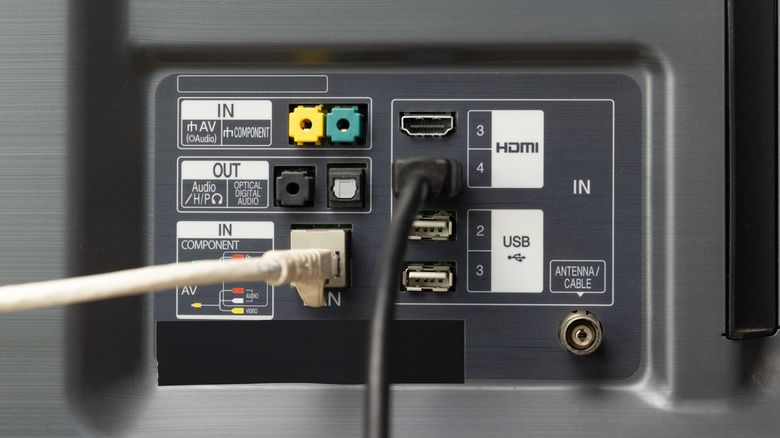
The best thing about smart TVs is being able to leverage the power of the internet through them, but doing so can also be the most infuriating thing ever if the connection's slow. From videos buffering on loop to apps taking ages to load, there are a lot of ways sluggishness can harm your viewing experience. This can even happen when the WiFi itself is working fine on other devices, which might make you think something's wrong with your TV. Fortunately, this isn't always the case, and you can often fix the issue in a variety of ways.
The easiest fix may be to move the internet router closer to the TV, as walls (and raw distance) can hamper WiFi signals. If you've tried that to no avail (or if it's not possible to move the router), you can attempt to use the TV's Ethernet port. This is significantly faster than using a wireless connection and something that will improve the TV's speed, even if you're not suffering from particularly bad lag. If the issue remains with an Ethernet connection in place, while all your other devices are working fine, that's when there's likely an issue with the TV itself.
Your viewing distance matters more than you might think
When most people think of improving their TV experience, they think of better specs, more features, or beefier accessories (like speakers). While all of these propositions stand true, as simple an adjustment as changing the distance you're viewing your TV from might improve matters. A screen placed too far away takes up too little of your field of view, making you miss details while also providing a fairly non-immersive experience. Getting a TV that's too large, and placing it too close to you, can have the opposite effect, where the magnitude can end up being overwhelming — something that might not be an issue for more cinematic movies, but certainly not something you'd want when watching the news.
Getting the optimal viewing distance depends on the exact size of your TV, and Rtings.com has a handy tool that helps you figure that out. In general, it's best to fiddle around and test different viewing angles before deciding that you absolutely need a better TV.
Keeping your software or firmware updated is key
Smart TVs are becoming increasingly similar to phones and computers, even coming with their own operating systems and set of security updates. Just as you need to ensure your phone's OS and firmware is updated to the latest versions for it to function properly, the same applies to your TV. The teams behind the brand of TV you own constantly push out updates that improve on existing features and patch bugs. If you're on an older version, apps and systems optimized for the latest firmware can cause your smart TV to lag.
Updates are done automatically on most smart TVs, but there are cases where an update hasn't finalized. In a case where an update hasn't been downloaded, you can find the option in the TV's settings, often in "Updates" or "Support." The specific way of updating your smart TV varies by system, though, so search for your specific TV brand to figure out the steps to manually update the unit. It's also a good idea to enable auto-updates from the settings menu — if they've been turned off — to avoid similar issues in the future.
Issues within the settings
Modern TVs come with a lot of features that are supposed to make your screen look better. Unfortunately, with so many settings to go through, many people don't know that there are certain options that are worsening your picture quality rather than improving it.
The most prominent example of this is Motion Smoothing, a feature that inserts artificial frames between existing ones to create a more fluid video. While this sounds good on paper, if you've got a movie captured on 24 FPS, this kind of post-processing can lead to janky-looking, overly fluid results. Turning this mode off from the picture settings is a way to immediately improve your TV's image quality, especially if you're watching older movies.
It's not only the picture modes that affect how your TV behaves, though: There's a lot more you can do in the settings to improve its performance. As you continue using your TV, it builds up cached data in the back, filling up memory. Once this cache increases in size, it can lead to your TV lagging and misbehaving. To fix this, you can navigate to your TV's "Storage" or "Apps" in the settings. There's a way to clear your TV's cache there, either for specific apps or the entire TV.