

5 Common Mistakes People Make With Their New Rokus
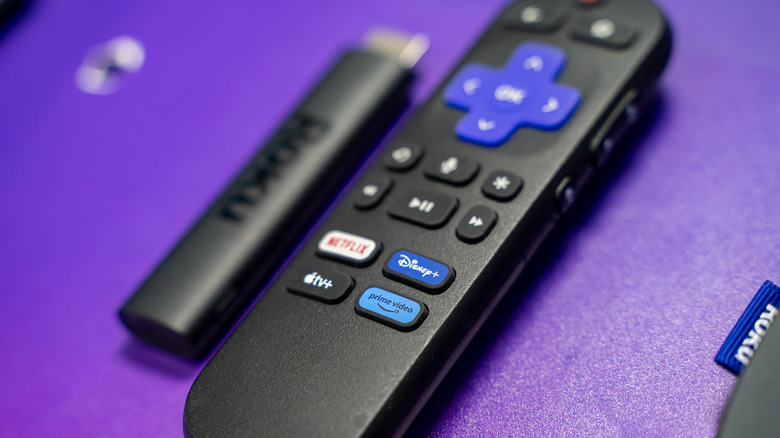
Roku's portfolio of streaming devices is generally well-liked for its easy-to-use interface, access to local TV channels, and private listening feature. You also get up to 4K HDR streaming, apps for streaming services, a voice remote with TV controls, and support for Apple AirPlay. However, if you're new to the Roku platform, having only ever used the other major streaming devices like Amazon Fire TV or one of the Android/Google TV streamers, it's understandable to make errors as you are getting familiar with the platform.
Fortunately, to help you avoid most of these pitfalls, we have rounded up some of the most common mistakes folks make with their brand-new Roku streamers. Some of these, such as plugging your Roku into the wrong HDMI port or missing out on global search, are fairly innocuous. Others, like falling for a scam, can be more damaging. That said, you'll soon be ready to tackle these slip-ups and while you're at it, check out these hidden features every Roku user needs to know.
Powering via the TV's USB port
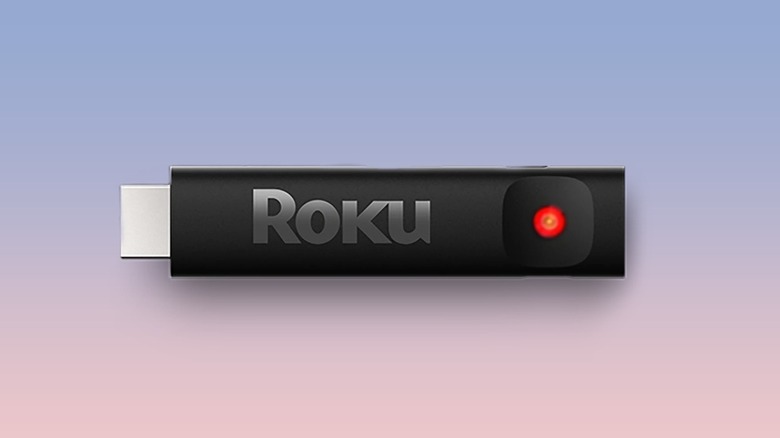
Although it's possible to power some Roku streamers using your TV's USB ports, it doesn't always work because those ports may not supply enough power to satisfy the streamer's needs. Among the current Roku products, the Streaming Stick and the Streaming Stick Plus are most likely to work without hassle via your TV's USB port, as they only need up to 2.5 watts of power, which USB 2.0 ports can deliver.
If the port on your TV cannot satisfy the Roku's power needs, the device will show a blinking red light, indicating low power input. In some cases, you'll see this low power warning on the screen. However, for Roku Streaming Stick 4K and Roku Ultra, you are typically best served with the supplied wall adapter as the Stick 4K needs around 3.5 W power, whereas the Roku Ultra needs around 4.5 W. That said, if your TV has a USB 3.0 outlet, indicated by a blue USB port, it should be able to deliver up to 4.5 W of power.
Not leveraging global search
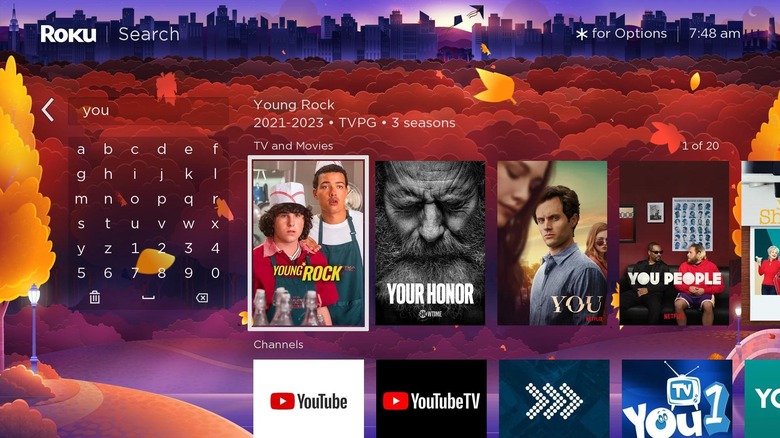
If you're using individual apps to search for content that you want to watch, you're doing it wrong. Roku streaming devices come with a very capable search function that can tell you which apps will stream the content you're looking for. For example, if you want to watch "The Lazarus Project," which is an overlooked British sci-fi series, you can simply type the series name in the Roku search bar, and it will tell you that the series is available on Netflix. Besides the names of movies and TV shows, you can also search for actors and directors.
Roku has over 250 search partners in the US. So there is a very good chance its global search will work for you most of the time. However, it can't search every platform, at least per the information available on Roku's website. In rare cases, when Roku search doesn't work, you can use an app called Justwatch on your phone. It searches through all major streamers, including those not installed on Roku, and tells you where to find the desired content.
Plugging your Roku stick into the wrong HDMI port
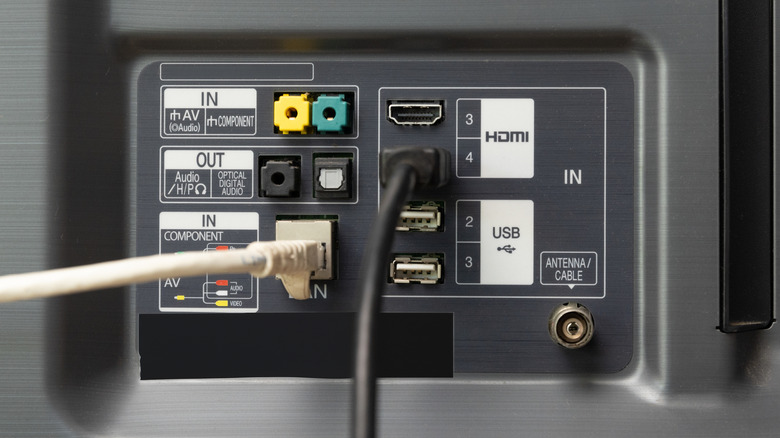
If you're using a Roku device capable of delivering 4K HDR content to your TV, you need to avoid the common mistake of plugging your Roku into the wrong HDMI port. This is important because Roku needs at least HDMI 2.0 and HDCP (High-bandwidth Digital Content Protection) 2.2 for displaying 4K and HDR content. Without it, Roku will drop down the resolution to 1080p or simply not play the content at all.
So, make sure you're using the right HDMI port on your TV to avoid error messages. You can check your TV's manual to confirm which ports support HDMI 2.0 and HDCP 2.2, or reach out to the TV manufacturer. If you are using an HDMI cable to connect your Roku device to the TV, make sure you use at least a Premium High Speed HDMI Cable, as older cables also can't carry 4K 60Hz signals.
Leaving Roku privacy settings untouched
Unfortunately, like most other smart TV platforms, Roku may be spying on you and collecting data about what you're watching, searching, what you've installed, and more, through its streaming devices. Moreover, it can sell or share this data with its partners. If this has got you alarmed, don't make the common mistake of leaving the privacy settings in Roku unchanged. Fortunately, all Roku devices have built-in options to disable the majority of data collection and tracking.
To opt out of data tracking, navigate to Settings > Privacy, and you'll find different options for Advertising, Voice, Smart TV Experience, Privacy Policy, and Privacy Choices. Go into each of these options to disable or select all the options that will stop data collection and sharing by Roku. For example, under Privacy Choices, you can select "Do not sell or share my personal information," and "Limit use of sensitive information."
Falling for a Roku scam
Scammers are everywhere, including among unsuspecting newbie Roku users. One of the most common schemes is the Roku activation scam. Scammers pretend to be Roku employees and dupe folks into paying to activate their Roku devices, get it set up, or for technical support. Roku doesn't charge you for anything apart from buying their devices. Roku accounts are free, technical support costs nothing, and there is plenty of free support material online that you can use to set up your device. If you think you're on a fake Roku website, you can confirm by checking the domain name; if it's different from Roku.com, it's likely part of a scam.
Besides activation scams, you may also encounter free channel access scams or support subscriptions; neither of which is genuine, as Roku explains on its website. The Roku Channel is free to use at no cost. However, you'll likely have to pay for your preferred streaming services. And of course, the subscriptions for these streaming services should always be purchased from the official website or app.