

14 Amazon Fire TV Stick Tricks That Can Make Your Device Feel Like New
We may receive a commission on purchases made from links.
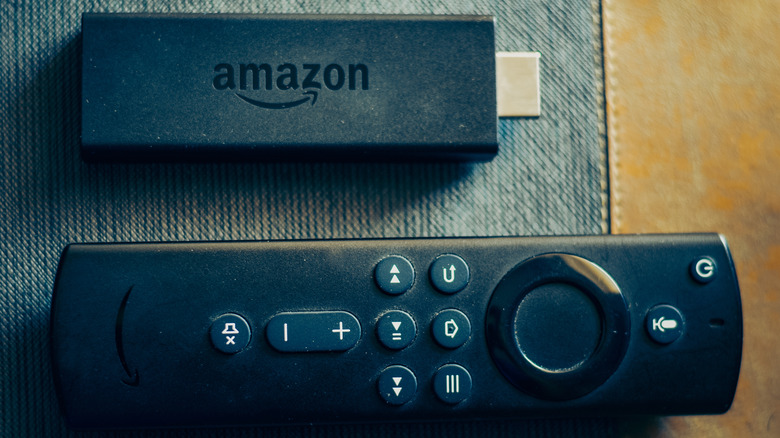
Buying an Amazon Fire TV Stick is a great accessory to turn your television into an entertainment hub that can stream the latest shows, play music, and even run games that support Fire OS. While it's true that most modern TVs come equipped with smart functionalities, the Fire TV Stick is still a great purchase if your TV is old and lacks this support. It's also perfect for cheaper TVs with a laggy or unresponsive smart user interface, ensuring that streaming TV shows and movies will never be a frustrating affair.
That being said, every piece of tech inevitably slows down over time, and the Fire TV Stick is no exception. With its limited storage and processor strength, your Fire Stick may not run as smoothly as it did when it was a new purchase. Thankfully, this issue can be mitigated by following a few steps to ensure that your Fire TV Stick feels as good as new every single time you use it.
A simple restart can take care of things
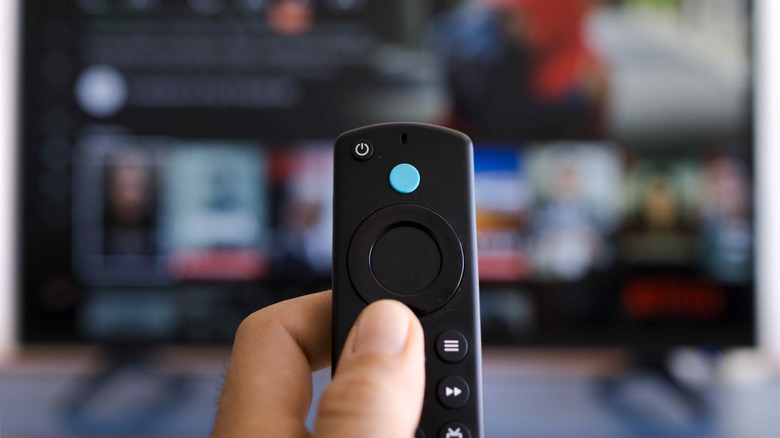
Just like a laptop or phone, the Fire TV Stick runs a ton of processes — both background and otherwise — from the moment it boots up. Eventually, as you open more and more apps, this eats into the Fire TV Stick's limited RAM and causes your device to lag. Unlike your laptop, you won't really shut down your streaming stick all the time, unless you have the habit of cutting off the main power source to your TV. This is why you should make it a point to restart it from time to time, helping to shake off these cobwebs and run faster than ever.
This isn't the only way a restart can improve the speed and responsiveness of your Fire Stick. This media player also stores some temporary files in its cache that can eat into the device's processing power. A simple restart can take care of this issue. If your device is glitching out and you don't know how to fix it, then rebooting it could be the solution staring you in the face all along. Go to the My Fire TV tab from Settings to restart your device. Alternatively, you can use a cool but hidden Fire TV trick by holding down both the Select and Play/Pause buttons for around five seconds.
Make sure your Fire TV Stick has the latest update
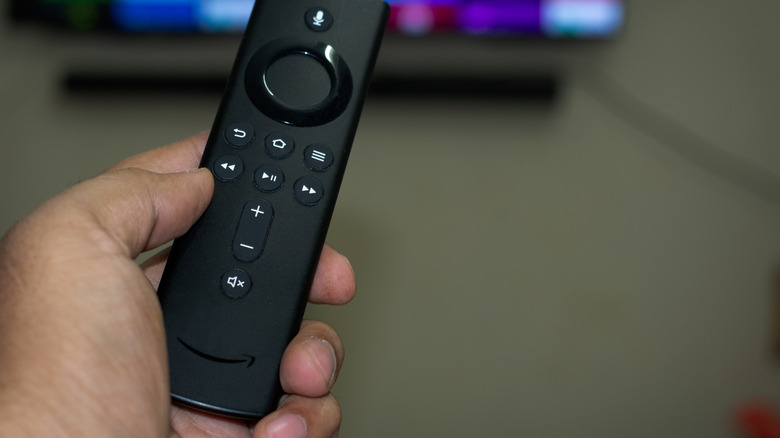
Once your Fire TV Stick is in your possession, there's not a lot that can be done on the hardware side of things. However, software is a different story, and updating the Fire TV Stick from time to time is important to help it feel like a brand-new purchase. It's a convenient process that will let you unlock new features and enjoy better performance from your device.
Another important reason for updating your Fire TV Stick is to improve the device's security protocols. An outdated Fire TV Stick poses a security concern for your network, making it easier for cyberattacks to tamper with your device and, in more severe cases, target your personal information. At this point, a slow streaming stick would be the least of your problems, so always check for software updates if your device isn't performing as well as you'd expect.
For what it's worth, your Fire TV Stick checks for updates regularly by default, so you won't have to manually check for the same unless you feel that it's been way too long since a firmware update. To check for an update, go to the Settings menu > select My Fire TV > About > Check for Update.
Turn off the Fire TV's data tracking to improve performance
With the need for privacy being stronger than ever, most consumers want to turn off any settings that track their data and collect information. Even the Fire TV Stick doesn't shy away from this, and the last thing you'd want to worry about is your privacy being compromised while you're trying to binge the latest season of your favorite TV show. If your Fire Stick is lagging for no discernible reason, then turning off these tracking tools may help you out, and for what it's worth, turning them off is pretty easy to do.
To disable the tracking, open the Preferences section in Settings. From there, go to Privacy Settings, and you'll find three settings that should be turned off. Disable Device Usage Data, Collect App Usage Data, and Interest-Based Ads. Not only will this preserve your privacy, but you are also eliminating background processes that could potentially be slowing down your Fire TV Stick.
Don't flood your Fire TV Stick with too many apps
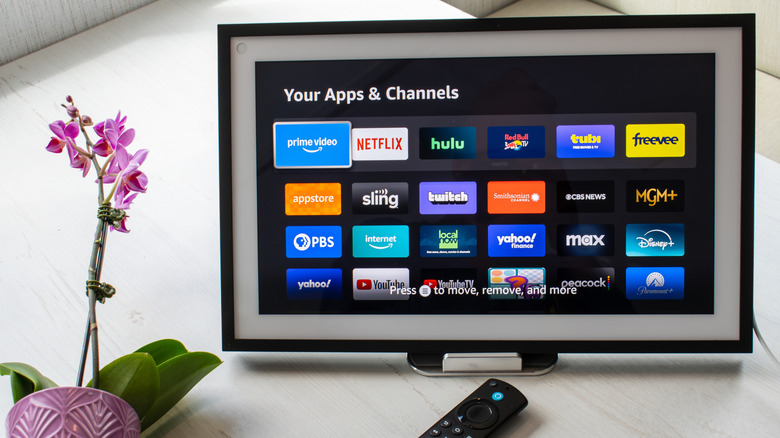
It seems like only yesterday when Netflix broke new ground in the streaming landscape and became one of the biggest players in this industry. Now, it's hard not to find a network that doesn't have a streaming app you can download. The list is endless, with Netflix, Disney+, Apple TV, Hulu, Prime Video, Peacock, HBO Max, and Paramount+ being just a few of the many streaming apps you can download to access a wealth of quality content. However, while all these streaming apps may seem endless, your Fire TV Stick only has a limited amount of space to accommodate them.
With each app filling the storage of your device, it's no secret why a Fire TV Stick that's filled to the brim with apps will start slowing down at some point. Any OS requires a bit of breathing room in storage to operate properly, so make it a priority to delete any unnecessary apps from your device. Go to the Applications tab in Settings and head to Manage Installed Applications. From here, select any unwanted app and choose Uninstall. Chances are that you won't be using every streaming service at the same time anyway, and you can always redownload an app later if one of its newest offerings catches your eye.
Turning off data monitoring can help
The Fire TV Stick provides a helpful service that lets you monitor the amount of data used by this device. It's a great tracking tool if you have a limited internet connection and want to preserve your allocated bandwidth as much as you possibly can. However, most households have very generous internet plans provided by their service provider and don't need to concern themselves with preserving their data. For them, all this feature does is eat into valuable processor power that is better off allocated somewhere else.
This feature is enabled by default, so you should go to your device's settings and turn it off. Head to the Preferences section and select Data Monitoring. From there, all you need to do is disable the Data Monitoring option, helping your Fire Stick operate slightly faster. It may be a negligible difference, but every little bit helps your Fire TV Stick run as quickly as it possibly can.
Clear the cache of heavy-duty apps regularly
Over time, the apps on your Fire TV Stick build up a cache that stores data and helps it run smoothly. While this is great for apps that you use on a regular basis, there are times when the size of these caches reaches ridiculous levels and takes up too much space on your Fire Stick. In such an event, your best bet is to delete the unoptimized cache and start fresh.
To do this, go to the Applications tab in Settings. From here, select Manage Installed Applications. You could use the universal solution in the form of the Clear all Application Caches option. However, if you want to individually manage the Fire TV Stick's apps and cherry-pick which caches you want to remove, then choose the app in question from this list and select Clear Cache. If you don't use this app regularly but still want to keep it installed, then choose the Clear Data option as well to conserve even more space on your Fire Stick.
Turn off your Fire TV Stick's notifications
The more apps you download, the more notifications you'll receive on your Fire Stick. Some of these pop-ups contain useful information, such as a new update you can download or that another season has gone live for your favorite TV series. However, there are also times when your Fire Stick provides notifications for information that doesn't interest you. Messages for a new level in a game you forgot you had downloaded, or a reward that you don't care about, are far from critical notifications. On top of this, they also end up using system resources, which can slow down a Fire Stick.
To change how notifications work on your Fire Stick, go to your device's Preferences and select Notification settings. From here, just turning on Do Not Interrupt is enough to take care of any distracting pop-ups. You can take a more personalized approach here and go to App Notifications to individually select the apps that are allowed to show notifications. No matter what you decide to do, preventing even a few notifications from popping up will have a minor improvement on your Fire Stick's performance, which is more than enough for some users.
Force stop apps to free up the Fire TV Stick's RAM
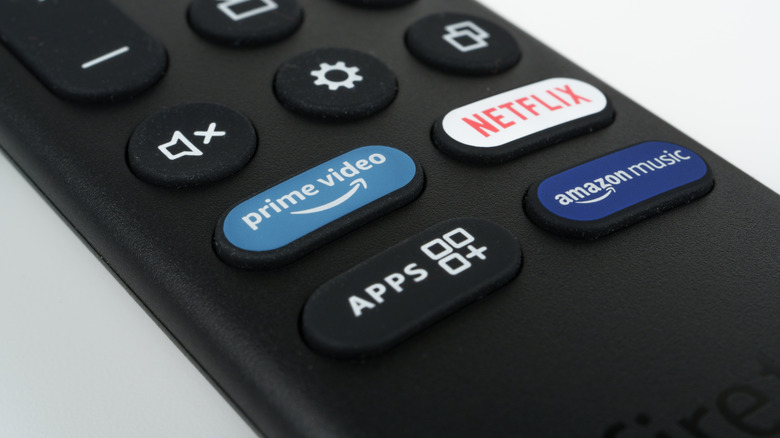
2GB RAM is far from enough for any device, including a Fire TV Stick. With numerous streaming apps, video games, and music players on your system, it's only a matter of time before your Fire Stick's RAM starts struggling to run all these apps when left active for an extended period of time. If you're not turning off your media stick all that frequently, these apps end up running in the background for a long time and eventually eat into your device's available memory.
If your Fire Stick starts chugging at a snail's pace after being used for a while, it's time to head to the device's Settings. From the Manage Installed Applications section, you can choose any active apps and force stop them. This frees up your device's system resources, which will go a long way in making your device feel faster and more responsive than before. It's a great alternative to deleting any apps outright, although you will have to repeat this process manually every single time your Fire TV Stick starts slowing down.
Turn off Audio and Video Autoplay
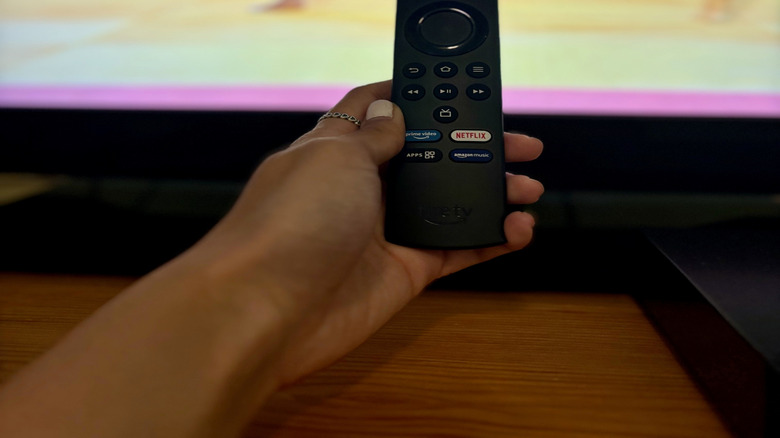
Promotional content is hard to escape nowadays, and your Fire TV Stick is prone to marketing any new show or movie to you from time to time. Most sponsored content plays automatically on the home screen, which can be pretty annoying if you don't want your Fire Stick to start blaring the very moment you switch it on. This auto-played content is also taxing on your Fire Stick's hardware, causing it to lag even more if it has already been slowing down for a while.
To speed up your Fire Stick and stop any promotional content from auto-playing, you can turn off these features in Settings. From Preferences, go to Featured Content. From here, you can see the options Allow Video Autoplay and Allow Audio Autoplay. If loud sounds that play without your approval are the major issue, then disable Audio Autoplay. However, for the best performance boost, disable both options in Settings.
Disable Amazon Photos if you don't use it
Most Fire TV Sticks have additional features baked in that are ideally supposed to enhance the experience of using this device. One of these services, Whispersync, was a part of the Amazon GameCircle ecosystem that helped sync your progress on any game across all your Fire TV devices. However, it became clear to Amazon that media sticks weren't being used to play games all that often, which is why this support was eventually removed for later Fire devices. Most people didn't lament its absence, since Whispersync just ate into their system resources. However, there's another similar service that continues to be a mainstay in most Fire TV Sticks and might not be something you're interested in.
Amazon Photos is an app that comes pre-installed with your Fire Stick. While it can't be deleted from your device, there's still a way to prevent this app from using your device's processing power. For starters, open Preferences and disable Amazon Photos in the Privacy Settings. After this, go to the Applications tab in Settings, select Amazon Photos, and disable it. This will ensure that your Fire Stick's limited resources won't be used to keep this service up and running.
Make sure your Fire TV Stick isn't heating up too much
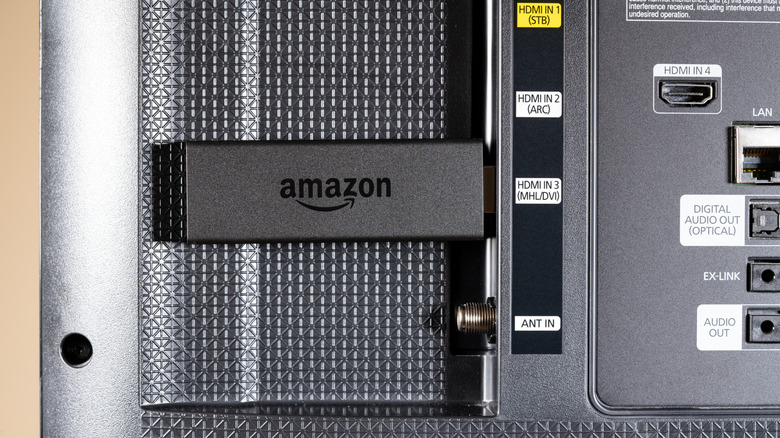
Overheating is a major reason why a Fire TV Stick slows down. Most people tend to plug their Fire Stick into the back of their TV and forget about it. Since televisions are known to heat up after extended use, some of this heat can transfer over to the Fire Stick. To avoid this, plug your device into the correct HDMI port, one that's on the side or front of your TV. If this isn't a viable option, then an HDMI extender can give your Fire TV Stick more breathing room. You can also plug in the Fire Stick to a USB port to prevent overheating, although it's possible that port might not be able to transfer more power to your device and cause slowdown issues of its own.
If none of these steps work, then you can opt for some DIY solutions to solve the overheating problem instead. These aren't recommended, especially since they involve fiddling around with your device's physical components. One solution involves removing the Fire Stick's internal parts and drilling holes into the plastic body itself. While this can help any excess heat escape from this device, you can cause permanent damage to the Fire Stick if you make a mistake. You can also place a heat sink on the processor to help remove heat more efficiently, which can work for older Fire TV Sticks. Again, only opt for these last-resort solutions if your device refuses to cool down and you don't want to replace this Fire Stick with a current-gen version.
Double-check the Fire TV Stick's power source
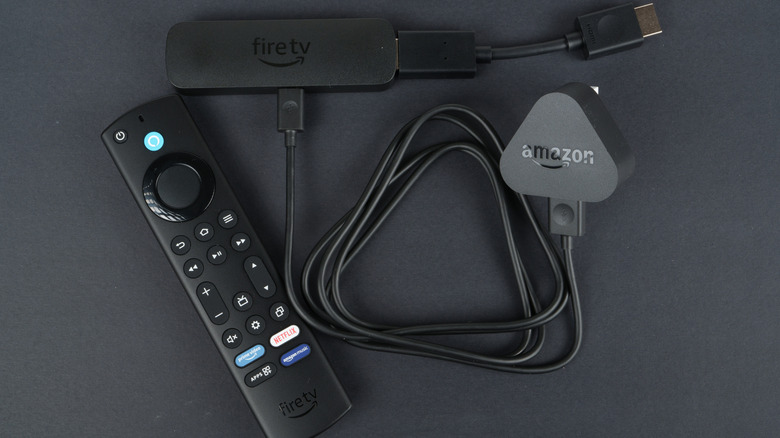
All Fire Sticks come bundled with a power cable and an adapter. These are optimized to provide the precise amount of power the device needs to operate without a hitch. While you may discard the adapter and use your TV's USB port or something similar, this may not provide the amount of power needed to smoothly operate the Fire Stick. Not only will this cause slowdowns on your device and even lead to inconvenient reboots, but it's also possible that your device may get bricked by this inadequate power supply during an update. Stick to what's safe and use a trusted adapter and charging cable.
If, for some reason, you can't use the cable or adapter that is bundled with the Fire Stick, then be careful about the third-party accessories you'll use to power the device instead. Modern Fire Stick devices require a 5W, 1A adapter, so make sure that you use a compatible third-party adapter to facilitate this connection.
Get an ethernet adapter for faster internet speeds
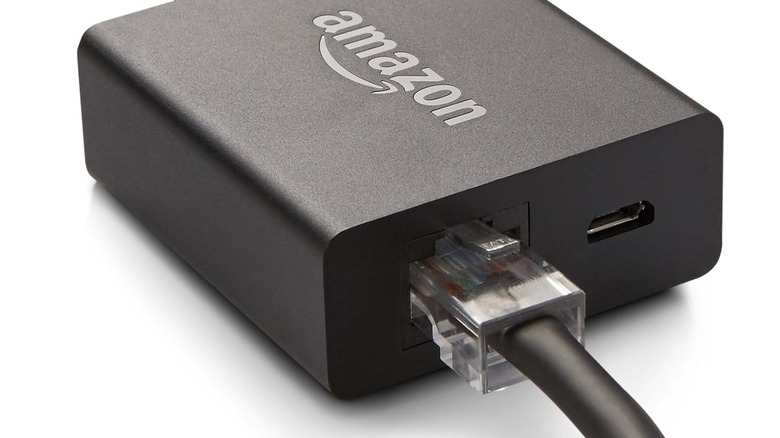
Sometimes, buffering and slow loading speeds on your Fire TV Stick may not be the device's fault. It's entirely possible that your internet speed is too slow, hampering your multimedia experience. For the most part, users are aware of their ISP (Internet Service Provider) plans and whether they are affecting the Fire Stick's efficiency. However, if your internet speeds are up to modern standards and your Wi-Fi router isn't causing issues, then it may be time to use an Ethernet cable to facilitate this connection instead.
It's no secret that Ethernet cables are faster than wireless signals, so using a wired connection for your Fire Stick can make your streaming experience smoother than ever before, especially if you choose the right type of Ethernet cables. You'll need a separate Ethernet adapter for your Fire TV Stick, preferably one that's provided by Amazon itself. Stick to this official accessory to connect an Ethernet cable to your device, and your buffering problems should be done away with.
If everything else fails, a factory reset can help you out
You can implement every trick under the sun to speed up your Fire TV Stick, but a particularly stubborn device may refuse to work even after all these fixes. At this point, it may be time for a factory reset. Go to My Fire TV in Settings and select the Reset to Factory Defaults option. Alternatively, you can hold the Back button and the right side of your remote's navigation circle for 10 seconds to kickstart the factory reset process.
There's no denying that restoring your device to its default factory settings and deleting any apps you've installed is a major inconvenience. However, all of this will be made worthwhile if this last-resort option works and your Fire TV Stick finally starts working as intended. Just ensure that you don't make the same errors as before and use your device optimally to prevent these slowdown issues from hampering your Fire Stick once again.