

3 TCL TV Settings You Should Change Right Out Of The Box
Among the major smart TV brands on the market today, TCL is the go-to manufacturer for affordable but reliable units. They're known for their good value for money and user-friendly operating system. And while they aren't as packed with features as other premium TV brands, they're usually enough for binge-watching your comfort movies or playing your favorite games.
Before you get into your shows and games, you have to go through the initial TV setup. TCL models aren't shipped pre-configured with all your preferred settings, which would be super convenient, though. You'll have to dig into the settings to optimize the TV as you see fit. Most of the time, you'll start by adjusting the essentials, like brightness, contrast, and color temperature. You'll probably customize the home screen look, too. However, there are more beyond these basic setups that may need tweaking. To get the best experience, here are three settings you should change on your TCL TV straight out of the box.
Disable Adaptive Brightness
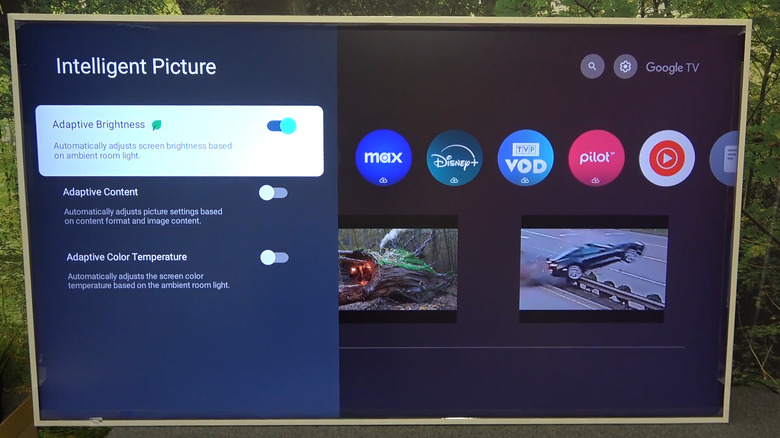
Adaptive Brightness, sometimes called Automatic Dimming, is a TCL TV feature that adjusts the TV's brightness based on the ambient light. It's like the auto brightness on your phone's screen, where the display automatically becomes brighter in well-lit rooms or outdoors and dimmer in low light or at night. This ensures that the picture stays clear without being uncomfortable to watch at any time of the day.
While this generally sounds useful, it can become quite annoying when enabled. The changes in the brightness level can feel too jarring and distracting while you're watching. The TV's light sensor can also be too sensitive at times, so that even a small change in the light conditions near the TV would instantly trigger a brightness adjustment. This can make your screen look like it's flickering, especially during the day when the natural light hitting your TV quickly shifts because of clouds or tree movement outside. To keep your TV brightness stable at all times, it's better to turn off Adaptive Brightness. Here's how to do so:
- Press the Settings button on your remote.
- Choose All Settings.
- Navigate to Display & Sound.
- Select Intelligent Settings.
- Click on Intelligent Picture.
- Toggle off Adaptive Brightness.
You might also find Adaptive Brightness under the Picture and Eye Health menus, as well as from the quick settings panel. Just press the menu button (three horizontal lines) on your remote to pull the panel up. If your TV still automatically dims and brightens randomly, try disabling all the other adaptive settings under Intelligent Picture, such as Adaptive Color Temperature and Adaptive Content.
Set Picture Mode to Filmmaker Mode
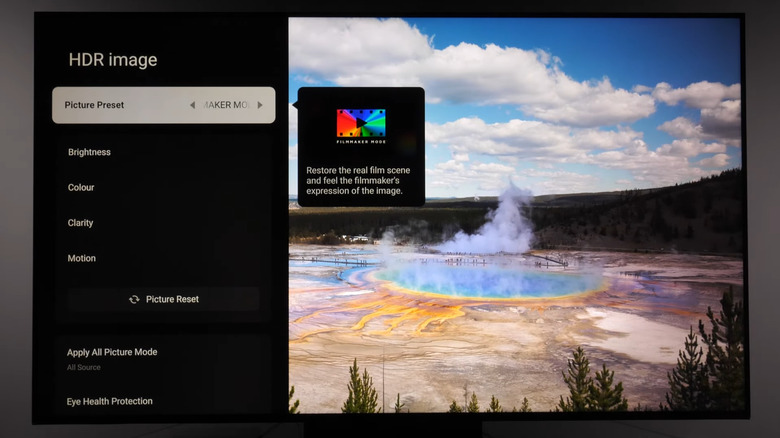
TCL TVs come with different picture modes. Sports Mode is for when you're watching fast-moving content, like sports and action movies. Intelligent Mode dynamically changes settings depending on what you have on or the room's conditions. Vivid Mode is best if you prefer brighter colors and enhanced contrast. These picture modes have preset settings, so you won't have to manually adjust everything for each piece of content you want to watch.
But among these picture mode options, many users agree that turning on Filmmaker Mode on TVs is the easiest way to get great, if not the best, picture quality. What this mode essentially does on a TCL TV (and many other smart TVs) is play the movie as naturally as possible, similar to how the filmmakers intended it to be. That means it preserves the color, highlights, and shadows of the original content and limits the use of artificial processing. To enable Filmmaker Mode on your TCL TV, follow these steps:
- Press the Settings button on your remote.
- Choose the Picture tile from the panel that appears.
- Scroll through the Picture Mode options until you get to Filmmaker Mode.
- Exit the Picture settings to save your changes.
While in Filmmaker Mode, you can still adjust the other picture elements like brightness or peak luminance to your liking. Just head over to the Picture settings to do so.
Turn off Motion Smoothing
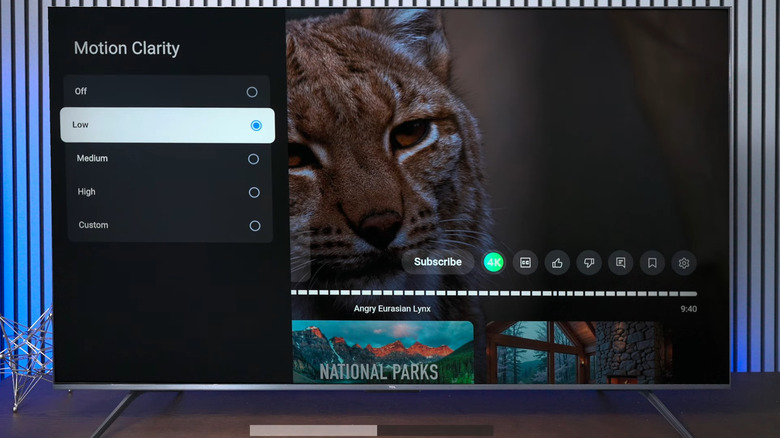
Some users aren't fans of motion smoothing on smart TVs, and for good reason. It typically makes content look unnaturally fluid and cheap-looking due to picture processing, so they might not enjoy watching it as much. In some scenes, motion smoothing can also produce weird blurring. Thankfully, it's quick and easy to disable motion smoothing on your new TCL TV. Here's what you need to do:
- Go to the home screen.
- Hit the Settings button on your remote.
- Select Picture.
- Open Advanced Settings.
- Click on Motion.
- Switch off Motion Clarity.
On some TCL TV models, Motion Clarity comes in Low, Medium, High, and Custom settings. If you see shaky effects in your favorite movies or shows, you can try enabling Motion Clarity by simply toggling it on or switching to the Custom setting, then adjusting the Judder Reduction slider. However, make sure to set it to two or three only. Anything higher, and you would likely end up having the dreaded soap opera effect on the scene. Keep the other options under Motion Clarity off.