

4 Tips And Tricks For Better Audio With Android Auto
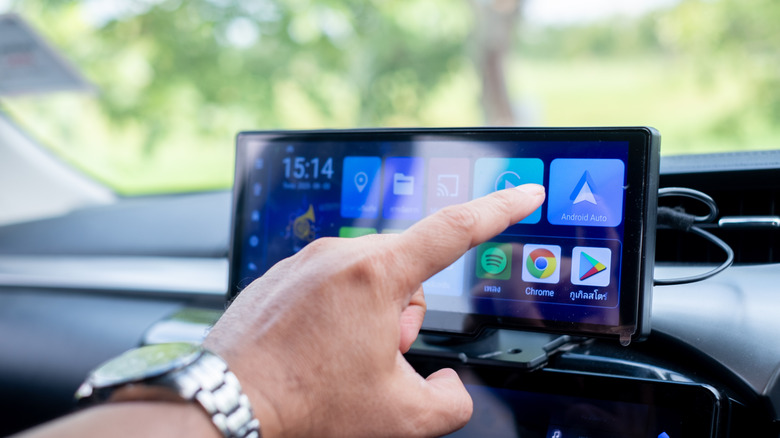
Android Auto is a wonderful tool. Not only does it let you pull up some of the most useful applications you need in a car, like GPS directions, but you can easily control your music and audiobooks directly from your car's infotainment system — so long as it is all connected. And, with Google slowly expanding Gemini to Android Auto, too, the entertainment functionality has become even more helpful for Android users. The best part, too, is that many cars support Android Auto out of the gate, which means you don't need to invest in any additional components to start using it. And even if your car doesn't, there are plenty of great Android Auto dongles out there you can buy to add it to your car.
And while convenience is great, there have unfortunately been plenty of complaints about subpar audio quality when using Android Auto. Enough that some have even reverted back to their car's standard Bluetooth connection instead. If you're one of the many struggling with bad audio when using Android Auto, then you don't have to settle. There are a number of things you can do to try to improve your audio quality, and all of them can actually be done without adding any additional equipment to your car.
Check your music app's settings
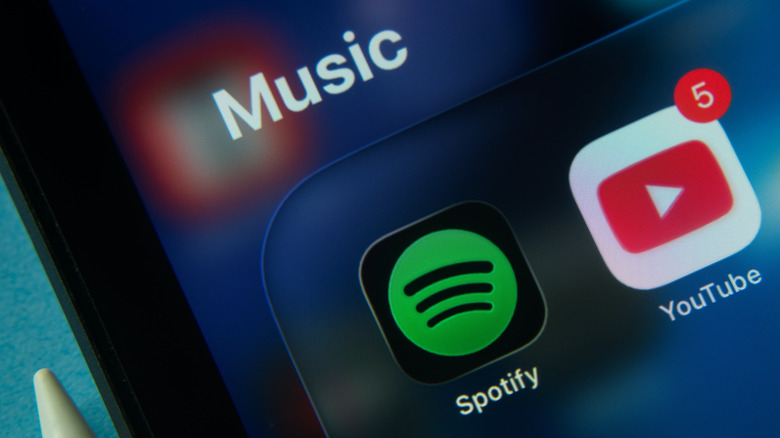
The first step to achieving better audio quality in Android Auto is to check the settings of your preferred music app. That's because some settings can actually cause a downgrade in quality. One setting that you should disable – especially if experiencing audio quality problems with Android Auto — is the Volume Normalization audio setting in Spotify.
When enabled, this setting lets you choose how you want to adjust the volume of tracks so that the loudness is the same for all of them. This might sound handy, but ultimately it means your app is going to take quieter tracks and increase their volume to fit whatever level you choose within the setting's options. Alternatively, it might make the volume of louder tracks quieter, forcing you to turn up the volume of your car's radio, which could lead to distortion and decreased quality.
Moreover, you can check if you have enabled any custom EQ settings in your music app of choice, as Spotify and others offer that option, too. This can lead to distorted audio depending on your settings. If you do want to use an EQ setting, then we recommend looking up good options online for your car's radio model — though your mileage may vary on the results you find. Ultimately, if you don't know what a setting does in your audio options, then try disabling it and seeing if the audio quality improves or gets worse. You can always turn the settings that help back on.
Try a different Android Auto adapter
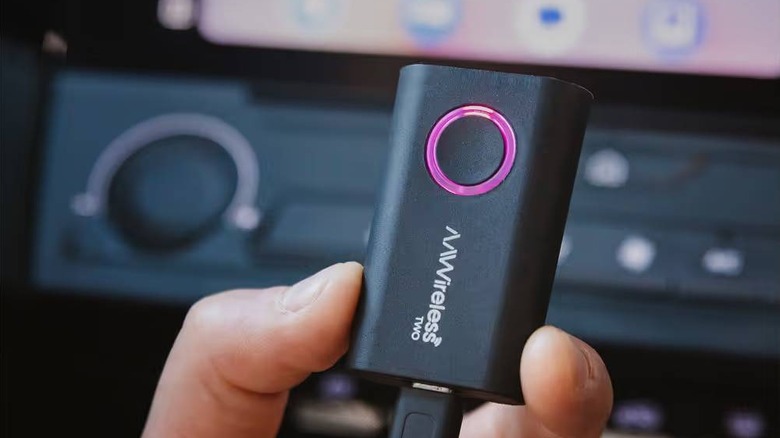
If you're using wireless Android Auto, then you'll probably want to look into the adapter that you've chosen. While there are plenty of ways to add wireless Android Auto to your car if it doesn't already have it, not all of them will offer the same quality connections. As such, you may want to look into the dongle that you've chosen and then compare it to some of the best wireless Android Auto adapters on Amazon to see how it stacks up for quality and connectivity.
With something like this, it's best to look specifically at reviews that mention the audio quality, though that isn't guaranteed to be a sure-fire way to succeed. Ultimately, you want to avoid having any kind of bad connection issues with your wireless dongle, as this will inherently lead to poor quality and performance when using Android Auto. Additionally, if you have a much older smartphone or tablet that utilizes older versions of Bluetooth than Bluetooth 6.0, which released in 2024, then you may find that your Android Auto quality differs compared to some of the higher-end smartphones on the market right now.
Grab a different cable or try wireless
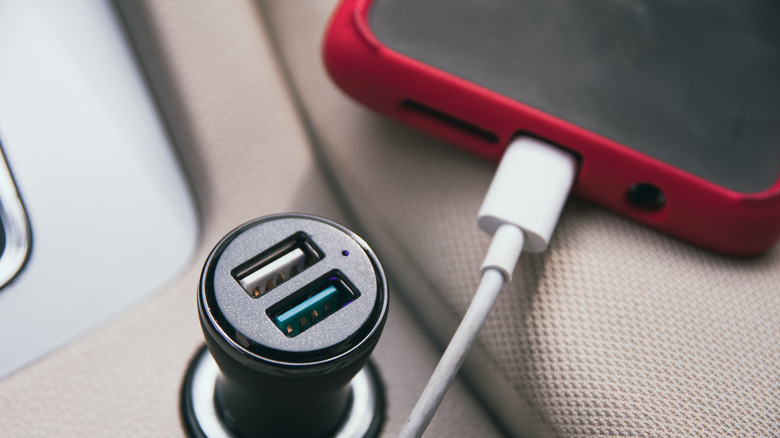
If you haven't embraced wireless Android Auto and still rely on connecting to a cable, then you may need to try changing out your cable. Not all USB cables are created the same, and there are actually some big differences depending on the type of USB cable you buy. We always recommend figuring out which are the best USB-C cables for your devices if you're rocking a newer phone, and then picking one up for all your connectivity and charging needs.
This one might sound like a given, but oftentimes we don't realize just how much of a difference a change in the cable we use can make. Some cables offer much faster data transfer speeds and are made of higher quality components. This ultimately translates to a higher quality connection when using them, which is why we suggest changing out your cable if you're noticing a lot of audio quality problems with Android Auto.
Alternatively, if you haven't already, then you can also try picking up an Android Auto wireless adapter like those we mentioned above. This lets you turn your wired Android Auto connection into a fully wireless one that utilizes Bluetooth. Doing this isn't guaranteed to make a huge difference, but it could provide an unexpected boost, while also freeing your phone from its tether to the dashboard.
Download your music before listening
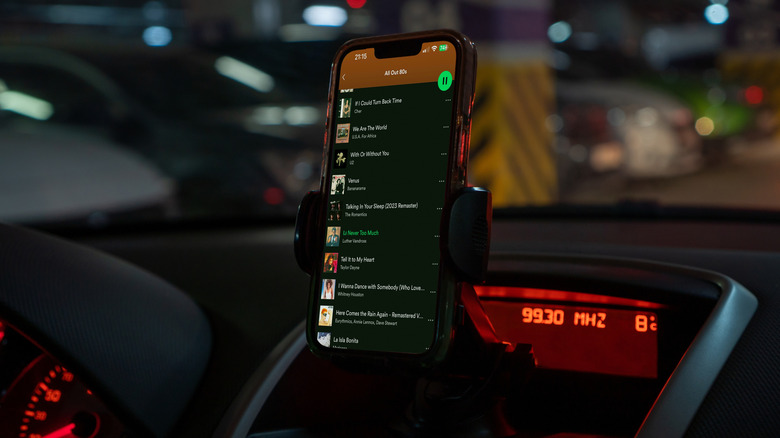
If none of the other fixes above work, then it could be possible that you just don't have great service where you're trying to listen to your music. While streaming music through Spotify and other services is great, downloading music comes with the benefit of not requiring an active or stable internet connection in order to listen to your favorite tracks.
This is also one of the best ways to take advantage of Spotify's lossless music option, as once downloaded, the tracks only take up your battery to listen to them — versus needing both a fast internet connection and your phone's juice to listen. Of course, that also means you'll need lots of storage space, depending on how big your playlist is, so this isn't always the best option for everyone. But, if you prefer to listen to the same songs or albums most of the time, and don't switch up a lot, then you may want to consider downloading all your favorite tracks. That way you don't have to worry about it. You'll need to look up specific details on how to download music with Spotify or Apple Music, but it should be fairly easy to do directly within the app.