

5 Clever Uses For Your Old Chromebooks
Chromebooks are considered cost-effective alternatives to Windows laptops and MacBooks. If you are on a low budget, a Chromebook can prove to be a viable option. But after a few years, people usually start to notice the limitations of Chromebooks and plan an upgrade. Remember, you don't need to throw yours away yet. Even old Chromebooks have decent webcams, fairly loud speakers, solid Wi-Fi connectivity, and a clear display, which can be utilized in a number of ways around your house.
The problem with reusing an old Chromebook, or any computer for that matter, is that people expect it to do everything, which limits the use case. It just needs to do one job well. As soon as you find that one thing it's still capable of, whether it's storing data, displaying images and videos, or monitoring your home as a security camera, it will feel surprisingly useful. This won't just help you save a decent amount of money, but also cut down on e-waste.
Turn it into a digital photo frame
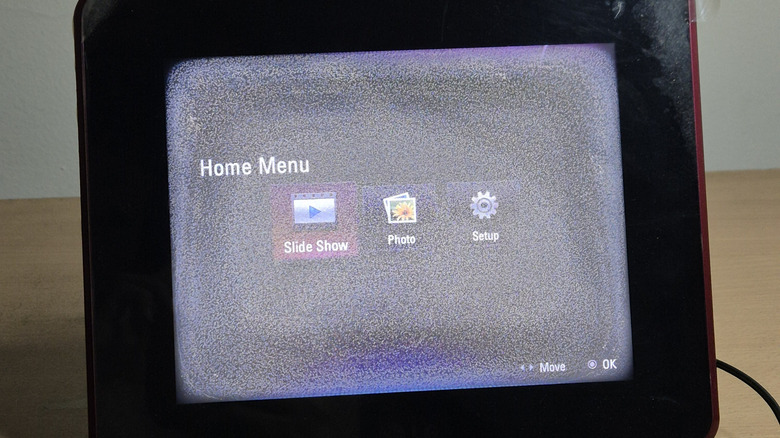
One of the easiest ways to repurpose an old Chromebook is to use it as a digital photo frame. It works even better if yours is a 2-in-1 touchscreen model. Simply factory reset the Chromebook to improve its performance, then load your favorite photos and videos, and run them as a slideshow in full-screen mode. Make sure to disable sleep mode and notifications for best results.
In case you have images and videos saved on Google Photos, you don't even need to rely on third-party apps. To elevate the experience, create dedicated albums for different occasions, like vacations, birthdays, and parties, and play them individually or set Google Photos, or any other software, to auto-rotate between them.
If the Chromebook still offers a decent battery backup, you don't have to keep it plugged in all the time. And even if it doesn't, you can keep it connected to a power source, much like a traditional digital photo frame. Once everything is set up, place the Chromebook, preferably in tablet mode, on a desk or shelf, and enjoy a slideshow of your favorite memories on a bigger display.
Convert it into a security camera
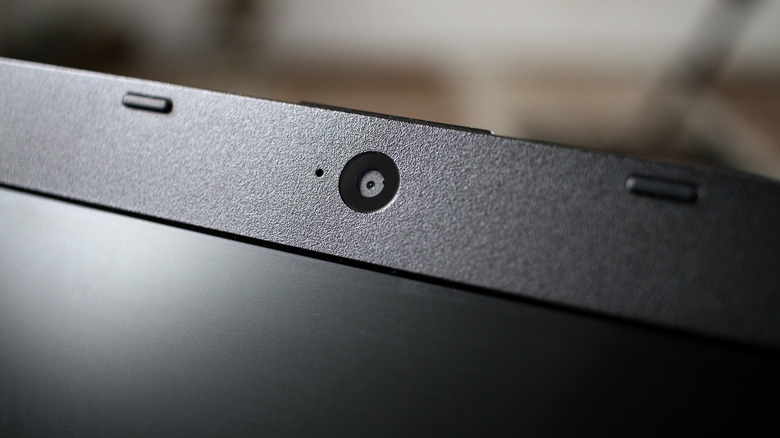
Another clever use for an old Chromebook is as a home surveillance or security camera. This works flawlessly if the Chromebook's camera delivers decent video quality. In case the output is low-quality, an external webcam will do the trick. And the best part is that you don't need an elaborate setup or a bunch of camera streaming tools. Simply live stream the webcam either via a direct video call to another device using Google Meet or Zoom, or configure web-based camera streaming.
The setup won't take more than a few minutes, and once it's ready, you can actively monitor things around the house, keep an eye on your pet while at work, or watch your kids when you step outside.
Keep in mind that this doesn't replace a traditional security camera. Those usually come with built-in motion sensors, night vision mode, and are designed for 24/7 operations. A Chromebook converted into a security camera is a toned-down version of it, which can be used for basic, temporary surveillance. But this setup is completely free
Set it up as an external display
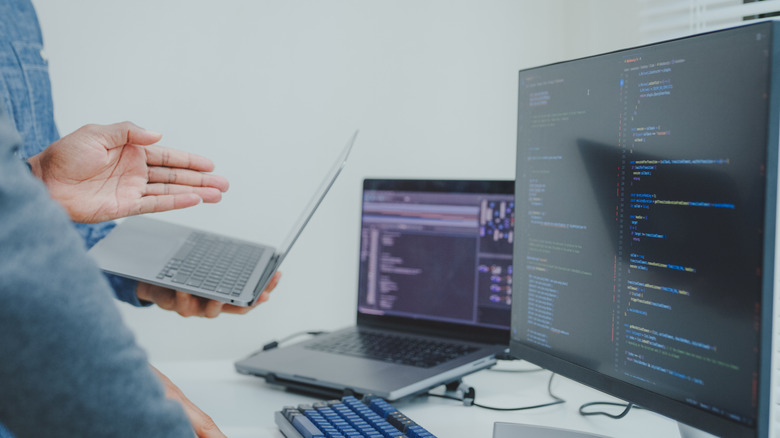
If you have been planning to get an external monitor, your old Chromebook can double as one. Simply connect it to your primary computer, whether to mirror or extend the display, and enjoy an upgraded experience. A dual-monitor setup, especially when used to extend the display, can streamline multitasking. You can have critical apps active on the bigger display, while the less frequently used ones can show up on the other. This will unclutter your primary workspace.
To use the Chromebook as a second monitor, go with an app like "Duet Display." It's easy to set up and fairly straightforward to reconfigure later. Even if performance was a concern on your old Chromebook, its display likely works fine, and should be perfect for simpler apps like Slack or Microsoft Teams that don't require a high-resolution display.
This doesn't necessarily have to be a permanent setup, but it could help you verify whether a second display will improve your workflow. Once you find that out, you can always get an external monitor.
Transform it into a gaming hub
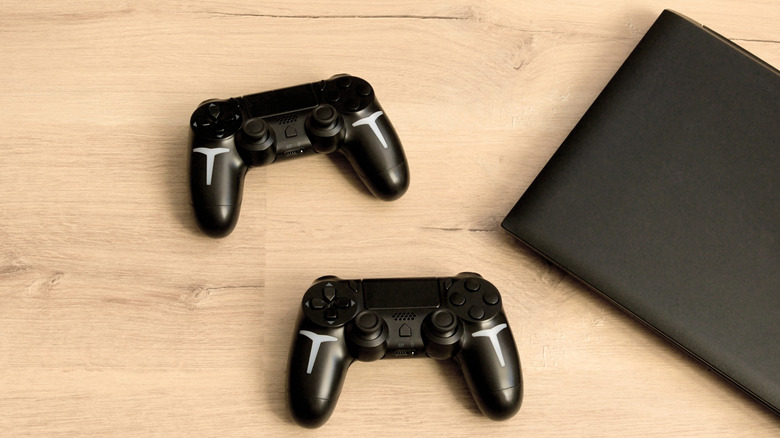
Chromebooks can also be repurposed into a gaming hub for games that aren't too resource-intensive. You can easily install puzzle or racing games, and the gameplay should be smooth, even on outdated hardware. To explore other games, use emulators and play a wide array of titles. On touchscreen Chromebooks, the experience feels more natural. But even if it's not, the keyboard and mouse should suffice. Or you could plug in a controller for a console-like experience.
Beyond locally installed games, you can try web-based games. Web-based gaming has improved significantly over the past few years, with most titles running smoothly inside the browser. Then there's cloud gaming, where you have options like GeForce Now and Xbox Cloud Gaming. Since games don't natively run on your Chromebook's hardware, there's no need for high-end hardware specifications. All that's required is a browser, a subscription to the cloud gaming service, and a fast internet speed.
Install ChromeOS Flex or Linux
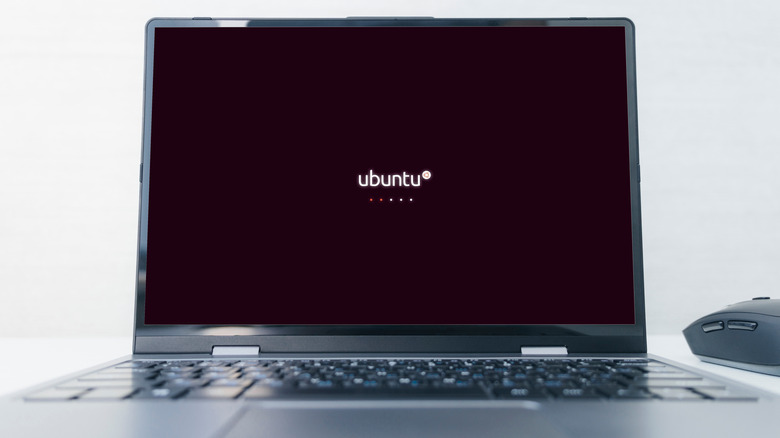
If your Chromebook feels slow or sluggish but the hardware components work well, installing another operating system can add a few years to its life. Top ChromeOS alternatives include ChromeOS Flex and Linux.
ChromeOS Flex is especially designed to revive old computers with lightweight, cloud-focused functionality. It's a stripped-down version of ChromeOS and is perfect for browsing the web or performing basic tasks that are not resource-intensive and can be handled by the old hardware.
Linux is another lightweight OS for your old Chromebook. It gives you a lot more control over the system, allowing customizations that are not natively available in other operating systems. It's lightweight too, and with the right Linux distro, you can even enjoy a Windows-like experience without all the background activity. Keep in mind that Linux has a steep learning curve, and early issues with the system may take time and effort to fix. But once it's all set up, your Chromebook will be open to limitless possibilities.