

9 Cool New Samsung Galaxy S26 Ultra Features You Need To Try
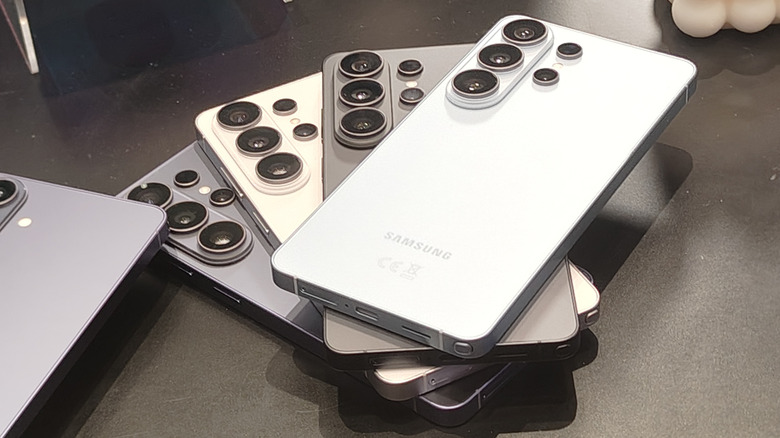
Samsung's brand-new, top-end Android smartphone for 2026 is the Galaxy S26 Ultra. It's been unveiled in all its glory, so we can admire how premium it is and make guesses as to whether the iPhone 18 Pro Max will match it in one department or another. The S26 Ultra offers a few hardware tweaks on the Galaxy S25 Ultra, like wider camera apertures on multiple lenses and a faster chipset, but it's not a total overhaul of the past model. The real upgrades come in its suite of features, which include some brand-new tools and other improvements on existing ones.
Like with the Samsung Galaxy S25 family, AI is the name of the game in the S26 models — Samsung has even pointedly been calling its devices "AI phones" instead of "smart phones." However the new Samsung Galaxy S26 Ultra features aren't just artificial intelligence ones, and they come to every facet of the device, from its cameras to its operating system navigation. Though yes, AI is here in force, too.
If you've gotten your hands on the Samsung Galaxy S26 Ultra and have to see what's new, or want to cut through the jargon and understand how it's actually different to previous models, here are some cool new features of the phone. Most of them are upgrades on existing features, rather than wholly brand-new ones, but each will be handy for a different kind of user.
The screen-dimming Privacy Display
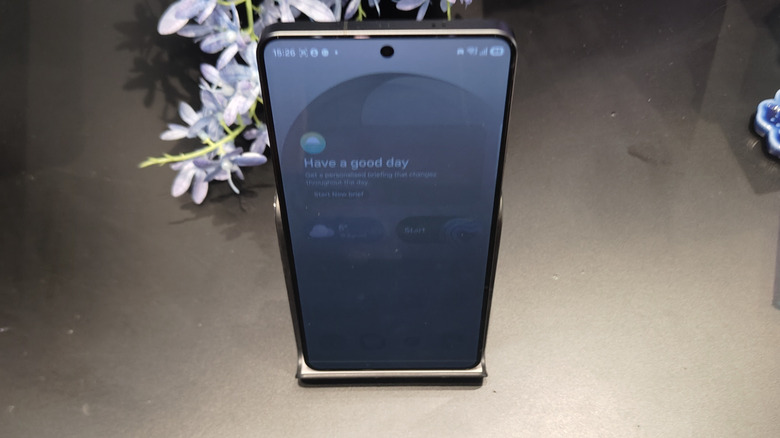
One of the biggest new features to come to the Samsung Galaxy S26 Ultra is Privacy Display, exclusive to the top-end model of the new family. This is a security feature which can be activated from the swipe-down quick settings menu. When enabled, it greatly reduces the viewing angles of the display; this means that you can only see what's on the screen when you're right ahead of it, rather than at an angle. It works at any angle too, not just up or down like you can see in the picture.
The point of this is that people can't peer over your shoulder to see what's on your phone screen — your banking apps and private messages are safer to view in public. You can even enable it on an app-by-app basis, so it will only turn on when you're looking at sensitive data, not all of the time. If you're still worried about someone seeing what's on your screen, a Maximum Privacy Protection mode turns the feature up to 11, and makes it a little harder to see from the front too.
Because of numerous leaks, and Samsung teasing pixel-level privacy for its phones, we already knew that the company's phones would be getting this new feature, but it's still neat to see in use. It's just a shame that the S26 and S26 Plus don't enjoy it too.
Audio Eraser for silencing noisy apps
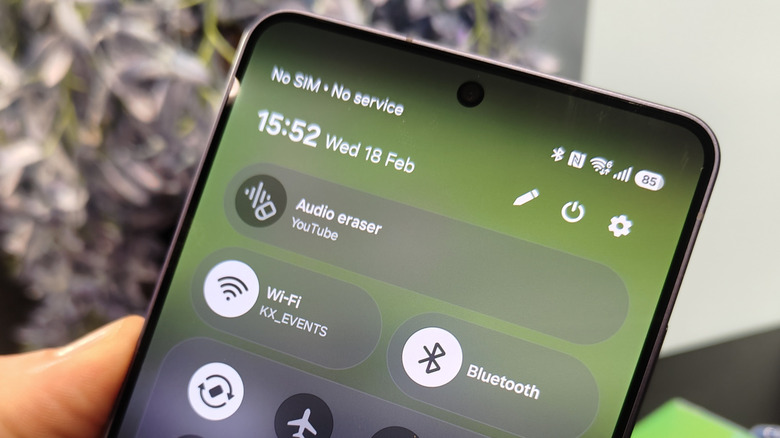
A neat, though niche, feature on older Galaxy phones is Audio Eraser, which strips out annoying background sounds like wind, AC units, or lawnmowers from files in the Gallery, Voice Recorder, Video Player, or Notes. Notably, all those apps are Samsung ones, dealing with your own files and recordings. In the Samsung Galaxy S26 phones, however, Audio Eraser has seen a massive improvement: Audio Eraser now works on third-party apps including Instagram, YouTube, and Netflix.
This can be useful in a range of circumstances. For example if you're watching sports on your phone, and can barely hear the commentators because of the crowd, you can use Audio Eraser to silence the chants and cheers. And if you're tuned into an Instagram Live stream from a busy area, you can remove the sound of wind or traffic or other distractions to better hear the presenter.
Enabling Audio Eraser couldn't be easier: When you're in compatible apps, the swipe-down menu will have a button for the tool right at the top. You can use this to customize the extent to which the sound is removed, from slight reduction to total removal. It'll only work for loud consistent noises, though, not irregular ones like talking or music.
Even steadier video from SuperSteady Mode
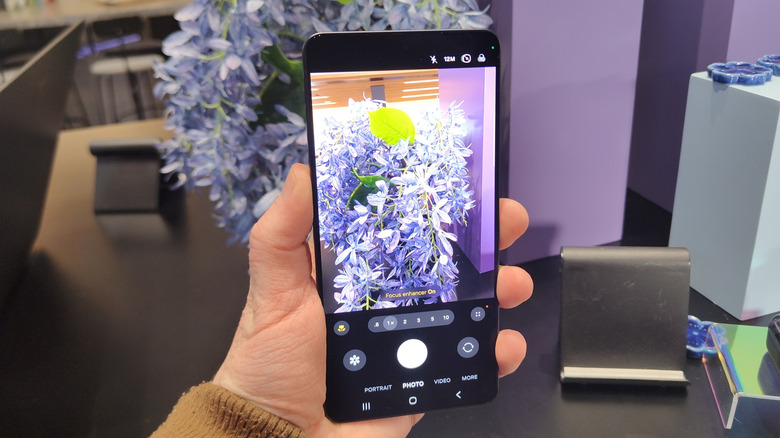
On modern Samsung phones, Galaxy SuperSteady Mode lets you record incredibly smooth videos, as it compensates for your own movement to allow for slick action videos that have minimal shake or judder. However, the Galaxy S26 models have seen a smart change to make this feature even more powerful in a wider range of scenarios.
Most modern phones have two internals that don't get much love. First up is the gyroscope, a sensor which recognizes the orientation and rotation of a device, so you can see where you're facing in a map and your device can tell when you've switched from vertical to horizontal orientation. Second is an accelerometer, which can measure the movement of a phone, meaning it can tell if the device is dropped or when counting your steps.
Now, Galaxy SuperSteady Mode will add the data from these two small little gadgets into its calculations to better inform the video you're trying to record, and keep the horizon locked in place. You could be skiing down a slope or jumping from a plane, and the Galaxy S26 will use all of the tools at its disposal to calculate what you're trying to record in order to capture rock-solid footage.
Quicker research with Circle to Search upgrades
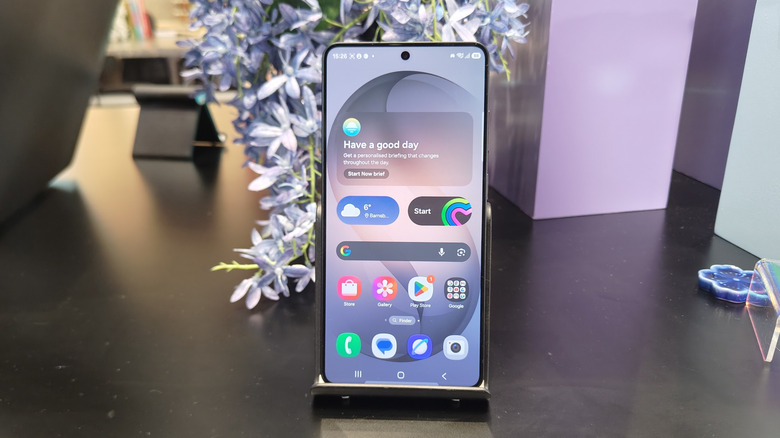
We called Circle to Search the Samsung Galaxy S24's coolest AI trick, as it lets you circle items you find interesting to search the web for them. Find out what an item of furniture is in a video you're watching, or discover where to buy a shirt a presenter is wearing, simply by pressing and holding the on-screen home button, and then circling the object. Two years on from this feature's unveiling, Samsung is updating it with a small but effective tweak.
On the Samsung Galaxy S26 phones, you won't need to circle interesting items individually: One large circle that encompasses a whole bunch of items allows the phone look up what each and every one of them is. This saves you time spending ages researching each item, so you can make an instant wish-list. Found a picture of an amazing Hi-Fi set up you want to research, or an entire outfit which absolutely needs to make its way to your wardrobe? Circle to Search can collate those in one search.
Of course, this comes with a few potential pitfalls: If you accidentally circle more than you intend to, you might end up searching the web for loads of items instead of the one you intended.
Tweak your phone's settings directly from Bixby
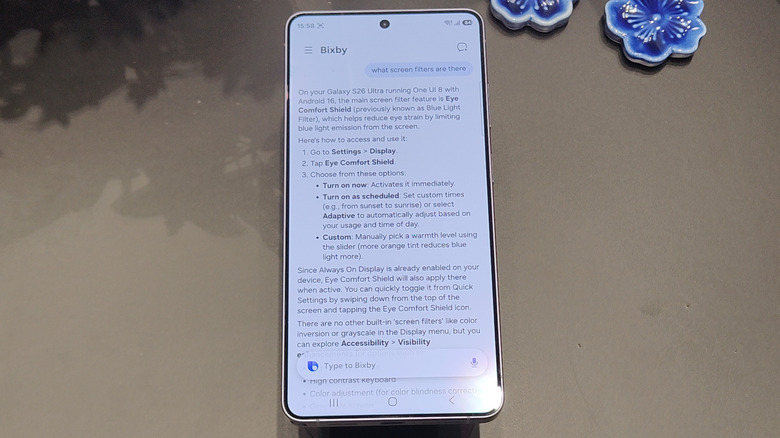
Samsung's Bixby phone assistant has long been divisive, with many users hating the tool due to its historical lack of functionality compared to Google Assistant or Siri, but many are arguing that the tool is becoming more useful thanks to Samsung AI. It seems Bixby is set to make a comeback in the Galaxy S26. Whether you're excited or are dubious about this, a new tool in Bixby's arsenal will be a welcome upgrade.
In the past, you've been able to talk to Bixby about phone settings you want changed, and it could offer you a link to the relevant page of the Settings app so you could jump in and change it. However, in an upgrade to Bixby rolled out days prior to the Samsung Galaxy S26 launch , a new software version has cut out the middle man. Now, if you enquire with Bixby about certain settings, it can automatically change them for you.
For example, you can ask about protecting your vision, and it can tweak screen settings to enable the eye comfort shield. Or, you could ask Bixby why your phone is seemingly always turned on in your pocket, and it could help you change the accidental touch protection options. This could especially help users who want to change something about the phone, but don't know which Settings app page they need to do so.
Block more spam calls with AI Call Screening
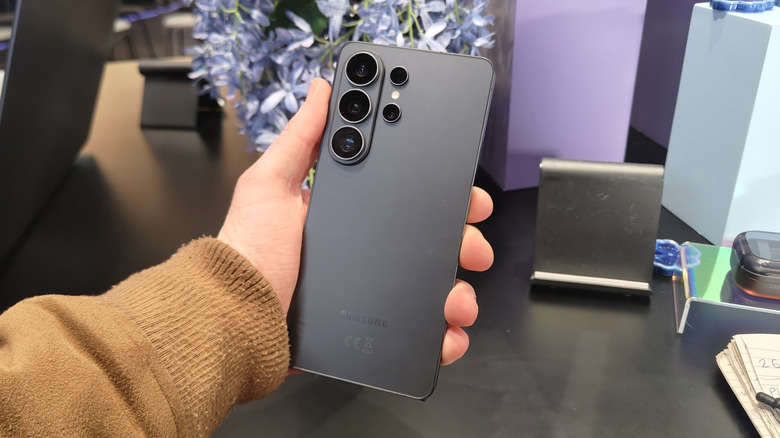
The Bixby changes come to Samsung Galaxy S26 models via One UI 8.5, a new operating system update rolling out to a few older phones from the company too. Another feature that One UI brings is Smart Call: An automatic call monitoring tool, which can work out if a caller is a spammer or fraudster before you've picked up the phone. This pairs with Bixby Text Call that lets you respond to incoming calls by texting a response that Bixby reads out.
But it gets a lot more advanced with the Galaxy S26. Now, an automatic call screening feature can recognize unknown numbers, asking them to confirm their identity and purpose before letting you know what they say. If it's urgent, you can text responses to them and see how they respond, so you won't miss anything important — if not, it'll hopefully put off round-callers and deter time-wasters. It's a really handy tool if, say, you're in a meeting, but need to know if someone's desperately trying to get in contact. It's quite similar to how iOS 26 can automatically screen incoming calls for you, but with the added ability to respond.
Find your files and pictures with Search with Finder
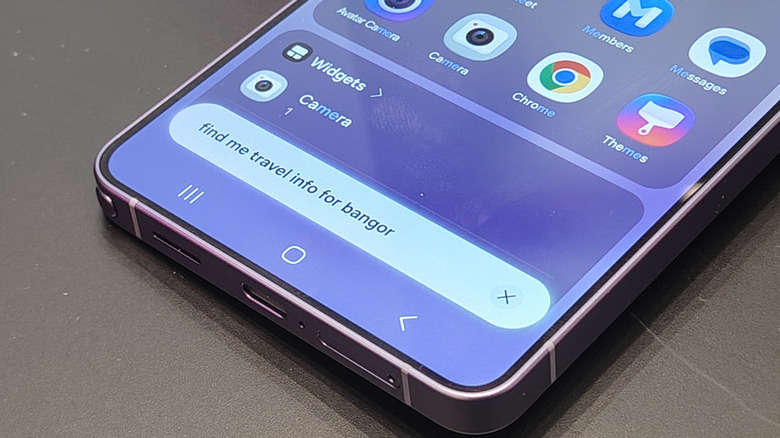
When you swipe up from your Samsung Galaxy's home screen, to reveal your full app library, you'll see a search bar at the bottom which you can use to search your device (not search the internet, as the home screen search bar does). This tool is called Finder, and it can find files, settings, or apps that pertain to your search term.
Finder is getting an upgrade in the Samsung Galaxy S26, which should make it far more handy for organizing. Now, you'll be able to type in a term and find folders of all important results, presented handily in one place.
For example, you could search "Madrid" and find your saved boarding pass and itinerary for your upcoming trip, as well as plenty of pictures taken in the city if you've already been. Or if you're working on an important project, with files and tools spread across apps, it can compile the results in one place so you know what you've got.
Overhaul your photos with Generative Edit upgrades
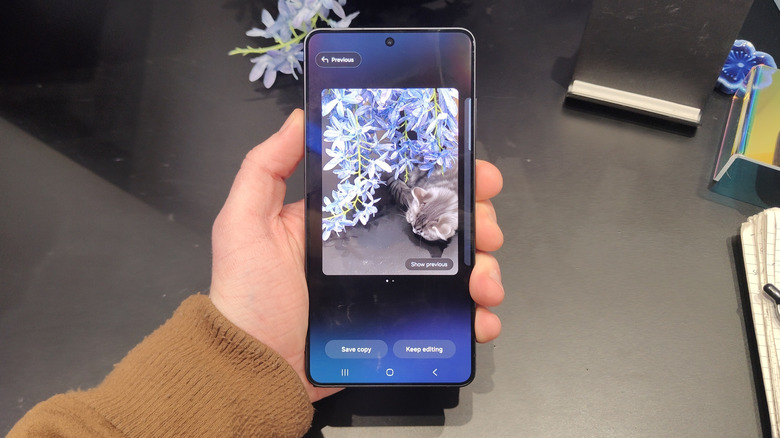
One big Samsung Galaxy S26 Ultra upgrade is that its Generative Edit feature has seen some massive enhancements. This tool, which lets you modify pictures you've taken, is now advanced enough to rival advanced image generation tools.
For a few generations now, Samsung Galaxy S users have been able to use Generative photo editing, though it's been a little limited. You can use it to resize, remove, and reposition individual objects in a picture, with the AI engine letting you do so while keeping the picture as natural-looking as possible.
Now, however, you can effectively do whatever you want. From the gallery app, you can jump into the generation mode, and simply type out a prompt — the feature will understand what you write, and make edits accordingly. It can change simple things, like color profiles and filters, or make sweeping changes like adding brand-new elements and changing individual parts of a picture in major ways. Want to add a cat in a picture that doesn't have one? Tidy up a messy plate for your food picture? Add the Milky Way to a night shot? Simply tell the phone what you want, and it'll do it.
Capture better night pictures with Nightography improvements
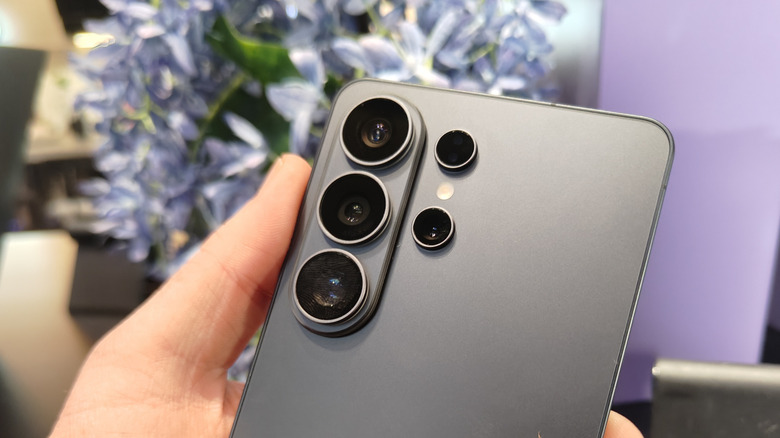
Samsung has increased the aperture of several cameras on the back of the Galaxy S26 Ultra, including the main lens up to f/1.4. While this will only have a limited impact on the pictures you take, it has helped facilitate an improvement to the phones' Nightography mode.
As the name suggests, Nightography is a night capture mode that lets you take pictures or record videos in darker settings, and it can be found in the camera app by pressing "Night" in the modes list. To simplify lots of jargon, a wider aperture in a camera lens allows more light to pass through, which naturally helps you capture more information in dark environments.
This directly impacts the Nightography mode, as the cameras will be able to function better at night than past models have. Samsung has promised myriad improvements, with the denoising feature better able to avoid grain in your shots and videos, even if Samsung has been using AI slop to promote its new phone upgrades. People who often take portrait shots in dimly-lit bars, or are passionate about astrophotography, will feel the impact of these new tools.