

5 Cool iPad Widgets That You Need To Try
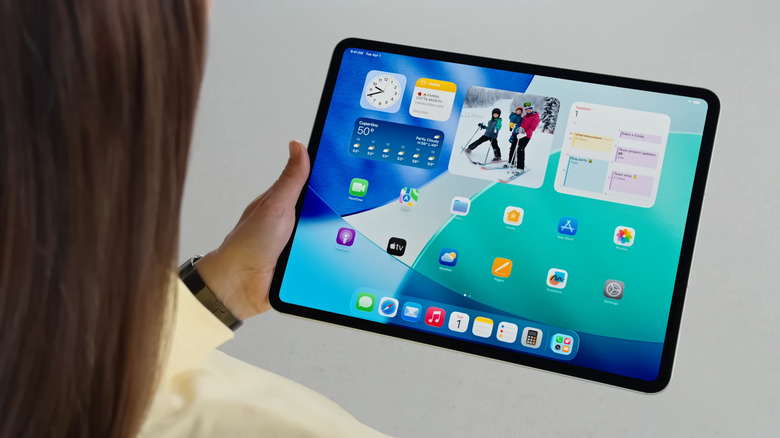
If you haven't tried using widgets on the iPad before, you're missing out on one of the quickest ways to make your device both productive and aesthetic. They let you view information and interact with your apps without even having to open them. Some widgets are also designed simply to add personality to your Home Screen with some photos, quotes, or mini games.
To place widgets on your iPad Home Screen, all you have to do is press and hold on the Home Screen. Tap Edit, and then Add Widget. You should immediately see all the options available to you. Choose an app and any of the specific widgets in that app, and it should appear right on your Home Screen. You can add as many as you'd like and even stack them on top of each other to save space.
Besides the Home Screen, you can display widgets on your Lock Screen too. Just long-press on any empty space on the Lock Screen, tap Customize, and hit Add Widgets on the left side panel (in landscape mode) or under the clock (in portrait mode). Then, select which ones you'd like to use. The widgets usually change depending on which orientation you're on.
It's important to note, though, that not all iPad apps offer widget support, but there are still hundreds out there that do. To narrow down your options, we've put together a list of five of the fun and productive iPad widgets to check out.
Productive
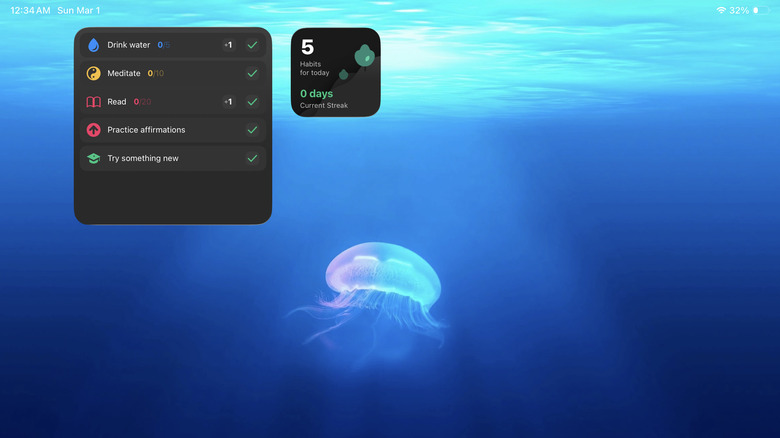
Building habits is a process, but habit tracker apps make it much easier to do. The problem, though, is that you'd have to constantly open the app multiple times a day just to log your progress. This can get quite annoying real fast. To reduce the friction, try going with a habit tracker app with an interactive widget. That way, checking off your habits will be as easy as a single tap on your Home Screen. One app that offers this setup is Productive.
Productive can show you a list of your habits, which can come in different types. There's a habit that you simply tick off, and it's done — for instance, "Write in journal" and "Go to bed by 11pm." Some habits require units, like eight glasses for "Drink water" and 20 pages for "Read a book." Meanwhile, others use a timer, such as ten minutes for "Meditate" and one hour for "Work out." The Productive Task widget lets you mark each of your habits as complete. If the habit has units, you can press the +1 button on the widget to add one count. If it needs a timer, though, you'd have to open the app directly.
The Tasks widget is available in a large size that shows you up to seven habits. If you don't want it to cover a large part of your screen, you can minimize it to a medium size showing only two habits at a time. Once you finish one, it gets replaced with the next habit on the to-do list. On top of the Task widget, Productive has an overview widget too. This is where you can see how many habits you need to do for the day and how many days you've completed all your habits.
FocusPomo
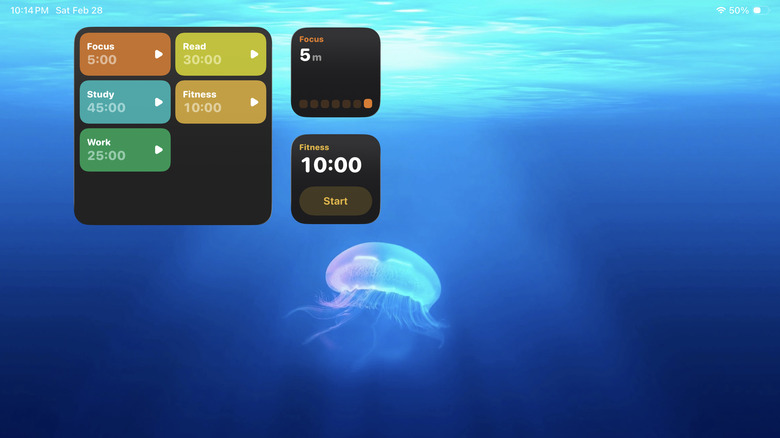
If you often have a hard time focusing on your work, among the essential iPad apps you should install is a Pomodoro timer like FocusPomo. It's a time management app, where you focus for a certain duration and then take a break for a shorter interval immediately afterward. This cycle repeats until you finish your task or stop the timer. To make FocusPomo work for you better, you can place it as a widget on your iPad Home Screen for one-tap access to your focus sessions.
With FocusPomo's Interactive Timer widget, it's easy to start and end a session by tapping on the play and pause buttons. By default, the widget is set to Focus mode with 25-minute focus and five-minute break. But you can open the app to choose one of the other four modes: Study, Work, Read, and Fitness. You can also customize the focus and break timers of each mode, and these changes will reflect on the widget.
Other than the Interactive Timer, FocusPomo features three chart widgets too. The first displays three focus modes and how long you've spent on each one during the week. The second tells you your weekly focus duration (in chart form) for a particular mode. And finally, the third provides a more detailed view of one focus mode, showing the focus duration for the current date and the entire week, along with a chart.
If you subscribe to FocusPomo Plus, you get access to two more widgets. Both are Multitask Timers in two sizes. The medium widget lets you access only four modes, while the large widget shows a maximum of eight modes at the same time. Similar to the Interactive Timer, you can also start and stop a session from here.
Pixel Pals
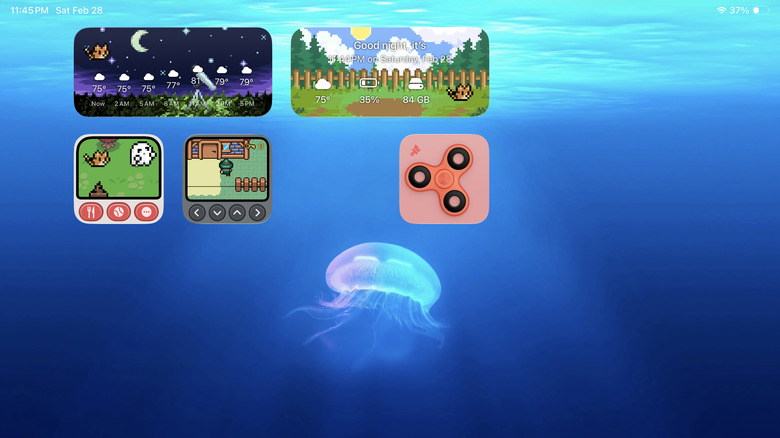
Thanks to the iPad's larger display, gaming is a real treat. But you don't have to launch an app to play. You can actually bring the games to your Home Screen with a fun interactive widget like Pixel Pals. Pixel Pals is a collection of iPad widgets that let you play all sorts of games directly from the widget itself. These games range from lighthearted adventures like virtual pets and quests to more educational ones like trivia and language translations. If you're familiar with the popular 2048 puzzle game, it's included in Pixel Pals too.
Other than the games, you get some adorable utility widgets with Pixel Pals. There are three types of weather widget available in the app: Simple Weather, which shows the current temperature outdoors; Today's Weather, which displays a prediction of the weather throughout the day; and Weather Forecast, which tells you the forecasted weather for the entire week. You'll also find cool variations of a clock widget in Pixel Pals, between a simple analog clock, a word clock, and a digital clock made out of emojis. If you'd like an overview of all these details in a single place, Pixel Pals comes with a Jarvis widget. It features the time, date, temperature, battery level, and available storage.
You can use Pixel Pals to decorate your Home Screen with accents. For instance, you might want some nifty fidgets like a spinner and clicky keyboard. You can add quote and custom text widgets on your Home Screen as well.
Google Chrome
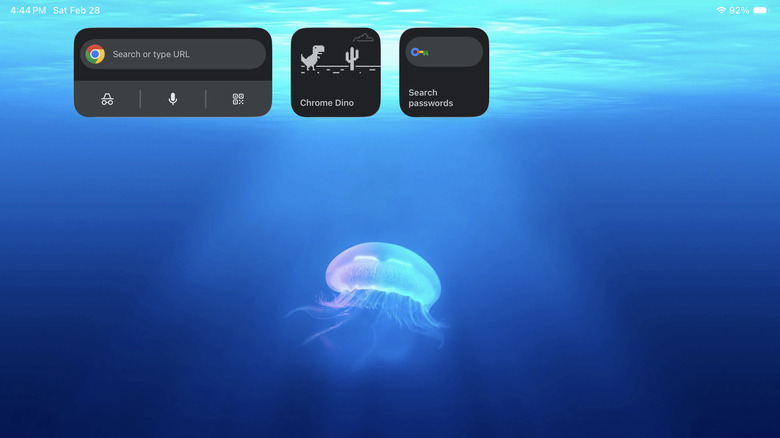
Safari may be Apple and iPad's default browser, but Google Chrome is very popular, with more than three million Apple store ratings. One of the features that makes it stand out from the native browser is the widgets it offers. Unlike Safari that only has a Reading list widget, Chrome provides five options. All of them essentially serve as shortcuts to some of the app's popular tools.
The first widget is Search. As you might have already guessed, it automatically jumps to the address bar in the Chrome app, so you can type your query right away. Another Chrome widget is Quick Actions, featuring shortcuts to the address bar, incognito tab, voice search, and QR code scanner. If you want to go to your frequently visited sites right from the Home Screen, you can use the Chrome Shortcuts widget instead. It displays the address bar shortcut and four of your favorite sites. Simply press the site icon in the widget to open it in Chrome. You also have the Password Manager widget as an option. When you add it to your Home Screen and tap on it, it will take you to the Chrome Password Manager. You can then go through your saved passwords and passkeys.
Just for fun, Chrome also includes a widget that redirects you straight to the classic Dino Game. You no longer have to manually type chrome://dino in the address bar to access it. One press on the Home Screen widget, and you can start jumping and ducking away.
Batteries
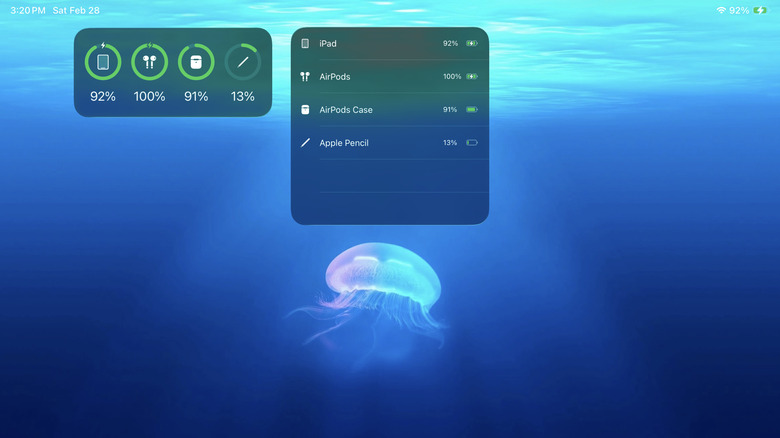
While checking your iPad's battery level is as quick and easy as glancing at the top of your screen, the same can't be said for your other Apple devices. You'd usually need to go to the Settings app or your Bluetooth menu just to see whether your AirPods, Apple Pencil, or Magic Mouse need charging. But there's actually a quicker way to view the battery status on these Apple devices with no need to tap on anything: using the Batteries widget.
Compared to the other widgets, the Batteries widget is unique as it's just that, a widget. It isn't from any built-in or third-party app, and you can only find it in the Widgets section on your iPad. To use the Batteries widget, you'd have to add it to your Home Screen or Lock Screen. After doing so, it will automatically populate with the battery levels of your iPad and other Apple machines connected to your Apple ID.
The Batteries widget comes in three sizes. The smallest simply show four circles with the device icon in the center and the rings around them representing their battery lives. The medium widget displays the same four circles but with the specific battery percentages under each device. And finally, the largest widget size appears in a list of at most six devices, complete with names and specific battery levels. Unfortunately, the Batteries widget can only show four or six devices at the same time. If you have more active devices (each of the AirPods count as one device), they will be excluded, so you'll have to go the manual route of checking battery level.