

9 Hidden Samsung Messages Features You Should Be Using In 2026
Samsung Messages is still a reliable and popular app for Samsung Galaxy phones, even though Google Messages has become the default texting app on newer U.S. models like the Galaxy S25 and later. Samsung's own app has a few features that Google Messages does not, like customizable conversation categories and a shared attachments menu. In some regions, Samsung Messages is still the out-of-the-box default, and there are a lot of hidden features that can make daily texting easier.
What makes these features worth highlighting is how they lean into the One UI philosophy that Galaxy users love. They may not be as fancy as some of the AI features Samsung keeps adding to its phones, but they focus on practical, quality-of-life tweaks that make texting and organizing your messages easier. For those who aren't ready to switch to Google Messages yet or prefer the consistent look of One UI, here are some hidden Samsung Messages features that make life easier.
Precise text editing with keyboard cursor control
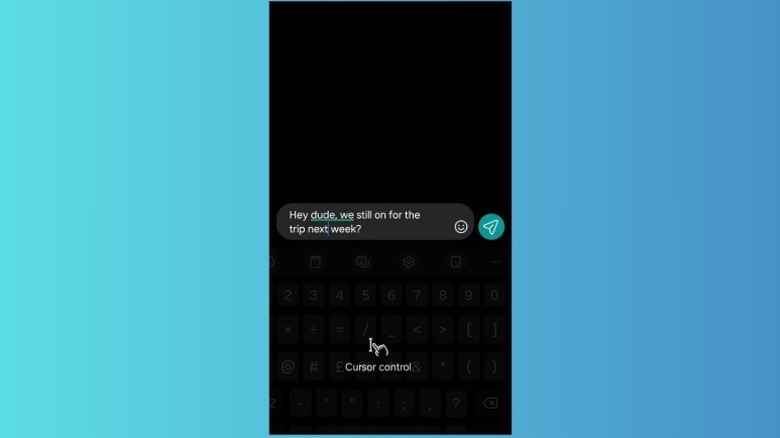
Cursor control is a very underrated Android gesture, and one that's especially useful in apps like Samsung Messages. If you quickly want to correct a typo or change some details in a long text, you don't have to awkwardly tap your finger, hoping the cursor lands between the right letters. Instead, you can use the entire keyboard like a trackpad.
By simply long-pressing the spacebar, the letters disappear, and you can slide your thumb in any direction over the keyboard to glide the cursor exactly where it needs to go. This is much more precise and seamless than scrolling up and tapping to have the cursor land where you want. The cursor control setting is usually enabled by default, but if it doesn't work, search for "Samsung keyboard" in the main Settings app, scroll down and tap Swipe, touch, and feedback, tap Keyboard swipe controls, and enable Cursor control. This feature works across any app where typing on the keyboard is involved.
Flash notifications for incoming messages
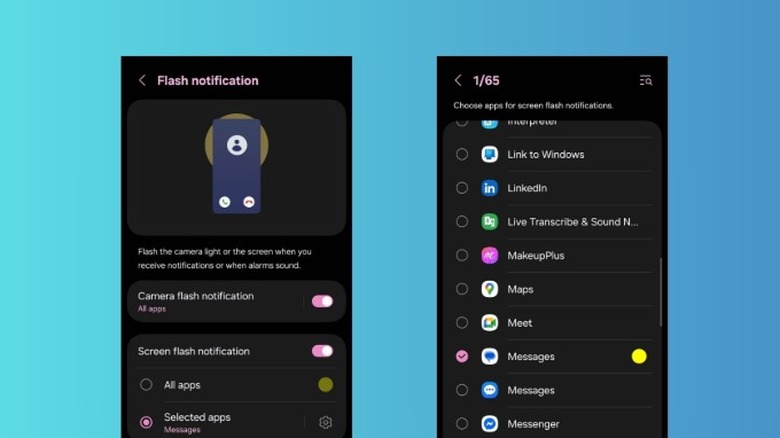
This is one of those features tucked away in the Accessibility menu that most users never think to look for, but is incredibly helpful if you often miss texts when your phone is silent. Instead of relying on the vibration motor or audible alerts, use this feature for a visibility cue that grabs your attention. You can enable it for specific apps as well, so your phone isn't just flashing all the time. While it's hidden deep in the Accessibility options, you can simply find it by searching for flash notifications in the main Settings app.
You can choose between two different versions of this alert. The Camera flash notification pulses the LED light on the back of your phone, which is perfect if you usually have your phone face-down on a desk. Alternatively, the "Screen flash notification" illuminates the entire display with a quick burst of color. You can change the color of the screen flash, too. This feature is certainly a hit, as the Screen flash functionality was also recently added to iOS 26.
Customize chat rooms
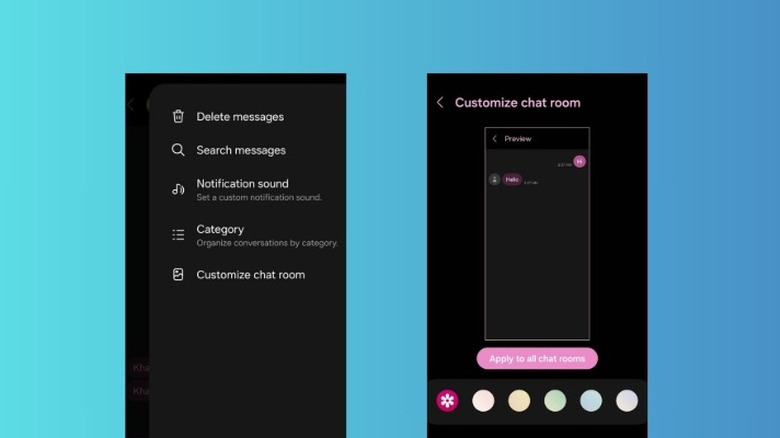
One of the real heavy hitters of Samsung Messages is the level of visual control you get over each app. A lot of apps offer a universal light or dark mode, but Samsung Messages allows you to treat each conversation as its own space. This goes a lot deeper than just flipping on dark mode to optimize your Samsung phone. To customize a conversation, open the conversation in question, tap the three vertical dots in the top-right corner, and tap Customize chat room.
From this customization menu, you can change the background image by tapping the gallery, change the background color, and adjust text transparency and opacity. These settings only apply to the chat you're currently in, but you can quickly hit Apply to all chat rooms to make the changes universal. The iPhone still leads the charge with styling features for iOS 26 messages, but Samsung Messages also offers a robust set of tools.
Star messages and pin conversations
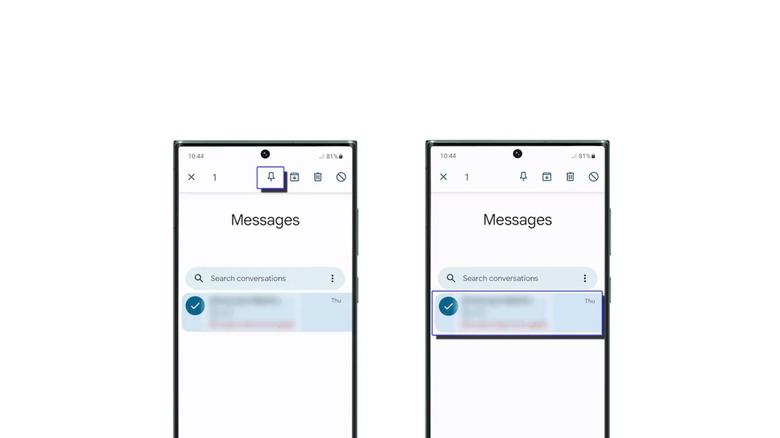
This is another feature that most don't think about, but if your inbox gets too cluttered, it is a lifesaver for organization. If you want to save an important message for later reference, tap and hold the message, then select Star message. This will put it in the Starred Messages folder, which you can find by tapping More Options (three vertical dots) from the home page of the Messages app. It's particularly useful if you want to save something like an address or a sentimental note.
If you want an entire conversation to be easily accessible, you can pin it to the top so it's the first thing you see when you open Samsung Messages. To do this, simply tap and hold the conversation you want to pin, and tap the Pin icon. This is useful for keeping your most important contacts at the top, even when new messages arrive. Unfortunately, you can only pin three individual conversations.
Conversation categories
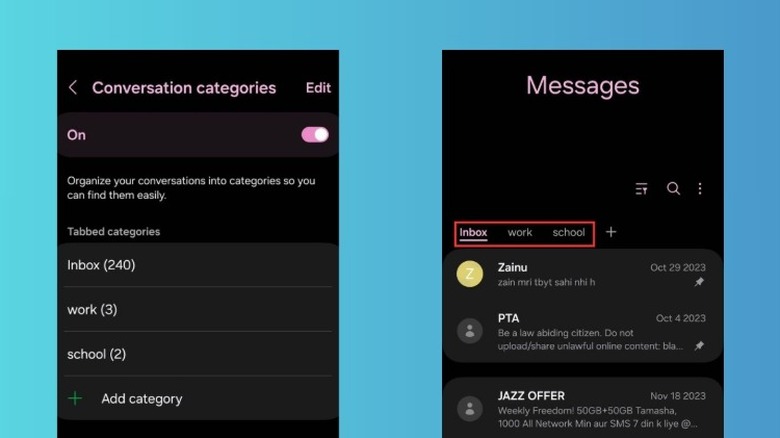
While pinning conversations or starring individual messages works well enough for easier access, neither option gives you a clean way to organize almost your entire inbox. That's where conversation categories come in. To set this up, tap the three vertical dots on the home page of the app, tap Settings, and enable Conversation Categories. Create a category by tapping Add category and writing the label you want for it. Now tap the category you just created, and add any conversations that suit it.
These categories will be visible right above your last received message. Think of this as more of a filtered view of certain conversations. Each message you receive will still be viewable from your main inbox, so you won't necessarily miss an urgent message just because it's buried under a category folder. If you have a bunch of categories set up, you can easily swipe between them from the top of the page. Our messaging apps are often filled with spam, so this organization is great for quick access to filtered conversations.
Custom quick responses
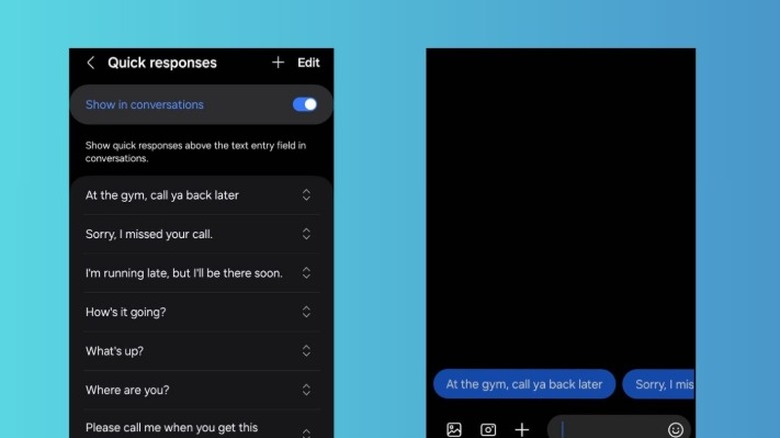
Quick responses eliminate the need for manually responding to simple messages. If you're on the move, at the gym, or in a meeting, you can simply use one of the pre-set quick responses to let the other person know you'll get back to them later. Samsung Messages has a few quick responses set up by default, but they don't exactly cover specific situations. Fortunately, it's quite easy to create your own custom quick responses.
From the home page, tap the three vertical dots and go to Settings > More Settings > Quick Responses. From here, you can edit or delete the premade quick responses, or just create a new one by tapping the plus icon at the top. From the same menu, enable Show in conversations so these responses actually appear in chats. When you're in a chat, you can quickly scroll through the horizontal list of quick responses and tap on one to send it.
Shared attachments gallery
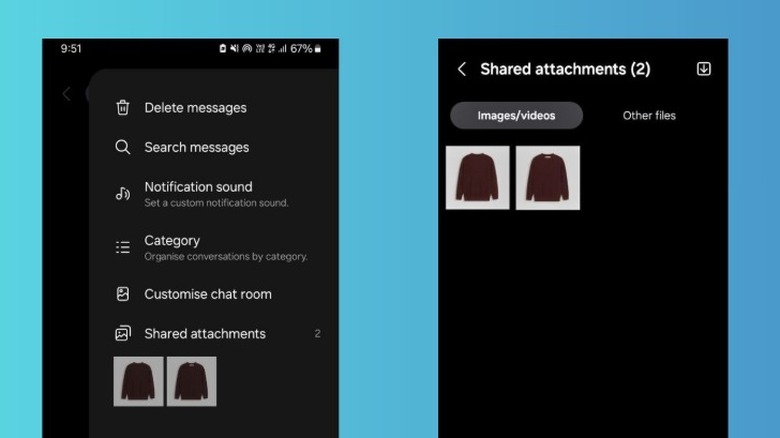
If you use Meta's WhatsApp or Facebook Messenger, you'll be familiar with the media finding feature, which quickly lets you view any images, links, and docs shared in individual conversations. Samsung Messages has a similar feature called the shared attachments gallery. Navigate to the conversation where you want to find the image, link, or file, and tap the three dots in the top-right corner. From here, tap shared attachments. This will take you to the shared attachments menu for that specific conversation.
Any pictures or videos will be viewable immediately, and you can tap Other files to view documents or link attachments. If you often find yourself in this section for the same files, make your life easier by tapping the file in question and starring the message. This will save the file or image to the Starred Messages folder, accessible on the app's home page. Regardless, using either starred messages or the shared attachments gallery is much faster than scrolling through a long chat history just to find one specific attachment.
Scheduled messages
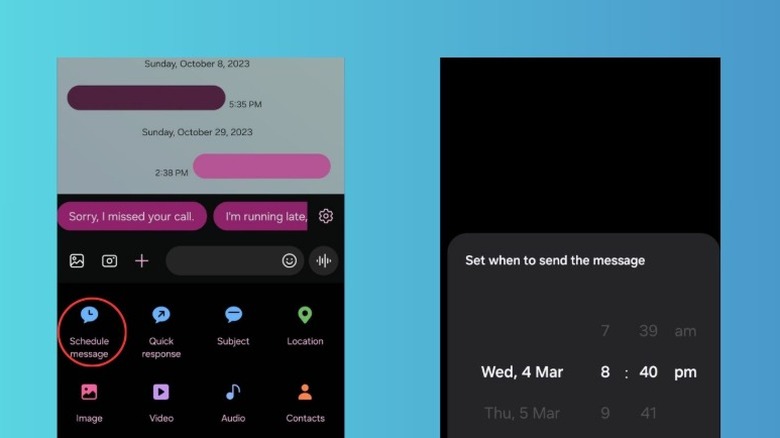
Samsung Messages lets you draft a text and set a specific delivery date for it. Go to the conversation with the person in question, type the message, and tap the plus sign. From this menu, select the Schedule message option. Select the date and time (you can set it up to a year in advance), and tap Done. The message will be sent automatically at that time.
This one is particularly useful for those moments when you remember something important in the middle of the night, but don't want to be the one to send a disruptive notification at 3 a.m. It's also a great way to handle reminders or good morning messages that need to land at a specific time. Unfortunately, this only works for individual messages, as you can't bulk-schedule multiple messages to multiple receivers at once. Still, it's useful for the most important texts that you can't afford to forget to send.
Remove location from sent images
Privacy regarding personal media is a major concern for everyone, especially when there are reports of companies like Meta scanning your photos. That kind of server-side data collection is a broad issue, but there are also local threats regarding the images you send. The Exif data for most pictures you take can include location details. If you text a photo of your child at home to a casual acquaintance, you are essentially handing them the physical address. In the wrong hands, this sort of information can obviously be dangerous.
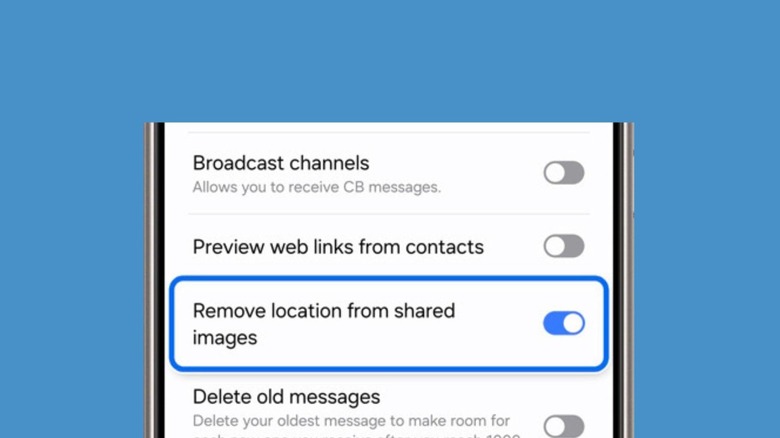
Fortunately, Samsung Messages offers you an easy way out of such situations. From the home page of the app, tap the three dots in the top-right corner and then tap Settings. In this Settings page, tap More settings, and enable the toggle for Remove location from shared images. From this point onward, any picture or video you send to all contacts will not contain location data.