

11 Hidden WhatsApp Features Everyone Should Be Using
WhatsApp has replaced SMS texting to become the primary texting app for a large majority of smartphone users. It's free, convenient, and offers more features than a regular texting app, such as the ability to send voice notes, emojis, and stickers. And even though almost every single one of us has been a WhatsApp user for quite a long time, there are many features that are hidden from plain sight for many users.
These features are pretty useful when used correctly. For example, you can save your phone's internal storage by preventing WhatsApp from saving incoming media to your gallery. Hence, we will introduce you to many such features in this guide and how you can activate them in your account to make the most out of WhatsApp. Earlier in 2025, users could use chatGPT in WhatsApp, but later in year, Meta announced to get rid of AIs from its texting app.
Set different notification tone for specific users
You won't be able to guess who texted you based on the alert tone alone if it is set to sound the same for everyone — especially when the phone is out of your hand's reach. WhatsApp allows you to customize notification tones for your favorite contacts, those with whom you frequently chat, or chats that require urgent replies.
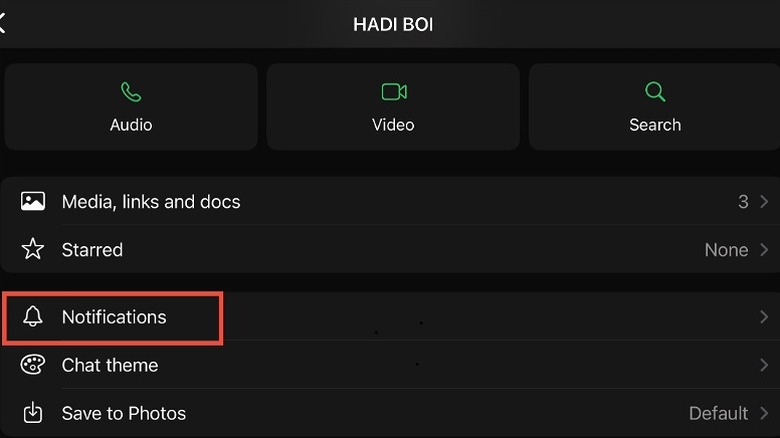
To do this in iOS, open the target chat and tap the contact name to access more features. Then, scroll down to Notifications > Alert tone > pick the sound of your choice > Save. The steps are the same for Android, except that the Alert tone option is renamed as "Notification tone." Now, whenever this person texts you, your phone will sound the chosen alert tone, which is different from other chats, so you know who has texted without even picking up your phone.
Use multiple WhatsApp accounts on a single phone
WhatsApp becomes super cluttered when you mix your personal and professional contacts, all in one account. Your colleagues and superiors are able to view your whereabouts, profile pictures, and more — unless you choose to hide the details from them — which snatches your sense of privacy in the workplace. Consequently, the better approach is to use separate numbers for personal and professional use.
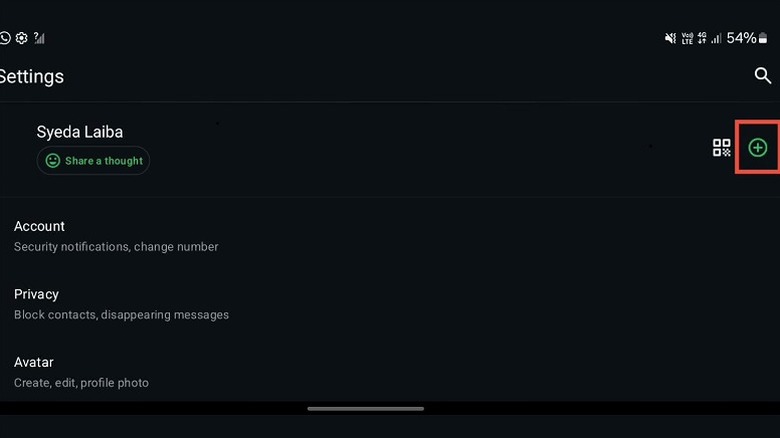
You can then use these two numbers to create separate accounts on WhatsApp and then log in to them on a single smartphone, be it an Android or an iPhone. Go to the Settings of your primary account, and tap the "+" icon displayed on the right side of your profile picture, just beside the QR code symbol. In the pop-up menu, choose Add account > Agree and continue > enter the phone number > verify the code.
The account will be logged in after the verification, and you can easily switch between the two accounts whenever you want. Thanks to the WhatsApp multi-account feature, you will receive timely notifications for both accounts to never miss an important text. However, the company started rolling out the feature later for iOS; hence, it may not be available for all iOS users as of the current date.
Receive transcripts for voice messages
Listening to long voice messages with fluff and unnecessary drags can be frustrating, especially when you are out in public and cannot listen to them at high volumes. In such scenarios, when it is not possible to listen to a voice message on your phone, WhatsApp brings you the option to transcribe them into your chosen language, converting the voice notes into written text so you can read and reply on the go.
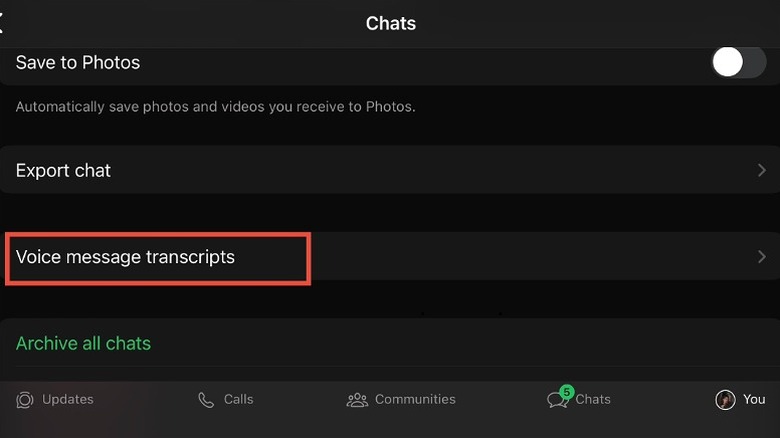
To enable this, go to Settings > Chats > Voice message transcripts > Manually. Then, choose the desired Transcript language option. It may take a few minutes to set up. Once done, you will see a Transcribe button below every voice note you receive in your conversations. Click on it to receive a text-based version of the voice message, given that the sender spoke in the same language as the one you chose for transcription. You can use the same steps for both Android and iOS.
Hide your profile picture from certain contacts
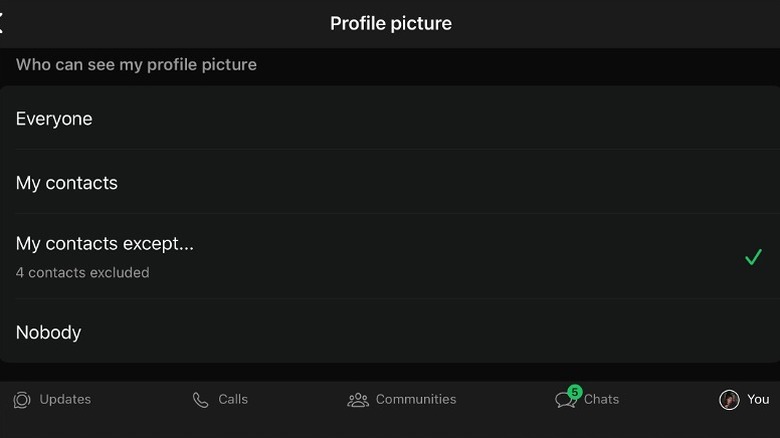
There may be times when you are forced to save a contact with whom you are not very acquainted, but need their contact saved for when you need them (drivers, repairmen, and more). You might not want them to be able to view your personal display pictures on WhatsApp due to privacy reasons.
What you can do is choose to hide your profile picture from particular contacts, so they won't be able to view your picture in any way, despite your contact being saved in their phones. Head to Settings > Privacy > Profile picture > My contacts except... > select the contacts you want to exclude > tap on the "Done" button in the upper right corner.
These contacts will not be allowed to view your picture unless you revert the settings. Hence, this feature brings you added control over your profile and personal information on WhatsApp.
Set timers for disappearing messages
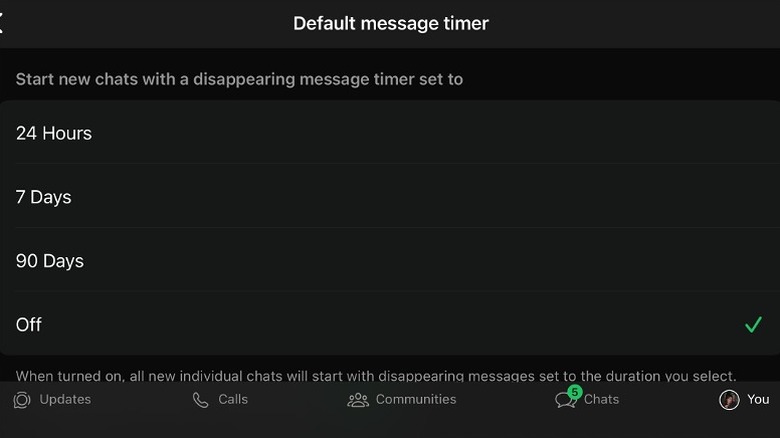
Some conversations are not meant to be kept for long on your smartphone, maybe because they are private or contain confidential information that you don't want anyone else to read. Turning on disappearing messages on WhatsApp gives you the option to automatically delete all messages in your chat after the chosen period: 24 hours, seven days, or 90 days. Once the duration is reached, all the texts you sent or received will vanish from the chat.
You can enable this feature for all the contacts in your WhatsApp account or for a single chat. Move to the Settings > Privacy > Default message timer. Now, pick the duration you want, and the setting will immediately apply to all new texts you send or receive from this point forward. None of your previous chats will be affected.
However, if you want to turn on disappearing messages for a single chat, open the specific chat > tap the contact's name on the header > Disappearing messages > select the timer. If you keep certain texts in the chat despite this feature being enabled, long-press the target text and choose "Keep" in the drop-down. You can view all the saved messages in the "Kept messages" section in the contact's settings.
Block spam messages from unknown accounts
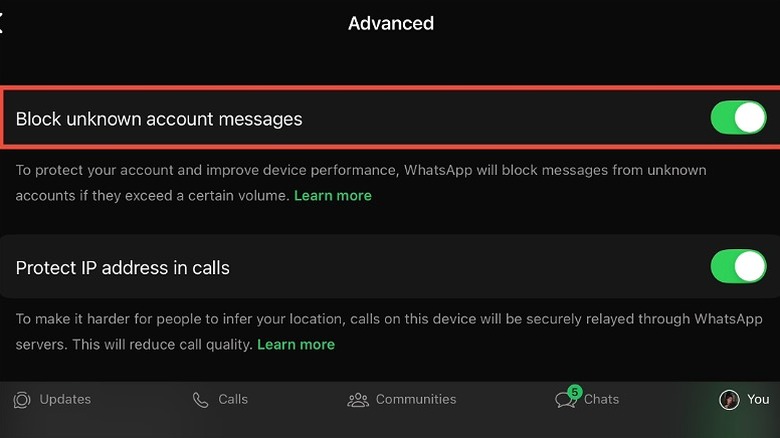
Spam messages on WhatsApp can be dangerous, especially if they contain suspicious links that can lead you to shady websites or data breaches when clicked. You can choose to completely block texts from unknown accounts, so no one besides your saved contacts can message you on the app. But that is not always the best choice because this may cause you to lose potentially important messages from your workplace or acquaintances.
The other option is to block an unknown person from sending you a high volume of texts. Go to Settings > Privacy > Advanced > turn on the option to "Block unknown account messages." After enabling this feature, you will stop receiving messages from unknown contacts if they exceed a certain volume in order to avoid scams and other risks.
However, all your other contacts will be able to text you normally. Besides, the app will stop blocking new messages from unknown accounts when the receiving rate returns to normal.
Use App lock
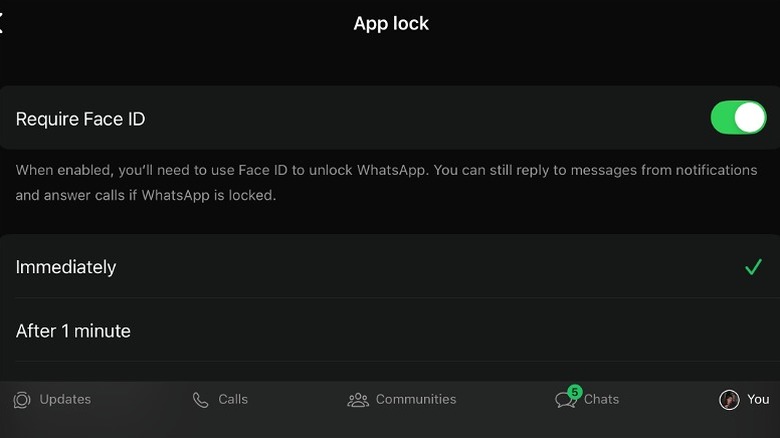
While there are several third-party apps that allow you to protect installed apps via passwords, PINs, and more, WhatsApp offers you a built-in App lock, so you don't require additional downloads. To use this feature on Android, go to Settings > Privacy > App lock > enable "Unlock with biometric." However, for an iOS phone, you need to turn on the option "Require Face ID."
You will then be asked to select the time duration after which the lock will be implemented, such as immediately, after one minute, after 15 minutes, or after an hour. Select per your convenience, and the app will then require the chosen unlock method every time you access it.
On the other hand, this won't prevent you from replying to messages via notifications or answering calls. Nonetheless, it can prevent intruders from viewing your chats in case someone else is using your phone.
Also note that it can only be used on Android devices with a functioning fingerprint sensor and operating on Android 6.0+. In case you fail to unlock the app via the chosen method, you can use your phone's PIN to bypass the app lock.
Prevent media from automatically saving to your phone's gallery
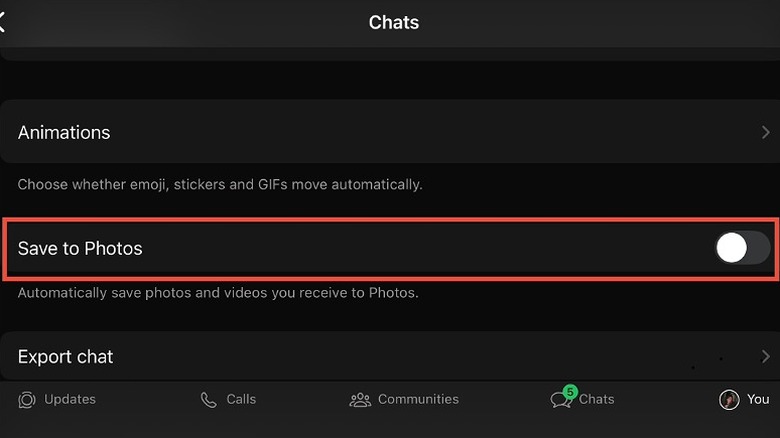
The default setting for WhatsApp is to save any incoming media directly to your smartphone's gallery, be it a photo or a video. This feature isn't very practical because most of the time, you receive unnecessary screenshots and pictures that might not deserve a place in your gallery. Plus, they take up some portion of the phone's storage.
Therefore, you can prevent media from showing up in the gallery by turning off the respective feature. For iOS, go to Settings > Chats > disable the feature "Save to Photos." For Android, head to Settings > Chats > turn off the feature "Media visibility."
Now, any media you receive won't be saved to the gallery unless you do it manually by long pressing the target image and selecting "Save" in the drop-down. From personal experience, it is a handy way to save internal storage on your smartphone because I would often receive a lot of useless media in group conversations that had no meaning, yet would take up space on the phone. The good thing is you can only turn on this feature for your favorite contacts by going to the user's chat settings and keeping "Save to Photos" to "Always."
Create a Passkey for added security
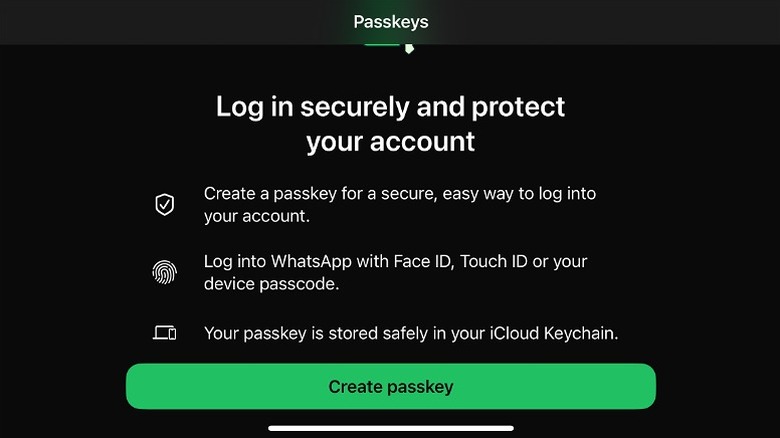
Passkeys are a convenient way to log in to any application without entering your password. It can be in the form of fingerprints, facial recognition, patterns, or PINs. Creating a Passkey on WhatsApp will help you in future account verifications. For instance, you want to log in to WhatsApp on an entirely new device; instead of an SMS verification, you will be prompted to enter the set passkey, and it will automatically initiate the account setup on the new device.
To set up a passkey on iOS, head to Settings > Account > Passkeys > Create passkey. Continue with your Face ID, which will be synced to your iCloud account, so whenever you log in to WhatsApp on an Apple device, you can use the same key for access.
On a side note, if you want to use this feature on Android, make sure you are using Android 9 or above. Go to Settings > Account > Passkeys > Create passkey. Similarly, it will be synced to your Google account for future use.
Lock certain chats
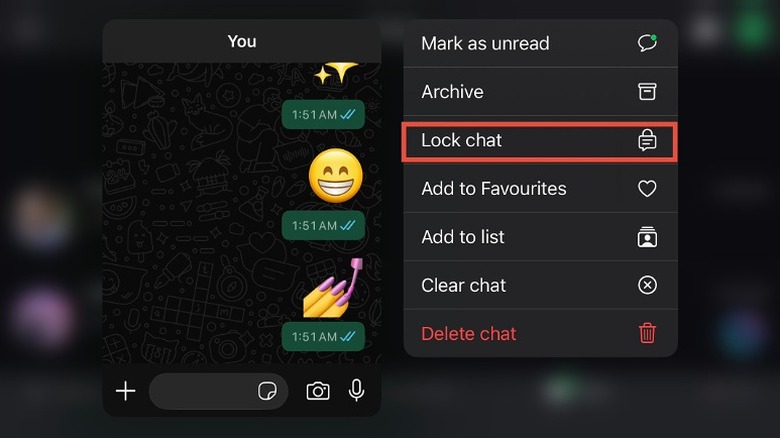
You might have private chats on your WhatsApp account that you don't want anyone else to read, even by mistake. Hence, the safe way to protect such conversations is to lock the chat for the particular user, so only you can unlock it with the set password.
The steps are pretty easy: on an Android phone, open the conversation list on the app > long-press the target user's chat > click on the three-dot menu on the top-right corner > Lock chat > Continue. Enter your secret code in the given box — it could be anything, from emojis to certain numbers or words. Once saved, you will be prompted to enter the passcode every time you want to open the chat.
For iOS, just hold the specific chat > choose "Lock chat" in the mini-menu a> Continue. It will automatically scan your Face ID and send the chat to the "Locked chats" portion, shown on top of the regular chats. One more thing, the content for this chat won't show up in the notifications, but you will only receive an alert as "WhatsApp: 1 new message."
Send high-quality photos in Document form
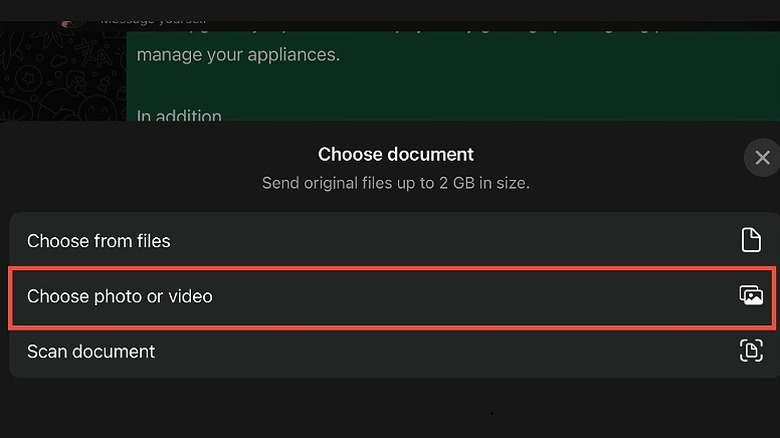
There's no doubt that WhatsApp ruins the quality of photos and videos we send by reducing their size, thus distorting the pixels. Even the highest quality videos appear blurry for the other user, especially when we send media from an iPhone. As annoying as it is, there is a workaround to send media in its original size to keep the quality intact.
On an iOS device, open the chat for any user > click on the "+" icon on the bottom left of the screen > Document > Choose photo or video > select the picture or video you wish to send > Next > Send. The media will be sent in the form of a document file, and the receiver will need to download it in order to view. However, for an Android phone, tap the "paper clip" icon beside the text box in a chat > Document > Choose from gallery > Send.
However, these files can be larger in size than regular media, so it might take some time before the download completes for the receiver. Do note that you cannot send files larger than 2GB.