

A Single USB Stick Can Save Your PC - Here's How
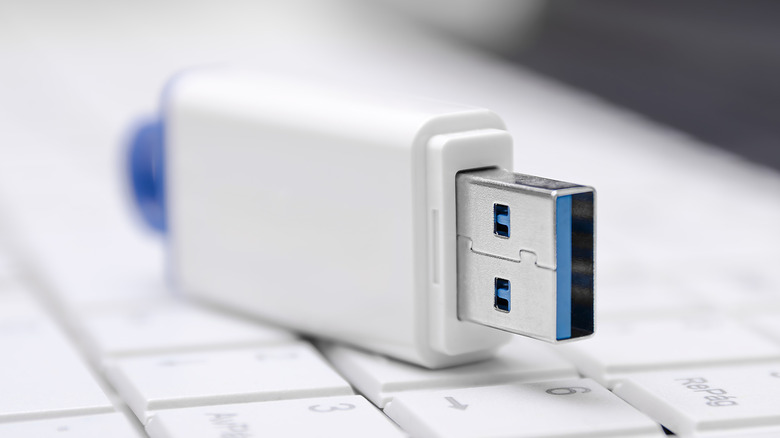
USB flash drives were once the best to move files between devices. However, flash drives have largely been made obsolete by the rise of cloud backups and portable SSDs that get the job done much faster. Plus, computer manufacturers are increasingly moving from USB-A to USB-C ports, leaving many existing flash drives incompatible with newer computers.
Still, there are some uses for USB sticks in 2026 that everyone should know about. An old or new flash drive can be turned into a recovery drive that, in the event of hardware failure or another serious computer issue, can restore your device to its factory settings. Your recovery drive will contain the Windows Recovery Environment, a toolset used for troubleshooting problems that prevent Windows from opening properly, as well as important Windows files and any installed updates.
Creating a recovery drive is pretty simple, and having one might allow you to save your computer from future issues.
How to turn a USB flash drive into a recovery drive
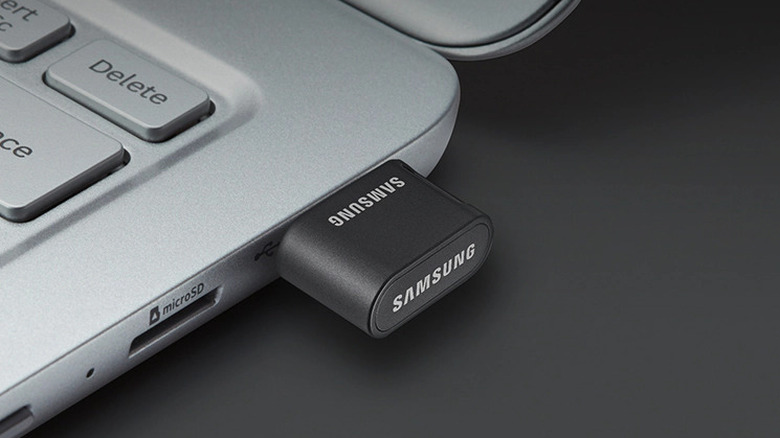
Before going over how to turn your USB stick into a Windows recovery drive, it's important to note that your drive isn't a backup of personal files. Those, along with any downloaded apps, will be wiped if you use the recovery drive. You'll also need a stick with at least 16 GB of storage, preferably an empty one, as any existing data will be wiped during the process. Fortunately, flash drives that size will only set you back around $15, with many available for even cheaper.
Here's how to set up your USB stick as a recovery drive:
- Search for "Recovery Drive" in the Start menu, or use the command "recoverydrive.exe" to open the tool.
- Make sure "Back up system files to the recovery drive" and press "Next."
- Connect the USB drive you want to use, select it, and click "Next."
- Select "Create."
Once that's done, Windows will copy all the necessary files onto the drive, which could take a while depending on your USB device's speed. Microsoft recommends repeating this process annually so your drive contains the latest updates.
Using your recovery drive is also pretty simple in the event of an issue. Here's what to do:
- Start the device using the created recovery drive. If you run into any problems, check your USB stick's manual, as specifics can vary between manufacturers.
- Select "Recover from a drive" from the Windows Recovery Environment.
- Pick either "Just remove my files" or "Fully clean the drive" depending on whether you intend to use the device again.
- Click "Recover."
This will start the recovery process, allowing you to reinstall Windows and, hopefully, resume using your computer as usual.