

Change These 4 Android Phone Settings For Faster And Smoother Texting

It's safe to say Android isn't known for its smoothness. It took several attempts to tame its problem with dropped animations, including initiatives like Project Butter and the switch to Android Runtime (ART), before things really started to improve. Even then, high-refresh-rate screens do the majority of the heavy lifting for a smoother Android experience (the more frames per second, the harder it is to notice when one is dropped). So if you, too, have felt things aren't always as smooth as they should be in Android land, you aren't alone.
In particular, Android's messaging experience has long been a sore spot for Google, but that doesn't mean you can't improve things with a few handy changes to your settings — if you know where to look. Rather than silently suffering through a painful texting experience on your Android smartphone, isn't it time you did something about it?
From removing a few unnecessary features cluttering up Gboard to speeding up animations while embracing a more refined, purposeful way to type, with a dash of cooperation from your immediate circle to ease communication hurdles, you can vastly improve your texting experience on Android with these four tips. Rest assured, by taking the time to dial in a few settings on your Android smartphone, you, too, can text with confidence and comfort while avoiding the more annoying overcorrections all too often built into commercial software designed for mass adoption.
Reduce your system animations for a snappier user experience
One of the easiest ways to make an Android phone feel more snappy is to speed up your system animations. However, this setting is hidden by default, within your phone's advanced Developer Options menu. In order to access the settings, you first have to navigate to About Phone in your Settings, and then tap on the Build number seven times.
After unlocking the Developer Options menu, you can change your OS animation speeds there. Three settings in particular are what you're looking for: Window animations, Transition animations, and Animator duration scale, all of which are grouped together and default to 1x. To speed things up, set all three to .5x — or you can even turn them off completely for an animation-free experience. In either case, the less time it takes to animate objects onto the screen, the faster the UX.
This way, when you launch an app to send a quick text, like Google Messages, not only will it launch quicker, but pulling up Gboard to type will also happen faster, and even your key presses on the screen will feel snappier since each letter's key animation takes less time. If you're looking for smoother texting on Android, speeding up or turning off your animations will absolutely help with this endeavor.
Dump Gboard's next-word and emoji suggestions
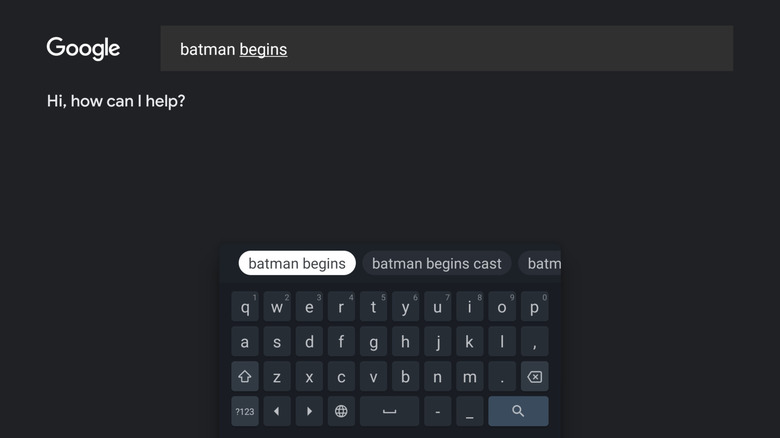
Now that your animations are snappy, it's time to dip into Gboard and tweak a few default settings clogging up the UI. The first one to look for is Next-word suggestions, which will recommend words to you that can follow the word you just typed. While the feature can sometimes be helpful, users have complained it isn't, wasting precious space that could be dedicated to Smart Compose's better features, like predicting the words you're typing as you're typing them. To turn it off, hit the Gear icon at the top of Gboard (or long-press the comma key to reveal it), then jump to Corrections & suggestions. Here, you'll find the Next-word suggestions toggle under the Suggestions heading.
The next feature to look for is called Show emoji, which also takes up precious room in Gboard's suggestion strip, room that could be used for suggesting words that can actually help to speed up your typing. This time, you'll want to hit the gear icon at the top of Gboard or after long-pressing the comma, then select Emojis, Stickers & GIFs. Under the Suggestions strip header, you'll see the toggle for Show emoji. Turn it off.
By tweaking your Gboard settings, you can easily regain some real estate so that Smart Compose can shine without so much clutter. This way, your suggestions remain useful and plentiful within Gboard's limited suggestion strip, helping to speed up your typing for a smoother texting experience overall.
Improve group chats with read receipts and typing indicators
The main draw of Google Messages is its RCS support, which can be faster than a traditional text message over your carrier's network since it's an internet-based message. Using RCS lets you access all kinds of features you'd only expect to see in an internet messaging app like Telegram or WhatsApp, such as read receipts and typing indicators. The trick with Messages is that you can only turn these features on for others to see, which means your friends and family will also have to turn them on so you can see them in return.
Activating both of these settings is pretty simple. Jump into Google Messages and tap your avatar in the top-right. From here, select Messages settings, then tap on RCS chats. This is the screen where you can turn on both Send read receipts and Show typing indicators by tapping on their toggles. The hardest part is still ahead — convincing your friends to do the same — but at least you can now easily explain how.
This way, everyone in your messaging group can take advantage of typing indicators and read receipts, which is really where these two features shine: group texting, even with iOS users. Not only will you be able to see a visual cue when someone is typing, allowing them time to complete and send their message rather than you accidentally cutting them off, but you'll also know when someone has viewed your message, removing some of the stress of worrying if you're being ignored. Basically, by enabling these two settings in Messages, your texting experience on Android can now be that much smoother, thanks to Google Messages' native RCS support.
Embrace keyboard haptics and turn off disruptive glide typing
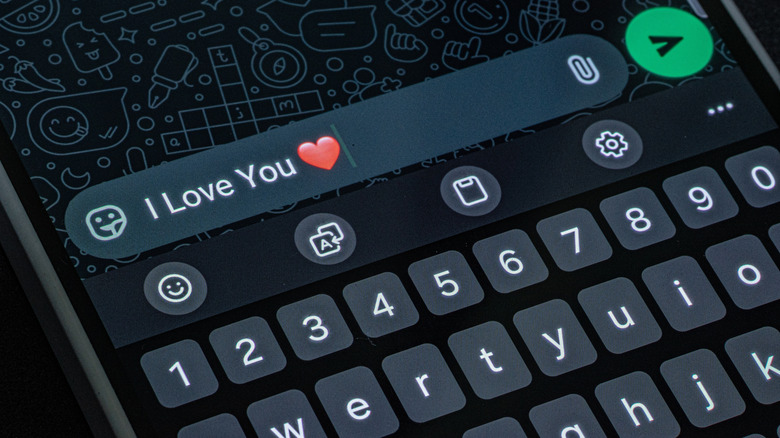
Those who have used Android over the last decade may remember a software keyboard called Swype. While it's long dead, it was the first keyboard app to offer swipe typing. Of course, the feature proved popular, so it eventually made its way to competing keyboards, like SwiftKey and Gboard. As a matter of fact, Gboard's swipe typing, called "Glide typing," is on by default. Counterintuitively, by turning off this setting, you can focus on the rewards of purposeful tap typing, which works great when also using your keyboard's haptics for each letter press, alongside key pop-up animations, which are both luckily enabled by default.
To turn off Gboard's Swype-like typing, hit the gear icon in the upper right (or long-press the comma key to make it pop up). Now select Glide typing from the list, which pulls up a new screen with four toggles. Tap Glide typing at the top to turn it off, and tap Glide delete to turn that off, too. Whether you wish to leave on Glide cursor control is your call, but overall, gliding across Gboard's space bar to move the cursor is pretty helpful, so it's worth keeping it on for easier editing.
Now you can be more intent with your texts, using your keyboard's haptics and its fly-out animations to help signal you've successfully typed a letter. This way, you can eventually spend more time typing than looking at your screen. Ultimately, by ditching swipe typing, you can build up the muscle memory to text faster and more smoothly by embracing tap typing with a few setting tweaks in Gboard.