

4 Mistakes That Can Ruin Your PlayStation 5 Controller
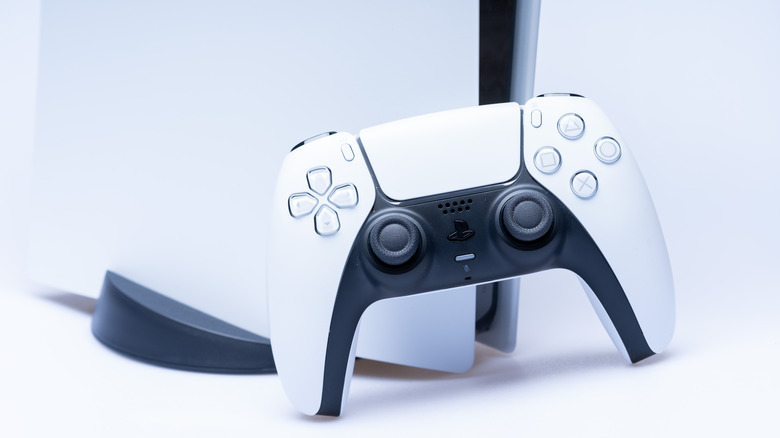
Replacing a PlayStation 5 DualSense controller is not cheap. These gamepads can cost anywhere between $70 to $85 USD if you're just buying the standard controller. It's even steeper if you're replacing a PlayStation 5 DualSense Edge. The worst part is that if your controller goes out of commission too early, you can't do much with the PlayStation 5 console. You need the controller to navigate, and you lose a lot of potential (and even stability) when it isn't properly syncing with your console.
So maintaining your gamepad is important if you want to enjoy everything your PlayStation 5 can do. You'll want to avoid stick drift and maintain its battery health, so you don't have to replace it prematurely. Just remember that your DualSense controller is not immortal; damage happens. It's more about how long you can keep it working before it goes out completely — and even manual resetting your PlayStation 5 controller might not be enough to fix its underlying issues.
Never cleaning your controller
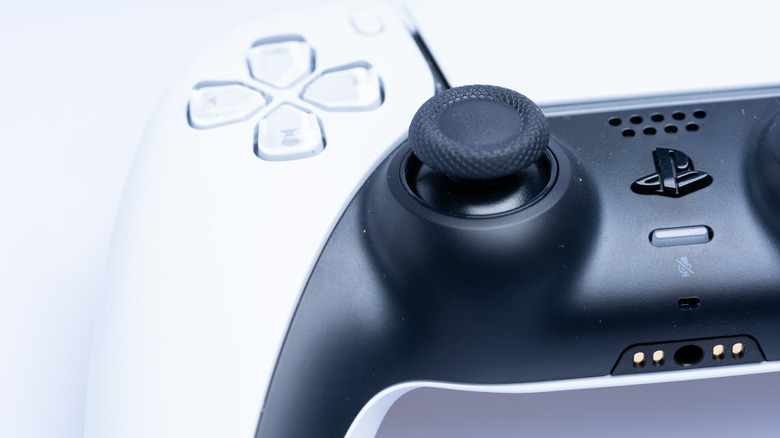
Every gamer shudders when their favorite controller gets a nasty case of stick drift or sticky buttons. How one chooses to handle their controller determines how quickly they experience these functionality problems that come with it. Essentially, you want to treat controllers with care, so you can avoid shelling out a small fortune for a new one or sending them in for a repair. Over time, gunk builds up on your gamepad. While the gunk might seem harmless at first, you'll eventually want to remove it.
However, there is a right and wrong way to clean your PS5 controller. Basically, the trick for cleaning this gunk off the surface involves using a cotton swab and isopropyl alcohol, and then you'll also want to get rid of the excess hidden grime from the crevices and thumb sticks by gently poking around with a small toothpick. Doing this routinely helps prevent the buttons from becoming sticky and unresponsive while you're actively using the gamepad. Plus, it is a good way to keep your gaming experience a bit more hygienic; the last thing you want on your hands (literally) is a bacterial colony living on your controller.
Leaving haptic feedback and trigger intensity on high

While having the haptic feedback and trigger intensity set to Strong might seem like a fun way to maximize immersion in your gaming, it's detrimental to the long-term health of your DualSense controller. When you leave the setting on high, it causes strain to the controller's internal components. That's because the vibrations and rattling of haptic feedback can damage internal components or cause wear and tear; plus, with heavy use, there's also the overheating issue you can get with the haptic motors. Eventually, the triggers, or the motor and the plastic gears inside, give out, leading to irreversible damage.
Leaving the haptic feedback and trigger intensity on Strong also drains the battery faster. Anything that vibrates a lot will sap the battery, meaning you'll have to recharge the gamepad more often than you'd like. And just like every electronic that uses lithium-ion batteries, the more discharging that happens, the more charging cycles the device undergoes, degrading the battery's capacity.
If you find the controller bulging or smelling funny, dispose of it immediately. Those symptoms are a massive warning sign that the lithium-ion battery is failing, and worse, could even catch on fire if left untreated. To turn down the haptic feedback and trigger intensity, go to Settings > Accessories. From there, select Controllers (General) > Vibration Intensity. Turn it off or choose weak. Repeat the step for Trigger Effect Intensity in the same menu.
Ignoring updates on the firmware
If you don't update your controller when prompted, it can lose functionality. Failing to update could even make your gamepad more buggy. Usually, the PlayStation 5 prompts you to update your controller if one is available, but if you want to double-check that it's on the latest firmware, you can do so in your system settings. Simply go to Settings > Accessories > Controller (General), then select the DualSense Wireless Controller Device Software option. Alternatively, you can follow the same steps for a DualSense Edge, except you will select DualSense Edge Wireless Controller Device Software in the Controller (General) menu instead.
You can also update the gamepad when it's connected to your PC, but you'll need to download the PlayStation Accessories app to do so. The app supports both the regular DualSense and the Edge. Once you have the app installed, plug in your controller and click Add Controller. From there, you'll see the device registered in the app; choose Firmware for your controller. If the app detects that your controller is out of date, the Update button will appear. Select Update to upgrade your controller's firmware. Just note that you can only do this for one controller at a time.
Keeping your controller plugged in 24/7 unattended
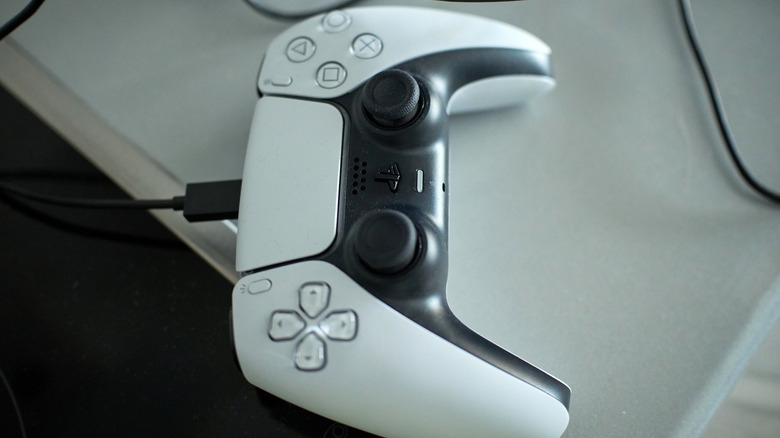
Technically, if you're plugging in your gamepad to keep it charged while you're operating your console, that is fine, since there isn't an easy way to tell the exact percent your controller is at — so micro-managing the exact charge to extend battery life isn't that feasible. Plus, the console won't charge the controller if it isn't below 85 to 90%. Moreover, in general, the gamepad should stop charging if it reaches 100% capacity (modern lithium-ion batteries have a built-in Battery Management System to prevent this), so you don't need to necessarily worry about overcharging.
But if you leave it plugged in for long periods while unattended, heat can build up between your outlet/console and your controller via the cable. Heat negatively impacts internal components, like the lithium-ion battery. You'll see this happen when using incompatible third-party fast chargers, which is why it is best to stick with the USB-C cable that came with your console, if you can.
Generally speaking, it should be safe to use most certified chargers, as long as you regulate them, since the DualSense controller uses a Power Management IC (PMIC) to ensure it only draws the 5V it needs from the charger. But if you aren't sure what charger/cable you're using, don't leave your controller plugged in without checking it — if it's warm while not in use, remove it from the charger.