

4 Clever Uses For The Thunderbolt Port On Your PC
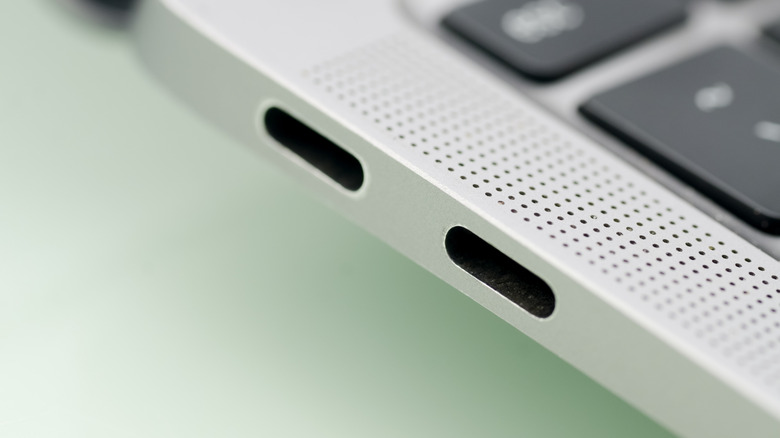
The mighty Thunderbolt port is one of the quintessential connectivity options for many modern laptops, including most of the newer MacBooks. For instance, it's a key way that high-end monitors connect to your PC. While this port carries data and charging, with more speed and bandwidth than standard USB-C ports, it offers a lot more than those basic functions. That's a key difference that separates Thunderbolt monitors from their USB-C counterparts.
Whether you're a gamer looking to add a separate eGPU to your computer, you want extra storage to use in certain workflows, or you're just looking for the Swiss Army Knife of cables, Thunderbolt has an option. Moreover, you can leverage its large bandwidth and even boot a full-blown OS out of it. Read on as we'll uncover a handful of nifty uses for this do-it-all port — you may just find something you didn't know you could do with your laptop.
Swap between high-speed drives for different workflows

One of our favorite use-cases for a Thunderbolt port is how easily it unlocks high-speed data transfers for your hard drives and SSDs. The best SSDs from major brands can help you unlock all new workflows. But first, how does Thunderbolt allow for such high transfer speeds? The latest Thunderbolt 5 protocol supports 80 gigabits per second of transfer speed, while a standard USB-C (version 3.2) supports only 20. That's a whopping four times the transfer performance, theoretically.
What this means for different workflows is really where the unique use case becomes interesting. Let's say you're a video editor who has hundreds of gigabytes of video projects on your hard drive. This can take a lot of space, and can get in the way of storing other files on your computer. Instead, consider storing your project files on an external, Thunderbolt-capable drive. Now, you can keep your PC clear of those files for when you're doing basic productivity tasks or personal activities. Then, when you want to get into video editing mode, you just plug in that drive, and you've got access to those files at similar speeds as your on-board drives. And that's all thanks to Thunderbolt's speed capabilities.
Boot an entirely different operating system
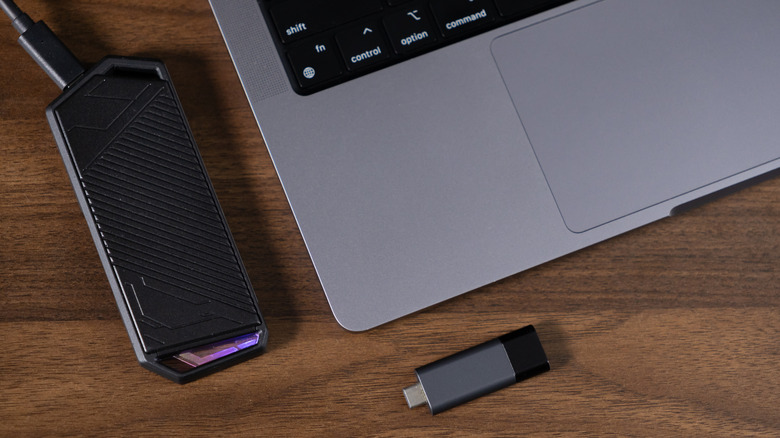
Going beyond the workflow example, you can take the same high-speed transfer principle and boot up an entirely different operating system thanks to the high capacity of Thunderbolt cables. The principle is similar, just a bit more involved. Make sure you have an external drive set up as a bootable drive. On Mac, it's as simple as making sure you select the drive in your system as the main installation drive. There are also tools like Rufus that allow you to do this on Windows.
The benefit of doing something like this is multi-fold. First, it can be a great way to troubleshoot a PC build, meaning you'll have a bootable version of your system to protect backups in case your main system fails. It's also a great way to keep multiple operating systems available, in case you want to boot your PC or laptop into Windows for gaming one day, and Mac or Linux another day for other functionality. And just like with high-speed drive transfers, that capacity will allow your computer to access that drive instantaneously, similar to an internal drive.
Expand your gaming performance with an external GPU
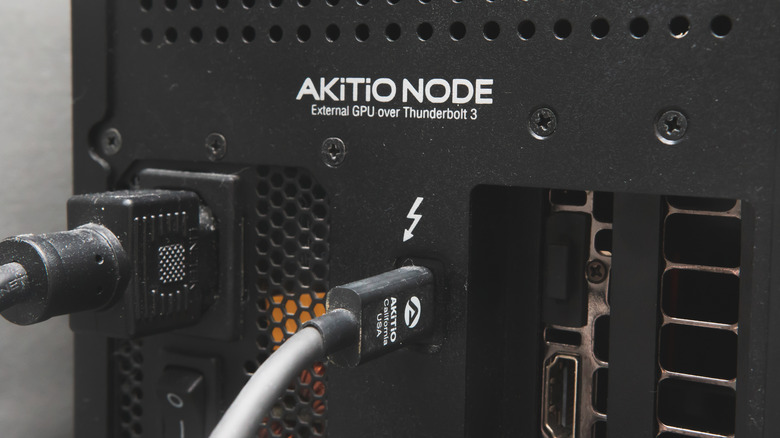
An external GPU, sometimes referred to as an eGPU, is another popular use-case that takes full advantage of the fast speeds offered by Thunderbolt. All computers, whether desktop or laptop, feature a graphics processing unit inside to handle the visuals you expect in your machine. Laptops will inherently have smaller GPUs, and those types of cards aren't going to offer the peak speeds of a full-sized, desktop GPU.
To get around that, GPU manufacturers build external units that put a full-sized card into a powered enclosure that can sit on your desk. These units connect to a machine using a Thunderbolt or other connection cable and essentially bypass your computer's internal (and, in many cases, underpowered) GPU to allow for higher-end gaming and graphics-intensive tasks. Thunderbolt's ultra-fast speed and capacity makes this possible, as it'll allow your computer to interface with comparable speeds as you'd expect if it was mounted inside a tower PC. This use-case can be particularly powerful for thin-and-light laptops that usually don't come with very powerful internal GPUs, though the high cost can be a letdown for many consumers.
Powering your entire desk setup with one cable
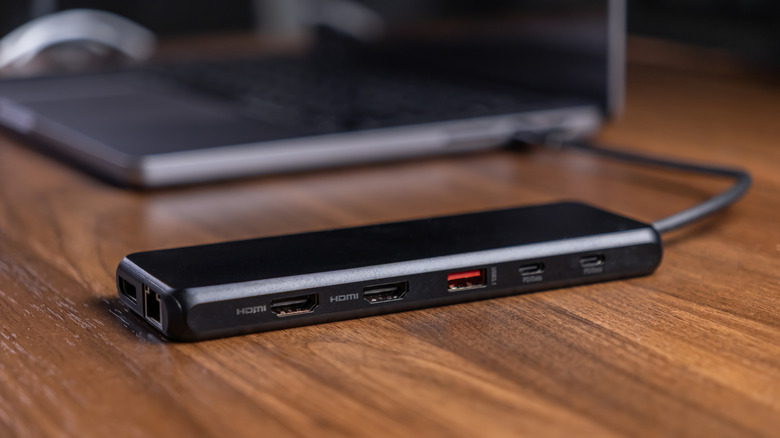
The concept of a computer docking station isn't exactly new or novel; USB-powered docks have been a thing in offices for years. Today, the best docking stations use the Thunderbolt port to supercharge everything about a PC dock, thanks again to the higher speeds and capacities available with Thunderbolt ports.
Leading Thunderbolt docks support nearly any connection you could expect, including full 4K, high-refresh monitor support (to multiple monitors), gigabit-level internet speeds through a hard-wired internet port, additional HDMI and Thunderbolt display options, plus high-speed transfers from multiple USB-C ports. That 80 gigabits per second theoretical capability of Thunderbolt 5 we mentioned earlier is the secret here, as it allows your PC to split into all of those inputs and outputs on an external dock.
Thunderbolt docks also allow pass-through charging, so not only can your laptop charge through this port, but then it frees up ports on your dock to charge other devices like your phone or other accessories. It sort of serves as the all-in-one port for your desk setup, and means you only have to plug in a single port to connect sometimes more than a dozen different peripherals.
How we chose the use-cases on this list
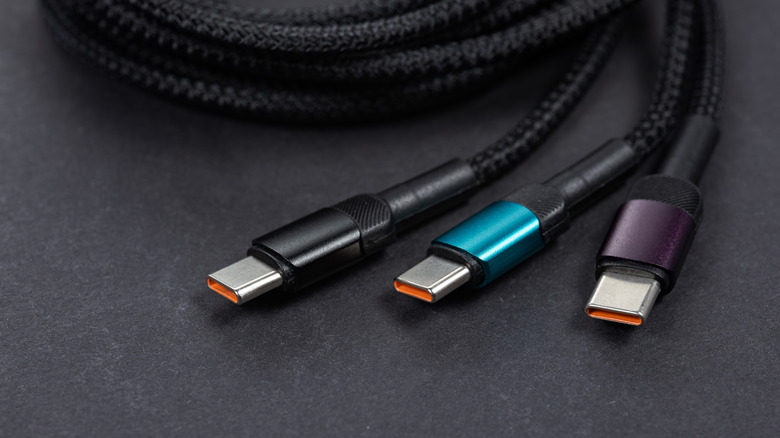
Thunderbolt ports look the same as a USB-C port, and thankfully they are "backwards compatible," meaning you can still plug USB-C devices into them. However, for this list, we kept all of our uses strictly focused on things best served through the Thunderbolt protocol, for its high capacity and transfer speeds.
We also wanted to make sure all of these uses could be considered "clever." What does that mean? While you may know that a Thunderbolt port is a great way to connect an external drive, we wanted to take it a step further and offer some unique uses for that external drive that you may not have thought of. Similarly, we wanted to expand on just how truly impressive a Thunderbolt-friendly dock can be for port selection. That way, we could hopefully provide you with new and unique ways to expand your Thunderbolt-equipped machine to do more for you.