

5 Things You Never Knew Google Photos Could Actually Do
Whether you're on Android or iOS, there's a good chance you're already familiar with Google Photos. Everyone knows it's one of the best cloud storage options for photos and videos. It also works particularly well as a sleek media library, keeping your shots organized in a clean and scrollable layout sorted by date. Beyond storage and organization, the app even doubles as a basic editor for both your pictures and clips. But all these are just the basics of what Google Photos can do.
Over the past several years, Google has upgraded the app with some nifty features to further improve the user experience. In fact, the app's 10-year anniversary also brought brand new AI features to Google Photos in 2025. If you dig through the menus, you'll find much more than the standard functionalities that the app has been well-known for. We've rounded up five of these underrated but must-try Google Photos features, some of which are available on both the Android and iOS versions while others are exclusive to one platform.
Transcribe handwritten text more accurately than Google Lens
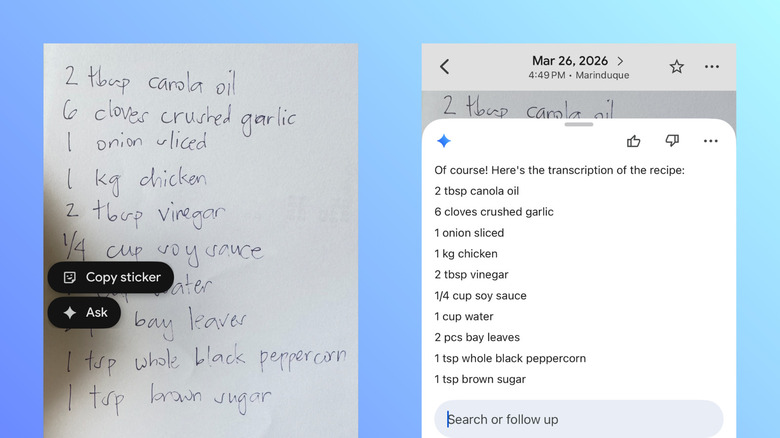
Google Lens integrated into Google Photos comes in handy for many things, but in terms of copying handwritten text to digital, you might get some nonsensical words from time to time. This is especially true when the handwriting isn't as clear as printed words. But luckily, there's one hidden Google Photos feature that's more accurate than Google Lens for transcribing handwritten text: Ask Photos.
Ask Photos is powered by Gemini and was originally designed for smarter searching on Google Photos, but you can actually ask it to analyze and convert handwriting too. The transcription can then be used as is or as part of your follow-up requests — maybe you want to format the text into a list, a guide, or a paragraph, or perhaps you need an interpretation of what the handwritten text means or what it's for. To use Ask Photos on Google Photos, follow these steps:
- Open the image of the handwritten text on Google Photos.
- Long-press on it.
- Select Ask from the popup menu.
- In the textbox, type "Transcribe this."
- Wait for the response.
- To copy the converted text, press and hold at the start of the text, drag the selection handles, and then hit Copy.
- To ask anything else about the image or format the output, just type your prompt like usual.
That said, the Ask Photos feature is much more capable than just transcribing your handwritten notes — you can use it to generate image descriptions, find out more about the holiday destination you saw in your feed, ask follow-up questions, and more.
Put music into your video
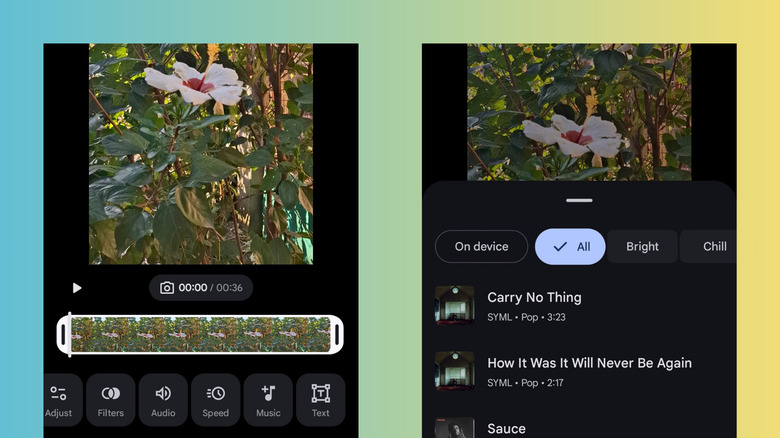
Sometimes, you want to be creative with your personal videos and add a soundtrack before posting it online. Or maybe you'd like to replace the original audio with a song to hide distracting background noise. While video editor apps are great for this, Google Photos can actually do the job just as fine. In fact, Google Photos has become a great CapCut alternative, because of all its editing features. Unfortunately, though, this feature is limited to Android devices as of this writing. If you're an Android user, here's how to add music to your videos:
- Launch Google Photos.
- Open your video.
- Tap Edit.
- Scroll to the Music option at the bottom.
- Find your music of choice from the available options. If you have your own music downloaded to your device, check On device.
- Tap on the music to play a preview.
- Hit Select to add it to the video.
- Drag the selection box to your preferred section of the song.
- Press the checkmark to save it.
You can then further edit the sound of your video before pressing Save. To adjust the volume of the original sound and your added music, go to Volume. Drag the volume slider for either audio, or press the icon directly under Mute to remove the original sound and leave your music only. To choose a different music, hit Change and pick a new song. To delete the music from the video, tap Remove. You can then press the play icon in the bottom-left corner of the video to check how the video will sound. Once you're happy with your edit, click on the checkmark and tap Save.
Make a Reel from your photos and videos with less effort
Vertical short videos like Reels, Stories, and TikTok clips are arguably the best way to share content on the internet today. But the problem is, making them requires quite the effort — you'd have to format the content, add music, set the timing, place text, and polish everything before it would be ready for posting.
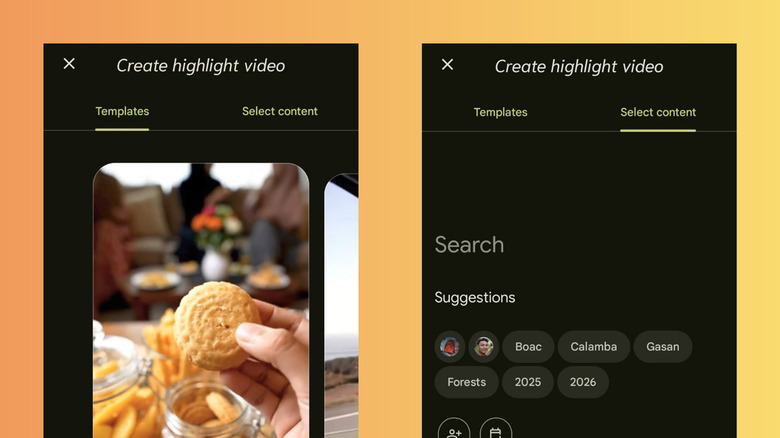
If you're looking for an easier way to create short-form videos on your phone, Google Photos might just have the hidden feature for you. The Highlight Video option in the Create tab offers templates that already do half the work for you, making video creation quick and effortless. Follow this guide to use it:
- In your Google Photos app, head over to the Create tab at the bottom.
- Open Highlight video.
- Browse through the provided templates.
- Hit Use template.
- Choose your preferred pictures and videos. You can only add as many as the template allows (shown at the top of the selection panel).
- Tap on Next.
- Edit the templated video with tools like Resize, Adjust, Audio, Music, and Text.
- Press Save to save the video.
If you're confused about which photos and videos should be in the highlight video, there's also an option to let Google Photos pick for you. In the Highlight video page, go to the "Select content" tab and search for a theme. It can be a specific location, year, or person. You can also search for other things like flowers, sunset, hug, or even swimming. Feel free to add more than one theme at the same time. From here, Google Photos will automatically scan your library for photos and videos that match the themes you chose. You can still edit the generated highlight video like you would the templated videos afterward.
Create a sticker
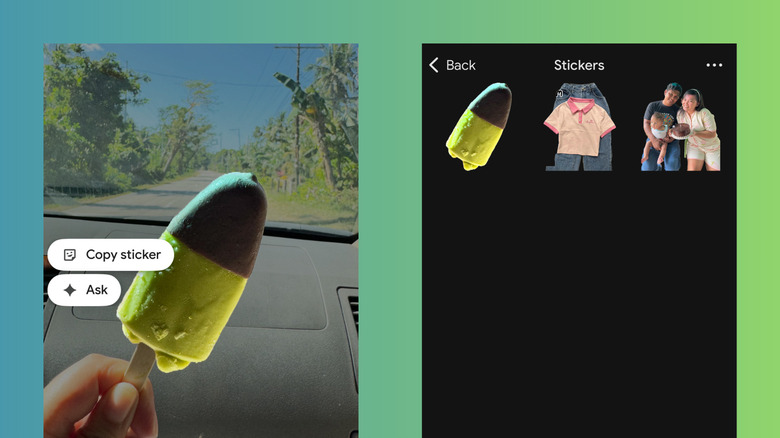
If you've had an iPhone for a while now, you might already be enjoying making custom stickers from your photos. This useful iOS feature has been around since iOS 17, released in 2023. But the fun feature has finally arrived to Android via Google Photos. It works just like the iOS version, which lets you extract the prominent subject from the photo and paste it anywhere on your device without a background. You can use it as a text message (if attachments are available for that conversation), as a post on social media, and even as a search query on Google. Here's what you need to do to make a sticker out of your pictures:
- Go to Google Photos.
- Tap on the image you want to turn into a sticker.
- Touch and hold anywhere in the photo. You'll see a shiny outline around the subject, so you'll know exactly what the sticker will look like.
- Choose Copy sticker.
- Launch your app of choice.
- Paste the sticker to the app as you normally would any copied text or photo.
All the stickers you created can be found in the Stickers album in the Collections tab. Just like your regular photos, they're also backed up automatically to the cloud. If you want to use your saved stickers at a later date, simply go to Collections and open the Stickers album. Then, choose your sticker and tap on Copy. From here, you can also share the sticker with a contact or app or delete it from your library altogether.
Share Google Photos albums via QR codes
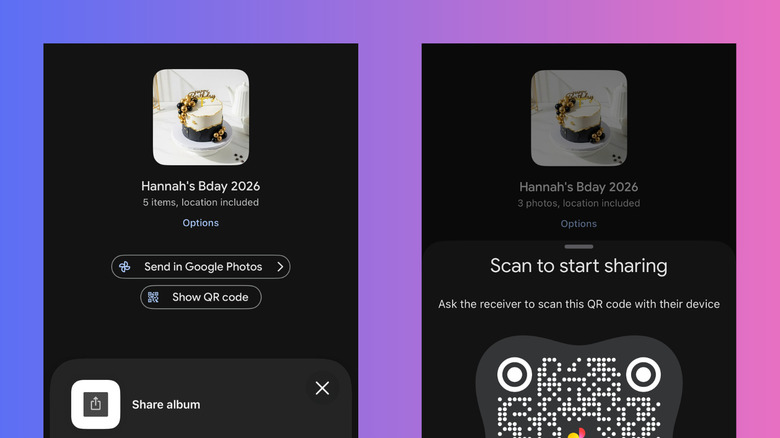
The best part about Google Photos is that your pictures and videos aren't strictly exclusive to you. You can choose to share an album with others. This feature can come in handy when you're at a family reunion, nature hike with friends, or a company retreat. During such times, you'd want to have all the photos and videos you took to be accessible to anyone.
But you really won't have to bother people with clunky links that they'd have to copy and paste elsewhere. They can simply scan a QR code that will redirect them to your album. Here's how to generate a QR code for your shareable Google Photos album:
- Open Google Photos.
- Tap the plus icon in the upper-right corner.
- Under Create new, select Album.
- Type a title for your album.
- Hit Select photos.
- Mark the photos and videos you want to add to the album.
- Press Add.
- Go to the created album.
- Click the share icon at the bottom.
- Tap Show QR Code.
- When prompted, hit Create link.
A QR code will then pop up on your screen after a few moments. Let anyone you want to share the album with scan the QR code. You can also take a screenshot of the code, print it, and then hang it up in your event space for easy scanning later.
When your receiver opens the Google Photos album, they're free to interact with any of the content in the album. They can leave a comment, like the photo or video, and save it to their device. They can even opt to add their own media to the album by manually choosing the photos and videos or selecting the "Automatically add" option to add photos of certain people or pets.