

5 Things In Your Home That Might Be Interfering With Bluetooth Connections
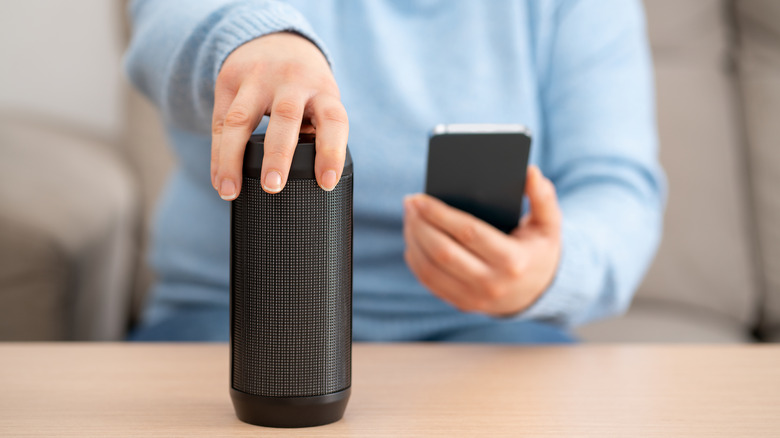
In the past two decades, Bluetooth has become an integral part of our daily lives, seamlessly handling everything from connecting devices to sharing files. But sometimes, you might notice frequent drops in connection or poor signal strength, among other common Bluetooth problems. This can be due to objects and appliances around the house interfering with Bluetooth connections.
Apart from concrete and wooden walls, everyday devices like Wi-Fi routers, microwave ovens, some smart home devices, and even USB 3.0 ports can interfere with the Bluetooth signals. Bluetooth typically operates on the 2.4 GHz band, which is also used by many Wi-Fi routers and other household gadgets.
The problem is that the source of disruptions isn't always obvious and, as a result, most people fail to fix Bluetooth interference. Many confuse frequent drops with low battery levels or hardware malfunctions, while a device sitting right next to you could be responsible for this. So, whenever you face issues with Bluetooth connectivity, it's vital to look around the house for appliances that could be disrupting the signals.
Wi-Fi routers
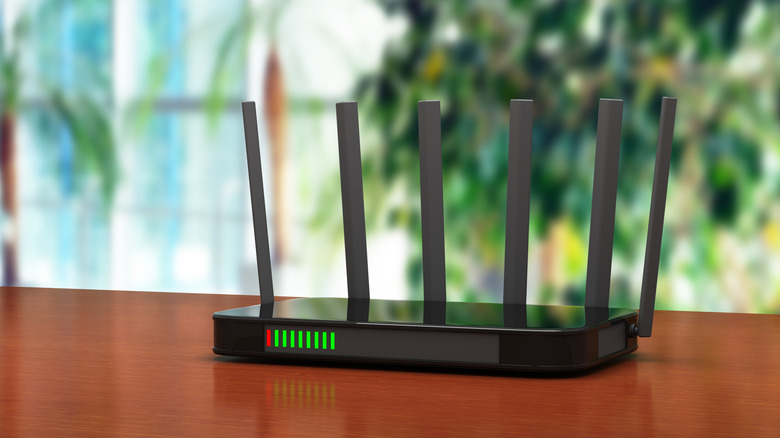
One of the most common sources of Bluetooth interference in your home is the Wi-Fi router. Many old routers operate solely in the 2.4 GHz range, while even new ones support both 5 GHz and 2.4 GHz, which overlaps with Bluetooth's frequency band. When too many devices are connected to the Wi-Fi, it may create a scenario where signals constantly clash with each other, leading to frequent drops.
The problem becomes more noticeable when the Bluetooth device is placed in close vicinity of a Wi-Fi router. For instance, if you have Bluetooth-supported speakers or headphones placed on your workstation, which also houses the router, there could be issues with connectivity.
As more household devices now require constant and fast internet connectivity, there's not much you can do to avoid Bluetooth interference. But with optimal device and router placement, keeping Bluetooth devices at least three feet away from the Wi-Fi router and switching to the 5 GHz band on your router, you can largely minimize signal disruptions. Besides, if your router only supports the 2.4 GHz band, you may need to upgrade to stop the signal interference.
Microwave ovens
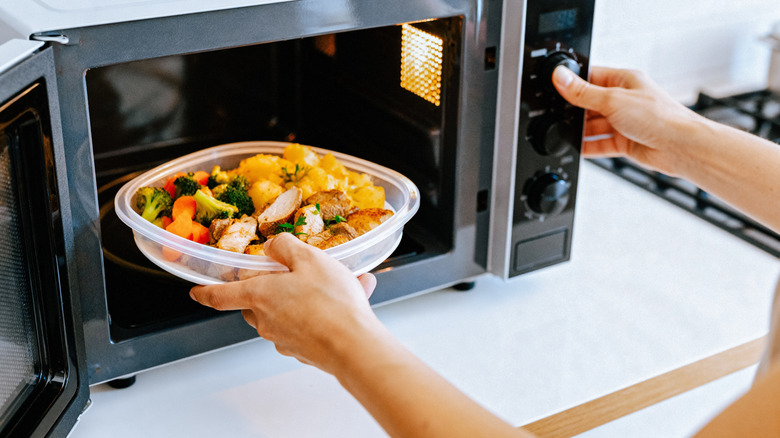
Microwaves are a common household appliance known to cause Bluetooth interference. You may have noticed frequent drops in connectivity when using Bluetooth devices like headphones near your microwave. This is because microwaves emit electromagnetic radiation in the 2.4 GHz range. Even though they are shielded to prevent this radiation from leaking, some waves still escape, causing Wi-Fi interference as well. The problem is likely to be more noticeable in smaller kitchens, where the waves are confined to a limited space. In bigger kitchens, the disruption may not be as pronounced.
The fix for this is just as simple. First, avoid using Bluetooth devices like headphones near microwaves, especially when the latter is operational. If it's a stationary device like a speaker, you can increase its distance from the microwave. Even separating them by a few feet is likely to do the trick for most users. If both of these are not options, you should consider upgrading to Bluetooth 5.0 or later devices, as these offer superior connectivity.
Smart home devices
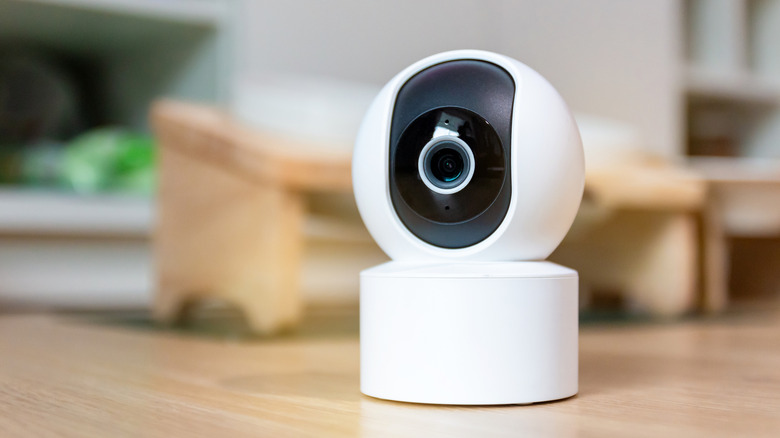
Modern homes are filled with smart devices, whether it's security cameras, voice assistants, baby monitors, or smart plugs and lights, and most operate on the same 2.4 GHz band used by Bluetooth. So, when there are too many of these, you are more likely to face disruption in Bluetooth connectivity. Even older fluorescent lights may emit waves that affect Bluetooth connections, though it's usually not as pronounced.
To avoid Bluetooth interference from smart devices, switch supported devices to the 5 GHz band on your router. This will minimize congestion on the 2.4 GHz band. Additionally, you can keep them at a distance from one another if possible. Lastly, turn off devices that are not actively used. For instance, you can turn off fluorescent lights when the sun's still around. If you have a baby monitor, turning it off when the child is not nearby will reduce disruptions, extend the lifespan of the device, and also help reduce your power bill.
Large aquariums or water tanks
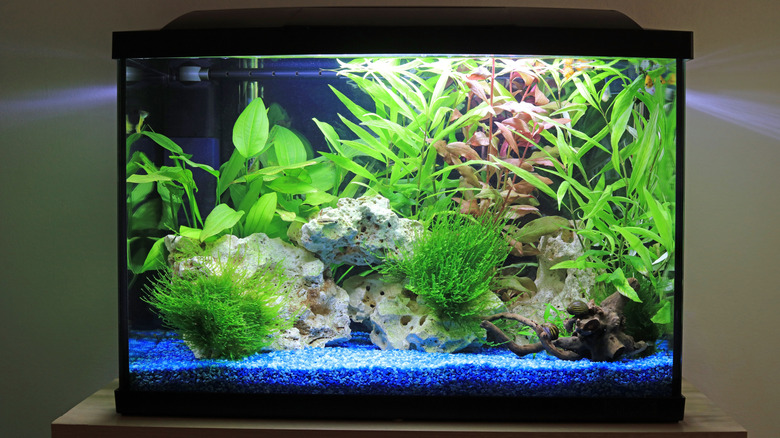
As surprising as it may sound, Bluetooth signals struggle to pass through water and get absorbed. So, if there's a large water fountain or aquarium next to a Bluetooth device, you are likely to face some level of interference. The human body, which is also largely made of water, can affect connectivity. You may have noticed that simply standing between two Bluetooth devices can make the connection weaker. Water is the reason behind this. Even an increase in humidity can theoretically impact connectivity, though the effects typically go unnoticed.
Unlike devices where switching to a different Wi-Fi network helps, countering Bluetooth interference due to water requires rearranging how the devices are placed. If you have an aquarium or water tank in the house, make sure the devices are placed on the same side of it. Additionally, as was the case earlier, you can switch to devices built on newer standards like Bluetooth 5.0 to compensate for the signal loss as the new standard offers much better range.
USB 3.0 ports, cables, and devices
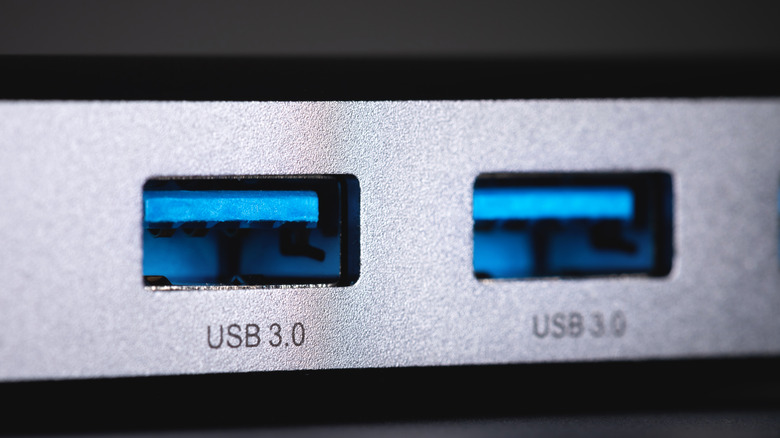
USB 3.0 ports are a lesser-known cause of Bluetooth interference, but sometimes, this can be a real pain, especially when you start facing issues with mice, keyboards, or headphones connected to the PC. This happens because USB 3.0 ports may generate electromagnetic noise in the 2.4 GHz range. Studies show that connecting a USB 3.0 device can cause a wireless mouse to lag, especially when it's placed at a distance of three to five feet from the system and when there's no proper protection in place.
While manufacturers have been offering better shielding of ports and devices, you also need to take a few steps to minimize the interference. This includes plugging the device's receiver into a USB 2.0 port. If possible, try connecting the device to a USB 2.0 port on the other side of the PC from the USB 3.0 port. Apart from that, using USB hubs or better-shielded cables can also help.