

How Often Should You Back Up Your PC?
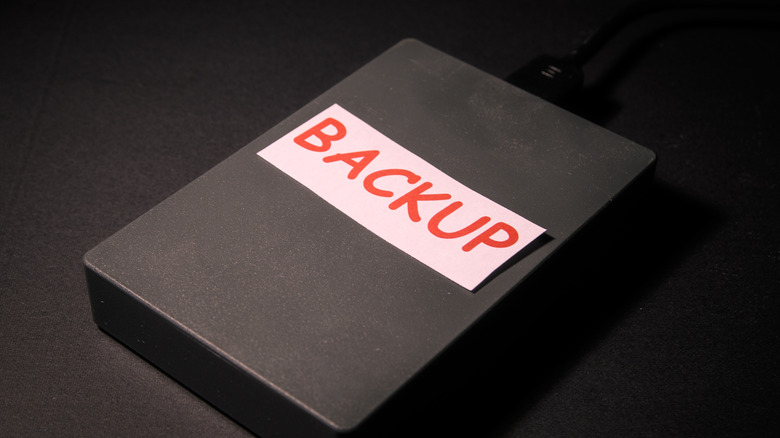
Computers have become a daily device in many of our lives, containing data such as documents, photos, videos, and even our offline music libraries. While there has been some debate about whether SSDs or hard drives are more reliable, the harsh truth of the matter is that your storage device can fail at any time. As such, it is always best to ensure you keep your data protected, in case anything happens to your PC or peripheral storage. One of the best ways to protect your data from corruption and other possible data losses is to back up your PC. Many computers already offer ways to back up your data — Macs can use iCloud, while Windows users can utilize OneDrive to sync files. But how often should you back up your PC, and are services like iCloud and OneDrive enough?
First, let's talk about how often you should back things up. Ideally, you want to do this on a regular schedule. This can mean once a day or once a week, depending on who you ask. Most experts say that how often you back up may change depending on how much data you're working with. If you run a business where you have a lot of data changes happening, then backing up daily is recommended to help avoid any extravagant losses of data. However, most people's personal computers should be backed up once a week. It's also a good idea to run a backup after downloading important new files or making big changes to files or media, so you don't lose that work if something goes wrong.
Follow the 3-2-1 rule
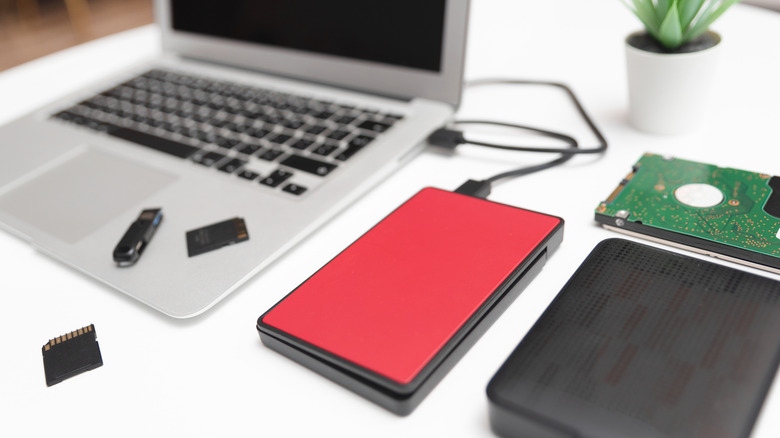
If you're new to backing up your PC, or just trying to create a better strategy, then many experts recommend using the 3-2-1 rule. This rule has been around for a while now, and it basically means you keep three copies of your data, with your data stored on two different types of media or devices, and one copy in the cloud. This helps provide fallback points for your data should you be struck by any damaging malware or if your storage drive fails.
The first copy of your data is going to be the original stored on your local machine. The second should be stored on another type of device, such as a flash drive or external hard drive. Finally, the third copy of your data should be stored off-site, which usually means in the cloud, using a service like Google Drive or another similar service. Depending on how hardcore you want to go with your backups, you could just upload the individual files or folders you want through a service like OneDrive or iCloud. Or, if you want to be more thorough and back up everything, then you can try creating a system image on Windows or using Time Machine on Mac. iCloud backups of your phone can work similarly, too, by creating a copy of your phone's setup at a moment in time for easy recovery later on. You can even add end-to-end encryption to iCloud backups.
It's important to remember that these types of backups can include larger files, as they create a backup of your entire system, including your apps. That size means they might take a while to create and upload, and of course, they'll use a decent hunk of your cloud storage quota, too.
Back up your files, don't just sync them

Utilizing the cloud is an important part of backing up your PC. But whether you use iCloud, OneDrive, Google Drive, or another service with your regular backups, you'll want to ensure you are backing up the data and not just syncing it. That's because most of these tools allow you to update your data automatically so that you can always access the most recent version of a file on any connected device. This can be useful, especially if you need to share files with others, but syncing and backing up are not the same, and these tools might not always get all the files you need to back up.
Syncing means taking the current version of a file and uploading it to the cloud so that version can be accessed anywhere else, and changes made to the file can be reflected everywhere it is available. That means if you have a document tracking books you want to read and you update it on your PC and then sync it, that exact same version will be available everywhere you access it. Then, if you update it again on another device, the updated file will be synced to the cloud and available everywhere once more.
A backup, on the other hand, is more like taking a snapshot of the file in that exact moment and then storing it somewhere safe, where that copy of the file isn't changed at all until you replace it with a future backup. It's a safety net in case something goes wrong with future changes to the file. Both syncing and backing up files have their perks, but you should always keep a backup of important files safely stored away in case you incur any data losses.